
Modern smartphones are powerful tools capable of handling everything from video editing to online meetings. Yet, working on a small screen limits efficiency. Fortunately, mirroring or projecting your phone’s display onto a larger PC monitor enhances visibility, streamlines workflows, and improves user experience. Whether you're troubleshooting an app, giving a presentation, or simply want more screen real estate, this guide delivers practical, tested methods to mirror your phone to your PC—wired and wireless—with minimal setup.
Why Mirror Your Phone Screen to PC?
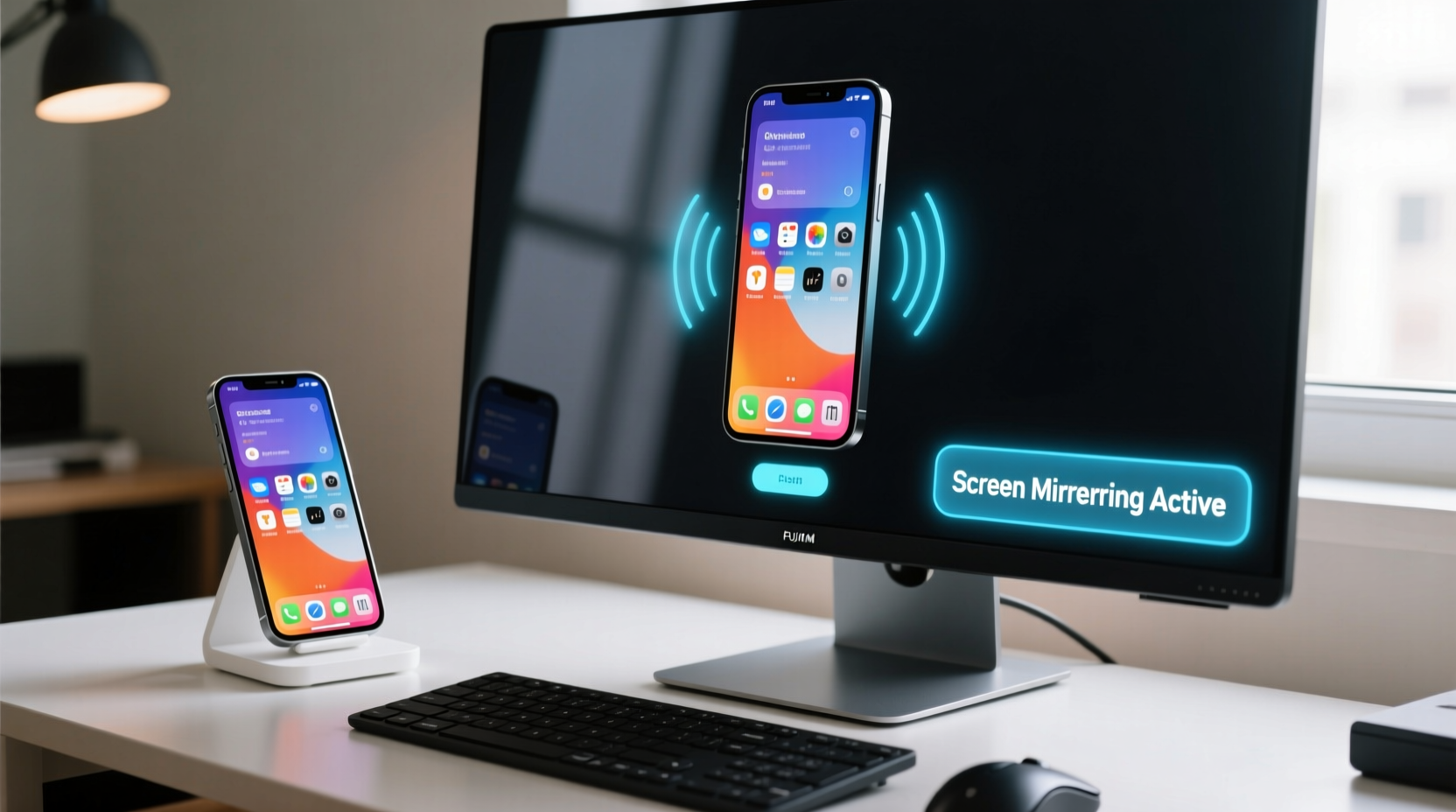
Mirroring isn’t just for tech enthusiasts. Professionals use it during remote collaboration, educators demonstrate mobile apps in virtual classrooms, and developers test responsive designs across devices. A larger screen reduces eye strain, allows drag-and-drop file transfers, and enables precise control when using touch-based apps.
Additionally, streaming gameplay, managing messages with a keyboard, or controlling your phone from a distance becomes far more efficient. The ability to interact with your smartphone interface using a mouse and keyboard transforms how you use mobile technology.
Wired vs. Wireless: Choosing the Right Method
The decision between wired and wireless mirroring depends on your priorities: stability, convenience, or speed. Wired connections offer lower latency and consistent performance, ideal for real-time tasks like gaming or live demos. Wireless options provide flexibility but may suffer from lag or connectivity drops if Wi-Fi is weak.
Consider your environment. In a busy office with multiple networks, a USB connection avoids interference. At home, casting wirelessly might be sufficient for casual browsing or media playback.
“Screen mirroring over a stable 5GHz Wi-Fi network can rival wired performance—if properly configured.” — David Lin, Network Systems Engineer
Step-by-Step: Mirroring Android Devices
Android offers several built-in and third-party solutions for screen sharing. Here's how to do it effectively:
Method 1: Using Scrcpy (Recommended for Power Users)
Scrcpy is an open-source tool developed by Genymobile that mirrors and controls Android devices via USB or TCP/IP. It requires no ads, costs nothing, and runs smoothly even on older PCs.
- Enable Developer Options on your phone by tapping Build Number seven times in About Phone.
- Turn on USB Debugging under Developer Options.
- Download Scrcpy from the official GitHub repository.
- Connect your phone via USB and allow debugging when prompted.
- Run the Scrcpy executable; your screen appears instantly on PC.
For wireless use, connect via ADB over Wi-Fi after initial USB setup. Type these commands in Command Prompt or Terminal:
adb tcpip 5555
adb connect [your-phone-ip]:5555
scrcpy
Method 2: Samsung Flow / Your Phone (Windows Integration)
If you own a Samsung device, Samsung Flow lets you mirror your screen directly into Windows 10/11 with native integration. For other Android phones, Microsoft’s Your Phone app supports limited mirroring (available only in select regions).
- Install “Your Phone” on Windows and the companion app on your Android device.
- Sign in with the same Microsoft account.
- Navigate to the Phone Screen tab and click “Start Now.”
- Follow pairing instructions and grant necessary permissions.
Note: Full-screen mirroring may require a Samsung Galaxy phone for optimal functionality.
Displaying iPhone Screens on PC
Unlike Android, iOS doesn’t natively support direct screen mirroring to Windows. However, third-party software bridges this gap effectively.
Method 1: Using ApowerMirror
ApowerMirror is one of the most reliable cross-platform tools for mirroring iPhones to PC. It supports both USB and Wi-Fi connections.
- Download and install ApowerMirror on your Windows PC.
- Install the ApowerMirror app from the App Store on your iPhone.
- Connect both devices to the same Wi-Fi network.
- Launch both apps and tap “Mirror” on your iPhone.
- Select your PC from the list of available devices.
You can also connect via USB for reduced latency. Once connected, you can record the screen, take screenshots, and even control the phone using your mouse and keyboard.
Method 2: AirPlay with Reflector or LonelyScreen
AirPlay is Apple’s proprietary streaming protocol. While Macs support it natively, Windows users need compatible receiver software.
- Reflector: Paid but highly stable. Acts as an AirPlay receiver. Install it on your PC, then swipe up from your iPhone’s Control Center, tap Screen Mirroring, and select your PC.
- LonelyScreen: Free alternative, though less polished. Setup is similar but may struggle with HD content.
Ensure both devices are on the same network and disable Bluetooth interference for smoother performance.
Comparison of Popular Mirroring Tools
| Tool | Platform | Connection Type | Latency | Cost |
|---|---|---|---|---|
| Scrcpy | Android | USB/Wi-Fi | Low | Free |
| Your Phone App | Android (Limited) | Wi-Fi | Medium | Free |
| Samsung Flow | Samsung Only | Wi-Fi/Bluetooth | Low-Medium | Free |
| ApowerMirror | iOS & Android | Wi-Fi/USB | Medium | Paid (Free Trial) |
| Reflector | iOS | Wi-Fi | Low | Paid |
Real-World Example: Teaching Mobile Design Remotely
Jessica, a UX instructor based in Toronto, teaches mobile prototyping to students across North America. She needed a way to demonstrate gesture navigation, tap targets, and responsive layouts clearly during Zoom sessions. Initially, she recorded her phone and uploaded clips—delaying feedback by hours.
After switching to Scrcpy for Android demonstrations and Reflector for iOS examples, she began mirroring her screen live during class. Students could see subtle interactions in real time, ask questions mid-demo, and replicate actions immediately. Engagement increased by 40%, and assignment accuracy improved significantly.
Her setup: a mid-range laptop, USB-C cable, and stable 5GHz Wi-Fi. Total cost: $0.
Essential Tips for Smooth Performance
- Close unused apps on your phone before mirroring to free up RAM and processing power.
- Use a high-quality USB cable—faulty wires cause disconnections and poor data transfer.
- Reduce screen resolution in Scrcpy (
scrcpy --max-size 720) to improve frame rate on slower systems. - Disable battery optimization for mirroring apps to prevent unexpected shutdowns.
- Position your router centrally to minimize Wi-Fi latency during wireless casting.
FAQ
Can I use my PC keyboard to type on my mirrored phone?
Yes—most advanced tools like Scrcpy, ApowerMirror, and Samsung Flow support full keyboard and mouse input, enabling seamless text entry and navigation.
Is screen mirroring safe? Can others see my screen?
When using trusted tools and secure networks, mirroring is safe. Avoid public Wi-Fi for wireless casting, and always revoke access from unknown devices. Never enable USB debugging unless you trust the connected computer.
Does mirroring drain my phone battery quickly?
Yes, especially over Wi-Fi. Keep your phone plugged in during extended sessions. Wired connections often charge the device simultaneously, preventing battery drop.
Final Checklist Before You Start
- ✅ Ensure both devices are updated to the latest OS version.
- ✅ Connect to the same Wi-Fi network (for wireless methods).
- ✅ Enable Developer Options and USB Debugging (Android).
- ✅ Install required software on both phone and PC.
- ✅ Test the connection with a short session before relying on it for critical tasks.
Conclusion
Mirroring your phone screen to a PC is no longer a luxury—it’s a productivity necessity. With the right tools and settings, you can turn your desktop into an extension of your mobile workspace. Whether you’re presenting, teaching, coding, or just enjoying content on a bigger screen, these methods eliminate friction and unlock new possibilities.




 浙公网安备
33010002000092号
浙公网安备
33010002000092号 浙B2-20120091-4
Comments
No comments yet. Why don't you start the discussion?