
Downloading YouTube videos on a Mac can be a convenient way to access content offline—whether for educational purposes, language learning, travel entertainment, or archiving meaningful talks and tutorials. While YouTube Premium offers offline playback, it comes with limitations: videos expire, require periodic re-downloading, and only work within the app. For greater control, many users seek alternative methods. The key is doing so safely, efficiently, and in a way that respects copyright and device security.
This guide explores reliable, up-to-date techniques for downloading YouTube videos on macOS using trusted tools and smart workflows. You’ll learn how to avoid malware-laden websites, preserve video quality, organize your downloads, and stay compliant with ethical usage standards.
Understanding the Legal and Ethical Boundaries
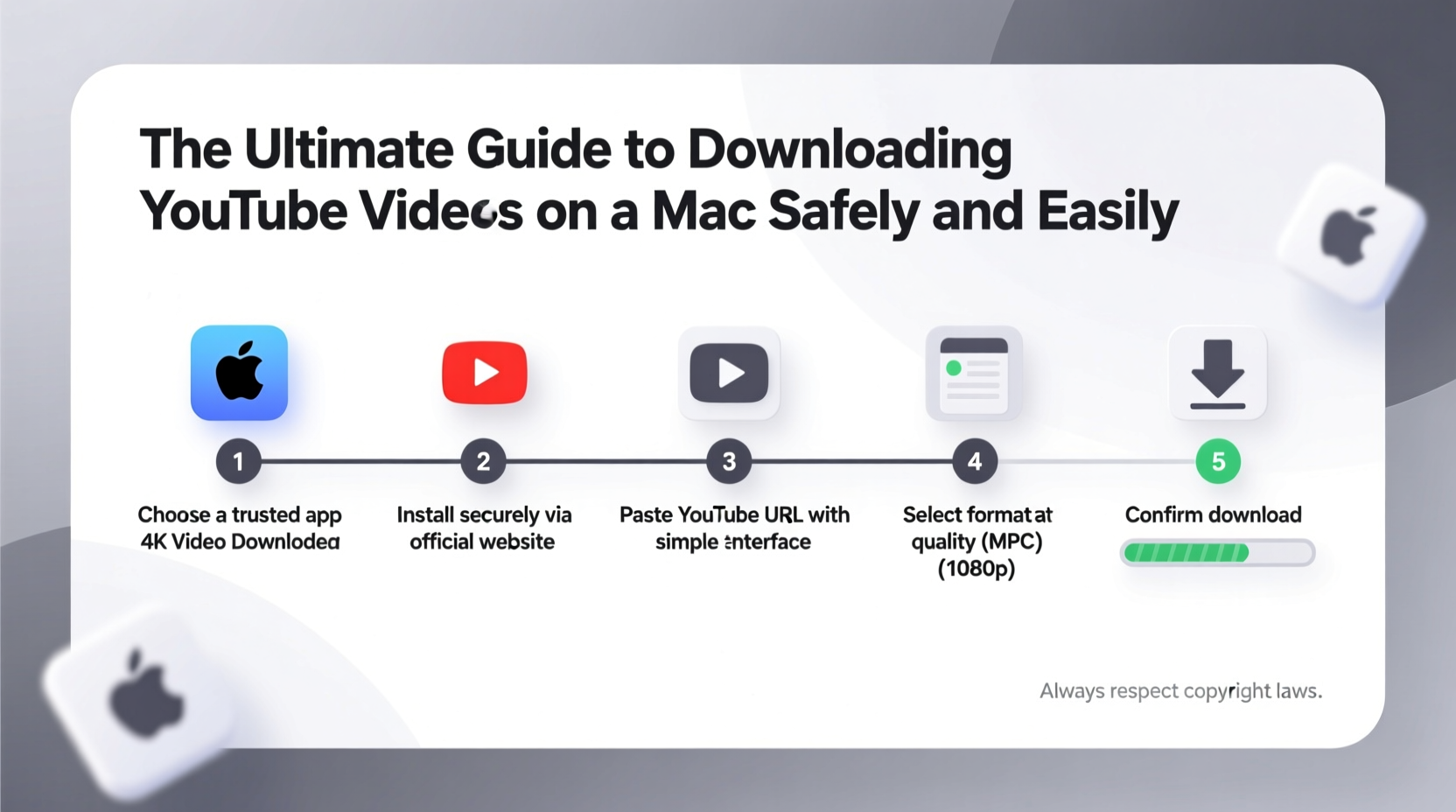
Before diving into technical steps, it’s essential to clarify the legal landscape. YouTube’s Terms of Service prohibit downloading content unless a download button is provided by the platform (as in YouTube Premium). However, enforcement typically targets mass redistribution or commercial misuse, not personal, non-distributed offline viewing.
The U.S. Digital Millennium Copyright Act (DMCA) allows limited exceptions for personal use, research, criticism, and education under “fair use.” Still, downloading full-length copyrighted movies, music videos, or paywalled content without permission remains legally gray.
“Downloading for personal backup or offline study falls into a gray zone—but redistributing or monetizing downloaded content crosses a clear legal line.” — James R. Lewis, Digital Rights Attorney
To stay responsible:
- Download only content you have a legitimate reason to keep offline.
- Avoid pirated material or videos behind subscription walls.
- Never upload or share downloaded videos publicly.
Safe and Effective Tools for Mac Users
Not all YouTube downloaders are created equal. Many free online converters inject ads, harvest data, or bundle malware. The safest approach uses open-source, reputable software or browser-based tools with transparent privacy policies.
Top 5 Trusted Methods Compared
| Tool/Method | Type | Quality Support | Safety Level | Cost |
|---|---|---|---|---|
| yt-dlp (command-line) | Open-source tool | Up to 4K HDR | ★★★★★ | Free |
| Downie 4 | Mac-native app | 8K support, subtitles | ★★★★☆ | Paid ($39) |
| Permute 4 | Multimedia converter | High (via yt-dlp) | ★★★★☆ | Paid ($39) |
| Online-Convert.com | Web-based | Up to 1080p | ★★★☆☆ | Freemium |
| ClipGrab (discontinued) | Desktop app | Limited | ★☆☆☆☆ | Free (not recommended) |
For most Mac users, Downie 4 strikes the ideal balance: polished interface, batch downloads, playlist support, and regular updates. It integrates directly with Safari, Chrome, and Firefox, allowing one-click downloads from any YouTube page.
Step-by-Step: Downloading with Downie 4
Here’s how to set up and use Downie 4—the most user-friendly option for everyday Mac users.
- Download and Install: Visit
software.charliemonroe.net/downieand download the latest version. Drag the app into your Applications folder. - Launch Downie: Open the app. On first run, it may prompt you to install helper components—allow this for full functionality.
- Copy a YouTube URL: Go to any public YouTube video or playlist and copy its address from the browser bar.
- Paste into Downie: Switch to Downie and paste the link (Cmd+V). The app will analyze the video and display available formats.
- Select Quality: Choose from options like 720p, 1080p, or higher if available. Enable “Add metadata” for better file organization.
- Start Download: Click “Download.” Files save to your default Downloads folder unless changed in Preferences.
- Access Your Video: Once complete, find the file in Finder. It plays in QuickTime, VLC, or any standard player.
Advanced Option: Using yt-dlp via Terminal
For technically inclined users, yt-dlp—a powerful fork of youtube-dl—is the gold standard. It supports thousands of sites, handles age-restricted content (with login), and extracts audio-only formats like MP3.
Installation Steps
- Install Homebrew (if not already): Open Terminal and run:
/bin/bash -c \"$(curl -fsSL https://raw.githubusercontent.com/Homebrew/install/HEAD/install.sh)\" - Install yt-dlp:
brew install yt-dlp - Download a video:
yt-dlp -f \"bestvideo+bestaudio\" \"https://www.youtube.com/watch?v=example\" - To extract audio as MP3:
yt-dlp --extract-audio --audio-format mp3 \"VIDEO_URL\"
yt-dlp runs silently in the background and outputs high-quality, unmodified files. It’s updated frequently to bypass new restrictions, making it resilient over time.
Mini Case Study: Language Learner’s Workflow
Sophie, a French student in Montreal, uses YouTube to practice listening skills. She downloads TED Talks and vlogs at 1.5x speed for daily commutes. Using Downie, she batches entire playlists titled “French Immersion,” tags them with keywords, and imports them into her iPad via AirDrop. By watching offline during subway rides, she gains two extra hours of immersion weekly—without draining data or relying on spotty Wi-Fi.
Her rule: never download full courses or paid content. Only public videos used for personal study.
Best Practices and Safety Checklist
To ensure every download is secure and sustainable, follow this checklist:
- ✅ Use only well-reviewed, regularly updated software (e.g., Downie, Permute, yt-dlp).
- ✅ Avoid .dmg files from unknown sources—stick to official websites.
- ✅ Disable ad-blocker pop-ups when visiting online converters; they often mask malicious scripts.
- ✅ Scan downloaded apps with Gatekeeper or Objective-See tools like KnockKnock.
- ✅ Store videos in a dedicated folder with clear naming (e.g., “2024-04_TED_Talk_Artificial_Intelligence.mp4”).
- ✅ Delete files after use to respect creators and save space.
“Security starts with source trust. If you wouldn’t hand your password to a website, don’t let it run code on your Mac.” — Lin Ma, macOS Security Researcher
Frequently Asked Questions
Can I get in trouble for downloading YouTube videos?
Personal, non-commercial downloads for offline viewing exist in a legal gray area. While rare, copyright holders can issue takedowns. Avoid downloading paid, subscription-only, or clearly pirated content to minimize risk.
Why won’t some videos download?
Age-restricted, private, or region-blocked videos often fail. Some tools (like yt-dlp) allow authentication to bypass these, but only do so with accounts you own and for content you’re authorized to access.
How do I convert videos to MP3 safely?
Use yt-dlp with the --extract-audio --audio-format mp3 flags, or import the downloaded video into Permute or Audacity. Avoid online “YouTube to MP3” sites—they frequently host malware.
Final Thoughts and Smart Habits
Downloading YouTube videos on a Mac doesn’t have to mean compromising security or ethics. With the right tools and mindset, you can build a personal library of valuable content—tutorials, documentaries, music performances, and more—while staying safe and respectful of creators’ rights.
Whether you choose the simplicity of Downie or the power of yt-dlp, consistency and caution matter most. Update your tools regularly, verify sources, and keep downloads purpose-driven. Over time, this approach saves bandwidth, enhances accessibility, and gives you true ownership of your digital experience.




 浙公网安备
33010002000092号
浙公网安备
33010002000092号 浙B2-20120091-4
Comments
No comments yet. Why don't you start the discussion?