
Google Photos has become the go-to cloud storage solution for millions of users worldwide, offering generous free storage and seamless syncing across devices. But what happens when you want to take full ownership of your digital memories? Whether you're switching platforms, backing up your archive, or simply securing your data, downloading all your Google Photos at once is a smart move. While Google doesn’t offer a one-click “Download All” button in its standard interface, there are reliable, efficient methods to retrieve your entire photo library without missing a single file.
Why Download Your Entire Google Photos Library?
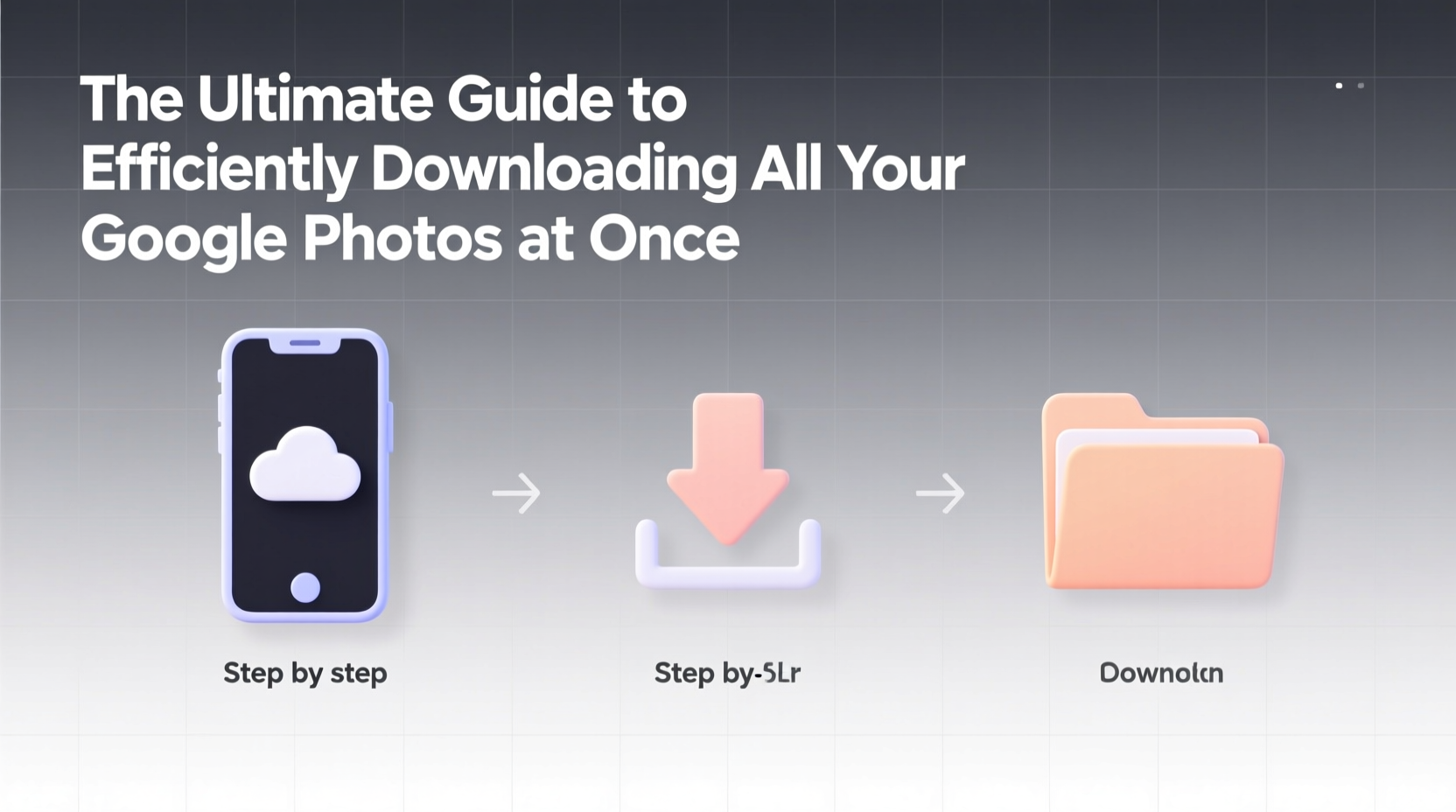
Maintaining a local copy of your photos ensures long-term access, even if Google changes its policies, discontinues services, or suspends accounts. In 2021, Google ended unlimited free storage for new uploads, signaling a shift toward monetization. This makes personal backups more critical than ever.
Additionally, offline access allows you to edit, organize, and share photos without relying on internet connectivity. It also protects against accidental deletions, sync errors, or account compromises. A complete backup gives peace of mind—your memories remain under your control.
Step-by-Step: Using Google Takeout to Export Everything
Google Takeout is the official and most comprehensive method for exporting your entire Google Photos collection. It supports high-resolution downloads (including originals) and preserves metadata such as timestamps and album structure where possible.
- Visit takeout.google.com while signed into your Google account.
- Scroll to “All Data Included” and click Deselect All.
- Check only Google Photos to avoid downloading unnecessary data from other services.
- Click Next Step, then choose delivery method: direct download link via email or automatic export to Google Drive, Dropbox, OneDrive, or SFTP.
- Select file type: .zip or .tgz (compressed archive).
- Set size per file: Choose between 2 GB and 50 GB chunks depending on your storage device limits.
- Under “Photos,” select Original quality to preserve resolution and format.
- Click Create Export. Processing may take minutes to days, depending on library size.
- Once ready, download each archive and extract to your preferred drive.
For libraries exceeding 500 GB, consider using Google Drive as an intermediate destination. You can create a shared folder with yourself, then use desktop sync tools like Google Drive for Desktop to pull everything locally in batches.
Alternative Methods for Large Libraries
If Takeout proves slow or unreliable due to network issues or file corruption risks, alternative approaches exist—especially for tech-savvy users.
Using Google Photos API with Automation Scripts
Developers or advanced users can leverage the Google Photos API to write custom scripts that batch-download media. Python, combined with libraries like google-auth-oauthlib and requests, enables automated fetching of thumbnails, full-size images, and videos.
This method requires enabling the API in Google Cloud Console, setting up OAuth credentials, and handling rate limits (Google allows ~10 requests per second). While complex, it offers granular control over which albums or date ranges to download.
Third-Party Tools (Use with Caution)
Tools like GPhotoDownloader, gphotos-sync, or Backup and Sync from Google (discontinued but still functional for some) automate downloads. However, always verify software legitimacy before granting access to your Google account.
“Automated tools can save hours, but never grant full account access to unverified third-party apps. Use OAuth-only services and revoke permissions afterward.” — Daniel Kim, Cybersecurity Analyst at DataShield Labs
Best Practices for Organizing and Verifying Your Download
Simply downloading files isn’t enough—you need confidence that every photo arrived safely and remains usable.
| Action | Recommended Approach | Avoid |
|---|---|---|
| File Organization | Preserve folder hierarchy by year/month based on EXIF data | Storing all files in one flat directory |
| Storage Media | Use external SSDs or NAS drives with redundancy | Relying solely on a single USB flash drive |
| Data Verification | Compare file counts and checksums post-extraction | Assuming all files transferred correctly without checking |
| Long-Term Preservation | Store copies in two physical locations (home + safe/cloud) | Keeping only one backup copy |
Mini Case Study: Recovering a Decade of Family Memories
Sarah Thompson, a teacher from Portland, OR, had accumulated over 40,000 photos across 12 years in Google Photos. When she learned about upcoming subscription fees, she decided to download her entire library. She used Google Takeout with 10 GB zip files delivered to her Google Drive. Over three weeks, she downloaded and extracted archives onto a 4TB Western Digital My Book drive. To ensure completeness, she wrote a simple script to count files and cross-referenced dates with her phone’s gallery app. She later copied the entire folder to her parents’ home for offsite backup. “It was time-consuming,” she said, “but knowing my kids’ first steps and birthdays are safe gives me real peace of mind.”
Essential Checklist Before You Begin
- ✅ Confirm you’re signed into the correct Google account
- ✅ Ensure sufficient local storage space (add 20% buffer for temporary files)
- ✅ Connect to a stable, high-speed internet connection
- ✅ Disable sleep mode on your computer during large downloads
- ✅ Plan for multi-day processing if your library exceeds 100 GB
- ✅ Label your external drive clearly (e.g., “Google Photos Backup – 2024”)
- ✅ Test extraction on one .zip file before downloading all
Frequently Asked Questions
Will downloading my Google Photos delete them from the cloud?
No. Downloading creates a local copy but leaves your original photos untouched in Google Photos. You must manually delete them if you wish to remove them from the cloud.
What happens if my Takeout export fails midway?
Google Takeout allows re-downloading incomplete exports within a limited window (usually 7 days). If expired, you’ll need to create a new export. For very large libraries, consider breaking the export into smaller date-based segments to reduce risk.
Can I download only specific albums or dates?
Yes. During Takeout setup, click “Manage Items” under Google Photos and choose “Only include some items.” From there, select individual albums or set date ranges to limit the export scope.
Final Steps: Securing Your Digital Legacy
Downloading your Google Photos is not just a technical task—it's an act of digital preservation. Once your files are safely stored, maintain them with regular checks. Every six months, open random folders, play videos, and confirm readability. Update storage drives every 3–5 years, as hard drives degrade over time.
Consider organizing your collection using naming conventions like YYYY-MM-DD_EventName and maintaining a master index spreadsheet. Future-you will thank present-you when searching for that perfect graduation photo or vacation clip.




 浙公网安备
33010002000092号
浙公网安备
33010002000092号 浙B2-20120091-4
Comments
No comments yet. Why don't you start the discussion?