
In an age where every text message can hold personal memories, work confirmations, or critical one-time passwords, losing access to your SMS history is more than inconvenient—it’s risky. Whether you switch phones, upgrade devices, or face a hardware failure, having a reliable SMS backup system ensures that no conversation is ever truly gone. The good news? Securing your messages across devices doesn’t require technical expertise or expensive tools. With the right strategies, SMS backup can be seamless, automatic, and fully secure.
Why SMS Backup Matters More Than You Think
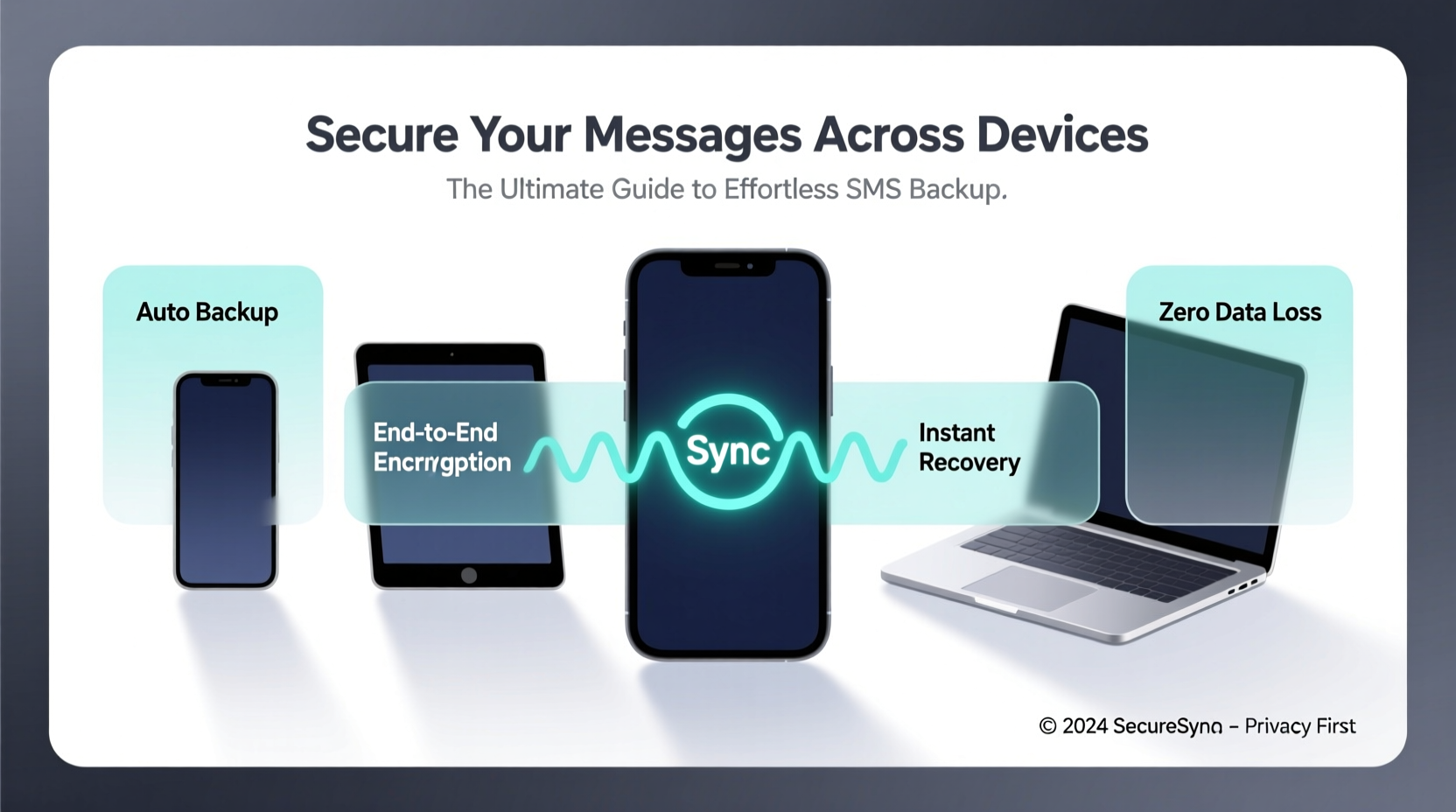
Most people assume their messages are safe as long as their phone is intact. But consider this: 30% of smartphone users lose or damage their device each year, according to recent consumer reports. When that happens, unbacked-up messages vanish—along with years of conversations, verification codes, appointment reminders, and even legal evidence in some cases.
Unlike emails or social media messages, SMS traditionally lives only on your device. There’s no universal cloud storage by default, making it uniquely vulnerable. That’s why setting up automated, encrypted backups isn’t just smart—it’s essential for digital continuity.
“Your text messages are part of your digital identity. Losing them is like losing a journal filled with time-stamped entries from your life.” — Dr. Lena Patel, Digital Forensics Researcher at SecureComms Lab
How Modern Messaging Platforms Handle Backup
Not all messaging systems treat SMS the same way. Understanding the differences between native SMS, RCS (Rich Communication Services), and third-party apps is key to choosing the right backup strategy.
| Messaging Type | Backup Method | Encryption | Cross-Device Sync |
|---|---|---|---|
| Traditional SMS/MMS | Device-specific or app-based | Limited (device-level only) | No |
| RCS (Android Messages) | Google Drive (optional) | End-to-end if enabled | Yes (with Android devices & web) |
| iMessage (Apple) | iCloud Backup | End-to-end encryption | Yes (within Apple ecosystem) |
| Third-party Apps (Signal, WhatsApp) | Cloud or local | Often end-to-end | Limited or app-specific |
For pure SMS backup—especially when you're not using iMessage or RCS—you’ll need additional tools. Fortunately, several robust solutions exist that go beyond what manufacturers offer out of the box.
Step-by-Step: Setting Up Automatic SMS Backup
Follow this timeline to establish a reliable, hands-off SMS backup system in under 20 minutes.
- Choose Your Backup Platform (5 min): Decide whether you want cloud-based backup (e.g., Google Drive) or local storage (e.g., encrypted file on PC). For most users, cloud is simpler and safer against physical loss.
- Install a Trusted Backup App (3 min): On Android, use SMS Backup & Restore or Super Backup: SMS & Contacts. Both are well-reviewed and support encryption. iOS users should rely on iCloud for iMessages, but note: standard SMS (green bubbles) aren’t backed up unless forwarded via iMessage.
- Enable Encryption (4 min): In your chosen app, turn on password protection or AES-256 encryption before backing up. Never store plain-text message backups in the cloud.
- Set Automatic Scheduling (3 min): Configure daily or weekly backups. Choose off-peak hours (e.g., 2 AM) to avoid data usage spikes.
- Verify & Test Restore (5 min): After the first backup completes, uninstall the app, reinstall it, and restore messages to confirm everything works.
Securing Your Backups: Beyond Basic Cloud Storage
Storing messages in the cloud is convenient, but convenience shouldn’t compromise security. Here’s how to lock down your SMS data:
- Use end-to-end encrypted services: Apps like Signal allow SMS-like messaging with full encryption and optional backup to encrypted local files.
- Avoid public Wi-Fi during backup: Transmitting sensitive message data over unsecured networks increases interception risk.
- Delete old backups: Rotate out outdated backups every 90 days to reduce exposure surface.
- Enable two-factor authentication (2FA): Protect your Google or iCloud account so attackers can’t access backups even if they steal your password.
One often-overlooked vulnerability is third-party app permissions. Some backup apps request unnecessary access to contacts, location, or microphone. Stick to minimal-permission tools and review app settings regularly.
Real-World Scenario: Recovering From a Lost Phone
Meet Sarah, a freelance consultant who dropped her phone in a pool during a client meeting. She had no physical backup, but because she’d set up automatic SMS backup via SMS Backup & Restore to her encrypted Google Drive folder, she was able to:
- Borrow a colleague’s Android phone temporarily.
- Install the same backup app and log into her Google account.
- Restore all messages—including two-factor authentication codes and pending client replies—within 15 minutes.
Her workflow continued uninterrupted. Without backup, she would have lost access to time-sensitive confirmations and potentially damaged professional relationships.
“Sarah didn’t just save time—she preserved trust. In business, responsiveness is currency.” — Marcus Tran, Mobile Security Consultant
Best Practices Checklist
Ensure your SMS backup system is effective and secure with this actionable checklist:
- ✅ Enable automatic SMS backups weekly or daily
- ✅ Use an app with AES-256 or similar encryption
- ✅ Store backup password in a trusted password manager
- ✅ Verify restore process at least once every 3 months
- ✅ Limit app permissions to SMS and storage only
- ✅ Sync backups across multiple platforms (e.g., Google Drive + external drive)
- ✅ Disable RCS or iMessage fallbacks if privacy is a top concern
Frequently Asked Questions
Can I back up SMS from an old phone without turning it on?
No. Unlike cloud-synced data, SMS resides solely on the device. If the phone is dead or inaccessible, recovery requires professional data extraction services—and success isn't guaranteed. This underscores the importance of proactive backup while your device still functions.
Are my backed-up messages private if stored in Google Drive or iCloud?
Only if encryption is enabled. By default, many backup apps store messages in readable format. Always choose encrypted backup options and avoid storing decryption keys in the same cloud account.
Do iPhone users need third-party apps for SMS backup?
Standard green-bubble SMS messages are not included in iCloud backups. To preserve them, you must either manually forward them to an email or use a Mac app like iMazing to extract and archive messages locally. Enabling “Send as SMS” in iMessage settings helps, but it doesn’t solve backup.
Final Thoughts: Make SMS Backup Effortless and Routine
The goal isn’t just to back up your messages—it’s to make the process so seamless that you forget it’s happening. Automation, encryption, and regular testing turn SMS backup from a chore into a silent safeguard. Just like locking your front door or saving a document as you work, protecting your messages should be second nature.
Technology evolves fast, but your past conversations remain valuable. Whether it’s a birthday wish from a loved one, a contract detail, or a travel confirmation, each message has context and weight. Don’t wait for a broken screen or a factory reset to realize what you’ve lost.




 浙公网安备
33010002000092号
浙公网安备
33010002000092号 浙B2-20120091-4
Comments
No comments yet. Why don't you start the discussion?