
Virtual reality should be immersive, not isolated. One of the most powerful features of the Meta Quest ecosystem is the ability to share what you're experiencing in VR with others in real time. Whether you're showing off a game session, streaming a 360-degree video, or demonstrating a virtual workout, casting your Meta Quest to another screen enhances engagement and opens up new possibilities for social and professional use. The good news? It’s easier than ever to cast your Meta Quest to smartphones, smart TVs, tablets, and even computers—without expensive hardware or technical expertise.
Understanding Casting on Meta Quest
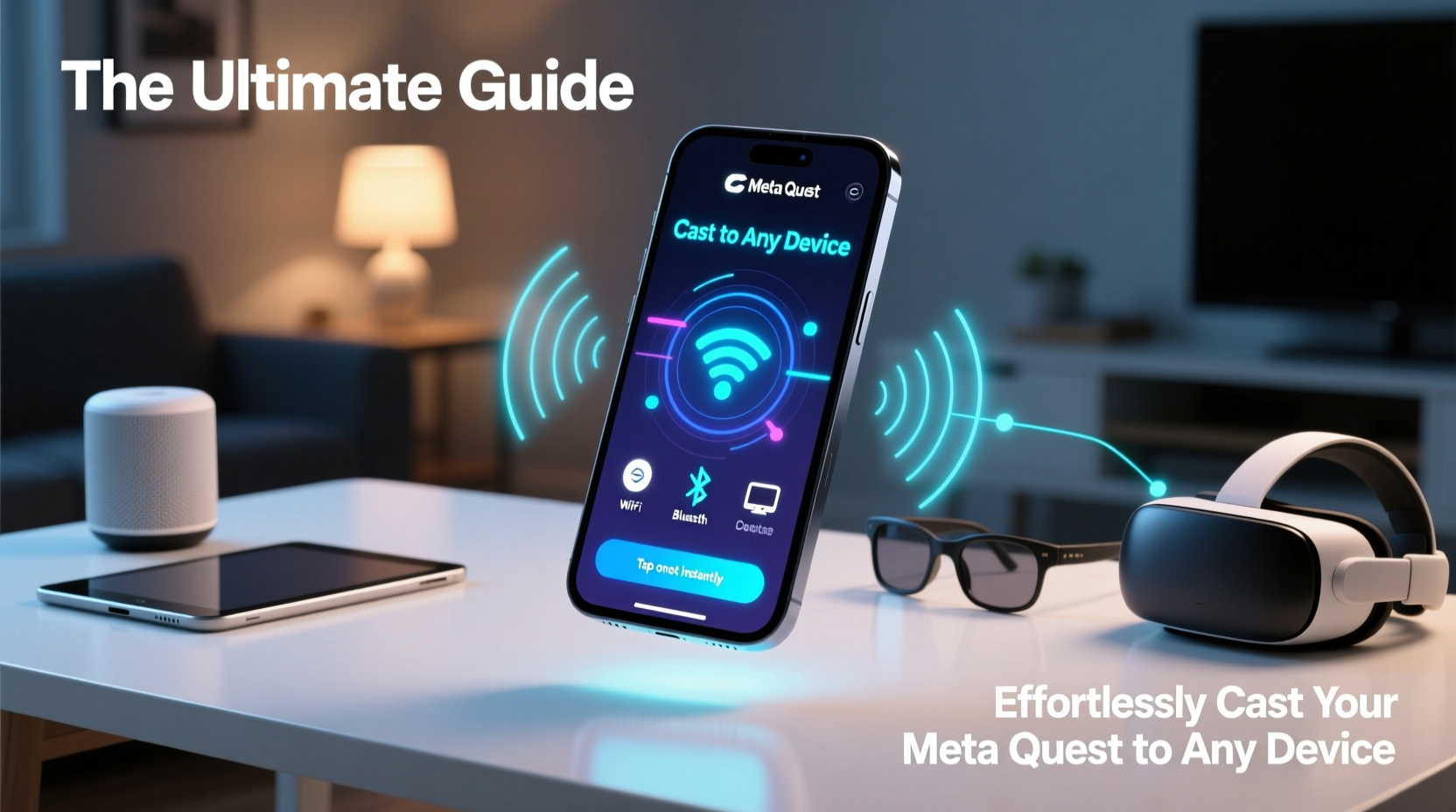
Casting on Meta Quest allows you to mirror your headset's display to another device over Wi-Fi. Unlike screen recording or live streaming, casting transmits your VR view in real time to a secondary screen, making it ideal for sharing experiences with friends, family, or an audience. This functionality works across all Meta Quest models: Quest 2, Quest 3, and Quest Pro.
The feature leverages Miracast and Google Cast protocols depending on the target device. Meta’s native casting tool integrates directly into the headset interface, eliminating the need for third-party apps in most cases. However, understanding network compatibility and device support is essential for smooth performance.
“Casting transforms VR from a solo experience into a shared one. It’s critical for education, fitness coaching, and collaborative design.” — Dr. Lena Torres, AR/VR Integration Specialist at Stanford Digital Futures Lab
Step-by-Step Guide to Casting Your Meta Quest
Follow this straightforward process to begin casting within minutes:
- Ensure both devices are on the same Wi-Fi network. This is non-negotiable for stable casting. Public or dual-band networks may require manual selection of the 5GHz band for optimal speed.
- Open the Universal Menu in your Meta Quest by pressing the Oculus button on your right controller.
- Select “Cast” from the menu options. The system will scan for available devices nearby.
- Choose your target device from the list (e.g., Chromecast, Samsung Smart TV, or a mobile device running the Meta Quest app).
- Confirm the connection on both the headset and receiving device if prompted.
- Begin interacting in VR—your actions will now appear on the external screen in near real-time.
Once connected, audio and video are streamed simultaneously. Most users experience less than a half-second delay, which is negligible for viewing but may affect interactive feedback during fast-paced games.
Compatible Devices and Connection Methods
Meta Quest supports multiple casting pathways. The method you use depends on the receiving device. Below is a breakdown of supported platforms and their requirements.
| Device Type | Required App or Hardware | Connection Protocol | Max Resolution |
|---|---|---|---|
| Android Phone/Tablet | Meta Quest Mobile App | Miracast | 1080p |
| iOS Device | Meta Quest App + AirPlay (via third-party tools) | Limited native support; requires workarounds | 720p (with lag) |
| Chromecast / Android TV | Google Cast built-in | Google Cast | 1080p |
| Samsung Smart TV (2018+) | No app needed | Smart View | 1080p |
| Windows PC or Mac | Oculus App or third-party receiver (like AirParrot) | Miracast or AirPlay emulation | 720p–1080p (varies) |
Note that iOS casting remains limited due to Apple’s closed ecosystem. While Meta does not offer native AirPlay integration, some users successfully cast using third-party mirroring tools such as Reflector or ApowerMirror, though these may introduce additional latency or require paid subscriptions.
Optimizing Performance and Avoiding Common Issues
Even with compatible hardware, poor Wi-Fi can ruin the casting experience. Buffering, audio desync, and dropped connections are typically network-related. Here’s how to prevent them:
- Use a 5GHz Wi-Fi band: It offers faster speeds and less interference than 2.4GHz, crucial for high-bandwidth VR streaming.
- Limit network congestion: Pause large downloads or streaming on other devices while casting.
- Restart your router periodically: Routers can degrade in performance when running continuously for days.
- Update firmware: Ensure your Meta Quest, router, and target device have the latest software updates.
Mini Case Study: Virtual Fitness Coaching via Casting
Jamal, a certified yoga instructor in Austin, Texas, transitioned his classes to Meta Quest to offer immersive 3D-guided sessions. Initially, clients found it hard to follow along since they couldn’t see his movements. By casting his Quest 3 to a large living room TV via Chromecast, he enabled students to watch his VR form in real time while practicing alongside him. Attendance increased by 40%, and participants reported better alignment and confidence. “Casting turned my solo VR routine into a group class,” Jamal said. “It bridged the gap between isolation and community.”
Expert Checklist for Seamless Casting
Before every casting session, run through this quick checklist to ensure success:
- ✅ Confirm both headset and target device are on the same Wi-Fi network.
- ✅ Restart your Meta Quest if casting hasn’t worked recently.
- ✅ Check that the receiving device supports casting (e.g., has Chromecast or Smart View).
- ✅ Close background apps on mobile devices to free up memory.
- ✅ Position yourself within 10 feet of the router for strongest signal.
- ✅ Test audio output on the receiving device before starting.
- ✅ Disable battery saver mode on Android devices—it can block screen sharing.
Frequently Asked Questions
Can I cast without Wi-Fi?
No. Casting requires a stable Wi-Fi connection because it relies on local network communication between your headset and the receiving device. A mobile hotspot can work if no router is available, but performance may vary based on signal strength.
Is there a way to record my cast?
Yes. While casting, you can simultaneously record your screen using the built-in “Record” feature in the Quick Settings menu. Alternatively, use screen recording software on the receiving device (e.g., OBS Studio on PC) to capture the stream externally.
Why won’t my TV show up in the cast menu?
This usually happens when the TV isn’t properly configured for screen sharing. On Samsung TVs, enable “Screen Sharing” under Settings > Share and Connect. For Roku or Fire TV, install the Google Home app and set up Chromecast functionality. Also, verify that the TV and Quest are on the same network segment.
Unlock the Full Potential of Your VR Experience
Casting your Meta Quest isn’t just a convenience—it’s a gateway to deeper interaction, collaboration, and storytelling. From hosting multiplayer game nights visible on a big screen to guiding remote learners through virtual environments, the ability to share your VR perspective broadens the impact of every experience. With minimal setup and a few optimization tricks, you can turn any compatible device into a window into your virtual world.
Take a moment today to test your setup. Invite a friend to watch your next adventure, or use casting to improve your own gameplay awareness. The technology is already in your hands; now it’s time to share the view.




 浙公网安备
33010002000092号
浙公网安备
33010002000092号 浙B2-20120091-4
Comments
No comments yet. Why don't you start the discussion?