
In an age where memories are captured in pixels rather than prints, the ability to share photos quickly and reliably has become essential. Whether you're sending vacation snapshots to relatives overseas or collaborating on a family album, Google offers powerful, intuitive tools designed to make photo sharing effortless—no matter which device you're using. From Android phones to iPhones, tablets to desktops, Google Photos and integrated services ensure your images stay accessible, organized, and easy to distribute.
The key lies not just in knowing that sharing is possible, but in mastering how to do it efficiently, securely, and without unnecessary steps. This guide walks through the full ecosystem of Google’s photo-sharing capabilities, offering practical strategies that work seamlessly across platforms.
Understanding Google Photos: The Central Hub
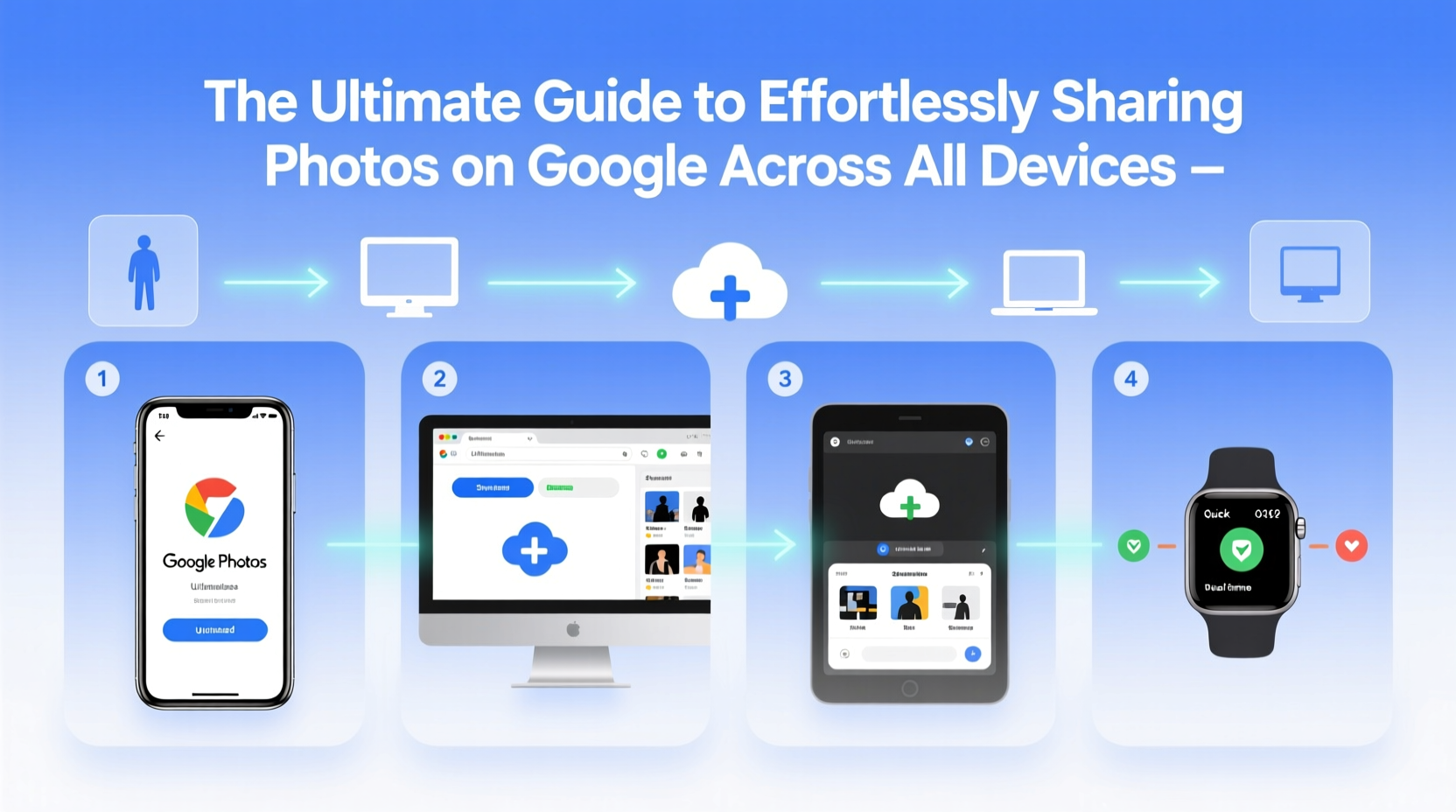
At the heart of Google’s photo-sharing system is Google Photos—a cloud-based service that automatically backs up, organizes, and enables instant sharing of your images. Available as a free app for Android and iOS, and accessible via browser at photos.google.com, it syncs your media across devices once signed into your Google account.
When you enable backup and sync, every photo taken on your phone is uploaded securely to the cloud. This means that even if you switch devices, lose your phone, or upgrade your laptop, your entire visual history remains intact and instantly shareable.
Step-by-Step: Sharing Photos from Any Device
Sharing a photo—or dozens—shouldn’t require technical expertise. Google has streamlined the process so that it takes only a few taps or clicks. Here’s how to do it across different platforms:
- Select the photo(s): Open Google Photos and tap the image(s) you want to share.
- Tap the Share icon (paper airplane symbol).
- Choose a method: You can send via link, email, messaging apps, or social media.
- Generate a shareable link: Ideal for cross-platform sharing. Toggle between \"Anyone with the link\" or \"Only people you invite.\"
- Set expiration and permissions: Choose whether viewers can add their own photos or just view.
- Send or copy the link: Paste it anywhere—text message, email, chat—or scan a QR code if using Nearby Share.
This workflow remains nearly identical whether you’re on an iPhone, Android tablet, or Chromebook, ensuring consistency and reducing friction.
Sharing Albums vs. Individual Photos
For ongoing collaborations—like a wedding album or a child’s first year—shared albums are far more effective than one-off shares. Create a shared album and invite others to contribute. All members can add photos, comment, and enjoy automatic syncing.
- Shared albums support up to 20,000 photos and videos.
- Up to 20,000 people can view a single shared album via link.
- Contributors don’t need to be Google Photos users—just recipients of the invite.
Device-Specific Tips for Seamless Sharing
While Google Photos unifies the experience, nuances exist between operating systems. Understanding these helps avoid confusion and delays.
| Device | Best Practice | Common Pitfall |
|---|---|---|
| Android Phone | Use “Nearby Share” for instant transfers without internet | Forgetting to enable location services, required for Nearby Share |
| iOS (iPhone) | Enable iCloud-to-Google transfer using Shortcuts automation | Auto-backup disabled by default; must manually turn on |
| Windows PC | Install Google Photos Backup Tool for continuous uploads | Photos stored in non-default folders may not sync automatically |
| Mac | Use AirDrop to move photos to iPhone, then auto-upload to Google | Google Photos app not optimized for M-series chips; slight lag in preview |
Security and Privacy: Control Who Sees What
Effortless sharing shouldn’t come at the cost of privacy. Google gives granular control over who accesses your photos and how long they remain available.
You can set links to expire after one day, seven days, or never. For sensitive content—such as medical records or private events—opt for “Restricted” sharing, which requires approval before new viewers gain access.
“Over 70% of photo-sharing risks stem from indefinite public links. Always use expiration dates for temporary content.” — Lena Patel, Cybersecurity Analyst at CloudTrust Labs
Avoid setting albums to “Public” unless intended for open viewing. Even within families, consider creating sub-albums with tailored permissions rather than dumping everything into one shared space.
Real Example: A Family Reunion Made Easy
The Rivera family gathers every summer in Colorado. With 15 attendees spanning three generations, coordinating photo collection used to mean endless text threads and lost files. Last year, Maria, the tech-savvy cousin, created a shared Google Album titled “Rivera 2023 Mountain Trip.”
She sent invites via email and text, including a simple QR code for grandparents to scan. Over the week, 87 photos and 12 videos were added by various family members. No duplicates, no missing shots. Afterward, Maria set the link to expire in 30 days, preserving privacy while allowing everyone time to download favorites.
What once took days of manual effort now happened in real time—with zero technical hiccups.
Advanced Features That Save Time
Beyond basic sharing, Google Photos includes intelligent features that enhance collaboration and accessibility:
- Smart Resharing: If someone shares a photo with you, Google suggests resharing it with others who appear in the image.
- Automatic Backups from Other Apps: Connect services like Dropbox or Samsung Cloud to import old photos directly into Google Photos.
- Assistant Suggestions: Get prompts to share recent photos with frequent contacts after an event.
- Face Grouping: Easily find and share all photos of a specific person using facial recognition (opt-in).
These tools reduce manual effort and help maintain meaningful connections through shared memories.
Checklist: Optimize Your Photo-Sharing Workflow
Follow this checklist to ensure smooth, consistent photo sharing across all your devices:
- ✅ Install Google Photos on all personal devices (phone, tablet, computer)
- ✅ Enable “Back Up & Sync” with High Quality (free unlimited storage)
- ✅ Organize frequently shared contacts in your People library
- ✅ Create recurring shared albums for events (e.g., “Monthly Family Updates”)
- ✅ Use descriptive titles and cover photos for shared albums
- ✅ Set expiration dates for temporary links (e.g., party invites)
- ✅ Review sharing activity monthly to revoke outdated access
Frequently Asked Questions
Can I share Google Photos with someone who doesn’t have a Google account?
Yes. When you generate a shareable link, anyone with the URL can view the album—even without signing in. However, contributing photos requires a Google account.
Are my shared photos safe from hackers?
Google uses end-to-end encryption for data in transit and advanced security protocols for stored data. As long as you avoid publicly posting share links and use expiration controls, your photos remain protected.
Why aren’t my photos syncing across devices?
Ensure that “Back Up & Sync” is enabled on each device and that you’re signed in with the same Google account. Also, check your internet connection and verify that the photos aren’t restricted by size or format (e.g., HEIC files on older Android versions).
Conclusion: Make Sharing Second Nature
Photo sharing should feel natural—not like navigating a maze of menus and permissions. With Google Photos, the infrastructure is already in place to make it fast, secure, and universally accessible. By leveraging automated backups, smart albums, and cross-device consistency, you eliminate friction and focus on what matters: preserving and sharing life’s moments.




 浙公网安备
33010002000092号
浙公网安备
33010002000092号 浙B2-20120091-4
Comments
No comments yet. Why don't you start the discussion?