
Factory resetting your Samsung Galaxy Tab A can be a powerful solution for performance issues, software glitches, or preparing the device for sale or transfer. However, doing it incorrectly—or without proper preparation—can result in data loss, security risks, or even bricking your tablet. This comprehensive guide walks you through every critical step, ensuring your reset is both safe and effective.
Why Factory Reset Your Galaxy Tab A?
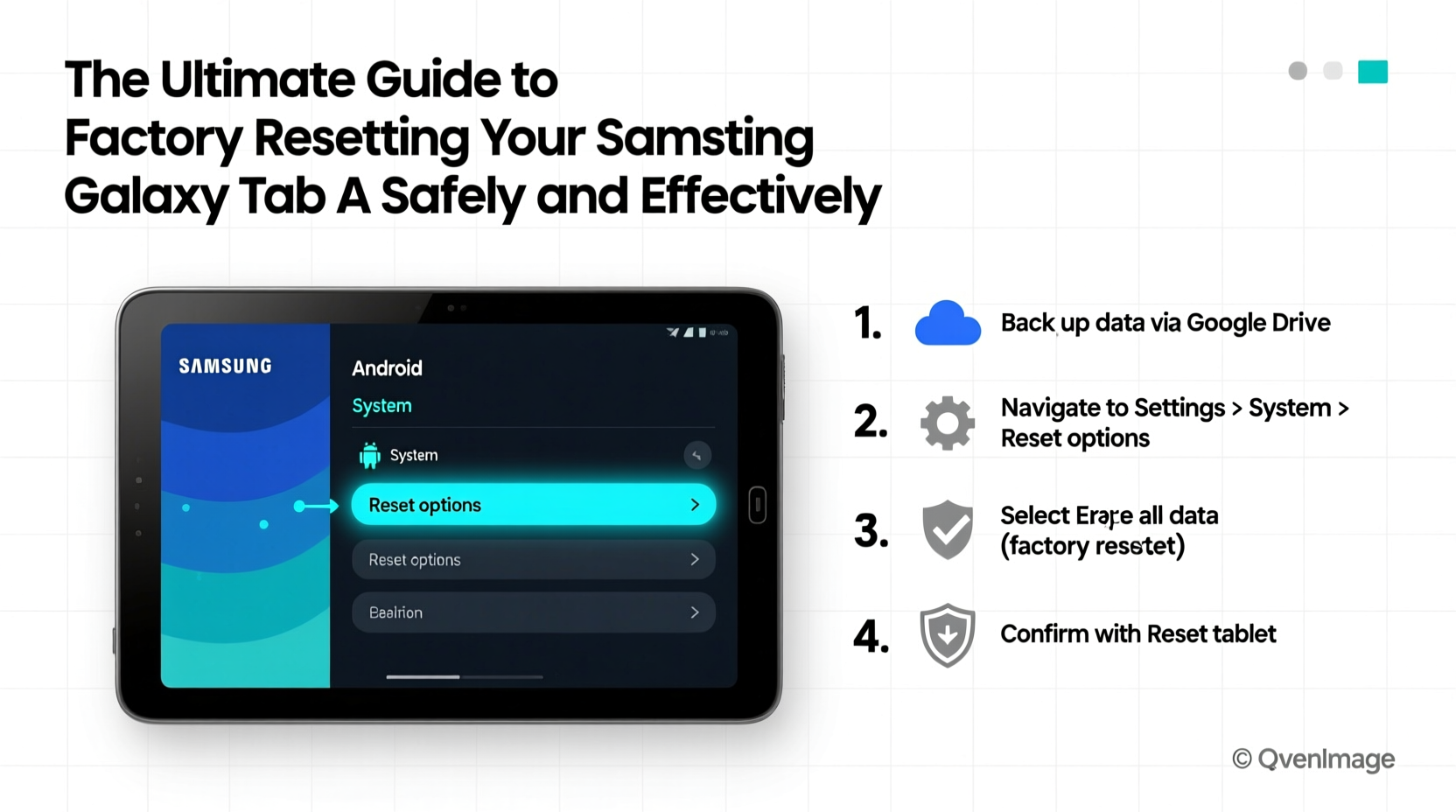
A factory reset restores your tablet to its original system state, removing all installed apps, user settings, and personal data. Common reasons include:
- Resolving persistent app crashes or freezing
- Fixing slow performance due to software clutter
- Removing malware or unauthorized access
- Preparing the device for resale or gifting
- Resetting forgotten screen locks or passwords
While effective, this process should never be taken lightly. Once initiated, most data cannot be recovered unless previously backed up.
Essential Pre-Reset Checklist
Before initiating a factory reset, take these crucial steps to protect your data and ensure a smooth process:
- Back up all important data – Use Samsung Cloud, Google Drive, or a computer to save photos, documents, messages, and app data.
- Ensure your tablet is charged – The device should have at least 50% battery to avoid shutdowns during reset.
- Remove SD cards and SIM cards – Prevent accidental data loss on external storage.
- Sign out of sensitive accounts – Log out of banking apps, email clients, and Samsung Account if required.
- Disable Find My Mobile (if enabled) – This feature may block resets on lost or stolen devices.
“Backing up before a factory reset isn’t optional—it’s essential. One missed photo or contact could mean irreversible loss.” — David Kim, Mobile Device Consultant
Step-by-Step: How to Factory Reset via Settings
If you still have access to your device’s interface, follow this method for a controlled reset:
- Open the Settings app.
- Scroll down and tap General management.
- Select Reset, then choose Factory data reset.
- Review the warning message and confirm by tapping Reset.
- Enter your PIN, pattern, or password when prompted.
- Tap Delete all to begin the reset process.
The tablet will reboot and begin erasing all user data. This may take several minutes. Do not interrupt the process.
Alternative: Hard Reset Using Recovery Mode
If your tablet is unresponsive, frozen, or locked out, use recovery mode:
- Power off the tablet completely.
- Press and hold Volume Up + Power buttons simultaneously.
- When the Samsung logo appears, release the Power button but keep holding Volume Up until the recovery menu loads.
- Use the volume keys to navigate to Wipe data/factory reset.
- Press the Power button to select it.
- Highlight Yes – delete all user data and confirm with the Power button.
- Once complete, select Reboot system now.
This method bypasses the operating system and performs a low-level reset. It's especially useful when dealing with boot loops or forgotten credentials.
Data Recovery & Security After Reset
After the reset, your Galaxy Tab A will restart as if it were new. Follow these post-reset best practices:
- Set up the device with your preferred Google or Samsung account.
- Restore data from your backup source if desired.
- Reinstall essential apps and reconfigure settings.
- Enable security features like biometric locks and remote wipe.
It’s important to understand that while a factory reset removes visible data, remnants may still exist on the internal storage. For maximum security—especially when selling or donating the device—consider using encryption before resetting.
| Action | Recommended? | Notes |
|---|---|---|
| Encrypt device before reset | Yes (for resale) | Makes data recovery nearly impossible |
| Use cloud backup | Highly recommended | Ensures easy restoration later |
| Skip Google Account verification | No | Triggers FRP lock; blocks full setup |
| Insert old SIM card immediately | Only if needed | Wait until setup completes |
Mini Case Study: Recovering a Frozen Tablet
Sophia, a freelance graphic designer, relied on her Galaxy Tab A for client sketches and communication. After installing multiple design apps, the tablet began lagging severely, eventually freezing on startup. Standard reboots failed, and Safe Mode didn’t help.
She followed the recovery mode reset process outlined above. After wiping data and rebooting, the tablet returned to normal operation. She restored her files from a recent Samsung Cloud backup and reinstalled apps one by one, monitoring performance. The reset resolved the issue, and she resumed work within an hour.
Her experience highlights the importance of regular backups and knowing how to access recovery tools when software fails.
Common Mistakes to Avoid
Even experienced users make errors during factory resets. Here are frequent pitfalls and how to prevent them:
- Skipping the backup – Leads to permanent data loss. Always verify backups before proceeding.
- Interrupting the reset – Can corrupt the OS. Never force-shutdown during the process.
- Forgetting FRP (Factory Reset Protection) – After reset, you’ll need the last Google or Samsung account used. Losing credentials locks the device.
- Assuming everything is erased – Without encryption, skilled individuals might recover fragments using forensic tools.
“FRP exists to deter theft, but it often catches legitimate users off guard. Keep your account details secure and accessible.” — Lena Patel, Cybersecurity Analyst
FAQ
Will a factory reset remove Android updates?
No. The reset reinstalls the current version of the operating system already on the device. It does not downgrade or upgrade Android unless manually updated afterward.
Can I cancel a factory reset once started?
No. Once the erase process begins, it cannot be stopped safely. Interrupting it may render the tablet unusable.
How long does a factory reset take?
Typically between 5 to 15 minutes, depending on device model, storage capacity, and whether encryption was enabled.
Conclusion
Factory resetting your Samsung Galaxy Tab A is a powerful tool for restoring performance and securing your privacy—but only when done correctly. By backing up data, understanding the reset methods, and respecting post-reset protocols, you maintain control over your device’s lifecycle. Whether you're troubleshooting, transferring ownership, or starting fresh, this guide ensures you do so safely and confidently.




 浙公网安备
33010002000092号
浙公网安备
33010002000092号 浙B2-20120091-4
Comments
No comments yet. Why don't you start the discussion?