
Managing digital life across a family can be chaotic—especially when each member has their own iPad. From app downloads to screen time limits and shared subscriptions, keeping everything organized often feels like juggling. Apple’s Family Sharing feature simplifies this by allowing up to six family members to share purchases, photos, calendars, and more—all from individual devices. When set up correctly on an iPad, it becomes a powerful tool for connection, control, and convenience.
This guide walks through the full setup process, explores essential features, and delivers expert-backed tips to help families get the most out of Family Sharing on iPad. Whether you're a parent managing kids’ devices or coordinating with partners and teens, this system streamlines digital harmony.
How Family Sharing Works on iPad
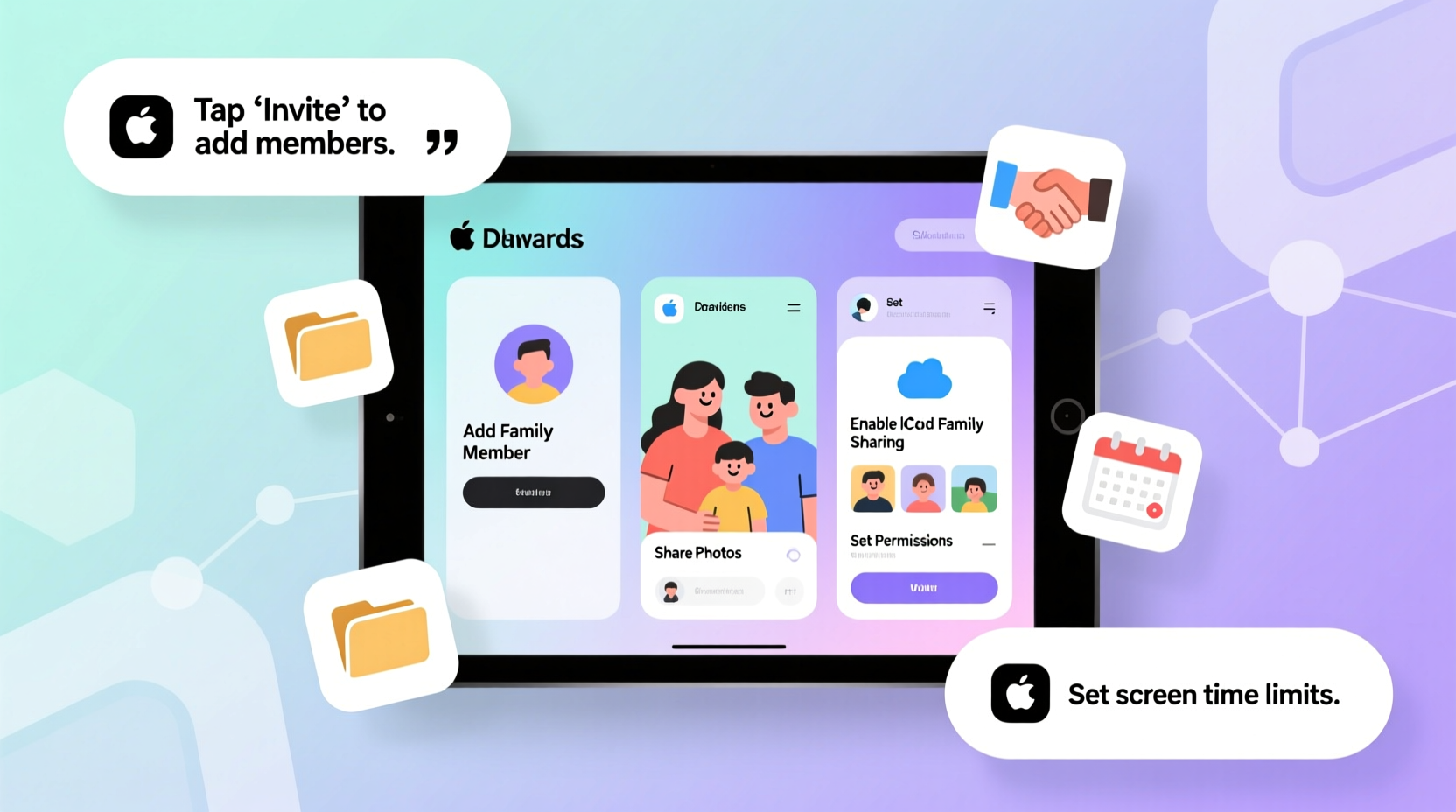
Family Sharing is built into iOS and works seamlessly across all Apple devices. On iPad, it enables one organizer (usually an adult) to invite up to five other members—children or adults—into a shared ecosystem. Once joined, the family can access shared benefits without merging personal data like messages or emails.
Key capabilities include:
- Sharing purchased apps, games, music, movies, and books
- Using a single iCloud+ subscription across the group
- Sharing subscriptions like Apple Music, Apple TV+, and Apple Arcade
- Creating shared photo albums
- Locating devices via Find My
- Approving children’s app downloads and purchases
- Setting Screen Time limits and content restrictions
The system relies on Apple IDs. Each family member uses their own, ensuring privacy while enabling selective sharing. The organizer controls settings, receives purchase requests, and manages parental controls for younger members.
Step-by-Step Setup: Creating a Family Group
Setting up Family Sharing starts with one iPad—the organizer’s device. Follow these steps carefully to ensure smooth onboarding for everyone.
- Open Settings and tap your name at the top to enter your Apple ID profile.
- Select Family Sharing.
- Tap Add Family Member and choose “Create a Child Account” if adding a minor, or “Invite People” for teens or adults.
- Enter the email address associated with the invitee’s Apple ID. If they don’t have one, you can create a child account during setup.
- Send the invitation via iMessage or email.
- Wait for the recipient to accept. They’ll receive a prompt on their device; tapping “Accept” finalizes membership.
- Enable key sharing options: App Store purchases, iCloud+, and subscriptions as needed.
Once accepted, the new member appears in your family list. You can now manage their permissions, especially for children under 13, where additional safeguards apply.
Managing App Sharing and Purchase Controls
One of the most valuable aspects of Family Sharing is the ability to share paid apps and in-app purchases. A single purchase can be downloaded by every family member—no extra cost. However, unrestricted access can lead to surprise charges or inappropriate downloads, especially with younger users.
To maintain control:
- Go to Settings > Screen Time > Content & Privacy Restrictions.
- Enable Content & Privacy Restrictions and set a passcode known only to the organizer.
- Under “iTunes & App Store Purchases,” select “Ask to Buy” for children. This routes all download requests to the organizer for approval.
- Set age-based content limits for apps, movies, and websites.
When a child attempts to download a paid app or make an in-app purchase, a notification appears on the organizer’s iPad. Tap to approve or decline. This prevents unauthorized spending while still allowing flexibility.
| Feature | Available to Children? | Requires Approval? |
|---|---|---|
| Free App Downloads | Yes | No |
| Paid App Downloads | Yes | Yes (Ask to Buy) |
| In-App Purchases | Yes | Yes (if enabled) |
| Subscriptions (e.g., games) | Limited | Yes |
“Family Sharing reduces digital friction while preserving parental oversight. It’s not about restriction—it’s about responsible access.” — Dr. Lena Torres, Digital Wellness Consultant
Real-Life Example: The Martinez Family
The Martinez family includes two parents and three children aged 8, 12, and 15. Before using Family Sharing, each child had separate app purchases, leading to duplicated costs and inconsistent screen time rules. One child accidentally bought $40 worth of in-game currency because purchases weren’t restricted.
After setting up Family Sharing on their iPads, the parents enabled “Ask to Buy” for the two younger children and set daily screen time limits. They shared a single Apple Arcade subscription, saving $15/month. Shared photo albums helped track school events, and location sharing gave peace of mind when kids were out with friends.
Within a month, app-related arguments dropped by half, and the family reported feeling more connected digitally. The 15-year-old, given more autonomy, appreciated being able to request purchases respectfully rather than sneak them.
Essential Tips for Smooth Family Sharing
Even with proper setup, small oversights can disrupt the experience. These tips help prevent common issues and maximize benefits.
- Use a dedicated family email for invitations to avoid confusion with personal accounts.
- Teach older children how to request purchases appropriately—this builds digital responsibility.
- Review Screen Time reports weekly to understand usage patterns and adjust limits if needed.
- Combine Family Sharing with Guided Access for focused tasks (e.g., homework mode).
Frequently Asked Questions
Can I remove someone from my Family Sharing group?
Yes. Go to Settings > Family Sharing, tap the member’s name, and select “Remove from Family.” Adults can leave anytime; children require reassignment to another family or transition to an adult account when they turn 13.
Do all family members need to use an iPad?
No. Family Sharing works across iPhone, iPad, Mac, and Apple Watch. Each member can use different devices while staying in the same group.
What happens if I exceed storage with shared iCloud+?
If your family exceeds the included iCloud storage, you’ll need to upgrade the plan. All members contribute to the total usage, so monitor storage regularly under Settings > [Your Name] > iCloud.
Final Checklist: Optimizing Your Family Sharing Setup
Before considering your setup complete, run through this checklist:
- ✅ All family members have Apple IDs and are invited to the group
- ✅ “Ask to Buy” is enabled for children
- ✅ Screen Time and content restrictions are configured per age
- ✅ Shared subscriptions (Apple Music, etc.) are activated
- ✅ Payment method is set and secure
- ✅ Shared photo album created for family memories
- ✅ Location sharing enabled for safety
- ✅ Devices are updated to latest iPadOS
Take Control of Your Family’s Digital Life
Family Sharing on iPad isn’t just about saving money—it’s about creating structure, transparency, and trust in how technology is used at home. With thoughtful setup and ongoing management, it transforms scattered digital habits into a unified, secure experience. The time invested in configuring these settings pays off in reduced conflicts, better screen discipline, and stronger digital well-being for everyone.




 浙公网安备
33010002000092号
浙公网安备
33010002000092号 浙B2-20120091-4
Comments
No comments yet. Why don't you start the discussion?