
Color is foundational in design, branding, and development. Whether you're building a website, designing a logo, or editing a photo, knowing how to identify and use precise color values is essential. The most common formats—HEX, RGB, HSL, and CMYK—each serve different purposes across digital and print media. But without the right tools and knowledge, matching colors accurately can be frustrating. This guide walks through reliable methods, tools, and expert-backed strategies to help you find, convert, and apply color codes with confidence.
Understanding Color Code Formats
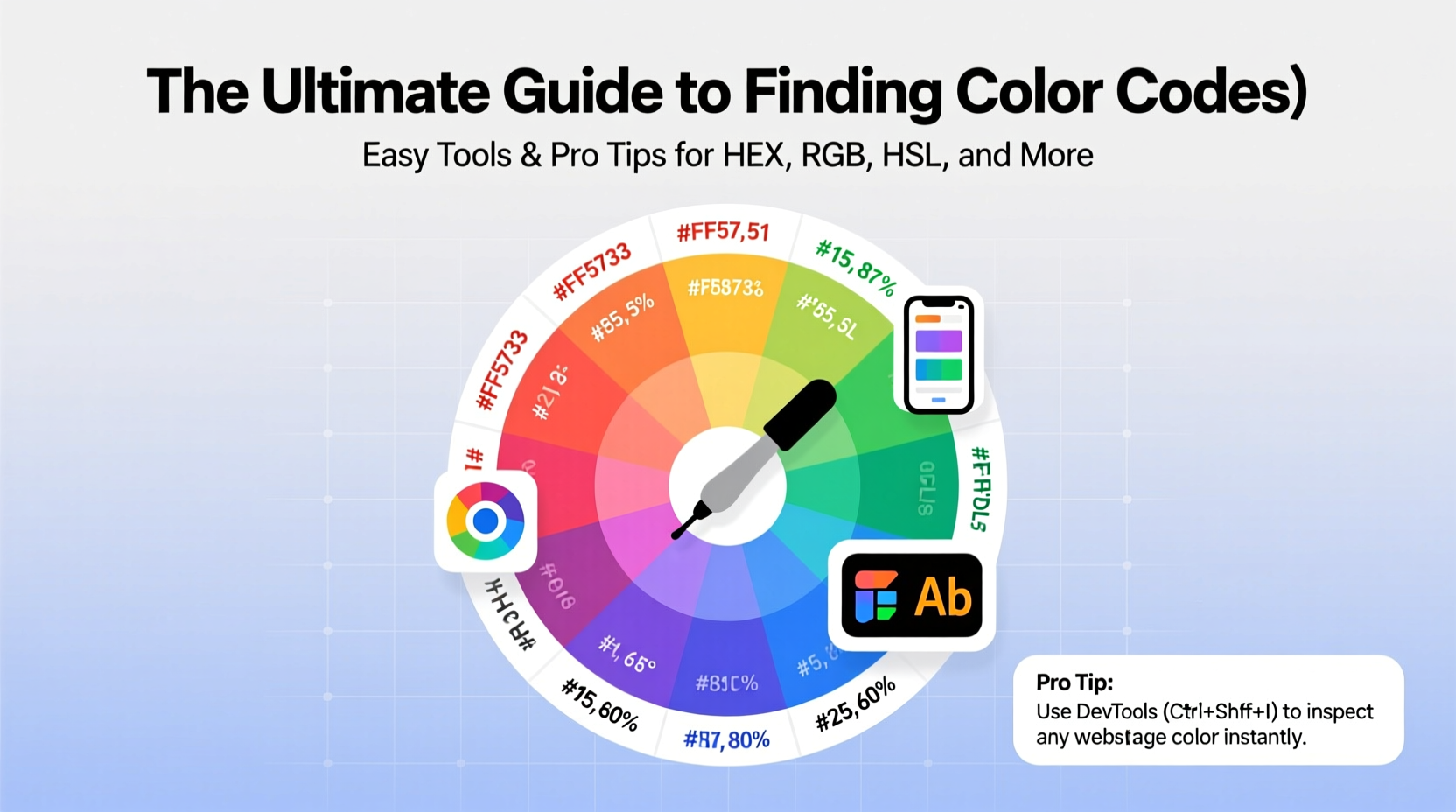
Before diving into tools, it's important to understand the most widely used color formats and where they’re applied:
- HEX: A six-digit code (e.g., #FF5733) representing red, green, and blue values in hexadecimal format. Used primarily in web design and CSS.
- RGB: Stands for Red, Green, Blue (e.g., rgb(255, 87, 51)). Values range from 0 to 255 for each channel. Ideal for screens and digital displays.
- HSL: Hue, Saturation, Lightness (e.g., hsl(14, 100%, 60%)). Offers intuitive control over color tone and intensity, commonly used in modern UI design.
- CMYK: Cyan, Magenta, Yellow, Key (Black). Used in print design. Not typically supported in web environments.
Each format has its strengths. For example, HEX is concise and universally recognized in HTML/CSS, while HSL allows for easier adjustments when tweaking shades or creating color schemes.
Top Tools for Extracting and Converting Color Codes
Finding accurate color values starts with the right tool. Here are some of the most effective options across platforms:
- Browser Developer Tools: Built into Chrome, Firefox, and Edge, these allow you to inspect any webpage element and view its color properties in HEX, RGB, or HSL.
- Color Pickers (Digital): Applications like Adobe Color, Coolors, and Paletton let you upload images and extract dominant colors with one click.
- Desktop Utilities: Tools such as Pixie (Windows), ColorSnapper (macOS), or Gpick (Linux) provide pixel-level color sampling anywhere on your screen.
- Mobile Apps: Use apps like Adobe Capture or Color Grab to point your camera at real-world objects and instantly get digital color codes.
- Online Converters: Websites like RapidTables or W3Schools offer free converters between HEX, RGB, HSL, and even Pantone approximations.
| Tool | Best For | Output Formats | Platform |
|---|---|---|---|
| Adobe Color | Creating palettes from images | HEX, RGB, HSL | Web |
| Pixie | Quick screen sampling | HEX, RGB, HSL | Windows |
| Coolors | Generating harmonious color schemes | HEX, RGB | Web, iOS |
| ColorSnapper 2 | Precision work for designers | HEX, RGB, HSL, CMYK | macOS |
| RapidTables Color Converter | Fast format conversion | HEX, RGB, HSL, CMYK | Web |
Step-by-Step: How to Find a Color Code from Any Source
Whether you’re copying a brand’s color scheme or matching a product photo, follow this process to extract accurate codes efficiently:
- Identify the source: Is it a website, image file, physical object, or video? Your method will depend on this.
- Capture the visual: Take a screenshot, save the image, or photograph the object under natural lighting.
- Use a color picker tool: Open the image in a tool like Photoshop, Figma, or an online editor, then select the eyedropper tool to sample the color.
- Read the color value: Check the info panel for HEX, RGB, or HSL output depending on your software settings.
- Verify accuracy: Compare the extracted color against the original in multiple contexts (e.g., dark/light backgrounds).
- Save and organize: Store the code in a design system, style guide, or note-taking app for future use.
“Designers who take time to verify color accuracy early avoid costly rework during implementation.” — Lena Torres, Senior UX Designer at Studio Nova
Pro Tips for Accurate and Consistent Color Matching
Even with great tools, subtle mistakes can throw off your entire palette. These best practices ensure consistency and precision:
- Calibrate your monitor regularly to prevent color drift between devices.
- Avoid sampling colors near edges or shadows—these often contain gradients or anti-aliasing that distort true values.
- When extracting from photos, zoom in to isolate pixels and reduce noise interference.
- Use sRGB as your default color space unless targeting professional print (then consider CMYK or Pantone).
- Double-check contrast ratios if using colors for text—tools like WebAIM’s Contrast Checker help meet accessibility standards.
Real-World Example: Matching Brand Colors for a Client Project
Jamal, a freelance web designer, was tasked with rebuilding a local coffee shop’s website. The client provided a logo but no brand guidelines. To match their signature green (#3A8E5D), Jamal followed a structured approach:
He started by downloading the highest-resolution version of the logo. Using Figma’s eyedropper tool, he sampled the main green area. However, he noticed slight variations due to compression artifacts. To confirm the correct shade, he cross-referenced it with a printed menu the client brought in, photographed under daylight conditions. He used Adobe Color to extract the dominant hue from the photo and found a near-identical HEX value. Finally, he tested the color on various backgrounds to ensure readability and aesthetic harmony. By verifying across sources, Jamal delivered a site that perfectly reflected the brand’s identity.
Essential Checklist for Finding and Using Color Codes
Keep this checklist handy whenever you need to identify or apply color values:
- ✅ Determine the source type (digital or physical)
- ✅ Use high-quality visuals (avoid blurry or compressed images)
- ✅ Choose the right tool based on platform and purpose
- ✅ Sample from neutral areas, avoiding gradients or effects
- ✅ Confirm the color space (usually sRGB for digital)
- ✅ Test the color in context (backgrounds, typography, buttons)
- ✅ Document the code and its usage in your project files
Frequently Asked Questions
Can I get a HEX code from a printed document?
Yes, but with limitations. Scan or photograph the document under consistent, natural light. Use a color calibration card if possible. Then, use a tool like Adobe Scan or Color Grab to extract the closest digital approximation. Keep in mind that ink absorption and paper texture may affect accuracy.
Why does my RGB color look different on another device?
Different screens have varying color profiles, brightness levels, and calibration settings. An RGB value may appear warmer on one monitor and cooler on another. Always test critical colors on multiple devices and consider embedding ICC profiles when sharing design files.
How do I convert Pantone to HEX or RGB?
There’s no exact conversion since Pantone is a proprietary physical system. However, tools like Adobe Illustrator, Pantone Connect, or online converters provide close digital equivalents. For brand-critical work, refer to official Pantone-to-digital guides or consult a print specialist.
Final Thoughts and Next Steps
Mastering color codes isn’t just about technical know-how—it’s about attention to detail and consistency across mediums. With the right tools and disciplined workflow, you can confidently capture, convert, and apply colors that align with your vision and brand standards. Whether you're a developer writing CSS, a designer crafting interfaces, or a marketer building campaigns, accurate color use strengthens professionalism and user experience.




 浙公网安备
33010002000092号
浙公网安备
33010002000092号 浙B2-20120091-4
Comments
No comments yet. Why don't you start the discussion?