
Expanding your smartphone’s storage with an SD card is a smart move—but when performance lags or the device fails to recognize the card, formatting often provides the solution. Whether you're switching phones, troubleshooting errors, or preparing for long-term use, knowing how to properly format an SD card ensures reliability and compatibility. This comprehensive guide walks you through every step, explains why formatting matters, and shares expert-backed tips to protect your data while maximizing efficiency.
Why Formatting an SD Card Matters
Formatting an SD card isn’t just about erasing files—it reorganizes the file system, clears hidden errors, and prepares the card for optimal use with your specific device. Mobile phones typically support two primary file systems: FAT32 and exFAT. While FAT32 works universally across older and newer devices, it can't handle individual files larger than 4GB. exFAT removes that limit and is ideal for high-resolution videos or large apps but may not be supported by very old phones.
When you format an SD card through your phone, the device automatically selects the most compatible file system. This built-in intelligence helps prevent future read/write issues, especially if the card was previously used in a camera, computer, or another phone with different formatting standards.
“Improperly formatted cards are one of the top causes of app crashes and media corruption on Android devices.” — Raj Mehta, Senior Mobile Systems Engineer at TechSync Labs
Step-by-Step Guide to Format an SD Card on Any Phone
The process varies slightly depending on your phone's operating system, but the core steps remain consistent. Follow this universal timeline to format your SD card safely and effectively.
- Back up all important data – Connect the card to a computer via adapter or use cloud tools to save photos, documents, and other critical files.
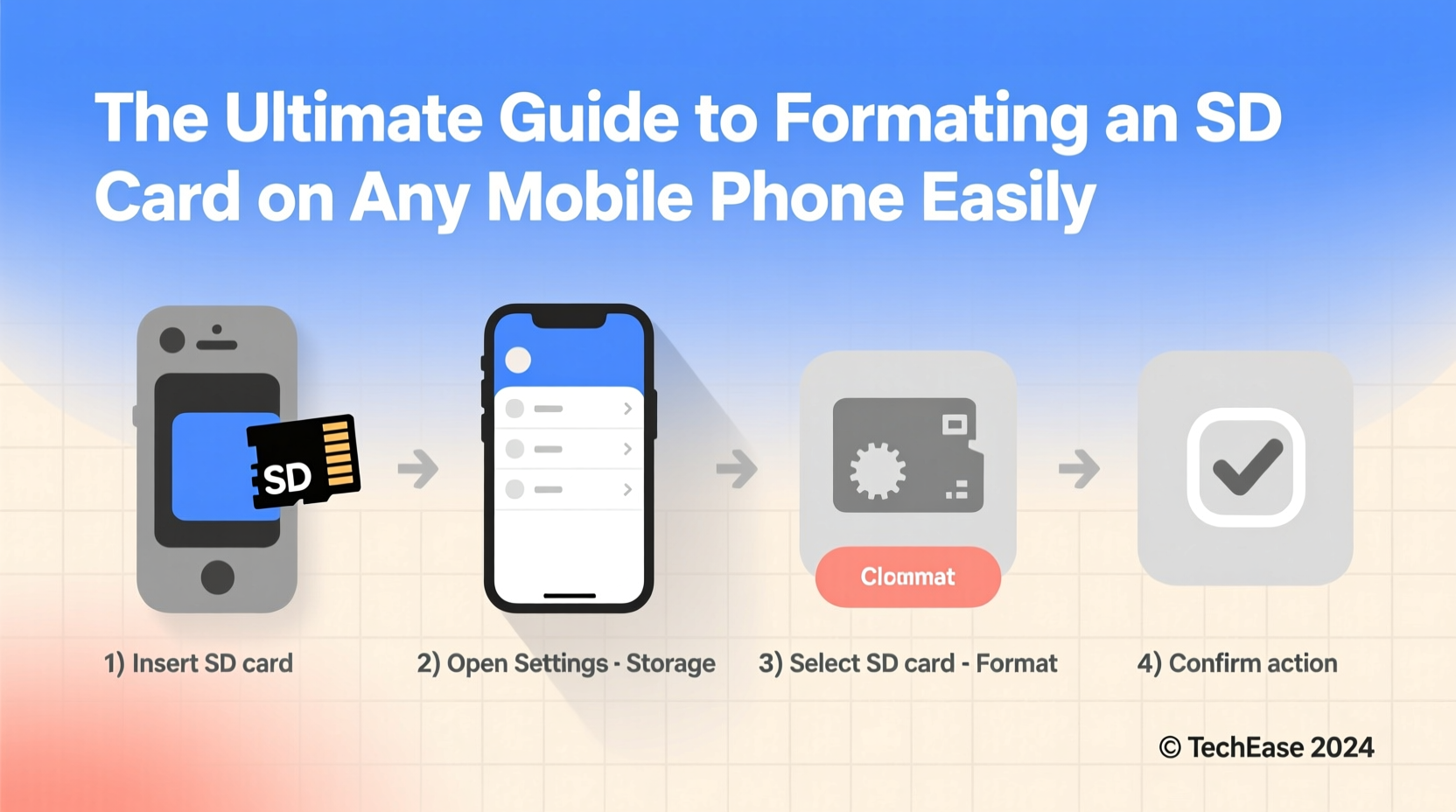
- Insert the SD card into your phone – Ensure it clicks securely into place. Most modern phones use microSD cards; double-check compatibility before proceeding.
- Open Settings – Navigate to “Storage” or “Device Care,” depending on your brand.
- Select the SD card option – Tap on the listed external storage. If unrecognized, restart the phone with the card inserted.
- Choose ‘Format’ or ‘Erase & Format’ – Some phones label this as “Clear SD Card” or “Unmount and Format.”
- Confirm the action – A warning will appear stating all data will be erased. Confirm only after verifying backups are complete. <7> Wait for completion – The process takes 1–5 minutes. Do not remove the card during formatting.
- Safely eject (optional) – Once formatted, you can choose to unmount it before removal.
Do’s and Don’ts When Formatting an SD Card
| Do’s | Don’ts |
|---|---|
| ✔ Back up data before formatting | ✖ Ignore error messages during formatting |
| ✔ Use your phone’s native format tool when possible | ✖ Remove the card mid-process |
| ✔ Verify card compatibility (e.g., SDHC vs SDXC) | ✖ Assume all cards work flawlessly out of the box |
| ✔ Check battery level—ensure at least 50% charge | ✖ Use third-party formatting tools unless necessary |
| ✔ Label cards after formatting for easy identification | ✖ Store sensitive data without encryption or backup |
Real Example: Recovering a Frozen Phone with Proper Formatting
Lena, a freelance photographer from Portland, relied on a 128GB microSD card to store client shoots directly on her Android phone. After several months, her gallery app began crashing, and some folders wouldn’t open. She tried restarting and clearing cache, but the glitches persisted. Upon connecting the card to her laptop, she found corrupted directories and unreadable files.
Instead of replacing the card immediately, Lena backed up recoverable images using data rescue software, then formatted the card using her phone’s settings menu. Post-formatting, the card performed faster than ever, and all apps accessed media smoothly. The root cause? The card had been formatted on a Windows PC using NTFS—a file system incompatible with most Android devices. By letting the phone reformat it correctly, she restored full functionality without cost.
Advanced Options: Using a Computer to Format for Mobile Use
If your phone doesn’t recognize the SD card, formatting via computer becomes a viable alternative. However, caution is essential to maintain mobile compatibility.
Insert the card using a USB adapter, then follow these steps:
- On Windows: Open File Explorer > Right-click the SD drive > Format > Choose FAT32 (for cards ≤32GB) or exFAT (for larger cards) > Uncheck “Quick Format” for thorough cleanup > Start.
- On macOS: Open Disk Utility > Select the SD card > Erase > Name the drive (e.g., “MobileCard”) > Set format to MS-DOS (FAT) or exFAT > Click Erase.
After formatting, safely eject the card and insert it into your phone. Most devices will detect it instantly and may prompt additional optimization steps.
Essential Checklist Before Formatting
Follow this concise checklist to ensure a smooth, risk-free formatting experience:
- ✅ Backed up all personal data from the SD card
- ✅ Verified sufficient battery life (at least 50%)
- ✅ Confirmed SD card is properly seated in the phone
- ✅ Identified correct file system needs (FAT32 vs exFAT)
- ✅ Disabled any active apps using the SD card (e.g., music players, dashcams)
- ✅ Prepared for potential reinstallation of apps moved to external storage
Frequently Asked Questions
Can I recover data after formatting my SD card?
Yes, in many cases. Immediately stop using the card after formatting and use trusted recovery software like Recuva (Windows), Disk Drill, or PhotoRec. Success depends on whether new data has overwritten the old sectors. The sooner you act, the higher the recovery rate.
Will formatting improve my phone’s speed?
Often, yes. Over time, SD cards accumulate fragmented files and system clutter. Formatting resets the file structure, leading to faster read/write speeds and improved app responsiveness—especially noticeable when recording HD video or launching large games stored externally.
Is it safe to format an SD card frequently?
Occasional formatting is safe and even beneficial. However, frequent full formats (more than once a month) can shorten the card’s lifespan due to write-cycle wear. Stick to formatting only when necessary: when switching devices, encountering errors, or preparing for extended use.
Conclusion: Take Control of Your Mobile Storage
Formatting an SD card doesn’t have to be intimidating. With the right precautions and knowledge, it becomes a routine maintenance task that keeps your phone running smoothly and your data secure. From resolving persistent errors to optimizing performance, the benefits far outweigh the brief effort required. Now that you understand the how and why, don’t wait for problems to arise—proactively manage your external storage like a tech-savvy professional.




 浙公网安备
33010002000092号
浙公网安备
33010002000092号 浙B2-20120091-4
Comments
No comments yet. Why don't you start the discussion?