
In a world where most people own multiple devices—from smartphones and laptops to tablets and smart home gadgets—knowing how to identify your device name is more than just technical trivia. It's essential for troubleshooting, connecting to networks, managing remote access, pairing with other devices, and securing your digital identity. Whether you're setting up a new printer, joining a Wi-Fi network, or helping a family member over the phone, the device name is often the first piece of information needed. Yet, many users struggle to locate it because the process varies significantly across operating systems.
This guide walks you through every major platform—Windows, macOS, Android, iOS, and Linux—showing exactly where to find your device name, how to change it, and why it matters. No fluff, no jargon overload. Just clear, actionable steps that work.
Why Your Device Name Matters
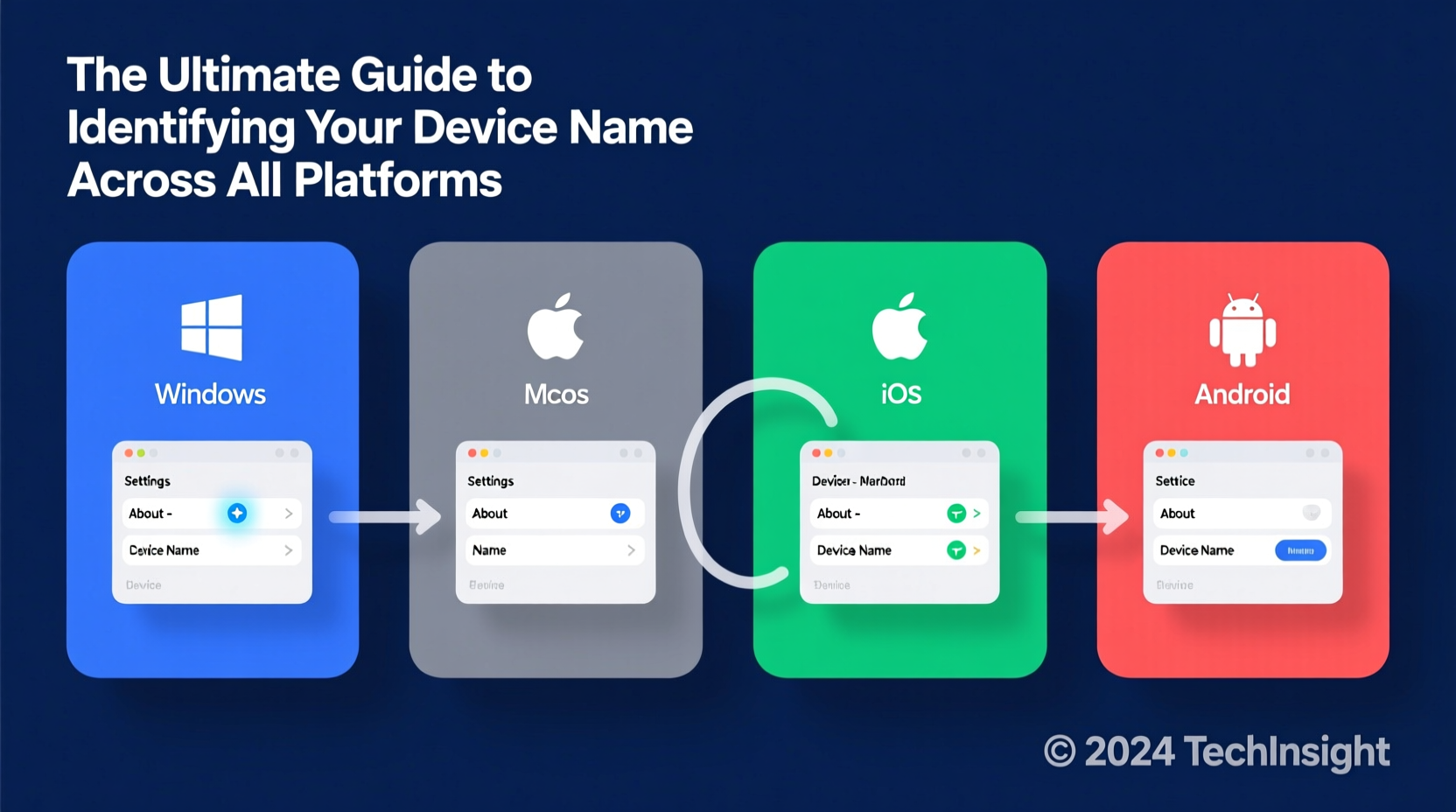
Your device name—also known as the hostname—is a unique identifier assigned to your machine on a network. While it may seem trivial, it plays a crucial role in how your device interacts with others. When you connect to a home Wi-Fi network, for example, your router sees “Johns-MacBook” instead of an obscure IP address. This makes it easier to manage connected devices and apply parental controls or bandwidth limits.
IT departments rely on standardized naming conventions (like “LAPTOP-JSMITH-HR”) to track equipment. Developers use hostnames when testing apps across devices. Even everyday users benefit when sharing files via AirDrop, Nearby Share, or Bluetooth—your device name appears front and center.
“Clear, consistent device naming reduces support time by up to 40% in enterprise environments.” — Raj Mehta, Network Infrastructure Lead at TechFlow Solutions
How to Find Your Device Name by Platform
Windows 10 & 11
Finding your device name in Windows is straightforward, though the path differs slightly between versions.
- Press Windows + I to open Settings.
- Navigate to System > About.
- Look under \"Device specifications\" for Device name.
Alternatively, press Windows + R, type cmd, and press Enter. In the Command Prompt, type:
hostname
The output is your current device name.
macOS (Ventura and Later)
Apple has streamlined access to system information, but the device name setting lives in a slightly different place post-macOS Ventura.
- Click the Apple menu () and select System Settings.
- Go to General > About.
- Click the current name listed next to Name—this is your device name.
- To edit, click the name, type a new one, and press Return.
Note: Changing the name here updates both the Sharing Name and Computer Name unless manually adjusted under Sharing settings.
Android (All Major OEMs)
Android does not always display the device name prominently, and manufacturers like Samsung, Google, and OnePlus may place it in different menus.
- Open Settings.
- Tap About phone (or About device).
- Scroll to find Device name or Name.
- Tap to edit if supported; otherwise, look under Bluetooth settings for the broadcast name.
Some older Android versions require going into Bluetooth settings to view or change the name used during pairing.
iOS (iPhone and iPad)
iOS uses the device name across AirDrop, iCloud, and screen-sharing features.
- Open the Settings app.
- Tap your name at the top (Apple ID section).
- Select Find My > Find My [Device].
- The top field shows your device name. Tap it to rename.
You can also go to General > About > Name to make the same change.
Linux (Ubuntu, Fedora, Debian)
Linux offers several ways to retrieve the hostname, both graphically and via terminal.
Graphical Method (GNOME):
- Open Settings.
- Go to About.
- Your device name appears as \"Device Name\" or \"Hostname\".
Terminal Method:
hostname
or
cat /etc/hostname
To change it temporarily:
sudo hostname new-name-here
For a permanent change, use:
sudo hostnamectl set-hostname your-desired-name
Changing Your Device Name: Best Practices
Renaming your device isn’t just about personalization—it’s about clarity and security. Avoid default names like “Android1234” or “User-PC,” which offer no context and can be exploited in social engineering attacks.
| Do | Don't |
|---|---|
| Use your name and device type (e.g., “Alexs-iPhone”) | Include sensitive info like ID numbers or birth years |
| Keep it short and alphanumeric | Use special characters like @, #, $ |
| Match naming across family devices (e.g., “Mom-iPad”, “Dad-Pixel”) | Make it generic (“Phone”, “Tablet”) |
Real-World Example: Resolving a Home Network Conflict
Sarah recently upgraded her laptop and noticed her old PC still appeared on her Wi-Fi list as “Laptop.” When she tried to share a file via Nearby Share, two devices showed up with the same name. Confused, her colleague couldn’t pick the right one.
After checking both machines, she realized the old laptop hadn’t been wiped properly and retained its original name. She renamed the active device to “Sarahs-XPS-2024” and retired the old one from the network. The conflict disappeared instantly.
This simple fix prevented future mix-ups and improved overall network clarity—proof that a well-chosen device name saves time and frustration.
Step-by-Step Checklist: Audit Your Devices
Follow this checklist to ensure all your devices are correctly named and identifiable.
- ✅ List all devices you regularly use (phone, tablet, laptop, desktop, smart TV).
- ✅ Access each device and locate its current name using the methods above.
- ✅ Rename any unclear or duplicate entries using a consistent format.
- ✅ Test visibility by sharing a file via AirDrop, Bluetooth, or cloud sync.
- ✅ Document names if managing family or team devices.
Frequently Asked Questions
Does changing my device name affect performance?
No. Renaming your device only changes its identifier on networks and paired systems. It has no impact on speed, storage, or functionality.
Can someone see my device name remotely?
Only when you're on the same local network or using services like AirDrop, Nearby Share, or remote desktop tools. Public exposure is minimal if your network is secured.
Why do some devices show different names in different places?
Some systems separate the \"device name\" (user-facing) from the \"hostname\" (network-facing). For example, macOS allows independent settings for Sharing Name and Bonjour name. Always verify both if troubleshooting connectivity.
Final Thoughts: Take Control of Your Digital Identity
Your device name might seem like a small detail, but it’s part of your broader digital footprint. Taking a few minutes to audit and standardize these names across platforms pays off in smoother collaboration, faster troubleshooting, and better organization—especially as households accumulate more smart devices.
Don’t wait until you’re troubleshooting a connection issue or explaining “the black laptop on the couch” to a tech support agent. Rename your devices today with clarity and consistency in mind.




 浙公网安备
33010002000092号
浙公网安备
33010002000092号 浙B2-20120091-4
Comments
No comments yet. Why don't you start the discussion?