
Knowing your exact phone model is essential whether you're troubleshooting an issue, buying accessories, upgrading software, or selling your device. With countless variations across brands, regions, and carrier models, identifying your specific smartphone can be surprisingly tricky. This guide walks you through proven, reliable methods—no guesswork required.
Why Knowing Your Exact Phone Model Matters
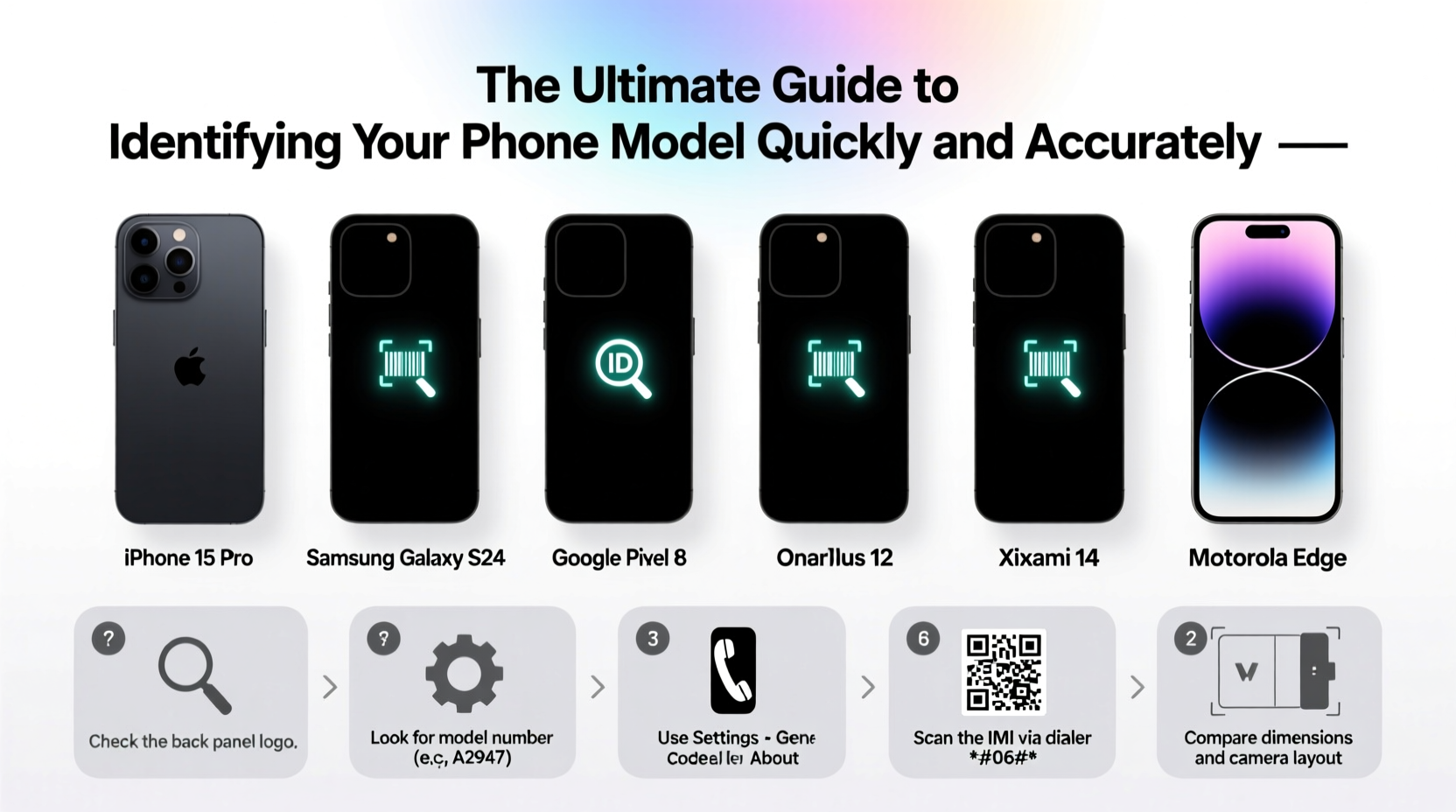
It’s not enough to say “I have an iPhone 14” or “a Samsung Galaxy S23.” Manufacturers release multiple variants of the same device—for example, the iPhone 14 comes in A2649, A2650, A2882, and others depending on region and network support. Similarly, the Galaxy S23 has different model numbers like SM-S911U (U.S. Unlocked), SM-S911B (global), and SM-S9110 (China).
Using the wrong model number can lead to:
- Purchasing incompatible replacement parts
- Downloading incorrect firmware updates
- Voiding warranties due to mismatched service records
- Losing resale value from vague or inaccurate listings
“Accurate model identification prevents costly mistakes in repair, resale, and compatibility decisions.” — David Lin, Senior Technician at MobileFix Labs
Step-by-Step: How to Find Your Phone Model Using Built-In Settings
The most reliable way to identify your phone model is through its internal settings. This method works for both iOS and Android devices and avoids confusion with similar-looking models.
For iPhone Users
- Open the Settings app.
- Tap General, then select About.
- Look for Model Name (e.g., iPhone 14 Pro) and Model Number.
- To see the actual alphanumeric model identifier, tap the model number once—it will switch from a consumer-friendly name (like \"iPhone 14 Pro\") to a code starting with \"A\" (e.g., A2651).
For Android Users
- Go to Settings.
- Scroll down and tap About Phone.
- Check entries labeled Model Number, Device Name, and Model Name.
- Also note the Software Information section, which may include sub-models relevant to firmware.
On some Samsung devices, you may need to go to About Phone > Model & Hardware for full details. OnePlus and Google Pixel phones typically display the full SKU under “Model Number.”
Alternative Methods When Settings Aren’t Accessible
If your screen is damaged, unresponsive, or locked out, you can still identify your phone using external clues and tools.
1. Check Physical Markings
Flip your phone over. Most devices have tiny text engraved on the back or inside the SIM tray area. Look for:
- An “A” number (Apple)
- A “SM-” prefix (Samsung)
- A “Pixel” model identifier (Google)
For iPhones, the model number is usually near the regulatory labels. On Android phones, it might be beneath the battery (if removable) or on the frame.
2. Use the IMEI Number
Every phone has a unique 15-digit IMEI (International Mobile Equipment Identity). You can use it to look up your exact model.
To find your IMEI:
- Dial
*#06#on your phone’s keypad—your IMEI will appear on-screen. - Check the original box—IMEI is printed on the label.
- On iPhone: Settings > General > About > IMEI.
- On Android: Settings > About Phone > Status > IMEI.
Once you have the IMEI, visit a free lookup service such as:
These sites decode your IMEI and return the brand, model, launch year, and supported bands.
3. Inspect the Original Packaging
The box your phone came in lists the model number clearly, often next to a barcode. For example:
Model: SM-S911U
IMEI: 35-XXXXXX-XXXXXX-7
FCC ID: IZY-SMS911U
This is especially helpful if you’re reselling or verifying authenticity.
Quick Reference Table: Common Model Number Prefixes by Brand
| Brand | Typical Model Prefix | Example | Notes |
|---|---|---|---|
| Apple (iPhone) | A + 4 digits | A2651 | Find in Settings > About; varies by region |
| Samsung | SM- followed by letters/numbers | SM-S911U, SM-G998B | U = U.S. carrier, B = global dual-SIM |
| Google Pixel | G + numbers | G3YH8, GVPO4 | Check Settings or packaging |
| OnePlus | BE, CPH, or KB | KB2001, CPH2447 | Varies by region and carrier |
| Xiaomi / Redmi | 22xx, 23xx, etc. | 2201123G | Alphanumeric; check Settings or IMEI lookup |
Mini Case Study: Avoiding a Costly Repair Mistake
Jamal bought a used Galaxy S22 online described simply as “unlocked international version.” He needed a new screen and ordered a part based on that description. When it arrived, the connector didn’t fit. After checking the model number via Settings, he discovered his phone was SM-S901B/DS—not the more common SM-S901E. The subtle difference affected component layout. By relying on assumptions instead of the precise model, Jamal wasted $65 and two weeks waiting for the correct part.
Afterward, he created a checklist for future purchases—and now always verifies the full model number before any repair.
Essential Checklist: Verify Your Phone Model in 5 Steps
Follow this checklist to confirm your phone model with confidence:
- Go to Settings > About Phone and write down the Model Number.
- For iPhones, tap the model number to reveal the A-number.
- Locate the IMEI by dialing *#06# and record it.
- Cross-check the IMEI on imei.info or a trusted database.
- Compare with the original box or receipt if available.
Frequently Asked Questions
Can two phones look identical but have different model numbers?
Yes. Phones sold in different regions (e.g., U.S. vs. Europe) often have identical designs but different internal hardware, such as modem bands or charger compatibility. Always verify the model number before assuming interchangeability.
Is the serial number the same as the model number?
No. The serial number is unique to your individual device, while the model number identifies the product line and variant. Both are important, but only the model number determines compatibility with accessories and software.
What if my phone won’t turn on? Can I still identify the model?
Absolutely. Use the physical engravings on the back or SIM tray. If those aren’t visible, check the original box, receipt, or your carrier account (under device information). You can also remove the battery (if possible) to find internal labels.
Final Tips for Long-Term Device Management
Once you’ve identified your phone model, store the information securely. Consider creating a digital note titled “My Devices” with:
- Full model number
- IMEI
- Purchase date
- Warranty status
When upgrading or repairing, always double-check compatibility using the exact model number—not just the marketing name. This small step saves time, money, and frustration.
Conclusion: Take Control of Your Device Identity
Identifying your phone model isn’t just a technical detail—it’s a fundamental part of owning and maintaining your device. Whether you’re troubleshooting, upgrading, or selling, precision matters. With the methods outlined here, you can confidently determine your phone’s exact identity in minutes, using tools you already have.




 浙公网安备
33010002000092号
浙公网安备
33010002000092号 浙B2-20120091-4
Comments
No comments yet. Why don't you start the discussion?