
Group phone calls have become essential for staying connected—whether coordinating a family event, managing remote teams, or catching up with friends across time zones. While the technology is widely available, many users still struggle with dropped connections, unclear audio, or confusion over how to initiate and manage multi-person calls. This guide breaks down everything you need to know to make smooth, effective group calls from your smartphone, regardless of your device or carrier.
Understanding Group Calling: How It Works
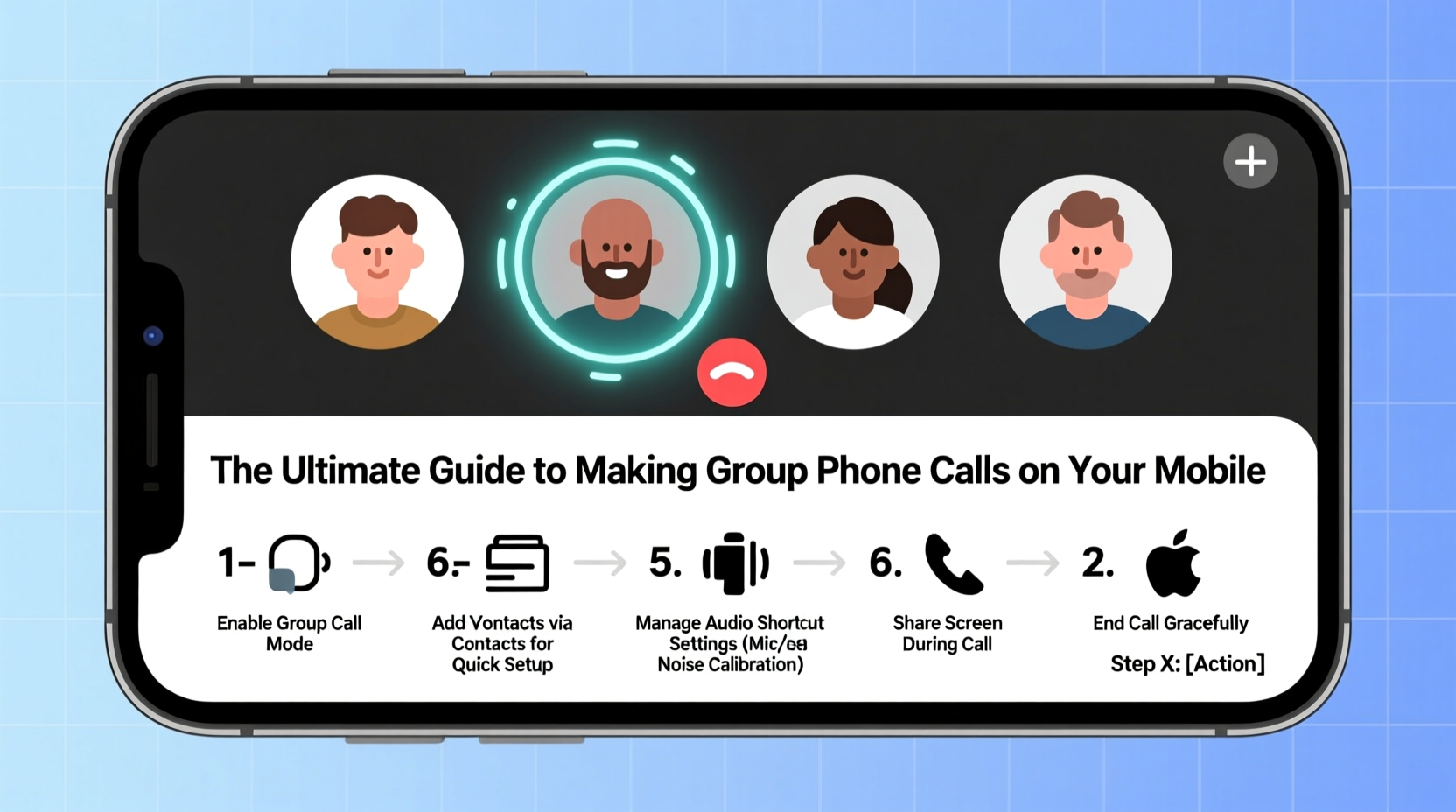
Unlike traditional one-on-one calls, group calling allows three or more participants to speak simultaneously over a single call. Most modern smartphones support this through either built-in carrier features (like conference calling) or third-party apps such as WhatsApp, Google Meet, or FaceTime. The method you use depends on your device type, operating system, network capabilities, and whether data or Wi-Fi is available.
Native group calling via your phone’s dialer usually relies on your cellular plan and may incur charges if not covered under unlimited minutes. App-based solutions typically use internet data, offering higher audio quality and additional features like screen sharing or call recording—but require all participants to have the same app installed.
Step-by-Step Guide to Making a Group Call
Follow this clear sequence to initiate a successful group call on both iOS and Android devices using native dialers and popular messaging apps.
- Choose Your Platform: Decide between carrier-based conference calling or an app (e.g., WhatsApp, FaceTime, Google Meet).
- Prepare Participants: Share the date, time, and joining instructions in advance.
- Start the Call:
- iOS (FaceTime/Phone): Open Phone app > Tap “+” > Add first contact > Tap “Add Call” > Dial second person > Tap “Merge Calls.”
- Android (Google Dialer): Begin a call > During the call, tap “Add call” > Select another contact > Tap “Merge calls.”
- WhatsApp: Open chat > Tap voice call icon > Select multiple contacts (up to 32).
- Merge or Invite: On native calls, manually merge after connecting each person. In apps, all are added at once.
- Manage Audio: Ensure microphone levels are balanced; ask participants to mute when not speaking.
- End Gracefully: Announce closure clearly. One person leaving doesn’t end the call unless they’re the host (varies by app).
“Effective group calling isn’t just about technology—it’s about etiquette and preparation. A well-managed call saves time and reduces frustration.” — Lena Torres, Communication Strategist at RemoteTeams Inc.
Best Practices for Clear and Productive Group Calls
A successful group call goes beyond pressing buttons. Clarity, structure, and consideration determine whether the conversation flows smoothly or descends into chaos.
- Limit Participants: Keep groups small (4–6 people) for focused discussions. Larger meetings benefit from video conferencing tools.
- Use Headphones: Reduces echo and background noise, especially in shared spaces.
- Mute When Not Speaking: Prevents ambient sounds from disrupting others.
- Assign a Moderator: Someone should guide the discussion, manage turn-taking, and keep the agenda on track.
- Test Connectivity First: Run a quick audio check with one participant before inviting the full group.
App Comparison: Native vs. Third-Party Tools
Different platforms offer varying levels of functionality. Here's a breakdown of key options:
| Platform | Max Participants | Data Required? | Key Features | Best For |
|---|---|---|---|---|
| iPhone FaceTime | 32 | Yes | End-to-end encryption, screen sharing, reactions | Apple users, secure conversations |
| WhatsApp Voice Call | 32 | Yes | Encrypted, easy contact sync | International groups, informal chats |
| Google Meet (Mobile) | 100 (free tier) | Yes | Live captions, recording, hand raise | Work meetings, large groups |
| Native Carrier Conference | 5–6 (varies) | No (uses minutes) | No app needed, accessible via phone number | Users without smartphones or data access |
| Zoom (Mobile App) | 100+ | Yes | Breakout rooms, virtual backgrounds, polling | Professional webinars, training sessions |
Selecting the right tool depends on your goals. For casual family check-ins, WhatsApp or FaceTime suffice. For business coordination, Google Meet or Zoom provide superior control and reliability.
Real-World Example: Managing a Family Reunion Planning Call
Sarah needed to coordinate a reunion involving relatives across four states. She chose WhatsApp because most family members already used it and had international plans limiting voice minutes. She created a group, scheduled a weekend call, and sent a brief agenda ahead of time: venue options, budget approval, and activity planning.
During the call, she muted everyone initially, then invited input one by one. Her brother in California had spotty connection, so she asked him to send his thoughts via voice note afterward. By assigning roles—her cousin handled catering research, her aunt managed guest list—the 25-minute call concluded with clear next steps. The structured approach prevented overlap and ensured inclusivity.
This example shows that even informal calls benefit from organization, the right platform, and mindful facilitation.
Troubleshooting Common Issues
Even with preparation, problems arise. Here’s how to handle frequent challenges:
- Participant Can’t Join: Verify they have the correct app version or dial-in number. Some carriers require activation of conference calling.
- Poor Audio Quality: Switch to Wi-Fi, close other data-heavy apps, or restart the call.
- Call Drops Mid-Conversation: Most apps don’t support rejoining seamlessly. Designate a backup contact to relay decisions.
- No Merge Option Available: Check carrier settings—some plans disable multi-call merging. Contact customer service to enable it.
Essential Checklist Before Starting a Group Call
Run through this checklist to ensure a smooth experience:
- ☑ Confirm availability of all participants
- ☑ Choose the appropriate calling platform
- ☑ Test microphone, speaker, and internet/Wi-Fi
- ☑ Share agenda or purpose in advance
- ☑ Close unnecessary background apps
- ☑ Charge your phone or plug it in
- ☑ Assign a moderator or note-taker if needed
Frequently Asked Questions
Can I make a free group call without using data?
No—native conference calls use your cellular minutes, while app-based calls require data or Wi-Fi. There’s no completely free option without one or the other. However, if your plan includes unlimited talk time, carrier-based calls won’t cost extra.
How many people can join a group phone call?
It varies: iPhone and Android native calls typically allow 5–6 people. WhatsApp and FaceTime support up to 32. Google Meet and Zoom allow hundreds, but mobile usability decreases with size.
Is it possible to record a group voice call?
Some apps like Google Meet and Zoom allow recording with consent. Native phone calls generally cannot be recorded due to privacy laws. Always inform participants before recording any conversation.
Final Tips for Long-Term Success
As group calling becomes routine, refine your habits. Save frequently called groups in your contacts. Use recurring calendar events with auto-reminders. Explore advanced features like transcription services or integration with productivity tools like Slack or Notion.
Remember, the goal isn’t just to connect voices—but to foster meaningful, efficient communication. Whether you're rallying volunteers, supporting aging parents, or leading a project team, mastering group calls empowers you to lead with clarity and confidence.




 浙公网安备
33010002000092号
浙公网安备
33010002000092号 浙B2-20120091-4
Comments
No comments yet. Why don't you start the discussion?