
Smart audio glasses are redefining how we interact with technology—blending style, convenience, and functionality. Among their most valuable features is the ability to make and receive wireless calls without pulling out a phone or wearing earbuds. Whether you're commuting, working outdoors, or simply want hands-free connectivity, mastering call functionality through your smart glasses can enhance productivity and safety. However, like any tech, they require proper setup and occasional troubleshooting. This guide walks you through everything you need to know to use wireless calling effectively, avoid common pitfalls, and get the most from your device.
How Smart Audio Glasses Handle Wireless Calls
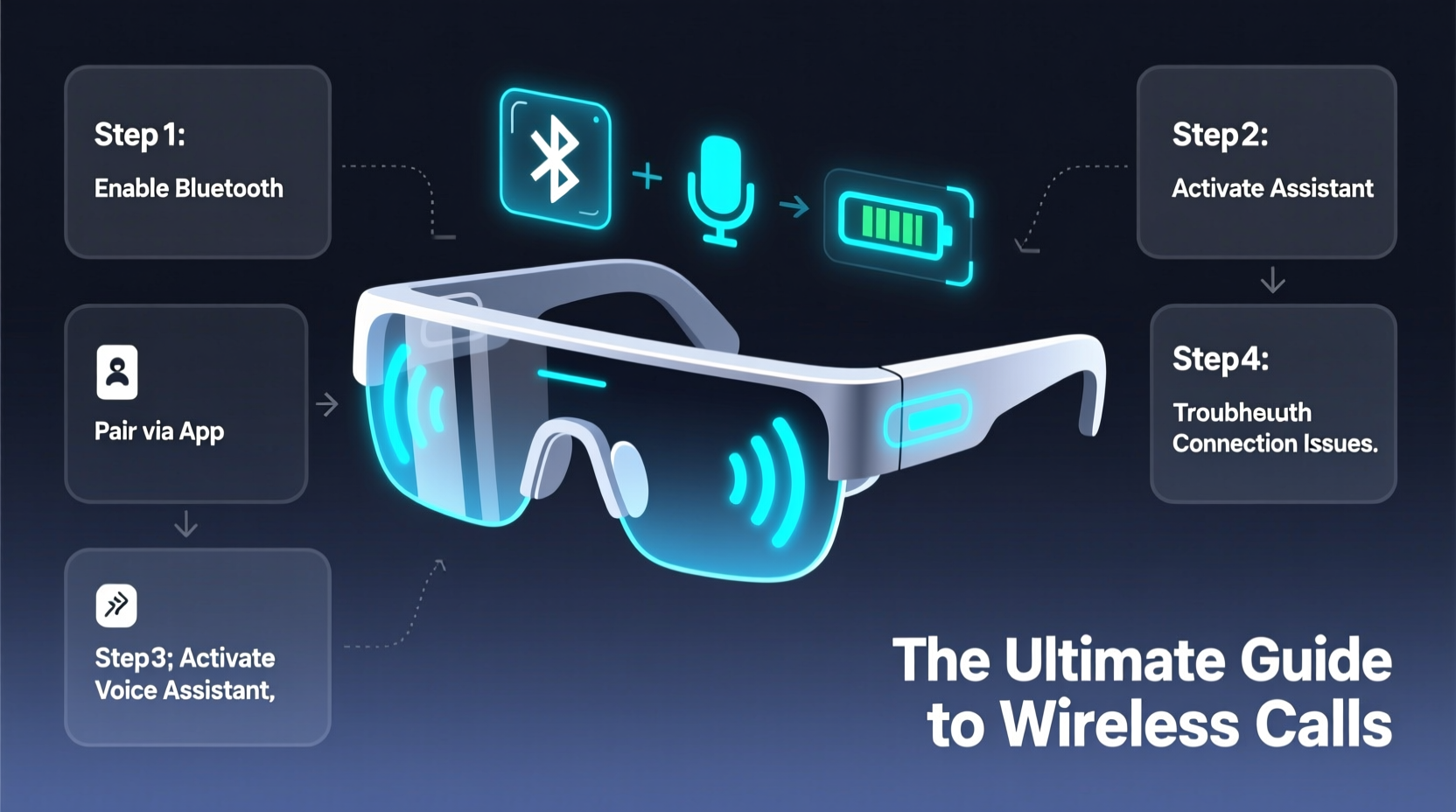
Smart audio glasses integrate miniature speakers, microphones, and Bluetooth connectivity into lightweight, wearable frames. Unlike traditional headphones, they project sound near your ears while keeping them open—allowing ambient awareness. When paired with a smartphone, these glasses act as a wireless headset, enabling you to answer calls, control volume, and even activate voice assistants.
The process relies on Bluetooth profiles such as HFP (Hands-Free Profile) for call handling and A2DP (Advanced Audio Distribution Profile) for media streaming. Most models support dual-microphone arrays with noise suppression to improve voice clarity during calls—even in moderately noisy environments.
Step-by-Step Guide to Making Your First Wireless Call
Setting up and using your smart audio glasses for calls is straightforward when you follow the right sequence. Here’s a proven method used by thousands of users:
- Charge your glasses fully before first use. Low battery can interfere with pairing and audio quality.
- Enable Bluetooth on your smartphone and turn on your glasses by pressing the power button (usually located on the temple).
- Select your glasses from the Bluetooth list. The device name typically includes the brand (e.g., “Ray-Ban Stories” or “Xiaomi Smart Glasses”).
- Test the connection by playing a short audio clip or video. Ensure sound comes through clearly from both sides.
- Initiate a test call using your phone’s dialer or a voice assistant (“Hey Google, call Mom”).
- Answer an incoming call by tapping or pressing the multifunction button once. End the call with another press.
- Adjust microphone positioning if others report muffled audio—angle your head slightly toward the speaker during conversations.
This setup works across major brands including Bose Frames, Meta Ray-Bans, and Lenovo Smart Glasses. Once connected, your phone will automatically route incoming calls to the glasses when they’re powered on and within range.
Best Practices for Clear and Reliable Calls
To maintain consistent call quality, adopt these habits that experienced users swear by:
- Keep firmware updated: Manufacturers release updates to fix bugs and improve microphone performance. Check the companion app monthly.
- Minimize wind interference: Use glasses with built-in wind-noise reduction or position yourself with your back to the wind during outdoor calls.
- Speak naturally but slightly louder: The microphones are directional and placed close to your jawline. Over-enunciating can distort input.
- Avoid crowded Bluetooth areas: Gyms, transit hubs, and offices with many devices may cause signal drops. Move to a quieter zone if call quality degrades.
- Clean regularly: Dust or sweat buildup around microphone ports can muffle your voice. Wipe gently with a dry microfiber cloth weekly.
“Users who update firmware and manage Bluetooth congestion see up to 40% improvement in call reliability.” — Dr. Lena Torres, Wearable Tech Engineer at Nordic Semiconductor
Troubleshooting Common Call Issues
Even well-maintained devices encounter problems. Below is a reference table for diagnosing frequent issues and applying quick fixes:
| Issue | Possible Cause | Solution |
|---|---|---|
| Can’t hear the caller | Low volume, incorrect audio routing, or dead speaker | Check volume settings on both phone and glasses; restart Bluetooth; test with music playback. |
| Caller can’t hear you | Muted mic, blocked ports, or firmware glitch | Clean mic holes; unpair and re-pair; check mute status in call interface. |
| Call disconnects randomly | Weak Bluetooth signal or interference | Stay within 30 feet of your phone; avoid metal obstructions; disable other Bluetooth devices temporarily. |
| Glasses won’t pair | Not in pairing mode or full device memory | Hold power button for 5+ seconds until LED blinks; remove old devices from glasses’ memory via app. |
| Echo or feedback during calls | Speaker proximity to microphone | Lower volume; move to quieter environment; avoid cupping hands near temples. |
When to Reset Your Glasses
If standard fixes fail, perform a factory reset. Consult your user manual, but most models require holding the power button for 10–15 seconds until the LED flashes red or turns off. After resetting, re-pair the glasses to your phone as if new. Note: this erases saved connections and custom settings.
Real-World Example: Staying Connected on the Go
Jamal, a city bike courier in Portland, relies on his Bose Frames Tempo for navigation and client calls. One rainy morning, he noticed clients couldn’t hear him despite speaking clearly. He checked the app and discovered a pending firmware update. After installing it, the microphone sensitivity improved dramatically. He also began using a thin silicone cover to shield the mic ports from moisture—a small change that drastically reduced dropouts during wet-weather deliveries. Now, he answers urgent dispatch calls without slowing down, maintaining professionalism even in motion.
This case highlights how proactive maintenance and understanding environmental factors can transform a frustrating experience into a reliable workflow tool.
Essential Checklist Before Every Important Call
Before joining a critical work call or personal conversation, run through this quick checklist:
- ✅ Charge level above 50%
- ✅ Bluetooth connected and stable
- ✅ Microphones and speakers clean and unobstructed
- ✅ Firmware up to date
- ✅ Volume set to optimal level (not max)
- ✅ Phone not in silent mode
- ✅ Background noise minimized
Frequently Asked Questions
Can I use smart audio glasses with any phone?
Most modern smart glasses work with Android and iOS devices that support Bluetooth 5.0 and HFP. However, some advanced features (like voice assistant integration) may be limited to specific operating systems or apps. Always verify compatibility before purchase.
Are calls private when using audio glasses?
Sound is directed toward your ears, but people nearby—especially in quiet rooms—may hear faint audio leakage. Avoid discussing sensitive topics in public spaces. Some models offer “private listening” modes that focus sound more narrowly.
Why does my voice sound robotic to callers?
This often results from aggressive noise cancellation misinterpreting your voice patterns. Try disabling ANC (if available) or adjusting your speaking distance from the mic. Updating firmware can also resolve voice processing bugs.
Final Thoughts: Elevate Your Communication Experience
Wireless calling through smart audio glasses offers freedom and elegance—if used correctly. With the right setup, regular maintenance, and awareness of environmental factors, these devices become indispensable tools for mobile professionals, active commuters, and tech-savvy individuals alike. Don’t just wear smart glasses for style; master their functionality and make every call clearer, safer, and more efficient.




 浙公网安备
33010002000092号
浙公网安备
33010002000092号 浙B2-20120091-4
Comments
No comments yet. Why don't you start the discussion?