
In an era where personal data is constantly tracked and monetized, understanding how to manage digital footprints is essential. On your iPad, one of the most common—and often overlooked—traces of your online activity is cookies. These small text files are stored by websites to remember your preferences, login status, and browsing behavior. While they can enhance convenience, they also pose risks to privacy and security if left unchecked.
For iPad users, especially those who rely on Safari or third-party browsers, knowing how to manage, limit, and delete cookies is a critical step toward reclaiming control over personal information. This guide provides a comprehensive look at what cookies are, why they matter, and how you can actively manage them to protect your privacy and improve device performance.
What Are Cookies and Why Do They Matter?
Cookies are small data files created by websites and stored on your device when you browse the internet. They serve several functions: remembering login details, saving shopping cart items, tracking user behavior across sites, and personalizing content. There are two primary types:
- First-party cookies: Created by the website you're visiting. Generally used for functionality like staying logged in or remembering language preferences.
- Third-party cookies: Placed by domains other than the one you're visiting, often used for advertising and cross-site tracking.
While first-party cookies are usually benign—or even helpful—third-party cookies are the main concern for privacy-conscious users. These can follow you from site to site, building a profile of your interests without explicit consent.
“Third-party tracking through cookies has become one of the most pervasive forms of online surveillance. Users should treat cookie management as a foundational part of digital hygiene.” — Dr. Lena Torres, Cybersecurity Researcher at the Digital Privacy Institute
How to Delete Cookies on Your iPad (Step-by-Step)
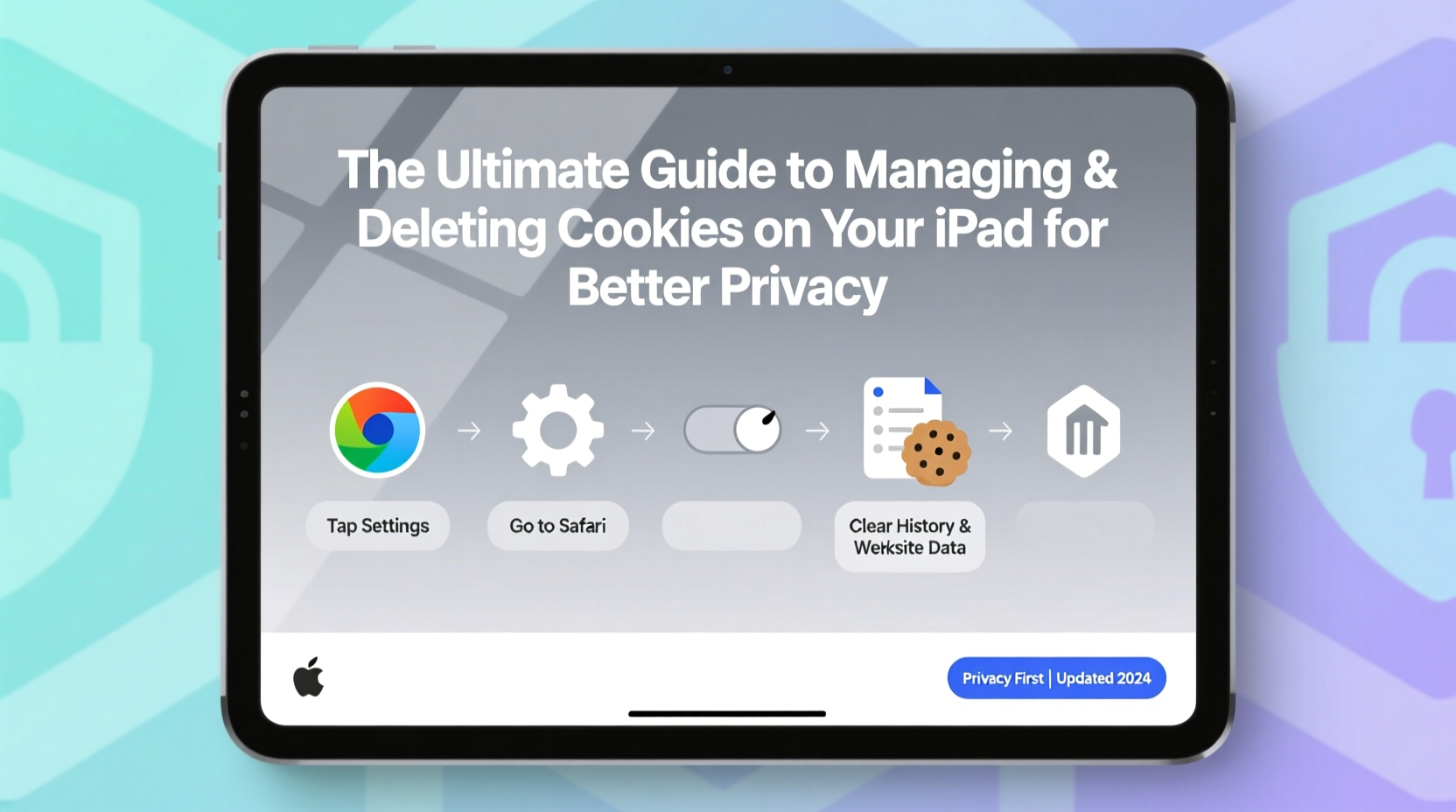
If you want to clear your browsing history and remove stored cookies from Safari—the default browser on iPad—follow this straightforward process:
- Open the Settings app on your iPad.
- Scroll down and tap on Safari.
- Under the “Privacy & Security” section, tap Clear History and Website Data.
- A confirmation dialog will appear. Tap Clear History and Data to proceed.
This action removes all browsing history, cookies, and cached website data. You’ll be logged out of most websites, and previously visited pages may load slower on the next visit due to cleared cache.
Alternative Method: Manage Website Data Individually
If you prefer more granular control instead of wiping everything, you can review and remove specific website data:
- Go to Settings > Safari.
- Tap Website Data.
- Wait for the list to populate with domains storing cookies and data.
- Swipe left on any entry to delete it individually, or tap Remove All Website Data for a full reset.
This method is ideal for removing tracking cookies from known ad networks while preserving useful session data from trusted sites.
Blocking Third-Party Cookies for Enhanced Privacy
Prevention is better than cleanup. By blocking third-party cookies altogether, you reduce the risk of being tracked across the web. Here’s how to enable Intelligent Tracking Prevention in Safari:
- Navigate to Settings > Safari.
- Ensure that Prevent Cross-Site Tracking is toggled on.
- Also enable Block All Cookies if you want maximum privacy (note: this may break some website functionality).
With “Prevent Cross-Site Tracking” enabled, Safari uses machine learning to identify and block trackers attempting to follow you across domains. Apple introduced this feature as part of its broader privacy initiative, and it significantly reduces exposure to behavioral advertising.
| Setting | Effect on Privacy | Potential Drawbacks |
|---|---|---|
| Prevent Cross-Site Tracking (ON) | Blocks most third-party trackers | Minor impact on personalized content |
| Block All Cookies (ON) | Maximum privacy protection | Breaks logins, forms, and dynamic content |
| Block All Cookies (OFF) | Full site functionality | Increased tracking risk |
Managing Cookies in Third-Party Browsers
If you use browsers like Chrome, Firefox, or Brave on your iPad, cookie management differs slightly. Each app handles storage independently of Safari, so clearing Safari data won’t affect these browsers.
- Google Chrome: Open Chrome > More (three dots) > Settings > Privacy > Clear Browsing Data. Select time range and check “Cookies, Site Data.”
- Mozilla Firefox: Tap menu > Settings > Privacy > Delete Browsing Data. Choose what to remove, including cookies.
- Brave Browser: Offers aggressive tracker blocking by default. Go to Settings > Privacy > Clear Browsing Data to manage cookies manually.
Brave and Firefox are particularly strong choices for privacy-focused users, offering built-in tracker and fingerprinting protection beyond basic cookie controls.
Mini Case Study: Reducing Targeted Ads After Cookie Cleanup
Sophia, a freelance designer from Portland, noticed she was seeing eerily specific ads for ergonomic chairs weeks after researching them once. She hadn’t made a purchase, but the ads followed her across news sites and social media. After reading about cross-site tracking, she decided to clear her iPad’s website data and enable “Prevent Cross-Site Tracking” in Safari. Within days, the chair ads disappeared. Over the next month, she observed a significant drop in retargeted advertising overall, confirming that simple cookie management had disrupted invasive tracking loops.
Best Practices: A Privacy Checklist
To maintain long-term privacy and optimal device performance, adopt these habits regularly:
- ✅ Enable “Prevent Cross-Site Tracking” in Safari settings
- ✅ Review Website Data monthly and remove suspicious entries
- ✅ Clear history and cookies every 2–4 weeks
- ✅ Use private browsing mode for sensitive searches
- ✅ Consider switching to privacy-focused browsers like Firefox or Brave
- ✅ Avoid enabling “Remember Me” on public or shared devices
Frequently Asked Questions
Will deleting cookies log me out of all my accounts?
Yes. Cookies store login sessions for many websites. Clearing them will require you to re-enter usernames and passwords the next time you visit those sites. Using a trusted password manager can streamline this process.
Can websites still track me if I delete cookies?
Possibly. Some sites use alternative methods like fingerprinting, which identifies your device based on screen size, fonts, and browser settings. While deleting cookies helps, combining it with tracker blockers and private browsing offers stronger protection.
Is it safe to block all cookies?
Technically yes, but practically it may impair usability. Many websites rely on cookies for core functions like shopping carts or saved preferences. Blocking all cookies can lead to broken layouts, repeated login prompts, and disabled features. A balanced approach—blocking third-party cookies while allowing first-party ones—is recommended for most users.
Take Control of Your Digital Privacy Today
Your iPad is a powerful tool for communication, creativity, and connection—but it also collects traces of your digital life with every tap and scroll. Cookies, though small, play a major role in shaping your online experience, often behind the scenes. By understanding how they work and taking deliberate steps to manage them, you’re not just cleaning up temporary files—you’re asserting ownership over your personal data.
Privacy isn’t about hiding; it’s about choice. Choosing when to be remembered and when to remain anonymous is a right, not a luxury. Start with one action today: clear your website data, toggle on tracking prevention, or explore a more secure browser. Small changes compound into meaningful protection.




 浙公网安备
33010002000092号
浙公网安备
33010002000092号 浙B2-20120091-4
Comments
No comments yet. Why don't you start the discussion?