
Navigating the world has never been easier thanks to digital mapping tools, and Google Maps stands at the forefront of location-based technology. Whether you're planning a weekend getaway, tracking your favorite coffee shops, or organizing fieldwork for a project, knowing how to mark and manage locations efficiently can save time and reduce stress. Most users only scratch the surface of what Google Maps offers. This guide dives deep into practical methods for saving, organizing, editing, and sharing places across devices—transforming how you interact with your surroundings.
Why Marking Locations Matters
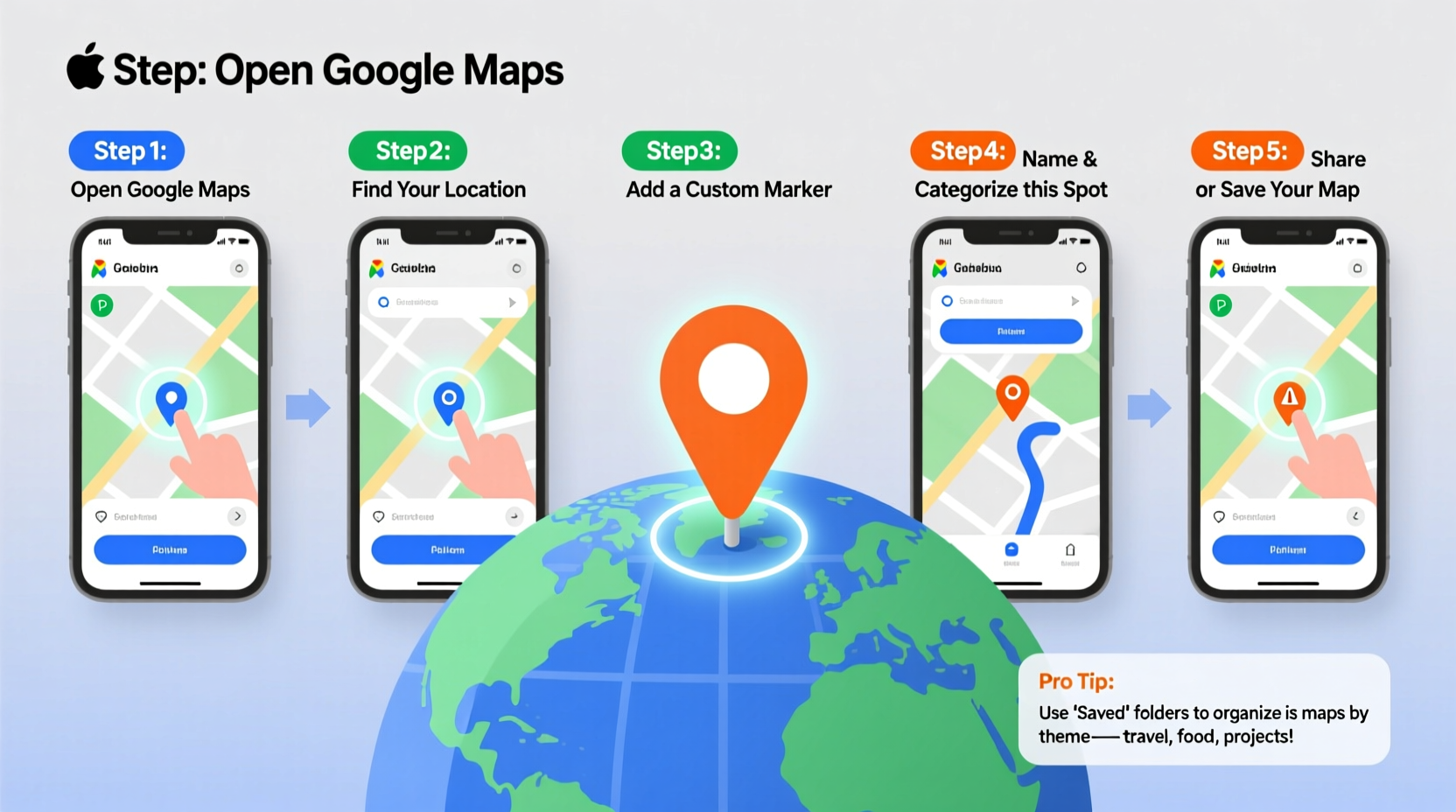
Marking locations isn’t just about dropping pins; it’s about creating a personalized digital map of your life. From remembering where you parked in a crowded city to curating a list of must-visit restaurants during travel, saved locations act as memory anchors. Google Maps syncs these across all your devices when signed in, making them instantly accessible whether you’re on mobile, tablet, or desktop.
Business professionals use custom lists to track client sites. Travelers build itineraries with pinned attractions. Parents save school zones and playgrounds. The functionality scales from simple personal use to complex logistical planning—all within one free platform.
How to Mark a Location on Google Maps (Step-by-Step)
Adding a new location is straightforward but varies slightly between mobile and desktop. Follow this universal process:
- Open Google Maps on your device (app or browser).
- Navigate to the desired spot using search or by panning the map.
- Long-press (mobile) or right-click (desktop) on the exact point.
- A red pin will appear with an info card at the bottom (mobile) or top (desktop).
- Tap or click \"Save\" to store it immediately.
- Choose a list (e.g., \"Want to go\", \"Frequently visited\") or create a new one.
- (Optional) Add a star rating, note, or photo for context.
This method works even if the place isn’t officially listed in Google’s database. You can name unmarked spots such as trailheads, parking areas, or temporary pop-up markets.
Editing and Organizing Saved Places
Over time, your saved locations may become disorganized. Google Maps allows full control over how entries are grouped and labeled.
- Rename: Tap a saved location > Edit > Change name.
- Re-categorize: Move entries between lists or assign multiple tags.
- Delete: Open the saved item and select “Remove.”
- Add notes: Include details like opening hours not listed publicly, contact names, or reminders (“Check gluten-free options”).
You can also drag and reorder items within custom lists, helping prioritize visits or group stops by route.
Creating and Managing Custom Lists
Custom lists are among the most powerful features in Google Maps. Think of them as curated collections—like playlists for places.
To create a list:
- Go to the “Saved” tab in the app or website.
- Select “Lists” > “Create new list.”
- Name it (e.g., “Hiking Trails 2024”, “Client Meetings – Q3”).
- Add a description if needed.
- Start adding places by searching and tapping “Save.”
These lists can be shared with others, making them ideal for collaborative planning. For example, a family vacation list lets everyone contribute ideas before departure.
| List Type | Best Use Case | Sharing Enabled? |
|---|---|---|
| Want to go | Personal bucket list of restaurants, parks, etc. | No |
| Favorites | Regularly visited spots (home, gym, office) | No |
| Custom List | Trips, projects, themed collections | Yes |
| Starred places | Quick-access bookmarks (legacy feature) | No |
Sharing and Collaborating on Maps
One underrated strength of Google Maps is real-time collaboration. When planning group events or coordinating deliveries, shared lists eliminate miscommunication.
To share a list:
- Open “Saved” > “Lists.”
- Select the list you want to share.
- Tap the three-dot menu > “Share list.”
- Send via link, email, or messaging apps.
Recipients can view the list without editing rights unless you enable contribution mode. Once accepted, collaborators can add, remove, or comment on entries—ideal for team logistics or family road trips.
“Shared location lists cut our event planning time in half. Everyone adds venues, checks availability, and marks confirmed bookings—all in one place.” — Lena Torres, Event Coordinator at Urban Gatherings Co.
Mini Case Study: Planning a Cross-Country Road Trip
Mark and Sofia were driving from Denver to Portland and wanted to explore scenic stops along I-84. Instead of juggling spreadsheets and sticky notes, they created a joint Google Maps list called “PNW Adventure Stops.” Each partner added potential hikes, diners, and campgrounds. They color-coded entries: green for confirmed, yellow for “maybe,” and red for overcrowded spots based on reviews.
While en route, they updated the list in real time—removing closed attractions and noting fuel prices. By trip’s end, they had a polished itinerary they could reuse or recommend to friends. What started as a simple pin-dropping exercise evolved into a dynamic travel journal.
Advanced Tips for Power Users
Beyond basic saving, Google Maps supports advanced workflows that boost productivity.
- Offline Access: Download maps for areas with poor connectivity. Go to your profile > Offline maps > Select area.
- Location Sharing: Share your real-time position temporarily with trusted contacts under “Location sharing” settings.
- Measure Distance: Right-click any point on desktop > “Measure distance” to calculate routes or plot property boundaries.
- Use Shortcuts: Assign labels like “Work,” “Home,” or “Gym” for instant navigation from voice commands.
For businesses, managers can create private lists to monitor delivery zones, service areas, or competitor locations—without public exposure.
Checklist: Optimize Your Google Maps Experience
- ✅ Sign in to sync data across devices
- ✅ Rename vague saved places with clear identifiers
- ✅ Create at least three custom lists (e.g., Travel, Work, Personal)
- ✅ Share one list with a friend or colleague this week
- ✅ Review and clean up old saved locations monthly
- ✅ Enable offline maps for frequent travel zones
- ✅ Add notes to high-value locations (e.g., gate codes, manager names)
Frequently Asked Questions
Can I mark a location that isn’t searchable?
Yes. Even unnamed trails, construction sites, or vacant lots can be marked by dropping a pin manually through long-press (mobile) or right-click (desktop). You can assign a custom name and save it to a list.
Are my saved locations visible to others?
No—your saved places, starred items, and private lists remain confidential unless explicitly shared. Shared lists generate a unique link; revoke access anytime via list settings.
What happens to my data if I switch phones?
If you’re logged into the same Google account, all saved locations, lists, and preferences automatically sync once Google Maps is installed and opened.
Take Control of Your Map
Google Maps is more than a navigation tool—it’s a dynamic organizer for your physical world. By mastering how to mark, categorize, and share locations, you turn scattered memories and plans into structured, actionable insights. Whether you're optimizing daily commutes, planning adventures, or managing professional routes, the ability to manage locations efficiently gives you back time, reduces uncertainty, and enhances decision-making.




 浙公网安备
33010002000092号
浙公网安备
33010002000092号 浙B2-20120091-4
Comments
No comments yet. Why don't you start the discussion?