
Every smartphone tap, every holiday snapshot, every candid moment with family—digital photos accumulate faster than most realize. Within a few years, even casual photographers can amass tens of thousands of images scattered across devices, cloud services, and forgotten folders. Without a clear system, finding a specific photo becomes an exhausting search through endless thumbnails. The solution lies in a structured approach: organizing your digital photo library by date and face. This method combines chronological logic with intelligent recognition, turning chaos into clarity.
Organizing by date ensures you can trace memories in sequence, while facial recognition allows instant access to photos of loved ones. Together, they form a powerful dual-axis system that makes retrieval intuitive and preservation reliable. Whether you're using Apple Photos, Google Photos, Adobe Lightroom, or managing files manually, the principles remain consistent. This guide walks through practical strategies, tools, and best practices to build a sustainable photo library that grows smarter over time.
Why Date and Face Are the Foundation of Photo Organization
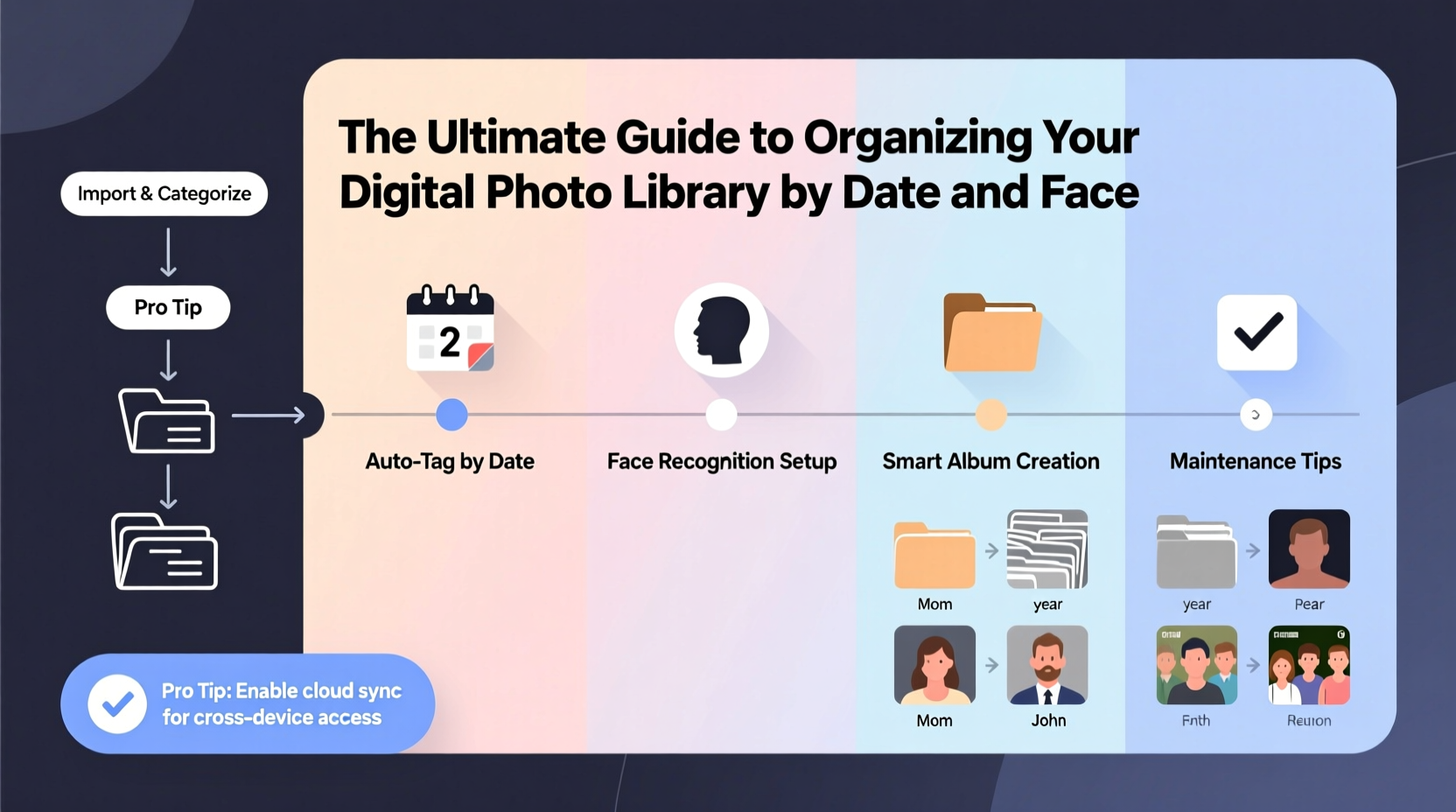
Chronological order is the most natural way humans remember events. We recall birthdays, vacations, and milestones by when they happened. Sorting photos by date aligns with how our minds retrieve memories. It also enables easy navigation through timelines, making it simple to revisit entire chapters of life—like \"Summer 2022 in Greece\" or \"My daughter’s first year.\"
Facial recognition adds a personal layer. Instead of scrolling endlessly to find all pictures of your grandmother, you can click her name and see every image she appears in—across years and locations. Modern software detects faces with impressive accuracy, clustering similar ones and allowing manual corrections. When combined with date-based sorting, this creates a multidimensional library: you can explore by time, by person, or both.
“People don’t just want to store photos—they want to relive them. Organizing by date and face transforms passive archives into active memory engines.” — Dr. Lena Patel, Digital Archiving Researcher, MIT Media Lab
This dual approach also enhances backup efficiency. A well-structured library is easier to migrate between platforms, verify for completeness, and protect against data loss. Unlike arbitrary folder names like “Old Stuff” or “Maybe Later,” date-and-face organization provides consistency that scales over decades.
A Step-by-Step Guide to Building Your Organized Library
Rebuilding your photo collection doesn’t require perfection on day one. Focus on progress, not speed. Follow this timeline to establish a clean, searchable system.
- Collect all photos in one location: Gather images from phones, cameras, old hard drives, and social media downloads. Use a central folder on your computer (e.g., “Photos_Master”) as the temporary hub.
- Standardize file names and dates: Many photos have incorrect timestamps due to device settings or transfers. Use tools like ExifTool or Adobe Bridge to read and correct EXIF metadata. Ensure filenames follow a pattern: YYYY-MM-DD_Event_Description.jpg (e.g., 2023-07-15_Beach_Vacation_Mom.jpg).
- Sort into dated folders: Create a hierarchy: Year > Month > Day. For example: 2023/06_June/2023-06-10_Wedding_Rehearsal/. This structure works universally across operating systems and software.
- Import into a photo management app: Choose a platform with strong facial recognition (Google Photos, Apple Photos, or Adobe Lightroom Classic). Import your organized files so the app reads embedded dates and begins face detection.
- Train facial recognition: Review detected faces. Confirm matches and label unknowns. Merge duplicates (e.g., “Grandma” vs. “Eleanor”). Most apps learn over time, improving accuracy.
- Add keywords and albums: Supplement automation with manual tagging. Create albums like “Family Reunions” or “Pet Portraits,” and tag locations if needed.
- Back up and maintain: Store your library in at least two places—one local (external drive), one cloud-based (Google Drive, iCloud, or Backblaze). Set monthly reminders to import new photos and review face tags.
Choosing the Right Tools for Automation and Accuracy
Manual sorting is unsustainable for large libraries. The right software does the heavy lifting. Below is a comparison of leading options based on date handling, facial recognition, cross-platform support, and privacy.
| Tool | Date Organization | Face Recognition | Cross-Platform | Privacy |
|---|---|---|---|---|
| Google Photos | Excellent (auto-timeline) | Strong (labels people automatically) | Yes (web, iOS, Android) | Data processed on Google servers |
| Apple Photos | Excellent ( Memories, Years view) | Very Good (on-device processing) | No (macOS/iOS only) | On-device analysis; encrypted sync |
| Adobe Lightroom Classic | Precise (customizable metadata) | Good (manual tagging + AI detection) | Yes (Windows/macOS) | Local control; optional cloud sync |
| DigiKam (Free) | Advanced (tagging, timelines) | Very Good (open-source AI models) | Yes (Linux, Windows, macOS) | Fully local; no cloud upload |
For most users, Google Photos offers the best balance of ease and intelligence. Its AI excels at grouping faces and surfacing memories. However, privacy-conscious users may prefer Apple Photos or DigiKam, which keep data on personal devices. Adobe Lightroom is ideal for those already editing photos professionally but comes with a learning curve.
Real Example: How Sarah Reclaimed 12 Years of Family Photos
Sarah Thompson, a teacher from Portland, had over 40,000 unsorted photos across three old phones, a failing laptop, and Facebook downloads. Her children’s early years were buried under duplicates and misdated files. She decided to reorganize before her parents’ 50th anniversary trip.
She began by copying everything to an external drive, then used Adobe Bridge to fix timestamps—many iPhone photos from 2015–2018 had incorrect dates due to timezone errors. She renamed files using a batch script and built a folder tree by year and month. After importing into Google Photos, the system detected 18 unique faces, including her now-teenage kids as toddlers.
She spent weekends confirming face labels and creating shared albums. By the trip, she had a complete “Family Timeline” and a “Grandparents” album ready to present. “It wasn’t fast,” she said, “but now I can show my mom every photo of her holding her grandkids. That’s priceless.”
Common Pitfalls and How to Avoid Them
Even with the best intentions, mistakes happen. Here are frequent issues and their solutions:
- Duplicates cluttering the library: Use tools like Gemini Photos (Mac) or VisiPics (Windows) to detect near-identical images. Delete only after verifying originals are backed up.
- Inconsistent date metadata: Cameras and phones sometimes record wrong times. Always check a sample of photos from different devices. Adjust time zones in bulk using ExifTool commands.
- Over-reliance on facial recognition: AI isn’t perfect. Children’s faces change rapidly. Recalculate face groups annually for growing kids.
- Ignoring backups: A single drive failure can erase years of work. Follow the 3-2-1 rule: 3 copies, 2 media types, 1 offsite.
“Automation helps, but human oversight is non-negotiable. Labeling a face correctly once saves hours of searching later.” — Marcus Reed, Digital Preservation Consultant
Essential Checklist for a Clean, Searchable Photo Library
Use this checklist to ensure your organization process is thorough and sustainable:
- ✅ Consolidate all photos into one master folder
- ✅ Verify and correct EXIF timestamps
- ✅ Rename files with consistent date-first format
- ✅ Sort into dated folder hierarchy (Year/Month)
- ✅ Import into a facial recognition-capable application
- ✅ Review and label detected faces
- ✅ Create key albums (family, pets, trips)
- ✅ Back up to local drive and cloud service
- ✅ Schedule quarterly maintenance (new imports, tag updates)
Frequently Asked Questions
Can facial recognition work on old or low-quality photos?
Yes, modern algorithms handle grainy or partially obscured images better than ever. However, results improve with clear front-facing shots. Upload higher-quality reference images first to help the system learn identities.
What if I want to switch from Google Photos to another app?
You can download your entire library via Google Takeout. Ensure photos retain their EXIF data during export. When importing elsewhere, verify dates and restart face tagging. Some metadata may need manual re-entry.
How do I organize photos without revealing faces for privacy?
If privacy is a concern, use locally installed software like DigiKam or Apple Photos with iCloud sync disabled. Avoid uploading sensitive images to third-party clouds. You can also disable face scanning in settings while keeping date-based sorting.
Conclusion: Turn Your Photo Chaos Into a Living Archive
Your digital photos are more than data—they’re fragments of identity, love, and time. Organizing them by date and face isn’t just about neatness; it’s about reclaiming access to your own history. With the right tools and a methodical approach, you can transform a disordered collection into a responsive, intelligent archive that grows with you.
Start small. Fix one year’s photos this weekend. Label three faces. Make one backup. These actions compound. In months, you’ll navigate your past with confidence, share memories effortlessly, and preserve what matters most. The effort today becomes the gift of remembrance tomorrow.




 浙公网安备
33010002000092号
浙公网安备
33010002000092号 浙B2-20120091-4
Comments
No comments yet. Why don't you start the discussion?