
Listening to music, podcasts, or lectures from YouTube while using other apps or with your screen off is a common need. Yet, YouTube’s default behavior pauses playback when you switch apps or lock your phone. This limitation affects millions daily who want seamless audio continuity. Whether you're commuting, working, or relaxing, playing YouTube in the background can significantly enhance your digital experience. The good news: multiple reliable methods exist across platforms to bypass this restriction—some official, others clever workarounds.
Why Background Playback Matters
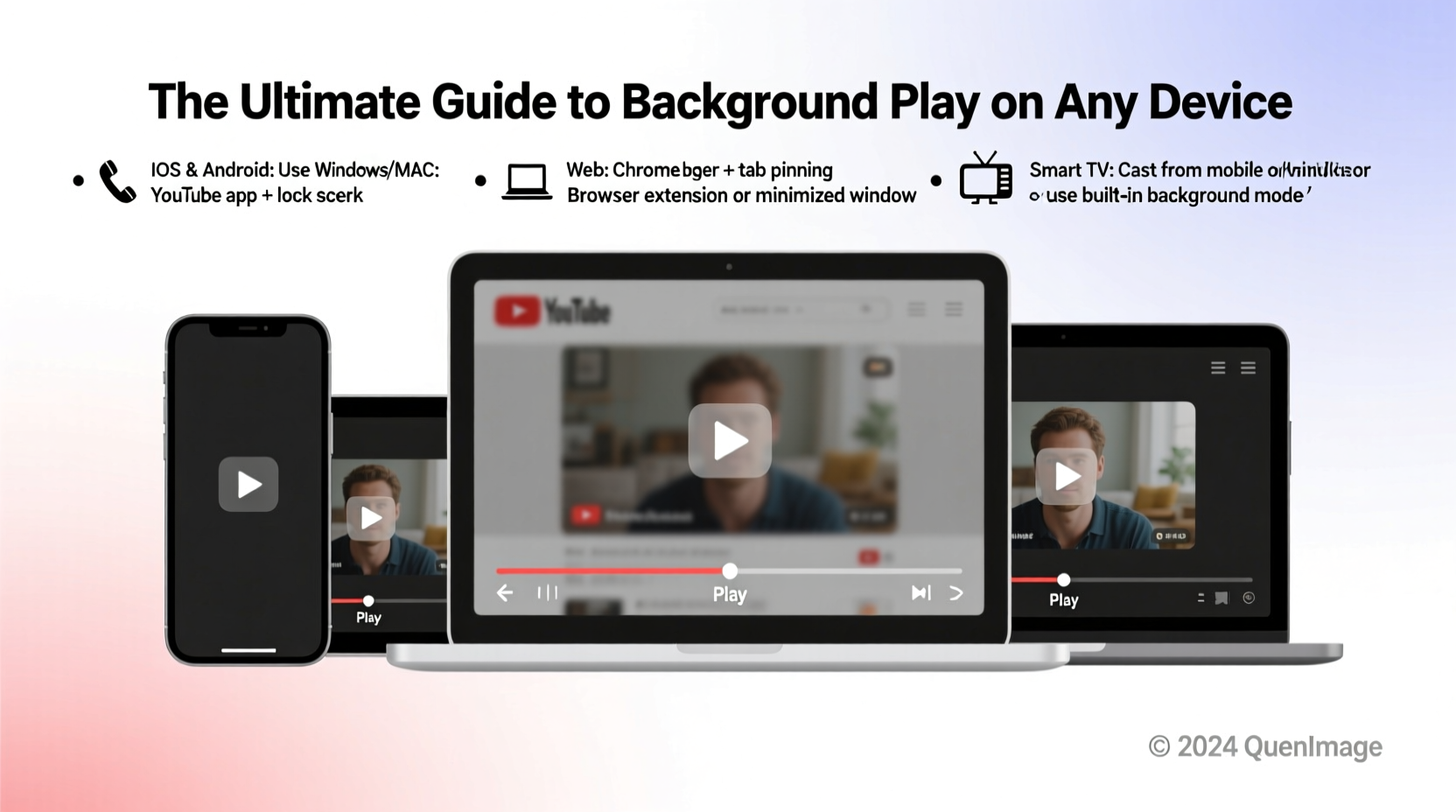
Background playback transforms YouTube from a visual-only platform into a versatile audio companion. Imagine cooking while following a recipe video, jogging with your favorite motivational speech, or studying with ambient lo-fi beats—all without keeping your screen active. This functionality reduces battery drain and frees up your device for messaging, navigation, or browsing.
However, YouTube restricts background play on its free mobile app to encourage Premium subscriptions. While understandable from a business standpoint, it doesn’t mean users are out of options. With the right approach, you can achieve smooth background playback legally and efficiently—regardless of device type.
Official Method: YouTube Premium
The most straightforward way to enable background playback is through YouTube Premium. For a monthly fee, subscribers gain access to ad-free videos, offline downloads, and—crucially—background listening across Android and iOS devices.
Once subscribed:
- Open any video in the YouTube app.
- Navigate away to another app or lock your screen.
- Audio continues uninterrupted.
No extra steps. No technical tweaks. It just works.
“Subscription models like YouTube Premium offer the cleanest user experience, balancing monetization with functionality.” — David Lin, Digital Media Analyst at StreamInsight
Workarounds for Non-Premium Users
Not everyone wants or needs a subscription. Fortunately, alternative methods deliver similar results using built-in tools or third-party solutions.
Using Picture-in-Picture (PiP) Mode
PiP allows a video to shrink into a floating window while you use other apps. Supported on many modern devices, it effectively enables background-like playback.
On Android:
- Ensure PiP is enabled in Settings > Apps > Special Access > Picture-in-Picture.
- Play a video in the YouTube app.
- Press the home button or open another app—the video minimizes into a small overlay.
On iOS:
- Open Safari and go to
youtube.com. - Start playing a video.
- Tap the “aA” icon in the address bar and select “Request Desktop Website.”
- Minimize Safari or switch apps—the video enters PiP mode automatically.
Browser-Based Solutions
Desktop and mobile browsers offer powerful alternatives. Since YouTube’s website doesn’t enforce strict background restrictions when used correctly, browser tricks can simulate Premium features.
On Windows/macOS:
- Use Chrome or Edge to play a YouTube video.
- Pin the tab and minimize the browser window.
- Audio often continues playing, especially if no other media tabs are active.
For guaranteed background support:
- Install extensions like “Turn Off the Lights” or “Magic Actions for YouTube,” which include background play toggles.
- Alternatively, use dedicated sites like 5KPlayer or Youtubify that stream YouTube audio independently.
Third-Party Apps and Tools
Several apps provide background playback by acting as intermediaries between you and YouTube. These range from audio extractors to full-featured players.
Examples include:
- NewPipe (Android): Open-source, ad-free, supports background play and downloading.
- YouTube Vanced (discontinued but still available via archives): Offered background play before being shut down due to legal pressure.
- Standalone audio players: Copy YouTube video URLs into tools like MP3 Studio or Snaptube to extract and play audio only.
⚠️ Caution: Some third-party apps may violate YouTube’s Terms of Service. Always download from trusted sources and avoid entering Google credentials into unofficial clients.
Device-Specific Comparison
| Device | Best Method | Requires Subscription? | Reliability |
|---|---|---|---|
| Android (Stock) | PiP Mode or NewPipe | No | High |
| iOS | Safari + Desktop Site + PiP | No | Moderate |
| Windows/macOS | Browsers with Extensions | No | High |
| YouTube Premium User | Native App Background Play | Yes | Very High |
| Smart TVs / Chromecast | Not applicable (screen must stay on) | N/A | Low |
Real-World Scenario: Maximizing Productivity
Consider Maria, a freelance designer based in Lisbon. She starts her mornings with YouTube tutorials on UI trends while preparing breakfast and checking emails. Previously, she had to keep her phone propped up and awake—draining battery and limiting mobility.
After discovering PiP mode on her iPhone, she now plays videos in Safari, activates desktop mode, and minimizes the window. As she moves around her kitchen, the audio continues clearly through her AirPods. Later, during focused design sessions, she uses a browser extension on her MacBook to run ambient study music in the background without distractions.
This small change saved her over two hours weekly previously lost to repeated video restarts and screen management.
Step-by-Step: Enable Background Play on iOS Without Premium
- Open Safari and navigate to
https://www.youtube.com. - Search for and start playing any video.
- Tap the aA icon in the top-left corner of the address bar.
- Select “Request Desktop Website”.
- Wait for the page to reload in desktop format.
- Begin playback, then press the home button or swipe up to leave the app.
- The video should shrink into a PiP window; if not, try switching apps briefly and returning.
- Audio continues even when the app is in the background.
This method leverages Apple’s native PiP functionality, which YouTube’s mobile app deliberately disables unless you’re a Premium user.
Common Pitfalls and How to Avoid Them
- App updates breaking workarounds: Developers frequently patch exploits. Stick to widely-used, regularly updated tools like NewPipe.
- Auto-sleep interrupting playback: Adjust screen timeout settings or use battery optimization exceptions for your browser or player app.
- Audio cutting out after minutes: Often caused by system memory management. Close unused apps to free RAM.
- Wi-Fi vs. cellular data: Some carriers throttle video traffic. Use Wi-Fi for consistent streaming quality.
FAQ
Can I play YouTube in the background on an iPad?
Yes. iPads support PiP mode natively. Follow the same Safari desktop site method as on iPhone. Ensure multitasking settings allow picture-in-picture under Screen Time > Content & Privacy Restrictions.
Does background playback use more battery?
Minimal additional drain occurs when only audio plays. However, keeping the screen on or running multiple apps simultaneously increases consumption. Using lightweight browsers or audio-focused tools helps conserve power.
Is it legal to use third-party apps for background play?
While accessing public YouTube content isn’t illegal, violating their Terms of Service by using unauthorized clients could result in IP blocks or account restrictions. Always prioritize privacy and security when choosing tools.
Final Checklist: Achieve Background Playback Today
- Try YouTube Premium free trial—if convenient, continue subscription.
- Enable Picture-in-Picture in your device settings.
- Use Safari (iOS) or Chrome (Android/Desktop) with desktop site mode.
- Install reputable browser extensions that support background play.
- Explore open-source alternatives like NewPipe for Android.
- Test playback by minimizing the app or locking your screen.
- Optimize battery settings to prevent app suspension.
Conclusion
Playing YouTube videos in the background isn’t just a convenience—it’s a productivity booster, a lifestyle enhancer, and a smart use of technology. Whether through official subscriptions or clever platform-specific techniques, the ability to maintain audio flow without visual engagement empowers how we interact with content every day.




 浙公网安备
33010002000092号
浙公网安备
33010002000092号 浙B2-20120091-4
Comments
No comments yet. Why don't you start the discussion?