
In today’s fast-paced world, access to a desktop or laptop isn’t always possible—but the need to print remains. Whether you're at a coffee shop, on a business trip, or simply away from your home office, being able to print directly from your mobile phone is no longer a luxury; it's a necessity. With the right tools and knowledge, mobile printing can be fast, reliable, and hassle-free. This guide walks you through every method available, from wireless printing to cloud services, ensuring you never miss a deadline due to lack of access to a traditional computer setup.
Understanding Mobile Printing: How It Works
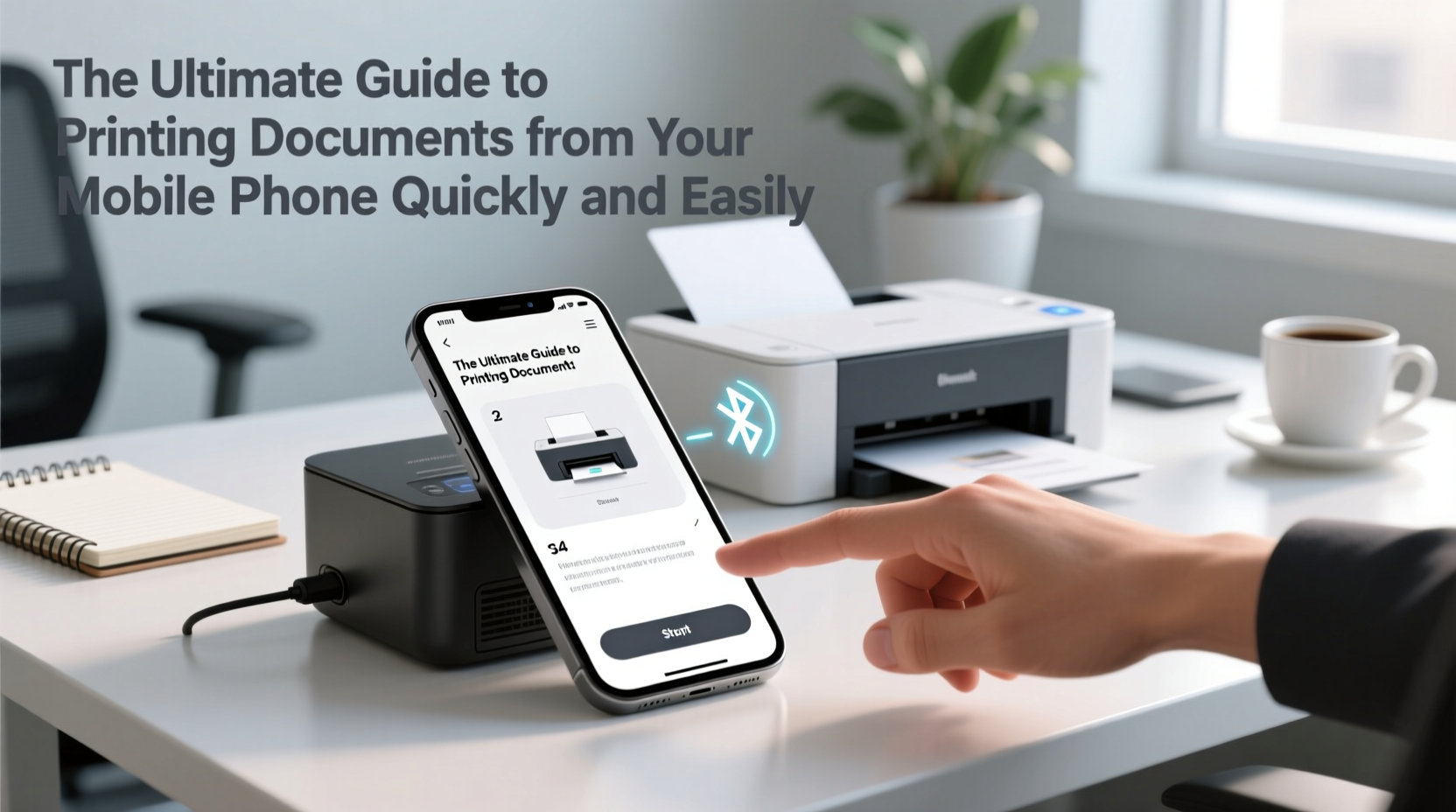
Mobile printing relies on connectivity between your smartphone and a printer. Unlike traditional setups that require physical cables or direct PC connections, modern mobile printing uses Wi-Fi, Bluetooth, or cloud-based systems to transmit documents wirelessly. Most smartphones now support native printing features—Apple’s AirPrint for iOS and Google’s built-in printing service for Android—making the process more intuitive than ever.
The key is compatibility. Your printer must either support one of these protocols or be connected to a device (like a computer or router) that bridges the connection. Once set up, you can print PDFs, emails, photos, web pages, and office documents with just a few taps.
Step-by-Step Guide to Wireless Mobile Printing
Printing wirelessly from your phone doesn’t require technical expertise. Follow this simple sequence to get started:
- Check Printer Compatibility: Confirm your printer supports AirPrint (for iPhone) or Mopria (for Android). If not, check if it has its own app (e.g., HP Smart, Epson iPrint).
- Connect to the Same Network: Ensure both your phone and printer are on the same Wi-Fi network. This is essential for direct communication.
- Open the Document: Use the relevant app—Files, Gmail, Chrome, or a document editor—to open the file you want to print.
- Tap Share or Print: Look for the share icon (usually an arrow) or a dedicated print option in the menu.
- Select Your Printer: A list of available printers will appear. Choose yours from the list.
- Adjust Settings: Set number of copies, color vs. black-and-white, paper size, and orientation as needed.
- Hit Print: Confirm and send the job. The printer should begin within seconds.
If your printer doesn’t show up, restart both devices and double-check network settings. Sometimes a forgotten “airplane mode” or disabled Wi-Fi can block detection.
Using Cloud Printing Services for Remote Access
What if you’re not near your printer? Cloud printing solutions like Google Cloud Print (now discontinued but replaced by alternative integrations), HP ePrint, or Brother iPrint&Scan allow you to send documents from anywhere in the world.
These services work by linking your printer to your cloud account. Once registered, you can email a document to a unique printer address, upload via a web portal, or use a mobile app to trigger printing remotely.
“Cloud printing changed how remote workers handle physical deliverables. I’ve printed contracts in New York while sitting in a café in Lisbon.” — Daniel Reyes, Digital Nomad & Freelance Consultant
To set up cloud printing:
- Create an account with your printer manufacturer’s service.
- Add your printer using its serial number or network credentials.
- Install the companion app on your phone.
- Send documents via email attachment, app upload, or integrated sharing options.
This method is ideal for travelers, field workers, or anyone who needs occasional access to a home or office printer without being physically present.
Alternative Methods When Wi-Fi Isn’t Available
Not all situations offer stable Wi-Fi. In such cases, consider these alternatives:
Bluetooth Printing
Some portable printers support Bluetooth connections. Pair your phone with the printer through system settings, then select it as the output device when printing. Ideal for receipts, labels, or short documents.
USB OTG (On-The-Go)
With an OTG adapter, you can connect a USB cable directly from your Android phone to a compatible printer. Requires driver support and may only work with specific models, but offers a wired fallback when networks fail.
Email-to-Print
Many office printers have an assigned email address. Simply attach your document and send it from your phone’s email app. The printer will automatically produce a copy. Useful in shared office environments.
Do’s and Don’ts of Mobile Printing
| Do’s | Don’ts |
|---|---|
| Always preview before printing to avoid wasting paper | Assume all printers are mobile-compatible—verify first |
| Use secure networks when printing sensitive documents | Print over public Wi-Fi without checking encryption |
| Keep your printer’s firmware updated | Ignore error messages—address them immediately |
| Save frequently used documents in cloud storage for quick access | Store passwords or login details in unsecured note apps |
Real-World Example: Printing On the Go
Sophie, a real estate agent, regularly meets clients at their homes. During one showing, a buyer expressed interest and requested a lease agreement on the spot. Sophie opened her phone, pulled up the PDF stored in Google Drive, tapped the print icon, and sent it to a nearby office where her assistant retrieved and handed it to the client within minutes. Thanks to pre-configured mobile printing, she closed the deal the same day—without needing to return to the office.
This scenario highlights how preparedness and proper setup turn mobile printing into a competitive advantage.
Troubleshooting Common Mobile Printing Issues
Even with everything in place, problems can occur. Here’s how to resolve the most frequent ones:
- Printer Not Found: Restart both devices, confirm Wi-Fi connectivity, and ensure the printer is powered on and online.
- Print Job Stuck: Clear the print queue from your phone’s settings or the printer’s control panel.
- Poor Print Quality: Check ink levels and alignment via the printer’s app. Avoid compressing image files before sending.
- Formatting Errors: Convert documents to PDF before printing to preserve layout across devices.
“Over 70% of mobile printing failures stem from incorrect file formats or mismatched network settings—not hardware issues.” — Tech Support Team, OfficeGear Solutions
Frequently Asked Questions
Can I print from my phone without Wi-Fi?
Yes, if your printer supports Bluetooth, USB OTG, or cellular tethering. Some standalone portable printers run on battery and accept files via SD card or direct pairing.
Are there security risks with mobile printing?
Potentially. Always avoid printing sensitive data over public networks. Use encrypted connections and disable guest printing on your home network to prevent unauthorized access.
Which phones support mobile printing natively?
iPhones support AirPrint for most Apple-compatible printers. Android devices running Android 6.0 and later include built-in printing support via the Print Preview service, especially with Mopria-certified printers.
Final Checklist Before You Print
- ✅ Confirm your printer is powered on and connected to Wi-Fi
- ✅ Ensure your phone is on the same network (or logged into your cloud service)
- ✅ Open the correct file format (PDF recommended)
- ✅ Preview the document to check layout and content
- ✅ Select the right printer and adjust settings (color, duplex, etc.)
- ✅ Press print and wait for confirmation
Start Printing Smarter Today
Mobile printing is no longer a novelty—it’s a productivity essential. By understanding your options, setting up your devices correctly, and knowing how to troubleshoot common issues, you gain the freedom to work from anywhere without sacrificing efficiency. Whether you're printing boarding passes, contracts, school assignments, or photos, the ability to do so instantly from your phone saves time, reduces stress, and keeps you ahead of the curve.




 浙公网安备
33010002000092号
浙公网安备
33010002000092号 浙B2-20120091-4
Comments
No comments yet. Why don't you start the discussion?