
Determining your iPhone model might seem simple, but with over a dozen variations released across nearly two decades, it’s easy to misidentify your device. Whether you’re upgrading, selling, troubleshooting, or buying accessories, knowing the exact model is essential. Apple uses subtle design cues, internal identifiers, and naming conventions that can be confusing—even for long-time users. This guide provides clear, step-by-step methods to identify your iPhone with certainty, using both on-device tools and external references.
Why Knowing Your Exact iPhone Model Matters
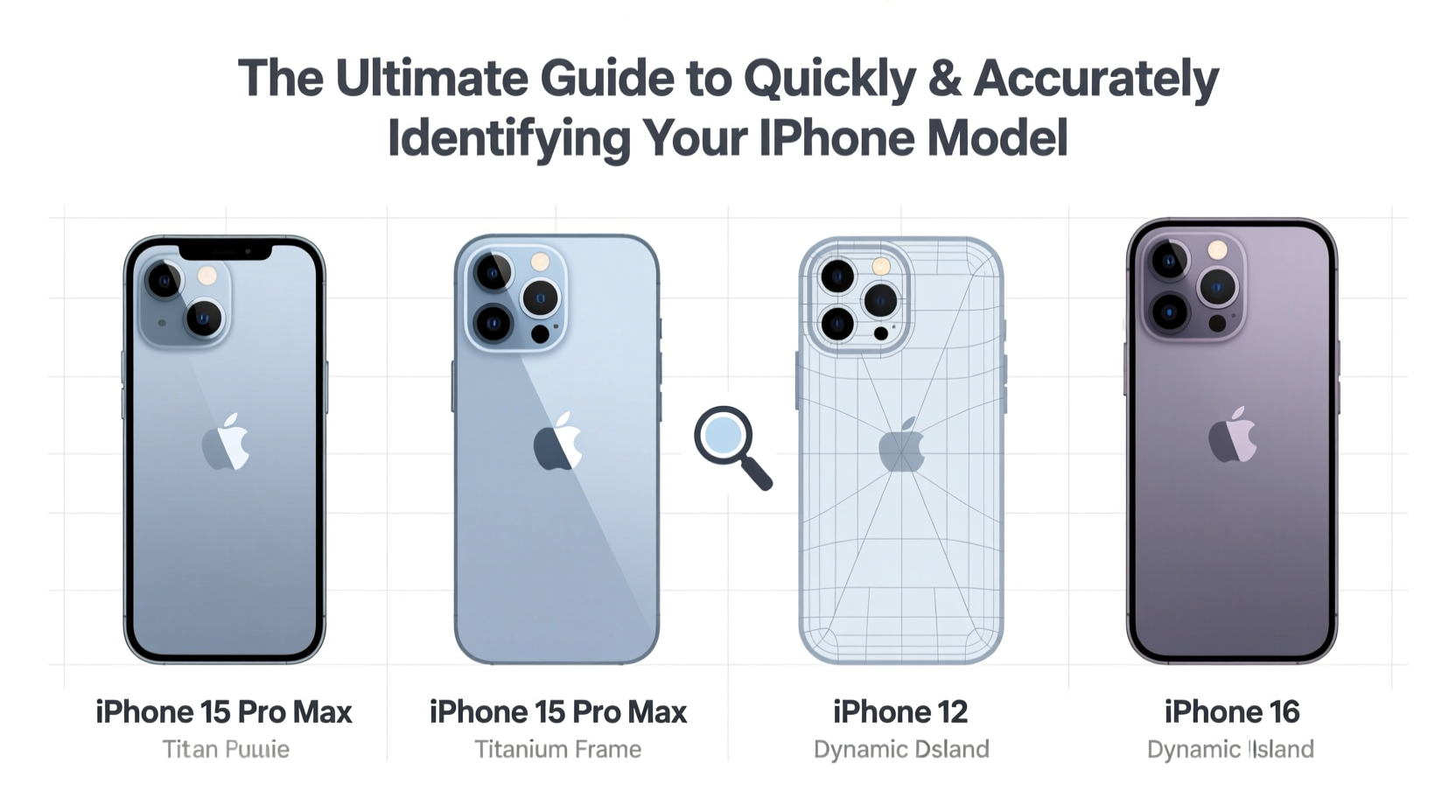
Identifying your iPhone isn’t just about curiosity—it has real-world implications. Different models support different iOS versions, have varying camera capabilities, battery life, and hardware features like Face ID or Touch ID. When purchasing cases, screen protectors, or replacement parts, even minor differences between models (like the iPhone 13 and iPhone 13 Pro) can affect fit and functionality.
Sellers also need precise identification to price devices correctly. A common mistake? Confusing the iPhone 12 with the iPhone 12 Pro, or mistaking an iPhone SE (3rd gen) for an older model due to its retro design. Accurate identification prevents costly errors.
“Over 40% of second-hand iPhone listings misidentify the model, leading to customer disputes.” — TechResale Insights, 2023 Market Report
Step-by-Step: How to Find Your iPhone Model Number in Settings
The most reliable method starts inside your iPhone. Apple stores detailed model information in the Settings app, though it requires a few taps to uncover.
- Open the Settings app.
- Tap General, then select About.
- Scroll down to find Model Name—this displays the consumer-friendly label (e.g., “iPhone 14 Pro”).
- Tap the Model Number field (labeled “Model” or “Model Name”) once to reveal the part number starting with “A” (e.g., A2634).
This alphanumeric code—prefixed with “A”—is Apple’s official identifier. It’s unique to each variant and crucial for cross-referencing compatibility.
Using the Physical Design and Build Features
If your iPhone won’t turn on or you're inspecting a secondhand device, visual inspection becomes vital. Key physical traits distinguish one model from another.
| Feature | iPhone 12–15 Series | iPhone SE (3rd Gen) | iPhone 11 and Earlier |
|---|---|---|---|
| Frame Shape | Flat edges (like iPad Pro) | Rounded edges | Rounded (pre-12) or flat (12+) |
| Front Design | Notch for Face ID | Home button + bezel | Home button (pre-X) |
| Rear Camera Layout | Diagonal (Pro), vertical (non-Pro) | Single lens centered | Vertical or centered single/dual |
| Material | Ceramic Shield glass, stainless steel (Pro) | Aluminum frame | Aluminum or glass back |
For example, if your iPhone has a Home button and thick top/bottom bezels, it’s either an iPhone SE (any generation) or an iPhone 8 or earlier. If it has a notch and flat edges, it’s an iPhone X through iPhone 15 series.
Locating the Model Number on the Device Itself
On the back of every iPhone, near the bottom, you’ll find tiny text etched into the metal or glass. Look for the line that begins with “Model A” followed by four digits (e.g., A2407). This is the FCC-assigned part number used globally.
Note: On newer iPhones with glass backs, this text may be faint. Use natural light and angle the phone to read it clearly. Avoid scratching the surface with tools.
Decoding the Model Number: What \"A2634\" Really Means
Apple assigns a unique “A-number” to each iPhone variant, often differing by region, carrier, or cellular band support. For instance:
- A2634: iPhone 13 mini (GSM)
- A2635: iPhone 13 mini (Global)
- A2643: iPhone 13 mini (China)
Though these look identical, they may vary in LTE/5G band support or dual SIM capability. Always verify the A-number when importing or unlocking a phone.
To decode any A-number, visit Apple’s official iPhone model numbers list. The page maps every A-number to its corresponding marketing name, release year, and technical specs.
Checklist: Confirm Your iPhone Model in Under 5 Minutes
Use this quick-reference checklist to identify your iPhone efficiently:
- ✅ Turn on the phone and go to Settings > General > About.
- ✅ Note the Model Name (e.g., iPhone 14).
- ✅ Tap the Model Number to reveal the A-number (e.g., A2604).
- ✅ Compare the A-number with Apple’s official list.
- ✅ Inspect the physical design: notch vs. Home button, camera layout, frame shape.
- ✅ Check storage capacity and color under About—some variants are exclusive to certain regions.
Completing these steps ensures you’re not relying on assumptions. Even small details—like whether your iPhone supports MagSafe or has a triple-lens camera—can confirm or rule out specific models.
Real Example: Identifying a Used iPhone Before Purchase
Julie was browsing a local marketplace for a used iPhone 13. The seller listed it as an “iPhone 13 Pro,” priced attractively low. Upon meeting, she noticed the stainless steel frame and assumed it was genuine. But when she checked Settings > General > About, the model number read A2482—the identifier for the standard iPhone 13, not the Pro.
Further inspection revealed only dual cameras instead of triple, and the display lacked ProMotion technology. Julie saved $150 by catching the mislabeling. Her takeaway: always verify via model number, not appearance alone.
Frequently Asked Questions
How do I tell the difference between iPhone 14 and iPhone 14 Plus?
The iPhone 14 has a 6.1-inch display; the 14 Plus has a 6.7-inch screen. Both share the same flat-edge design and camera layout, but the Plus is noticeably taller and wider. Check About in Settings—the model numbers differ (e.g., A2647 for iPhone 14, A2649 for 14 Plus).
Can two iPhones look identical but be different models?
Yes. For example, the iPhone 13 and iPhone 13 Pro have nearly identical exteriors—same size, notch, and button placement. Only the camera array (diagonal vs. vertical alignment) and material (aluminum vs. stainless steel) differ. The model number is the only definitive way to tell them apart.
What if my iPhone won’t turn on? Can I still identify it?
Absolutely. Use the engraved model number on the back (e.g., A2634). Match it to Apple’s database. Also, compare physical traits—size, weight, camera layout—against known specs from Apple’s website or trusted tech databases.
Final Tips for Long-Term Identification and Record Keeping
Once identified, document your iPhone’s model number, serial number, and purchase date. Store this in a secure digital note or cloud folder. This record helps with warranty claims, insurance reporting, and resale verification.
If you own multiple Apple devices, consider labeling each with its model and storage size—especially helpful when managing family devices or rotating backups.
“The fastest way to resolve a support issue is to provide your exact model number. It eliminates guesswork and speeds up service.” — Apple Support Technician, San Jose Service Center
Conclusion
Accurately identifying your iPhone model is simpler than most people think—once you know where to look. By combining on-device settings, physical inspection, and decoding Apple’s model numbers, you gain clarity and confidence in every decision, from repairs to upgrades. Don’t rely on memory or appearances. Use the tools at your fingertips to get it right the first time.




 浙公网安备
33010002000092号
浙公网安备
33010002000092号 浙B2-20120091-4
Comments
No comments yet. Why don't you start the discussion?