
Every computer connected to a network—whether at home, in the office, or over remote access—has a unique identifier known as the \"computer name.\" This name helps distinguish one machine from another and is essential when sharing files, setting up printers, troubleshooting network issues, or accessing a device remotely. Despite its importance, many users struggle to locate this information, especially across different operating systems. This guide provides clear, step-by-step instructions to help you find your computer name on any device, including Windows, macOS, Linux, Chromebooks, and even iOS and Android.
Why Your Computer Name Matters
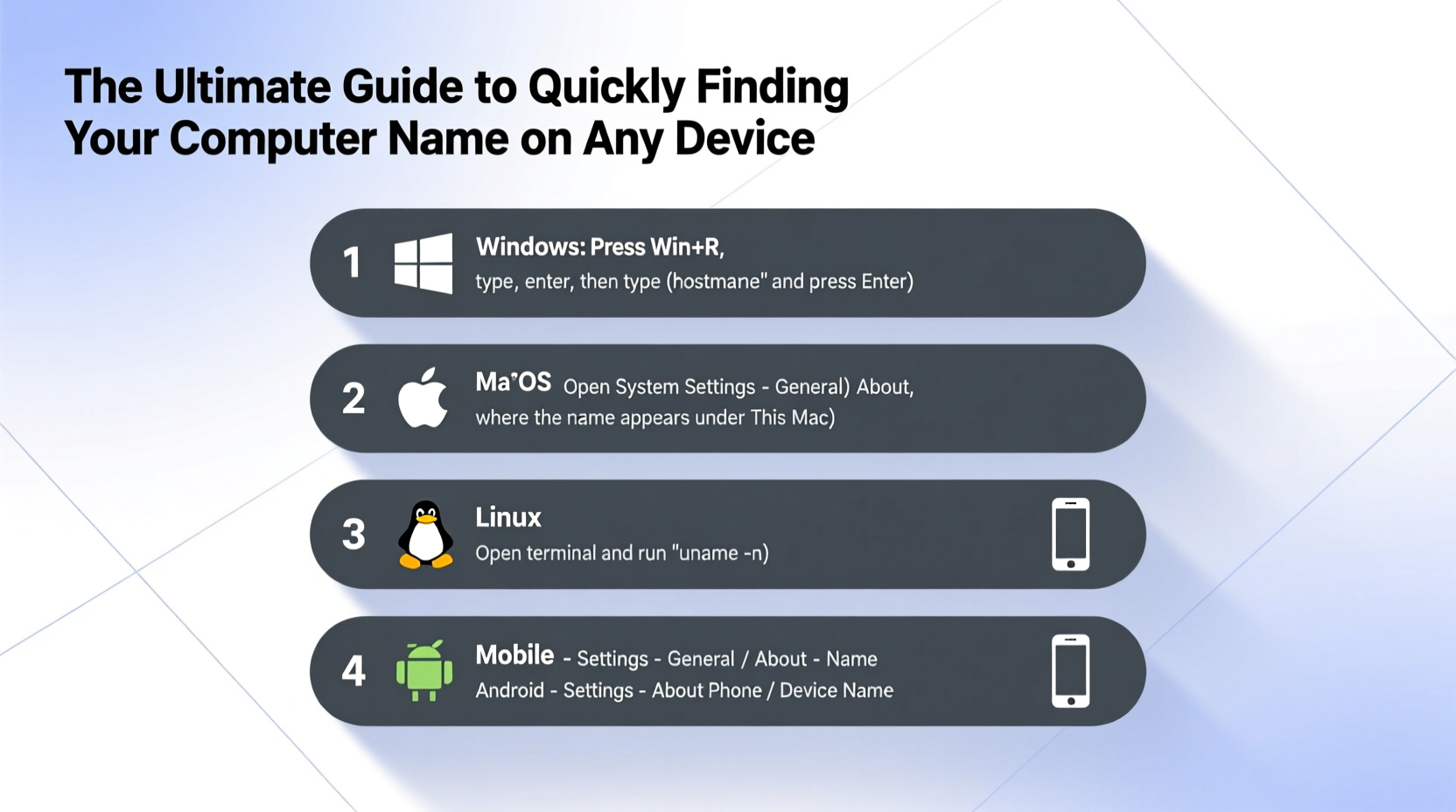
The computer name—also referred to as the hostname—is more than just a label. It plays a critical role in how devices communicate within a network. For example, when connecting to a shared folder on another PC, you might use \\\\COMPUTERNAME\\SharedFolder. Without knowing the correct name, access fails. Network administrators rely on hostnames to manage systems efficiently, and IT support teams often request this information to diagnose connectivity problems.
Additionally, when setting up remote desktop access or configuring development environments, matching the correct hostname ensures seamless integration. Misconfigured or duplicate names can lead to conflicts, failed connections, or security warnings.
“Knowing your computer name is like knowing your home address—it’s the first step in being found online.” — David Lin, Network Infrastructure Engineer
How to Find Your Computer Name on Windows
Windows uses both a user-friendly device name and a formal hostname, which may differ depending on the version and configuration. Here's how to locate it:
Method 1: Using System Settings (Windows 10 & 11)
- Press Windows + I to open Settings.
- Navigate to System > About.
- Under \"Device specifications,\" look for Device name.
Method 2: Using Command Prompt or PowerShell
- Press Windows + R, type
cmdorpowershell, then press Enter. - Type
hostnameand press Enter. - The result displayed is your current computer name.
Method 3: Through Control Panel
- Open the Control Panel and go to System and Security > System.
- Look under \"Computer name, domain, and workgroup settings.\"
Locating the Computer Name on macOS
On Mac computers, the computer name appears in system preferences and terminal tools. It’s used for file sharing, screen sharing, and Bonjour services.
Step-by-Step Guide
- Click the Apple logo in the top-left corner and select System Settings (or System Preferences on older versions).
- Go to General > About.
- The top entry labeled Name is your computer name.
Using Terminal (Advanced Users)
- Open Terminal from Applications > Utilities.
- Type
hostnameand press Enter. - The output will be your machine’s hostname (may include .local).
Note: The name shown in System Settings is also used for AirDrop and Home Sharing. You can change it by clicking the name and editing it directly.
Finding the Hostname on Linux Distributions
Linux systems typically derive the computer name during installation and store it in configuration files. The process varies slightly depending on the distribution, but command-line methods are universal.
Primary Methods
hostname– Displays the current hostname.hostnamectl– Shows detailed system information, including static and transient hostnames (used in systemd-based systems like Ubuntu, Fedora).cat /etc/hostname– Reads the stored hostname from the configuration file.
For example, running hostnamectl yields output like:
Status: active
       Static hostname: my-linux-pc
       Icon name: computer-desktop
       Chassis: desktop
       Operating System: Ubuntu 22.04.3 LTS
This confirms that the computer name is my-linux-pc.
hostnamectl set-hostname newname (with sudo) allows permanent renaming.
Chromebook, iOS, and Android: What You Need to Know
Mobile and cloud-centric devices handle identification differently. While they don’t use traditional computer names, they do have identifiers useful for network visibility.
Chromebook
- Click the system tray (bottom-right).
- Select the gear icon to open Settings.
- Go to About ChromeOS > Device information.
- Look for Device name—this is used internally and on some networks.
Note: Chromebooks often use a default name like chromebook-user-serial. You can rename it under the same menu.
iOS and Android
Smartphones and tablets do not have traditional computer names. However, they broadcast a device name via Bluetooth and Wi-Fi:
- iOS: Go to Settings > General > About > Name.
- Android: Settings > About Phone > Device Name.
This name appears when connecting to hotspots, casting screens, or pairing devices—but it won’t function like a desktop hostname on a LAN.
Quick Reference Table: How to Find Computer Name by OS
| Operating System | Method | Command or Path |
|---|---|---|
| Windows 10/11 | Settings | Settings > System > About > Device name |
| Windows (All) | Command Line | Open CMD → type hostname |
| macOS | System Settings | Apple Menu > System Settings > General > About |
| macOS | Terminal | Run hostname |
| Linux | Terminal | hostname or hostnamectl |
| Chromebook | Settings | Settings > About ChromeOS > Device name |
| iOS | Settings App | Settings > General > About > Name |
| Android | Settings App | Settings > About Phone > Device Name |
Troubleshooting Common Issues
Sometimes, the computer name may not appear correctly or cause network conflicts. Consider these common scenarios:
Duplicate Names on Network
If two devices share the same name, file sharing and remote access may fail. Always ensure uniqueness, especially in office environments.
Name Not Updating After Change
After renaming your computer, restart the system or refresh the network browser (e.g., File Explorer > Network). Some services cache old names temporarily.
Special Characters Causing Errors
Avoid using spaces, underscores, or symbols like !, @, or #. Stick to letters, numbers, and hyphens for compatibility.
“In enterprise networks, consistent and descriptive naming—like DEPT-MODEL-SERIAL—reduces support time by up to 40%.” — Sarah Patel, IT Operations Manager
FAQ
Can I change my computer name?
Yes. On Windows, go to Settings > System > About > Rename this PC. On macOS, edit the name in System Settings > General > About. Linux users can use sudo hostnamectl set-hostname newname. A restart is usually required.
Is the computer name the same as the username?
No. The computer name identifies the machine; the username identifies the person logged in. They are independent of each other.
Does the computer name affect internet browsing?
No. The hostname is primarily used within local networks. It does not impact web browsing, email, or online accounts unless you’re hosting services locally.
Final Checklist: Finding & Managing Your Computer Name
- Identify your operating system.
- Use the appropriate method (GUI or command line) to locate the name.
- Verify the name appears correctly on your network.
- Ensure it’s unique if part of a shared network.
- Update or rename if necessary, avoiding special characters.
- Restart after changes to ensure full propagation.
Real-World Example: Resolving a Home Office Conflict
Jamal set up a second laptop for his spouse using the same brand and model as his own. Both defaulted to the name “My-Laptop,” causing confusion when trying to share files over their home Wi-Fi. Neither could see the other in File Explorer. After reading this guide, Jamal accessed his wife’s laptop, renamed it to “Home-Laptop-Sarah,” restarted it, and immediately resolved the conflict. Shared folders became visible, and printing worked without further issues.
Conclusion
Knowing how to quickly find and manage your computer name empowers you to solve everyday tech challenges—from simple file sharing to complex remote setups. Whether you're using a Windows desktop, a MacBook, a Linux server, or a Chromebook, the steps outlined here provide reliable access to this crucial piece of information. Take a moment today to verify your device’s name and ensure it’s set up for clarity and compatibility. A small detail like this can save significant time and frustration down the road.




 浙公网安备
33010002000092号
浙公网安备
33010002000092号 浙B2-20120091-4
Comments
No comments yet. Why don't you start the discussion?