
Many Android users are surprised to learn that their phone number isn’t always readily visible on their device. Whether you're setting up a new app, verifying an account, or lending your phone to someone who needs to make a call, knowing how to locate your number fast is essential. Unlike iPhones, which often display the number prominently, Android devices vary widely by manufacturer, carrier, and software version—making the process inconsistent. This guide cuts through the confusion with reliable, tested methods that work across Samsung, Google Pixel, OnePlus, Xiaomi, and other major Android brands.
Why Your Phone Number Isn’t Always Visible
Despite seeming like basic information, your phone number isn't stored directly on the SIM card in most cases. Instead, it's registered with your carrier and sometimes cached in your device’s system settings. However, carriers don’t always push this data automatically to the phone, especially if you’ve changed numbers recently or use a secondary line via eSIM. Additionally, some manufacturers strip away default labels or hide the number deep within menus to streamline user interfaces.
This lack of standardization means one-size-fits-all solutions rarely work. A method that works on a Samsung Galaxy S24 may not appear on a budget Motorola device. Understanding where and how your number is stored helps you adapt when standard paths fail.
“Carriers assign numbers, but device firmware determines whether they’re displayed. That gap creates inconsistency across Android.” — Rajiv Mehta, Mobile Network Analyst at TechSignal Insights
Step-by-Step: How to Find Your Number in Settings (Most Reliable Method)
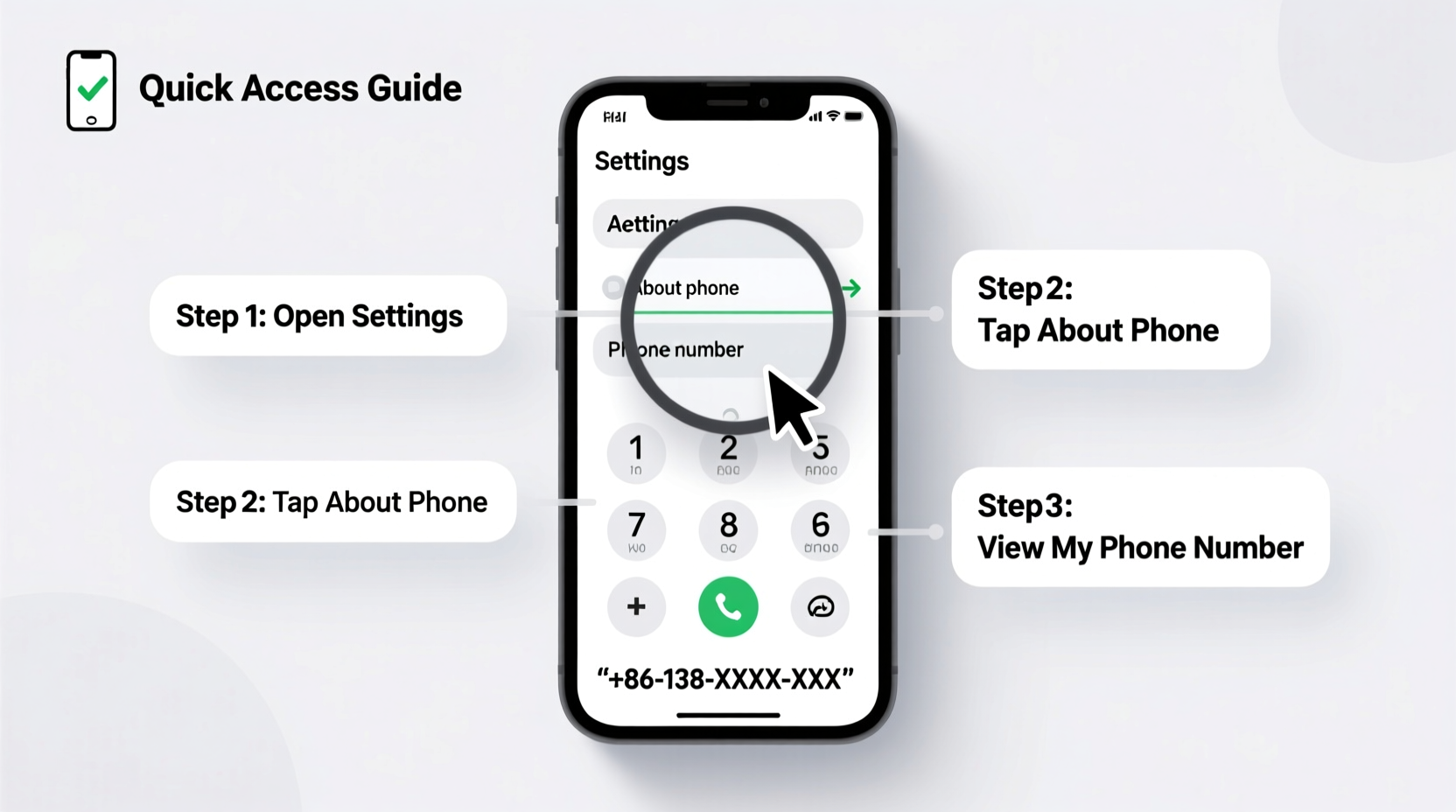
The most dependable way to locate your number is through the device’s built-in settings. While menu names differ slightly between brands, the general path remains similar. Follow this universal sequence:
- Open the Settings app.
- Tap About phone or About device.
- Select Status or Phone identity.
- Look for entries labeled My phone number, MSISDN, or Subscriber number.
If the number doesn’t appear, it may be due to carrier limitations. In such cases, try alternative routes detailed below.
Variations by Brand
Not all Android skins organize settings the same way. Here’s how top manufacturers handle phone number visibility:
| Brand | Path to Phone Number | Common Issues |
|---|---|---|
| Samsung | Settings → About phone → Status → My phone number | Number often blank; requires carrier sync |
| Google Pixel | Settings → About phone → Phone number | Usually accurate if SIM is active |
| OnePlus / OxygenOS | Settings → About → Legal & regulatory → Device info | May require dialer code to reveal |
| Xiaomi (MIUI) | Settings → About phone → Status → My phone number | Frequently missing; use *#06# as fallback |
| Moto (Stock Android) | Settings → About → Status → My phone number | Depends on carrier support |
Alternative Methods When Settings Fail
When the standard settings path yields no result, several proven alternatives can help recover your number instantly.
Use a USSD Code
Dialing a universal code in your phone app can prompt your carrier to send back your number. While no single code works globally, these are the most effective:
*#06#– Displays IMEI, but some carriers return number on screen*#100#– Works on T-Mobile and some MVNOs*222#– Verizon customers may see plan and number details*#8378663#– Hidden code used on select Samsung models
These codes aren’t guaranteed, but they’re worth trying when settings fall short.
Check Your Google Account
If you’ve ever verified your number with Google services (e.g., Gmail, YouTube, or Google Pay), it might be stored in your account. To check:
- Go to myaccount.google.com on any device.
- Sign in with the account linked to your Android phone.
- Navigate to Data & privacy → Contact info.
- Look under “Phone” for your verified number.
This method works best if you’ve used the number for 2FA or app verification.
Ask Siri? No—But Try Google Assistant
While Android doesn’t have Siri, Google Assistant can sometimes retrieve your number if permissions allow. Say:
\"Hey Google, what’s my phone number?\"
If the feature is enabled and your number is synced, Assistant will respond verbally. Note: This only works if you've granted Assistant access to personal data and the number is registered in your Google profile.
Real Example: Maria Recovers Her Number After Switching Carriers
Maria recently switched from AT&T to Mint Mobile and noticed her phone number disappeared from her Samsung Galaxy A54. She checked Settings > About phone > Status but saw only “Unknown” under “My phone number.” Frustrated, she tried calling her own number from a friend’s phone—but didn’t want to rely on that long-term.
She then opened her Google Voice app (which she used occasionally) and found her active number listed under account settings. As a backup, she dialed *#100#, and though it didn’t return the number, it connected her to customer service, where she confirmed her line. Finally, she updated her Google Account’s contact info with the new number, ensuring future Assistant queries would work.
Maria’s experience shows that relying on a single method is risky. Combining account checks, carrier tools, and alternative apps delivers better results.
Quick Checklist: Find Your Number in Under 5 Minutes
Follow this actionable checklist the next time you need your number fast:
- ✅ Open Settings → About phone → Status → Look for “My phone number”
- ✅ Use the search bar in Settings and type “phone number”
- ✅ Dial
*#100#or*222#depending on your carrier - ✅ Check Google Account under Contact info
- ✅ Ask Google Assistant: “What’s my phone number?”
- ✅ Review messaging or calling apps like Google Voice, WhatsApp, or Skype
- ✅ Call customer service or use your carrier’s app to confirm
Frequently Asked Questions
Why is my phone number not showing up in settings?
Your number may not be programmed into the SIM by your carrier, or the device firmware may not support automatic retrieval. This is common with MVNOs (like Cricket or Boost) and newer eSIM lines. Contact your provider to confirm they’ve pushed the number to your SIM.
Can I see my number without a SIM card?
No. Without a SIM or eSIM, there is no assigned phone number. Devices in Wi-Fi-only mode (e.g., tablets) won’t display a cellular number unless linked to a phone via tethering or app sync.
Is it safe to use USSD codes to find my number?
Yes. Codes like *#06# are harmless and only retrieve device information. Avoid entering codes from untrusted sources, as some can activate hidden menus or factory resets.
Final Tips for Long-Term Access
Don’t wait until you need your number to discover it’s missing. Proactively save it in multiple places:
- Add it to your digital business card in Google Contacts.
- Store it in a password manager as emergency info.
- Set it as a note on your home screen temporarily after setup.
- Sync it with Google and enable Assistant access.
These small steps ensure you’ll never be caught off guard when asked, “What’s your number?”
“Your phone should know its own number. Until Android standardizes this, users must take control.” — Lena Torres, UX Researcher at Mobile Interface Lab
Take Control of Your Device Information Today
Knowing how to find your phone number on any Android device isn’t just convenient—it’s part of digital self-reliance. With carrier inconsistencies and fragmented software designs, waiting for a perfect system isn’t an option. By mastering these methods, you gain confidence whether you’re troubleshooting, traveling, or simply sharing your contact info. Test these steps now while you have access to your phone, and save this guide for future reference. Knowledge like this shouldn’t be discovered in an emergency.




 浙公网安备
33010002000092号
浙公网安备
33010002000092号 浙B2-20120091-4
Comments
No comments yet. Why don't you start the discussion?