
Losing an unsaved Word document can feel like a digital disaster—especially after hours of work. Whether due to a sudden power outage, software crash, or accidental closure, the frustration is real. The good news: Microsoft Word has built-in recovery features, and multiple strategies exist to retrieve your lost work. This guide walks you through reliable methods, essential tools, and long-term best practices to recover unsaved files and safeguard your future documents.
Understanding How Word Saves and Recovers Files
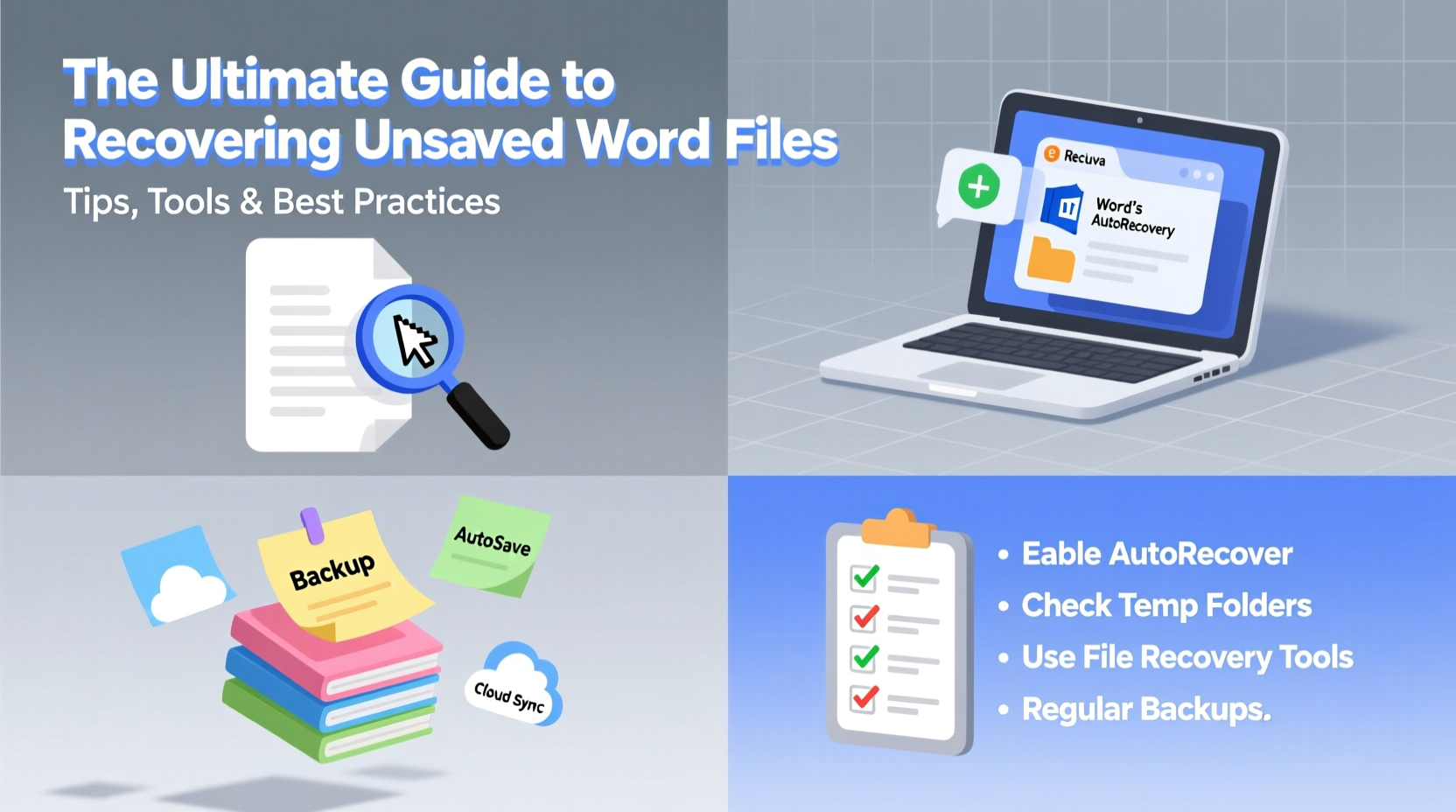
Microsoft Word uses two primary mechanisms to protect against data loss: AutoSave and AutoRecover. AutoSave continuously stores changes to cloud-based documents (OneDrive or SharePoint), while AutoRecover periodically saves temporary backups of local files at set intervals. These backups are stored in hidden locations and can be accessed when a file isn’t properly saved before closing.
The key difference lies in availability. AutoSave works in real time for online documents, whereas AutoRecover relies on timed intervals—typically every 10 minutes by default. If Word crashes or your computer shuts down unexpectedly, AutoRecover attempts to restore the most recent backup upon restart.
Step-by-Step Guide to Recover Unsaved Word Files
When a document disappears, act quickly. Follow this sequence to maximize your chances of recovery:
- Restart Microsoft Word – Upon reopening, Word often displays a Document Recovery pane on the left side, listing unsaved files.
- Navigate to AutoRecover files manually:
- Open Word and go to File > Open > Recent Documents.
- Click Recover Unsaved Documents at the bottom of the list.
- Browse the folder and look for files with .asd extensions, sorted by date modified.
- Check the default AutoRecover location – Navigate to:
C:\\Users\\[YourUsername]\\AppData\\Roaming\\Microsoft\\Word\\Look for files ending in
.asdor.tmp. Open them directly in Word. - Search your system – Use Windows search to find all
*.asdfiles created today. - Attempt file conversion – If an .asd file won’t open, rename it to
.docxand try opening it in Word.
Essential Tools for Advanced Recovery
When built-in methods fail, third-party tools can retrieve corrupted or deleted temporary files. Not all tools are equal—some offer deeper scanning capabilities than others.
| Tool | Best For | Cost | Notes |
|---|---|---|---|
| Recuva | Recovering deleted temporary files | Free / Pro ($29.95) | Simple interface; effective for recently lost files. |
| Stellar Data Recovery | Deep scan of hard drives | $79.99 | Supports Office file recovery; user-friendly wizard. |
| OfficeRecovery Online | Corrupted .docx and .asd files | Pay-per-recovery (~$50) | Web-based; no installation needed. |
| Disk Drill | Comprehensive file recovery | Free / Premium ($89) | Scans entire drives; includes recovery protection. |
Use these tools only after exhausting Word’s native options. Install them on a different drive than where the lost file was stored to avoid overwriting temporary data.
Real Example: Recovering a Thesis Draft After a Crash
Sophia, a graduate student, spent six hours writing her thesis introduction without saving manually. Her laptop froze, and upon reboot, Word didn’t prompt recovery. Panicked, she followed the manual recovery steps: she opened Word, clicked “Recover Unsaved Documents,” and found a file named AutoRecovery save of literature_review.asd from 15 minutes prior. Though she lost 10 minutes of work, 95% of her draft was intact. She immediately enabled AutoSave to OneDrive and now saves every 3 minutes using Ctrl+S as a habit.
“Most data loss isn’t permanent—it’s just temporarily misplaced. The first 30 minutes after a crash are critical for recovery.” — Mark Tran, IT Support Specialist at EduTech Solutions
Best Practices to Prevent Future Loss
Recovery shouldn’t be the first line of defense. Building resilient habits reduces reliance on emergency fixes.
- Enable AutoRecover and adjust settings: Go to File > Options > Save and set AutoRecover to save every 5 minutes.
- Use OneDrive or Dropbox with AutoSave: Cloud integration enables real-time saving and version history.
- Develop a manual save reflex: Press Ctrl+S every few paragraphs. It takes less than a second.
- Name and save new documents immediately: Don’t wait until you’ve written content to assign a filename.
- Regularly check recovery paths: Know where your AutoRecover files are stored (File > Options > Save > AutoRecover path).
Checklist: Immediate Actions After Losing a Word File
- Restart Word and check the Document Recovery pane.
- Go to File > Open > Recover Unsaved Documents.
- Manually navigate to the AutoRecover folder.
- Search your system for
*.asdfiles modified today. - Try renaming .asd files to .docx and opening them.
- If unsuccessful, use a trusted recovery tool like Recuva or Disk Drill.
- Once recovered, save the file properly and back it up to the cloud.
Frequently Asked Questions
How long are unsaved Word files kept?
AutoRecover files are typically retained until they’re overwritten or until Word cleans old temporary files—usually within a few days. However, they can be deleted automatically during software updates or disk cleanup. Retrieve them as soon as possible after a crash.
Can I recover a Word file closed without saving, even if I never saved it before?
Yes, but only if AutoRecover was enabled. Word creates temporary backups even for unnamed documents. Check the \"Recover Unsaved Documents\" folder immediately after reopening Word. The longer you wait, the higher the chance the temporary file gets overwritten.
Why don’t I see the 'Recover Unsaved Documents' option?
This feature appears only if Word detects temporary recovery files. If the folder is empty or AutoRecover was disabled, the option may be grayed out or missing. Verify that AutoRecover is turned on under File > Options > Save.
Final Thoughts: Turn Crisis into Prevention
Losing an unsaved Word file doesn’t have to mean losing your work forever. With the right tools and awareness, most documents can be retrieved. But true efficiency comes not from recovery, but from prevention. Configure your settings wisely, adopt consistent saving habits, and leverage cloud storage to create a safety net for your productivity.




 浙公网安备
33010002000092号
浙公网安备
33010002000092号 浙B2-20120091-4
Comments
No comments yet. Why don't you start the discussion?