
Computer drivers are the invisible threads that connect your hardware to your operating system. When they're outdated or malfunctioning, performance suffers—sluggish response times, crashes, peripheral failures, or even blue screens can follow. Yet, updating drivers often feels like navigating a minefield: too many tools, conflicting advice, and fear of breaking something critical. The truth is, with the right approach, driver updates can be both safe and empowering. This guide delivers a comprehensive, no-nonsense roadmap to keep your system running at its peak without risking stability.
Why Driver Updates Matter
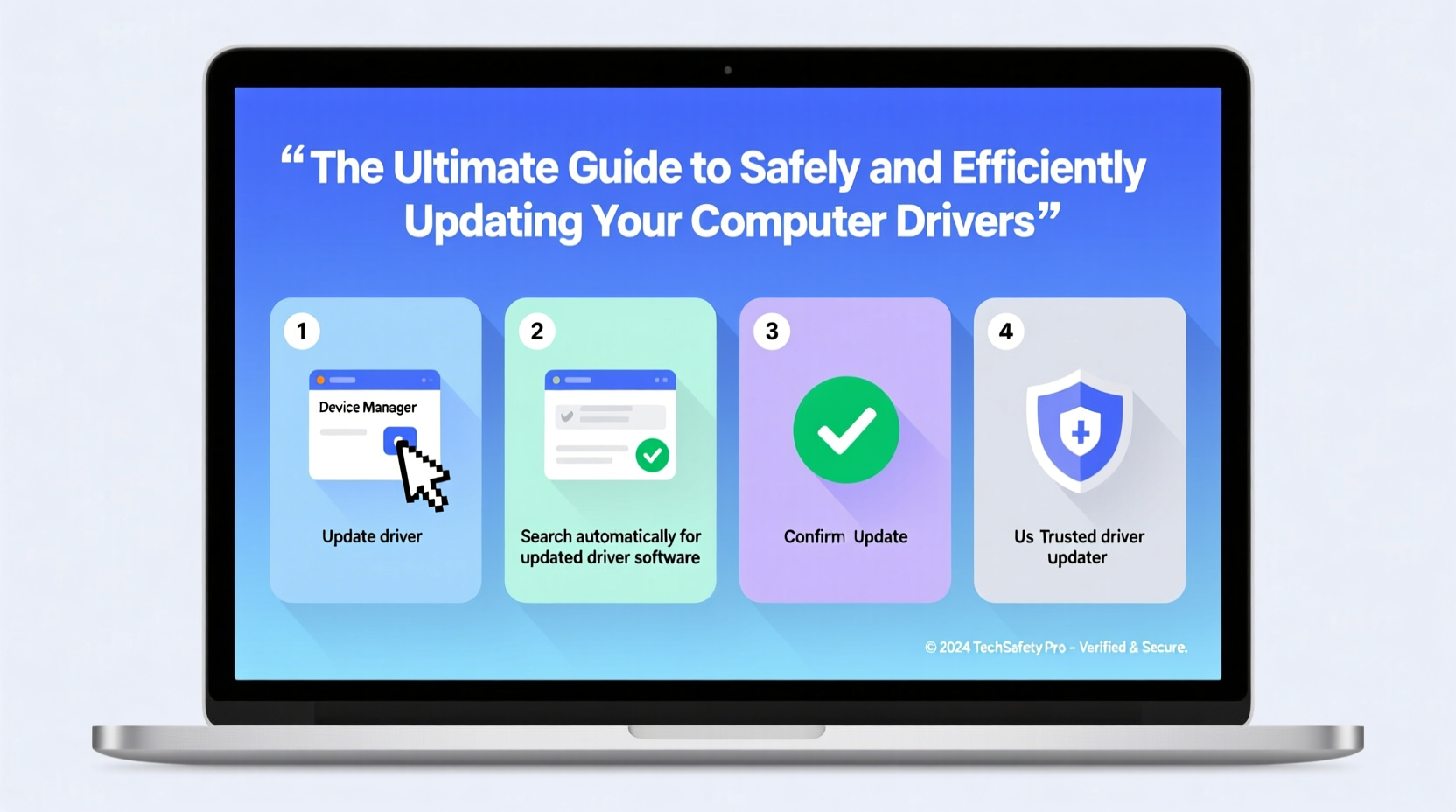
Drivers act as translators between your OS and hardware components like graphics cards, network adapters, printers, and audio devices. Manufacturers release updates to fix bugs, improve compatibility with new software, enhance security, and unlock better performance. For example, a new GPU driver might add support for the latest game or improve frame rates by 15%. A Wi-Fi adapter update could resolve connectivity drops in crowded networks.
However, not all updates are beneficial. Some introduce new bugs or reduce stability. Blindly installing every available update can do more harm than good. The key is selective, informed updates—not automatic overhauls.
“Driver updates should be treated like software patches: necessary when they solve a specific issue or provide meaningful improvements, not applied en masse out of habit.” — Dr. Lena Torres, Systems Engineer at OpenTech Labs
Step-by-Step: How to Update Drivers Safely
Updating drivers doesn’t require technical wizardry, but it does demand caution. Follow this sequence to minimize risk and maximize results.
- Identify which drivers need updating. Focus on active components: GPU, chipset, network, audio, and touchpad/mouse drivers. Use Device Manager (Windows) or System Information (macOS) to see current versions.
- Create a system restore point. In Windows, go to Control Panel > Recovery > Create a restore point. Name it “Pre-Driver Update.” This allows rollback if issues arise.
- Visit official manufacturer websites. For laptops, check the brand’s support page (e.g., Dell, Lenovo). For desktops, go directly to component makers (NVIDIA, Intel, AMD).
- Download the correct driver version. Match your OS (32-bit vs 64-bit), model number, and architecture precisely. Avoid third-party aggregators unless absolutely necessary.
- Uninstall the old driver (optional but recommended). In Device Manager, right-click the device and select “Uninstall device,” then check “Delete the driver software.”
- Install the new driver. Run the installer as administrator. Reboot after installation.
- Verify functionality. Test related hardware—play a video, browse online, use peripherals—to confirm stability.
Do’s and Don’ts of Driver Management
| Do | Don’t |
|---|---|
| Update drivers when experiencing hardware issues or after major OS upgrades | Use unverified “driver booster” apps that promise one-click fixes |
| Check for firmware updates alongside drivers (especially for SSDs and motherboards) | Ignore digital signature warnings during installation |
| Keep a list of current driver versions before updating | Update multiple drivers simultaneously without testing |
| Use Windows Update selectively—it sometimes includes stable driver updates | Assume newer always means better; some beta drivers are unstable |
| Enable automatic updates only for trusted sources like NVIDIA GeForce Experience | Store downloaded drivers in temporary folders—organize them in a dedicated folder |
A Real-World Example: Resolving Persistent Wi-Fi Drops
Consider Sarah, a remote worker using a three-year-old HP laptop. She began experiencing frequent disconnections during video calls. Windows Update showed no fixes. She opened Device Manager, expanded Network Adapters, and noted her Intel Wi-Fi 6 AX201 had a driver from early 2022. On Intel’s official download center, she found a 2023 update addressing “intermittent connectivity under high load.”
Sarah created a restore point, uninstalled the old driver, installed the new one, and rebooted. The disconnections stopped. By targeting a specific issue with an official fix, she avoided unnecessary system changes and restored reliability—without paying for technician time or replacement hardware.
When to Use Built-in Tools—and When to Avoid Them
Windows offers several built-in options: Device Manager, Windows Update, and optional driver downloads via Settings > Optional Updates. These can be useful for basic components like audio or USB controllers, especially if you’re unsure about manual processes.
However, these tools often lag behind manufacturer releases. For example, a new NVIDIA Game Ready driver may launch on Friday, but Windows Update might not include it for weeks. Additionally, Windows sometimes installs generic drivers that lack full feature support.
For gaming, creative work, or troubleshooting, rely on direct manufacturer updates. For general use, periodic checks through Windows Update combined with manual verification are sufficient.
Essential Driver Update Checklist
- ✅ Back up important data before making system changes
- ✅ Create a system restore point
- ✅ Identify current driver versions using Device Manager
- ✅ Visit official manufacturer websites for updates
- ✅ Verify OS compatibility (bit version, language)
- ✅ Uninstall old drivers before installing new ones
- ✅ Install drivers as administrator
- ✅ Reboot and test hardware functionality
- ✅ Keep a log of updated drivers and dates
- ✅ Monitor system stability for 24–48 hours post-update
Frequently Asked Questions
How often should I update my drivers?
There’s no fixed schedule. Update when you encounter issues, after OS updates, or when manufacturers release significant performance or security patches. For most users, checking every 3–6 months is sufficient unless problems arise.
Can updating a driver cause my computer to stop working?
Rarely, but it’s possible—especially with beta or incompatible drivers. That’s why creating a restore point beforehand is crucial. If a driver causes boot failure, use Safe Mode to roll back or uninstall it.
Are free driver updater tools safe?
Most are not. Apps like Driver Booster or Driver Easy often exaggerate issues, push paid versions, and install outdated or repackaged drivers. Some even bundle adware. Stick to official sources and manual updates for safety.
Final Thoughts: Stability Over Speed
Updating drivers isn’t about chasing the latest version numbers. It’s about maintaining harmony between your hardware and software. The most efficient method combines vigilance with restraint: monitor for known issues, prioritize critical components, and always prepare for the unexpected. A few minutes spent verifying a download or creating a restore point can save hours of troubleshooting later.




 浙公网安备
33010002000092号
浙公网安备
33010002000092号 浙B2-20120091-4
Comments
No comments yet. Why don't you start the discussion?