
iCloud backups are a seamless way to protect your iPhone, iPad, or iPod touch data—but they can accumulate over time, consuming valuable storage and potentially exposing sensitive information. Many users don’t realize that old backups may contain outdated app data, messages, or even credentials no longer in use. Managing these backups isn't just about freeing up space; it's about maintaining digital hygiene and ensuring your personal data remains under your control.
Apple stores iCloud backups encrypted on its servers, but unless you actively manage them, redundant or obsolete copies remain indefinitely. This guide walks through how to review, delete, and optimize your iCloud backup strategy without risking data loss.
Why You Should Regularly Review Your iCloud Backups
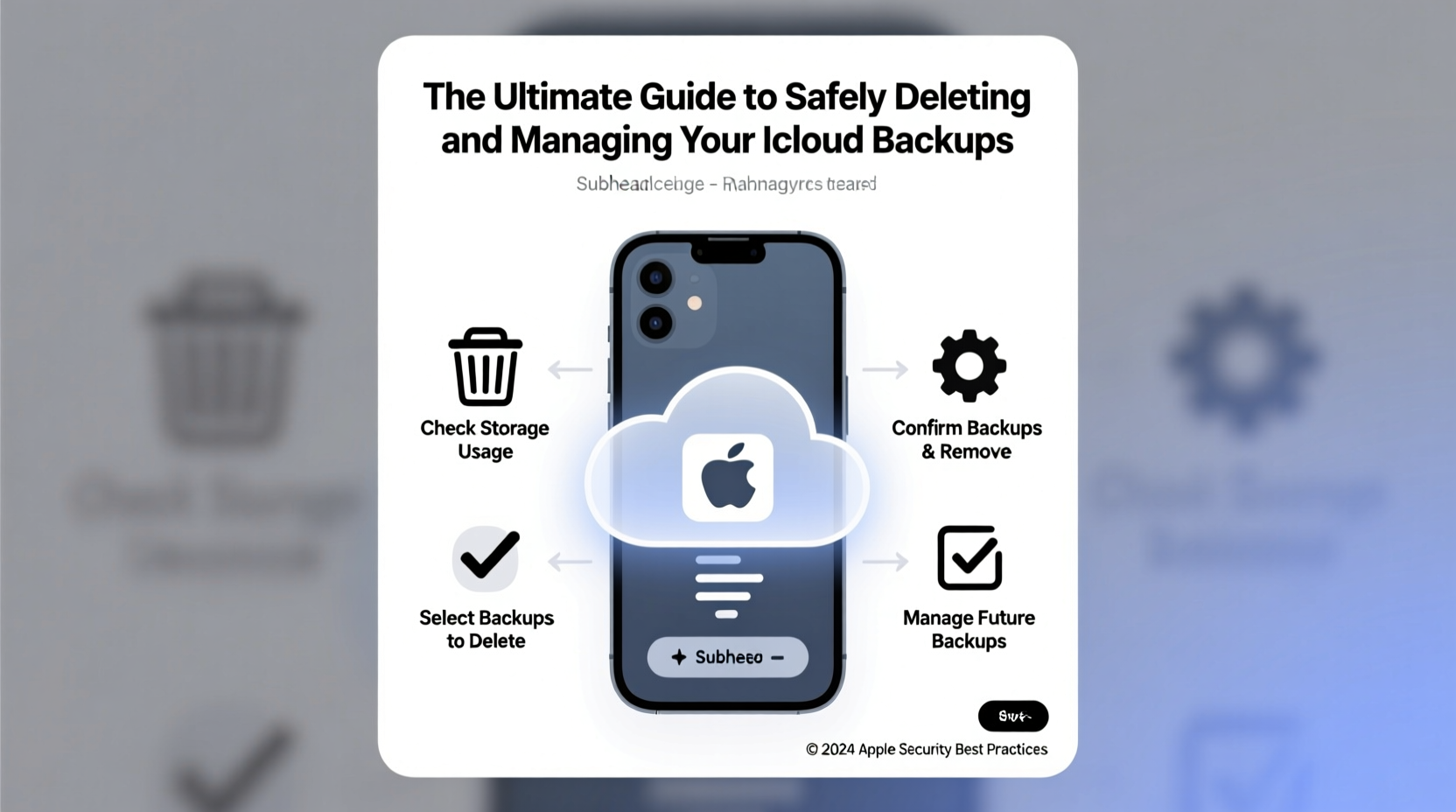
Most users enable automatic iCloud backups during device setup and never revisit the settings. While this ensures peace of mind, it also leads to unnoticed data buildup. Over months or years, multiple full-device backups stack up—even after switching devices or resetting your phone.
Unmanaged backups contribute to several issues:
- Storage bloat: iCloud offers limited free storage (5GB), and exceeding it disrupts syncing across devices.
- Privacy risks: Old backups might include deleted accounts, messages, or photos you assumed were gone.
- Slower restores: Larger backups take longer to download when setting up a new device.
- Confusion during recovery: Multiple backups make it harder to identify the correct restore point.
How to Access and Identify Your Current iCloud Backups
Before deleting anything, understand what exists in your iCloud account. Apple doesn’t display individual backup contents directly, but you can see metadata like device name, backup date, size, and associated apps.
Step-by-Step: Locate Your iCloud Backups
- On your iPhone or iPad, go to Settings > [Your Name] > iCloud.
- Tap Manage Account Storage (or Manage Storage).
- Select Backups.
- You’ll see a list of devices with active backups. Tap any entry to view details including:
- Last backup timestamp
- Total size used
- List of apps included and their respective sizes
Note which entries correspond to current devices versus old ones (e.g., “iPhone 8” when you now use an iPhone 15). These inactive entries are prime candidates for removal.
When and How to Safely Delete iCloud Backups
Deleting a backup is irreversible. Once removed, you cannot restore from that version. Therefore, confirm whether the backup is still needed.
Delete backups only if:
- The device has been replaced or erased.
- You’ve manually backed up to a computer via Finder or iTunes recently.
- The backup is significantly outdated (older than 6 months) and not tied to a known restore need.
Step-by-Step: Delete an iCloud Backup
- Go to Settings > [Your Name] > iCloud > Manage Account Storage > Backups.
- Select the device backup you want to delete.
- Tap Delete Backup, then confirm.
- Wait a moment for the system to process and free up space.
After deletion, your available iCloud storage will update within minutes. No data on your current device is affected—only the cloud copy is removed.
“Users often forget that iCloud backups persist even after selling or recycling old phones. Cleaning them up is a critical step in securing digital footprints.” — Lena Patel, Data Privacy Consultant at SecureEdge Labs
Best Practices for Ongoing iCloud Backup Management
Rather than treating backup cleanup as a one-time task, integrate smart habits into your digital routine.
Checklist: Maintain a Healthy iCloud Backup System
- ✅ Audit backups biannually
- ✅ Disable backups for apps that store data elsewhere (e.g., iCloud Photos, Dropbox)
- ✅ Use local backups (Finder/iTunes) for large media libraries
- ✅ Enable two-factor authentication to protect stored data
- ✅ Upgrade iCloud storage if consistently near limit
Do’s and Don’ts of iCloud Backup Management
| Do | Don’t |
|---|---|
| Review app-specific backup settings to exclude non-essential data | Delete backups without verifying recent alternatives exist |
| Use encrypted local backups for full control over data | Assume deleted backups are recoverable through Apple support |
| Keep at least one recent backup before making major changes | Store sensitive documents solely in iCloud without additional encryption |
A Real-World Example: Cleaning Up After an Upgrade
Sophie upgraded from her iPhone XR to an iPhone 15 Pro. She transferred data using Quick Start and confirmed everything worked. Six weeks later, she received an iCloud storage warning despite rarely taking photos.
Upon checking Manage Account Storage > Backups, she found three backups:
- iPhone 15 Pro – 2 days ago – 12.3 GB
- iPhone XR – 45 days ago – 9.7 GB
- Old iPad (sold) – 8 months ago – 6.1 GB
She deleted the two outdated entries, instantly reclaiming over 15 GB. Her storage dropped from 98% to 72%, eliminating upgrade prompts and improving sync speed across devices.
Frequently Asked Questions
Does deleting an iCloud backup erase data from my phone?
No. Deleting a backup only removes the stored copy in iCloud. Your current device data remains intact. However, once deleted, you won’t be able to restore your device from that backup in the future.
Can I recover a deleted iCloud backup?
No. Apple does not maintain a recovery bin for deleted backups. The action is permanent. Always ensure you have alternative backups—especially before removing older versions.
Should I back up to iCloud or my computer?
Both have advantages. iCloud is convenient and automatic but limited by storage plans. Local backups via Finder (macOS) or iTunes (Windows) are faster, unlimited in size, and offer greater privacy since Apple cannot access them. For maximum security, use both: regular iCloud backups for convenience and periodic local backups for completeness.
Take Control of Your Digital Legacy
Your iCloud backups are more than just safety nets—they’re reflections of your digital life across devices and timelines. Left unattended, they become cluttered archives that consume resources and expose forgotten vulnerabilities. By regularly auditing and pruning outdated backups, you enhance performance, protect privacy, and maintain confidence in your ability to restore when it truly matters.
Start today: open your Settings, navigate to iCloud storage, and examine what’s really being saved. One quick cleanup could save you time, money, and stress down the line.




 浙公网安备
33010002000092号
浙公网安备
33010002000092号 浙B2-20120091-4
Comments
No comments yet. Why don't you start the discussion?