
Formatting your PC can feel like standing at the edge of a digital cliff. On one side lies a sluggish, cluttered system bogged down by years of use. On the other is a fresh, fast machine—clean and ready for peak performance. But the fear of losing irreplaceable photos, documents, or work files keeps many users from taking the leap.
The truth is, formatting doesn’t have to mean data loss. With careful planning, the right tools, and a methodical approach, you can reset your system while keeping all your important information intact. This guide walks you through every critical step—from backup strategies to post-format recovery—so you can confidently reformat your PC without sacrificing your digital life.
Why Format Your PC—and When It’s Safe
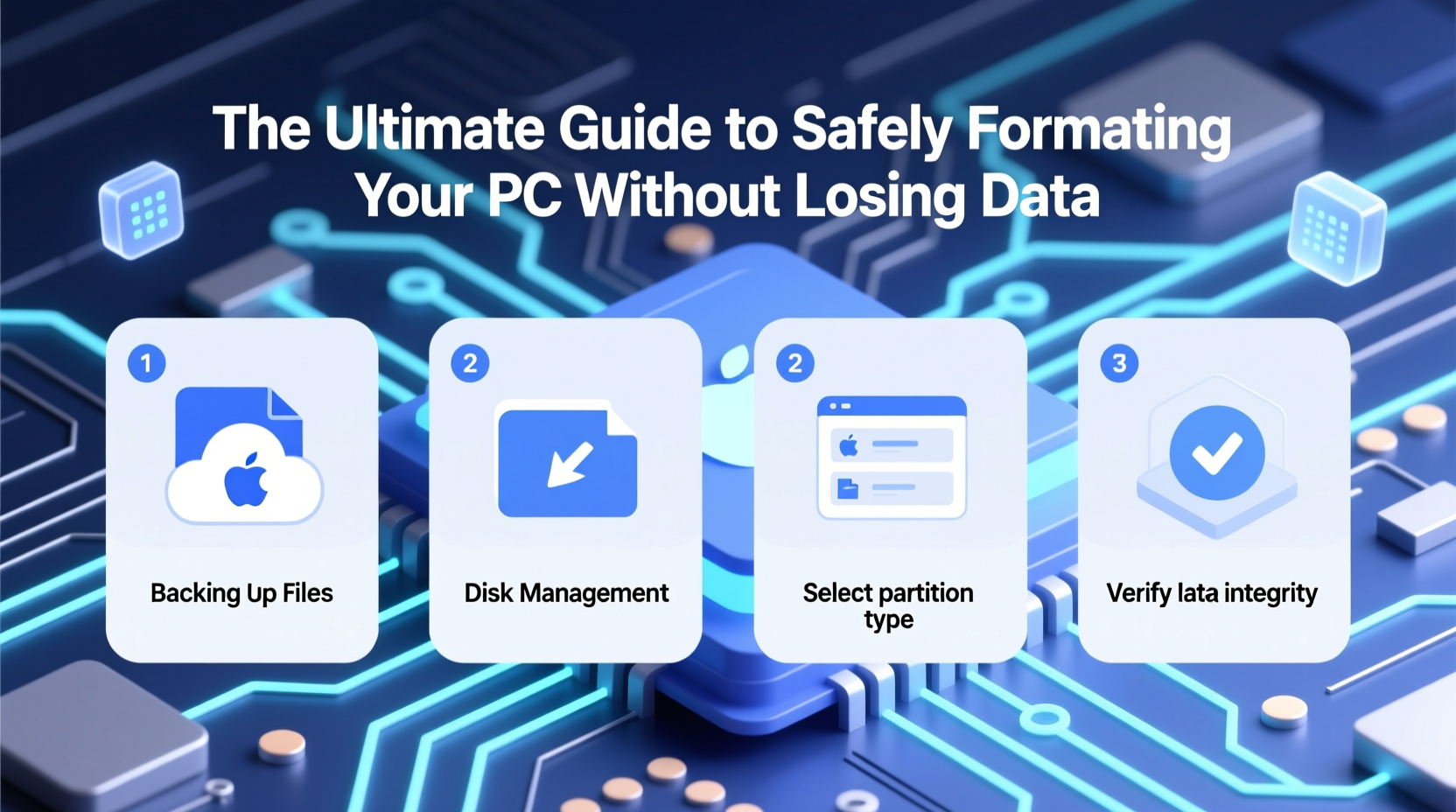
There are legitimate reasons to format a computer: persistent malware, severe performance degradation, preparing to sell or donate the device, or simply wanting a clean start after years of software bloat. However, formatting erases everything on the drive unless precautions are taken.
The key to safe formatting lies in understanding what “formatting” actually means. A full format removes all data from the drive and prepares it for a new file system. But if you're reinstalling Windows or another operating system, you don't always need to wipe everything—you can choose to keep personal files during setup. Still, relying solely on that option is risky. Independent backups remain essential.
“Never assume the OS installer will protect your data. Always back up first, even if you plan to keep files.” — David Lin, Senior Systems Engineer at TechRescue Labs
Your Data Protection Checklist Before Formatting
Before touching any format button, complete this checklist. Skipping even one item increases the risk of irreversible data loss.
- Identify critical files: Photos, documents, financial records, projects, emails, browser bookmarks.
- Select a reliable backup method: External drive, cloud storage, or both.
- Verify software licenses: Note down product keys for offline applications (e.g., Microsoft Office, Adobe).
- Export browser data: Save passwords, history, and bookmarks using built-in export tools.
- Document network settings: Record Wi-Fi passwords, static IP configurations, or router details.
- Test your backup: Open a few files from the backup location to confirm they’re readable.
Step-by-Step: How to Format Safely Without Losing Data
This timeline outlines the correct sequence for a secure format. Follow each phase carefully.
- Phase 1: Full Backup (Day 1)
Connect an external hard drive or NAS. Copy all user folders (Documents, Pictures, Desktop, etc.) to the device. For added security, upload critical files to encrypted cloud services like OneDrive, Google Drive, or Dropbox. - Phase 2: Verify & Label (Day 1)
Open random files from the backup to ensure integrity. Rename the backup drive with the date and source (e.g., “Backup_Laptop_June2024”). This prevents confusion later. - Phase 3: Prepare Installation Media (Day 2)
Download the official Windows Media Creation Tool or Linux ISO. Create a bootable USB drive using Rufus or Ventoy. This ensures you can reinstall the OS after formatting. - Phase 4: Disconnect Secondary Drives (Optional but Recommended)
If your PC has multiple internal drives, disconnect non-system drives physically or disable them in BIOS. This prevents accidental formatting. - Phase 5: Boot from USB & Format (Day 2)
Restart the PC and boot from the USB. When prompted during installation, select \"Custom: Install Windows only (advanced).\" Choose the system partition (usually C:) and click \"Format.\" Wait for completion. - Phase 6: Reinstall OS & Drivers
Proceed with installation. After setup, install drivers from the manufacturer’s website or use a pre-downloaded driver pack. - Phase 7: Restore Files
Once the OS is stable, reconnect your backup drive and copy files back. Avoid overwriting system folders; place personal data in standard directories.
Do’s and Don’ts of PC Formatting
| Do’s | Don’ts |
|---|---|
| Use two backup locations (e.g., external drive + cloud) | Assume your files are safe because “I’ll remember where I saved them” |
| Label backups clearly with dates and device names | Format without verifying backup integrity |
| Create a system image for full recovery options | Delete original files immediately after copying |
| Keep a list of installed software and licenses | Rely solely on the Windows “Keep my files” option during reinstallation |
Real Example: Recovering From a Near-Catastrophe
Sarah, a freelance graphic designer, decided to format her aging laptop to improve performance. She copied her portfolio folder to an external drive but didn’t verify the transfer. After formatting and reinstalling Windows, she discovered the backup had failed silently—only empty folders were copied due to permission errors.
Luckily, she still had the original drive intact. Using data recovery software (Recuva), she was able to retrieve most of her project files. The experience cost her two days of work and a major client deadline scare. Now, she uses automated backup scripts and triple-checks every transfer before proceeding.
Sarah’s story underscores a universal rule: verification is not optional. A backup isn’t real until you’ve confirmed it works.
Frequently Asked Questions
Can I format my PC without losing Windows files?
Yes—but only if you use the “Reset this PC” feature in Windows Settings and choose “Keep my files.” However, this isn’t foolproof. Some apps and settings may still be lost. For maximum safety, always perform an independent backup first.
What’s the difference between quick format and full format?
A quick format removes file references but doesn’t overwrite data, making recovery possible. A full format scans the drive and writes zeros across sectors, enhancing security but taking much longer. For most users, a quick format is sufficient when combined with prior backups.
Is cloud backup enough before formatting?
Cloud backup is excellent for critical files, but large media libraries (videos, RAW photos) may take too long to upload and download. Use cloud as a secondary layer, not your only backup. Combine it with a local external drive for speed and reliability.
Conclusion: Take Control of Your Digital Environment
Formatting your PC doesn’t have to be a high-stakes gamble. By treating your data with the respect it deserves—backing up thoroughly, verifying every step, and following a disciplined process—you transform a potentially dangerous operation into a powerful tool for renewal.
A clean system runs faster, feels more responsive, and gives you peace of mind. You’re not starting over—you’re upgrading your digital foundation. Whether you’re troubleshooting, optimizing, or preparing for a fresh start, the ability to format safely is a skill every computer user should master.




 浙公网安备
33010002000092号
浙公网安备
33010002000092号 浙B2-20120091-4
Comments
No comments yet. Why don't you start the discussion?