
In today’s digital world, work, creativity, and personal life span multiple devices—laptops, smartphones, tablets, and even smart TVs. Without a reliable system, files scatter across drives, cloud accounts, and forgotten USB sticks. Lost documents, version conflicts, and data loss become common. The solution isn’t more storage; it’s smarter saving. A cohesive file strategy ensures you can access the right file at the right time, regardless of device or platform, while keeping your data secure and organized for years.
1. Understand Your File Ecosystem
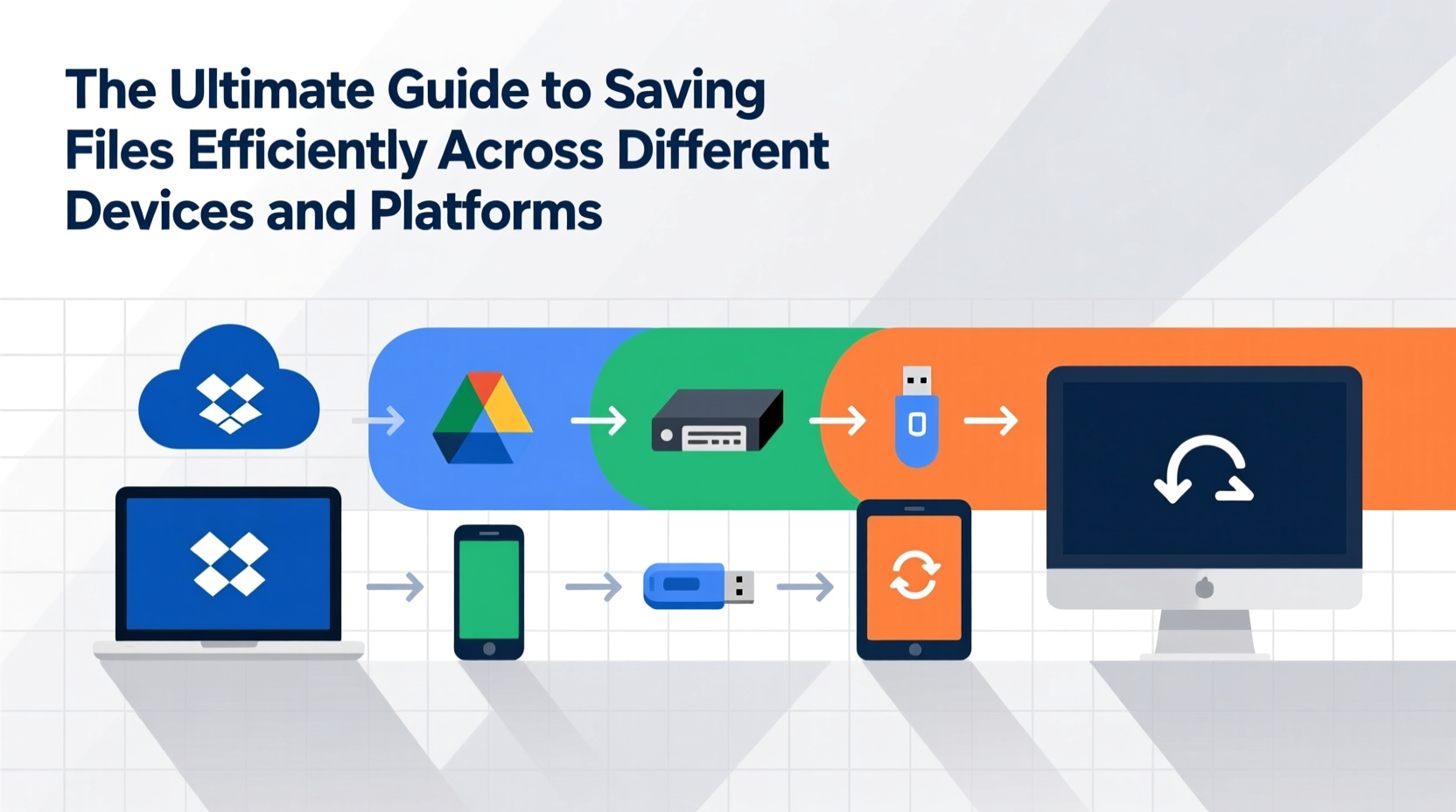
Every user interacts with three core components: local storage (hard drives), cloud services (Google Drive, iCloud, OneDrive), and external media (USBs, external SSDs). Efficiency begins by mapping how these layers interact. Relying solely on one method creates risk—local-only files vanish with hardware failure; cloud-only setups fail when offline. A balanced approach uses each layer purposefully.
For example, active projects should sync in real time via the cloud but also exist locally for performance. Archival files belong on external drives or cold cloud storage. Personal photos might live in iCloud on Apple devices and Google Photos on Android—requiring intentional duplication or cross-platform syncing tools.
The Three-Layer Storage Model
- Layer 1 – Active Work (Cloud + Local): Files you edit daily. Synced via Dropbox, OneDrive, etc.
- Layer 2 – Backup & Archive (External Drives): Completed projects, tax records, old photos.
- Layer 3 – Redundant Cloud (Secondary Provider): Off-site backup using a different service (e.g., Backblaze or iCloud if primary is Google).
This model reduces single points of failure. If your laptop dies, the cloud has your current work. If a cloud provider suffers an outage, your external drive keeps critical data safe.
2. Choose the Right Cloud Platform for Your Workflow
Not all cloud services function the same. Each integrates differently with operating systems and offers unique collaboration features. Choosing wisely prevents friction when switching between Windows, macOS, iOS, or Android.
| Service | Best For | Sync Speed | Cross-Platform Support | Offline Access |
|---|---|---|---|---|
| Google Drive | G Suite users, Android, web-first workflows | Fast (selective sync) | Excellent (all major OS) | Limited without paid add-ons |
| iCloud Drive | Apple ecosystem users | Moderate (tight OS integration) | Fair (limited Android support) | Full on Apple devices |
| Microsoft OneDrive | Windows & Office 365 users | Fast (Files On-Demand) | Good (less optimized for macOS) | Yes, with selective availability |
| Dropbox | Freelancers, cross-device creatives | Very fast (smart sync) | Excellent | Full control over local copies |
For mixed-device households, Dropbox or Google Drive often provide the smoothest experience. OneDrive excels if you’re embedded in Microsoft’s ecosystem. iCloud remains unmatched for iPhone and Mac users—but only if you stay within Apple’s walled garden.
“Cross-platform compatibility isn’t a luxury—it’s a necessity. The best file system works invisibly, whether you’re on a phone or a workstation.” — Lena Torres, Digital Infrastructure Consultant
3. Standardize Naming and Folder Structures
No syncing tool fixes chaotic naming. “Final_v2_revised_FINAL.docx” causes confusion. Instead, adopt a consistent naming convention that includes date, project, and version number.
Use the format: [YYYY-MM-DD]_[ProjectName]_[Description]_[v01].ext. For example: 2024-04-15_ClientProposal_Draft_v02.pdf. This sorts chronologically and eliminates ambiguity.
Recommended Folder Hierarchy
- Documents/
- ├── Work/
- │ ├── Projects/
- │ │ ├── Project_Alpha/
- │ │ │ ├── 01_Planning/
- │ │ │ ├── 02_Design/
- │ │ │ └── 03_Final/
- │ └── Admin/
- ├── Personal/
- │ ├── Taxes/
- │ ├── Health/
- │ └── Travel/
- └── Archive/
This structure scales. Numbered subfolders indicate priority or sequence. Archived projects move to the top-level Archive folder with a year prefix: Archive_2023_ProjectX.
4. Automate Syncing and Backups
Manual file management fails under pressure. Automation ensures consistency. Configure your tools to handle repetitive tasks like backups, versioning, and cross-device updates.
Step-by-Step Setup for Automated Syncing
- Select a primary cloud provider based on your most-used device and software suite.
- Install the desktop client and enable selective sync for large folders (e.g., exclude Videos unless needed).
- Set up file history: Enable Windows File History or use Time Machine on macOS for hourly local backups.
- Add a secondary backup tool like Backblaze or CrashPlan to continuously back up your entire drive offsite.
- Schedule monthly audits to review sync status, delete obsolete versions, and check encryption settings.
Automation doesn’t mean set-and-forget. Review logs occasionally. A failed sync notification ignored for weeks can result in irreversible data loss.
Mini Case Study: Recovering from a Laptop Failure
Sophie, a freelance graphic designer, lost her MacBook to a logic board failure. She used iCloud for some files but stored client assets locally. Because she had enabled Time Machine and used Dropbox for active projects, she restored her work within hours. The Time Machine backup provided full system recovery, while Dropbox ensured client deliverables remained accessible from her iPad during downtime. Her adherence to layered backups saved her business continuity.
5. Secure and Future-Proof Your Files
Efficiency means nothing without security. Unencrypted files on public Wi-Fi, weak passwords, or unverified third-party apps expose sensitive data. Apply these safeguards:
- Enable two-factor authentication (2FA) on all cloud accounts.
- Use end-to-end encrypted services like pCloud (with Crypto add-on) or Tresorit for sensitive documents.
- Avoid storing passwords, IDs, or financial records in plain text files.
- Encrypt external drives using BitLocker (Windows) or FileVault (macOS).
Also consider file longevity. Proprietary formats (e.g., .pages, .numbers) may become unreadable. Convert final versions to open standards: PDF for documents, JPEG/PNG for images, MP4 for video, CSV for spreadsheets.
File Management Checklist
- Verify all cloud folders are syncing properly
- Run a full backup (Time Machine / File History)
- Delete duplicate or outdated files
- Update folder permissions for shared projects
- Test file recovery from backup
- Review account security (2FA, login history)
FAQ
Can I use multiple cloud services without confusion?
Yes, but assign roles. Use Google Drive for collaboration, Dropbox for creative assets, and OneDrive for Office files. Tools like Multcloud or Rclone can unify them under one interface.
What’s the safest way to share large files?
Avoid email attachments. Instead, upload to your cloud drive, generate a password-protected link with expiration, and send it separately from the password.
How often should I back up my files?
Automate daily backups for active files. Full system backups should run weekly. Manual archives for completed projects should occur immediately upon completion.
Conclusion
Efficient file saving isn’t about hoarding storage—it’s about creating a predictable, resilient system that adapts to your life. Whether you're drafting a novel on a tablet, analyzing data on a desktop, or approving contracts on a phone, your files should follow seamlessly. By standardizing structures, automating backups, and securing access, you eliminate stress and maximize productivity. The technology exists; what’s missing is intentionality. Start today: audit one folder, rename three files, test one backup. Small actions compound into lasting digital clarity.




 浙公网安备
33010002000092号
浙公网安备
33010002000092号 浙B2-20120091-4
Comments
No comments yet. Why don't you start the discussion?