
Sharing your location on an iPhone can be a powerful tool for safety, coordination, and convenience. Whether you're meeting friends, letting family know you’ve arrived safely, or using location-based services, Apple has built robust privacy controls into iOS. But with great power comes responsibility—especially when it comes to protecting your personal data. Understanding how to share your location securely ensures you stay connected without compromising your privacy.
iOS offers multiple ways to share your location: through Messages, Find My, third-party apps, and emergency features. Each method varies in duration, visibility, and security. The key is knowing which tool to use, when to use it, and how to limit exposure. This guide walks through every secure option, step-by-step, so you can maintain full control over who sees where you are—and for how long.
Understanding Location Services and Privacy Settings
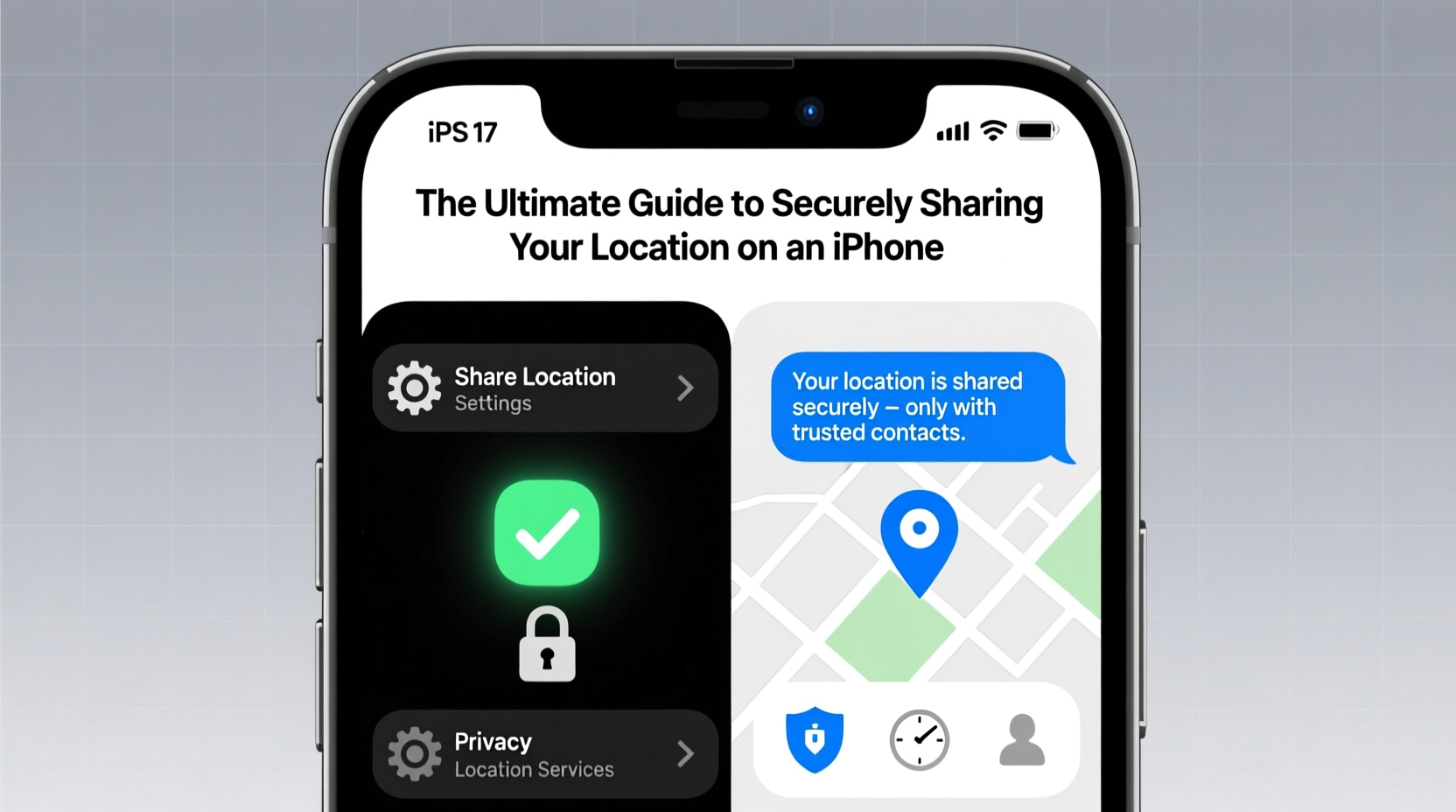
Before sharing your location, it's essential to understand how iOS manages location data. Under Settings > Privacy & Security > Location Services, you can control which apps access your location and under what conditions. Every app must request permission, and you can choose between “Never,” “While Using the App,” “Ask Next Time,” or “Always.”
Apple uses on-device processing and anonymized data to minimize tracking risks. However, even trusted apps may collect location data in the background if permitted. To maintain security:
- Regularly audit which apps have location access.
- Avoid granting “Always” access unless absolutely necessary (e.g., fitness trackers).
- Use precise location only when needed; disable it for apps that don’t require accuracy.
Secure Ways to Share Your Location
Apple provides several native methods to share your location—all encrypted and designed with user control in mind. The most secure options are built into iMessage and the Find My app, both of which use end-to-end encryption.
Using Find My for Trusted Contacts
The Find My app is the gold standard for secure location sharing. It allows you to share your real-time location with individuals or groups for a set period or indefinitely. All data is encrypted, and only people you explicitly invite can view your location.
- Open the Find My app.
- Tap the People tab.
- Select Share My Location.
- Choose a contact and set the duration: 1 hour, until the end of the day, or indefinitely.
- Send the invitation via Messages or AirDrop.
Once shared, the recipient sees your location on their map. You receive a notification whenever someone views your location, and you can stop sharing at any time with one tap.
Sharing via iMessage During Conversations
If you’re already chatting in Messages, you can quickly share your live location temporarily. This method is ideal for short-term coordination, like meeting up for coffee.
- Open a conversation in Messages.
- Tap the apps icon (square with upward arrow).
- Select Location.
- Choose Share Live Location.
- Pick a duration: 1 hour, until end of day, or indefinitely.
This creates a live-updating pin visible only within that thread. Both parties see each other’s movements in real time. When the timer expires, sharing stops automatically.
Best Practices for Secure Location Sharing
Even with strong encryption, poor habits can expose your whereabouts. Follow these guidelines to ensure your digital footprint stays protected.
| Do | Don't |
|---|---|
| Verify the identity of anyone requesting your location. | Share your location publicly on social media. |
| Set time limits for sharing. | Leave location sharing enabled indefinitely without review. |
| Review active shares weekly in Find My. | Allow unknown apps to access your location. |
| Use two-factor authentication on your Apple ID. | Share location with untrusted third-party apps. |
“Location data is among the most sensitive personal information. Apple’s ecosystem gives users strong tools, but vigilance is still required.” — Dr. Lena Torres, Cybersecurity Researcher at Stanford University
Real-World Scenario: Coordinating Safely During Travel
Sophia was traveling alone in Lisbon and wanted her sister to know she arrived safely at her hostel. Instead of texting updates, she opened Find My and shared her live location for “Until End of Day.” Her sister could see her progress from the airport and confirmed when she reached her destination. Once checked in, Sophia manually stopped sharing. She stayed connected without exposing her location beyond necessity—and regained peace of mind knowing her sister wasn’t worried.
This example highlights how temporary, intentional sharing supports safety without creating ongoing vulnerabilities.
Managing Third-Party App Access
Many apps—ride-sharing, food delivery, fitness trackers—request location access. While useful, they may store or monetize your data. Always evaluate whether the benefit outweighs the risk.
To enhance security:
- Revoke access for apps you no longer use.
- Disable background location refresh under Settings > General > Background App Refresh.
- Check app permissions monthly; iOS now sends reminders about unused apps accessing location.
Some third-party apps offer their own live location sharing (e.g., Uber drivers). These are generally secure within the app context but should never replace Apple’s native tools for personal sharing.
Emergency Location Sharing
In critical situations, your iPhone can automatically share your location. If you trigger Emergency SOS by pressing the side button and volume button simultaneously, your device sends your location to emergency services and notifies your emergency contacts if configured.
To set this up:
- Go to Settings > Emergency SOS.
- Add emergency contacts under Medical ID in the Health app.
- Enable “Auto Call” and “Notify When SOS Ends.”
This feature operates independently of regular location sharing and prioritizes speed and reliability during crises.
Frequently Asked Questions
Can someone track me without my knowledge?
No. iOS requires explicit permission to share your location. If someone claims to see your location, check the People tab in Find My. Any active sharing will be listed there. If you didn’t initiate it, someone may have accessed your Apple ID—change your password immediately.
Does sharing my location drain the battery?
Yes, continuous GPS usage increases battery consumption. Limit sharing duration and disable it when not needed. Consider enabling Low Power Mode during extended trips.
What happens if I lose signal or turn off my phone?
Your location stops updating. Recipients will see your last known position with a timestamp. No data is stored or transmitted once the device is offline.
Essential Checklist for Safe Location Sharing
- ✅ Review all active location shares in Find My weekly.
- ✅ Set time limits for every new share.
- ✅ Use two-factor authentication for your Apple ID.
- ✅ Audit app permissions monthly.
- ✅ Disable “Precise Location” for non-critical apps.
- ✅ Configure emergency contacts and SOS settings.
- ✅ Avoid sharing location with strangers or in public forums.
Final Thoughts: Stay Connected, Stay Protected
Location sharing on iPhone doesn’t have to be risky. With Apple’s advanced privacy architecture and your proactive management, you can enjoy the benefits of real-time connectivity while maintaining full control. The tools are already on your device—what matters is how you use them.
Take a few minutes today to review your current shares, tighten permissions, and educate those you care about. A safer digital world starts with informed choices. Share wisely, protect relentlessly, and make every location update work for you—not against you.




 浙公网安备
33010002000092号
浙公网安备
33010002000092号 浙B2-20120091-4
Comments
No comments yet. Why don't you start the discussion?