
Video content dominates social media, and Facebook remains one of the most powerful platforms for reaching audiences through moving images. Whether you're promoting a product, sharing a personal moment, or building a brand presence, mastering how to share videos on Facebook effectively can dramatically increase your visibility and engagement. With over 2.9 billion monthly active users, Facebook offers unparalleled reach—but only if your video is optimized correctly from upload to distribution.
This guide breaks down every step of the process: formatting, uploading, enhancing engagement, avoiding common pitfalls, and leveraging Facebook’s built-in tools to maximize impact. You’ll learn not just how to post a video, but how to ensure it’s seen, shared, and remembered.
Understanding Facebook Video Specifications
Before uploading, it's essential to align your video with Facebook’s technical requirements. A poorly formatted video may appear blurry, cropped, or fail to autoplay in feeds—critical disadvantages when competing for attention.
| Attribute | Recommended | Avoid |
|---|---|---|
| Aspect Ratio | 1:1 (square), 4:5 (portrait), or 16:9 (landscape) | Extremely vertical (e.g., 9:16) without captioning |
| Resolution | 720p minimum; 1080p ideal | Below 720p |
| File Size | Up to 4GB | Over 4GB (causes upload failure) |
| Duration | 30 seconds to 2 minutes (ideal for feed); up to 240 minutes for longer content | Over 120 seconds without strong hook |
| File Format | MP4, MOV, AVI | WMV, FLV (less compatible) |
Facebook supports HD and even 4K uploads, though playback defaults to lower resolution depending on user connection. Uploading in high quality ensures better clarity even after compression.
Step-by-Step Guide to Uploading Videos
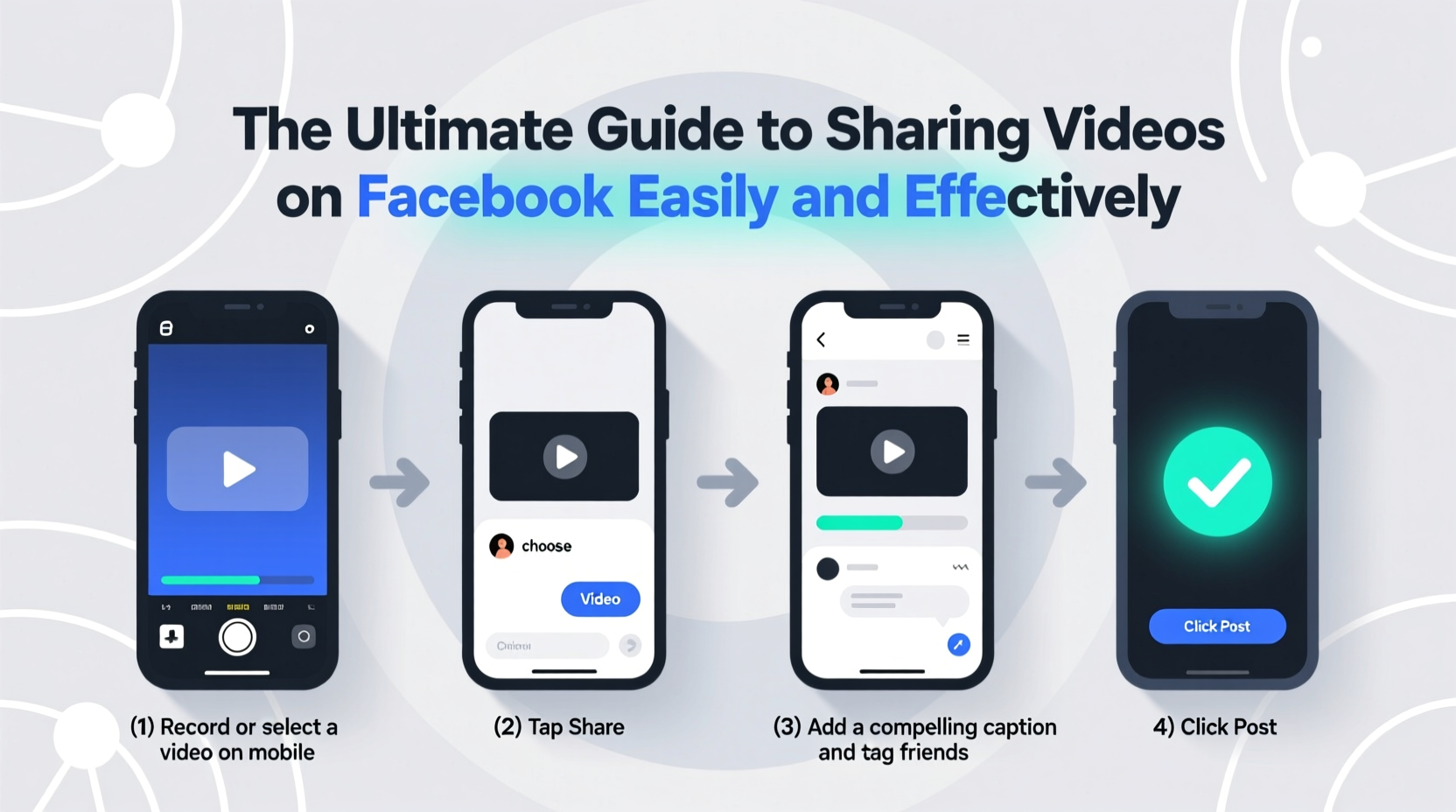
Sharing a video on Facebook is simple, but doing it right requires attention to detail. Follow this sequence to ensure optimal performance:
- Prepare your video: Trim unnecessary footage, add subtitles if needed, and confirm file format and size.
- Navigate to your posting interface: This could be your personal profile, Page, or Group.
- Click “Photo/Video”: Located in the status composer at the top of your feed or Page timeline.
- Select your video file: Choose from your device. For larger files, upload time may vary.
- Add a compelling description: Include context, hashtags, and a call to action (e.g., “Tag someone who needs to see this!”).
- Adjust audience settings: Set visibility (Public, Friends, Only Me, or Custom).
- Enhance with tags, location, or alt text: Improves accessibility and discoverability.
- Click “Post”: Your video will begin processing. Wait for full processing before sharing externally.
For business use, consider uploading via Facebook Creator Studio or Business Suite. These tools allow scheduling, analytics tracking, and multi-account management.
Maximizing Engagement and Reach
Posting a video is just the beginning. To make it effective, focus on increasing visibility and interaction. Facebook’s algorithm prioritizes content that keeps users on the platform—especially videos that are watched for longer durations and generate comments, shares, and reactions.
- Hook viewers in the first 3 seconds: Start with motion, text overlay, or a surprising visual.
- Add captions: Over 85% of Facebook videos play without sound initially.
- Use custom thumbnails: Upload an engaging still image to boost click-through rates.
- Encourage interaction: Ask questions in your caption or end the video with a prompt like “What would you do?”
- Post at optimal times: Generally, weekdays between 9 AM and 3 PM yield higher engagement.
“Videos that spark conversation perform best. The algorithm rewards meaningful interactions—not just views.” — Sarah Lin, Social Media Strategist at Meta Partner Agency
Boost performance by pinning your video to the top of your profile or Page for 30 days. This ensures new visitors see your most important content immediately.
Common Mistakes to Avoid
Even well-produced videos underperform due to preventable errors. Recognize and sidestep these pitfalls:
- Ignoring mobile optimization: Most Facebook traffic comes from smartphones. Vertical or square formats outperform landscape.
- Skipping captions: Silent autoplay means no audio = no message unless text is visible.
- Using copyrighted music: Facebook may mute or remove videos with unlicensed tracks. Use Facebook’s Sound Collection instead.
- Posting excessively long intros: If the value isn’t clear within 5 seconds, viewers scroll away.
- Failing to track performance: Without reviewing metrics, you won’t know what works.
Use Facebook Insights to monitor key data: average watch time, peak engagement hours, and audience retention drop-off points. Adjust future content based on what resonates.
Real Example: How a Local Bakery Doubled Its Reach
Jane’s Bakery in Portland struggled to attract foot traffic despite having loyal customers. They began posting 45-second videos showing behind-the-scenes moments: dough being kneaded, pastries fresh from the oven, and staff greetings.
Each video used bold text overlays (“Fresh Croissants Every Morning!”), included captions, and ended with a question (“Which treat should we bake next?”). Posted consistently at 8:30 AM on weekdays, these clips averaged 3x more engagement than static photos.
Within two months, their Facebook Page gained 1,200 new followers, and store visits increased by 35%. Their most popular video—a timelapse of a birthday cake decoration—was shared over 200 times locally.
The strategy wasn’t about high production value—it was consistency, authenticity, and smart formatting.
Checklist: Optimize Your Next Facebook Video
Before hitting “Post,” run through this checklist to ensure maximum effectiveness:
- ✅ Video is under 2 minutes (or has a strong hook for longer content)
- ✅ Aspect ratio is 1:1, 4:5, or 16:9
- ✅ Captions or text overlays are included
- ✅ Thumbnail is clear and attention-grabbing
- ✅ Description includes relevant hashtags (1–3) and a call to action
- ✅ Audience privacy is set appropriately
- ✅ No copyrighted music—using royalty-free or Facebook Audio Library
- ✅ Posted during high-engagement window (weekday mornings or early evenings)
FAQ
Can I edit a video after posting it on Facebook?
Yes, but options are limited. You can change the title, description, thumbnail, privacy settings, and pinned comment. However, you cannot replace the video file itself without deleting and re-uploading.
Why isn’t my video getting any views?
Possible reasons include poor timing, lack of captions, weak opening, or low audience targeting. Review your Insights to see where viewers drop off. Consider boosting the post with a small ad budget to jumpstart visibility.
How can I share a video directly to a group?
Navigate to the group, click “Create Post,” then select “Photo/Video.” Upload your file, write a descriptive caption, and post. Make sure the group allows video content and that your account has posting permissions.
Conclusion
Sharing videos on Facebook is easy—but sharing them effectively requires strategy, precision, and consistency. From choosing the right format to crafting engaging openings and analyzing performance, every detail influences whether your content fades into obscurity or sparks real conversations.
Now that you have the tools and insights, create a plan: pick one video idea, optimize it using this guide, and publish it with confidence. Monitor the results, learn from the data, and refine your approach. Over time, your audience will grow—not because you post often, but because you post meaningfully.




 浙公网安备
33010002000092号
浙公网安备
33010002000092号 浙B2-20120091-4
Comments
No comments yet. Why don't you start the discussion?