
Losing a smartphone is more than just an inconvenience—it can mean losing personal photos, sensitive messages, banking apps, and access to your digital identity. Fortunately, if you're using an Android device or have a Google account linked to your phone, you already have a powerful tool at your disposal: Google's Find My Device service. This comprehensive guide walks you through everything you need to know about locating, locking, and protecting your phone using Google’s built-in tracking system—no extra apps or subscriptions required.
How Google’s Find My Device Works
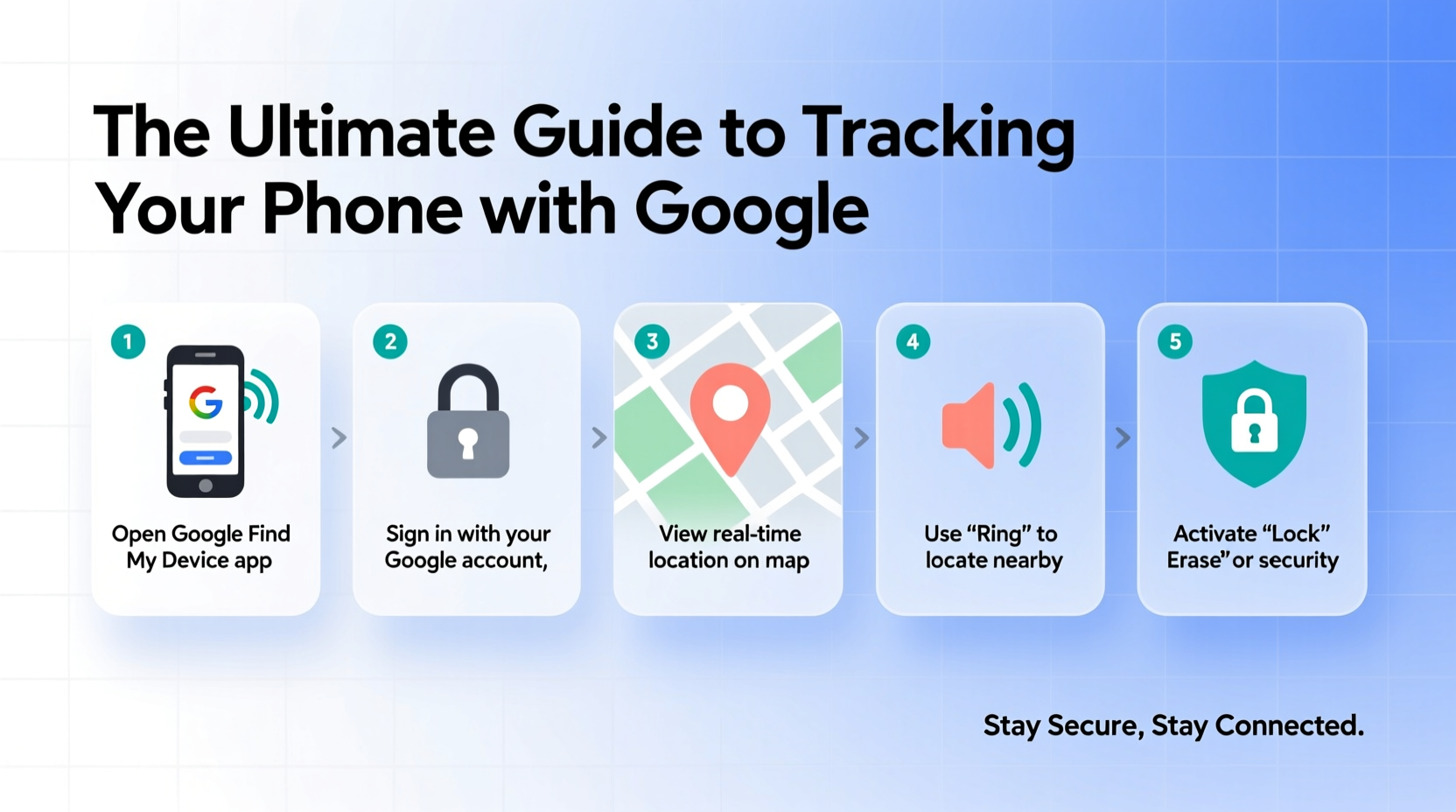
Google’s Find My Device (FMD) is a free service that allows users to locate, ring, lock, or erase their Android phones remotely. It works by leveraging GPS, Wi-Fi, and mobile networks to pinpoint the device’s last known location. As long as your phone is powered on, connected to the internet, and has location services enabled, FMD can help you recover it—or protect your data if recovery isn’t possible.
The service supports most Android devices running Android 4.0 (Ice Cream Sandwich) and later. Even if you own multiple devices under the same Google account—such as tablets or Wear OS watches—you can manage them all from one dashboard.
Step-by-Step Guide to Locating Your Phone
If your phone is missing, follow this sequence of actions to maximize your chances of recovery:
- Stay Calm and Act Quickly: The sooner you act, the better your odds. Devices often turn up within hours when tracked early.
- Access Find My Device: Open any web browser and go to google.com/android/find, or use the Find My Device app on another Android phone.
- Sign In: Log in with the Google account associated with your lost device. If you’re already signed in on a Chrome browser, this step may be automatic.
- Select Your Device: If you have multiple devices, choose the one that’s missing from the list on the left.
- View Location: A map will display the device’s current or last known location. Accuracy varies based on signal strength and environment.
- Take Action: Choose from three primary options: play a sound, lock the device, or erase it completely.
This entire process takes less than two minutes and can be done from a computer, tablet, or another smartphone.
Securing Your Device Remotely
Finding your phone is only part of the solution. Securing your personal information is equally critical. Google gives you three powerful tools to protect your data:
- Play Sound: Ideal if the phone is nearby but out of sight—like under a couch or in another room. The device will ring at full volume for five minutes, even if it was set to silent.
- Secure Device (Lock): Instantly locks your phone with a temporary password, overriding any existing PIN or pattern. You can also display a custom message on the lock screen—such as “Reward if returned” and a contact number.
- Erase Device: Permanently deletes all data, including apps, photos, accounts, and settings. Use this only as a last resort when recovery seems unlikely.
“Remote locking and wiping are essential safeguards in today’s mobile world. They prevent unauthorized access faster than physically retrieving the device.” — David Lin, Cybersecurity Analyst at MobileShield Labs
Essential Setup Checklist Before You Lose Your Phone
Waiting until your phone is gone to configure tracking features is too late. Prepare now with this proactive checklist:
- ✅ Enable 'Find My Device' in Settings > Security > Find My Device
- ✅ Turn on Location Services and Wi-Fi scanning
- ✅ Ensure your Google account is active and synced
- ✅ Set up a screen lock (PIN, pattern, or biometric)
- ✅ Regularly back up your data via Google One or another cloud service
- ✅ Install the Find My Device app on another trusted device
Devices without location services enabled cannot be accurately located. While network-based approximations may appear, they lack precision and reliability.
Real-Life Example: Recovering a Lost Phone at an Airport
Sophia, a business traveler, left her Pixel 6 in the security line at JFK Airport. She didn’t realize it was missing until she boarded her flight. Once airborne, she used the in-flight Wi-Fi on her tablet to visit find.mydevice.google.com. Her phone appeared on the map near Terminal 4’s security checkpoint. She used the “Lock” feature to secure it and displayed her email address on the lock screen.
Within 30 minutes, an airport employee found the phone, saw the message, and contacted her via the provided email. By the time she landed, her phone was waiting at customer service. Thanks to immediate remote action, her data stayed safe and the device was recovered intact.
Comparison: Find My Device vs. Third-Party Tracking Apps
| Feature | Google Find My Device | Third-Party App (e.g., Cerberus, Prey) |
|---|---|---|
| Cost | Free | Paid subscription often required |
| Setup Complexity | Integrated into Android OS | Requires separate download and configuration |
| Remote Erase | Yes | Yes (advanced versions) |
| Camera Trigger (take photo of thief) | No | Available in premium apps |
| Geofencing Alerts | No | Yes |
| Reliability | High (native integration) | Variable (depends on background permissions) |
While third-party apps offer advanced features like stealth photos or geofence alerts, Google’s solution remains the most reliable, universally accessible option—especially during emergencies.
Frequently Asked Questions
Can I track my phone if it’s turned off?
No, Find My Device requires the phone to be powered on and connected to the internet. However, once it reconnects, you’ll see its last known location and can trigger actions immediately.
What if someone removes my SIM card?
Removing the SIM doesn’t disable tracking if the device connects to Wi-Fi. As long as the phone accesses the internet through any means, Find My Device can still locate it.
Does Find My Device work on iPhones?
Not directly. Apple uses its own “Find My” network. However, if you’ve installed the Google app or Gmail on your iPhone and are signed in, you can view recent activity and locations via Google Location History—but not remotely lock or erase the device through Google.
Maximizing Success: Pro Tips for Recovery
Even with the best tools, success depends on smart habits. Consider these additional strategies:
- Enable Notifications on Multiple Devices: Link your Google account to a tablet or laptop so you receive alerts if your phone connects.
- Use Trusted Contacts: Share your location temporarily with family or friends during travel using Google Maps’ location sharing.
- Review Location History: Visit Google Timeline to see where your phone has been over the past few days. This helps confirm whether it was misplaced or stolen.
- Report to Authorities: If theft is suspected, provide police with the IMEI number and screenshots from Find My Device.
Conclusion: Take Control Before You Need It
Losing your phone doesn’t have to mean losing your peace of mind. With Google’s Find My Device, you hold the power to locate, lock, or wipe your device from anywhere in the world—often within seconds. But its effectiveness hinges on preparation. Don’t wait for a crisis to enable location services or sign in to your Google account. Set up tracking now, verify it works, and teach your family members to do the same.




 浙公网安备
33010002000092号
浙公网安备
33010002000092号 浙B2-20120091-4
Comments
No comments yet. Why don't you start the discussion?