
Installing apps is a fundamental part of using a smartphone. Whether you want to stay in touch with friends, track your fitness, manage finances, or just pass time with games, apps make it possible. Yet for some users—especially those new to smartphones—the process can seem confusing. Where do you get apps? Are they safe? What if the download fails?
This comprehensive guide walks you through every stage of installing an app on your phone, covering both iOS (iPhone) and Android devices. You’ll learn not only how to download apps but also how to do so safely, troubleshoot common issues, and manage storage effectively.
Understanding App Sources: Where to Download From
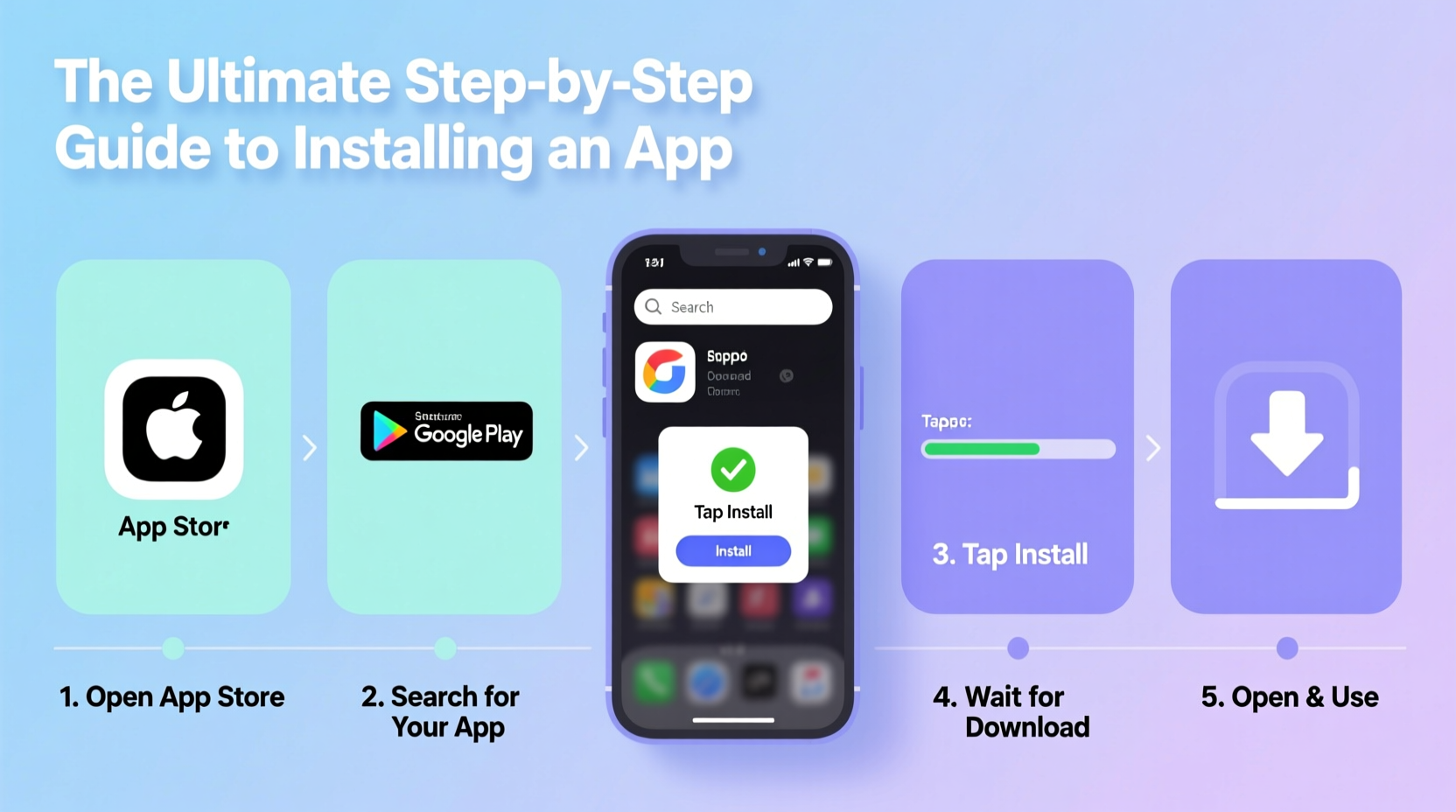
Before downloading anything, it’s essential to know where apps come from and which sources are trustworthy. The vast majority of users should stick to official app stores, as they offer built-in security checks and verified developers.
- Apple App Store – Exclusive to iPhone and iPad users. All apps undergo Apple’s review process before being listed.
- Google Play Store – The primary source for Android apps. Google scans apps for malware and monitors developer behavior.
- Third-party app stores or websites – These include Amazon Appstore, Samsung Galaxy Store, or direct APK downloads. While sometimes useful, they carry higher risks unless you're certain of their legitimacy.
“Over 99% of mobile malware comes from outside official app stores.” — Cybersecurity Report, Norton Labs, 2023
Step-by-Step Guide: Installing Apps Safely
Follow this universal process whether you’re using an iPhone or Android device. Small interface differences exist, but the core steps remain consistent.
- Connect to Wi-Fi – While cellular data works, Wi-Fi ensures faster downloads and avoids unexpected data charges.
- Open Your App Store – Tap the blue “App Store” icon (iOS) or multicolored “Play Store” icon (Android).
- Search for the App – Use the search bar at the top. Type the exact name (e.g., “Spotify,” “Instagram”) or browse categories.
- Verify the Developer – Check who made the app. For example, Instagram should list “Meta Platforms, Inc.” Avoid lookalike apps with similar names or low ratings.
- Review Ratings and Permissions – Read user reviews and check what data the app requests (camera, location, contacts). If permissions seem excessive, reconsider.
- Tap “Get” or “Install” – On iOS, free apps say “Get”; paid ones show price. On Android, it's “Install.”
- Authenticate if Prompted – You may need Face ID, fingerprint, or password confirmation.
- Wait for Installation – A progress circle or bar will appear. Once complete, the app icon appears on your home screen or app drawer.
- Open and Set Up – Launch the app and follow initial setup prompts like login, preferences, or tutorial screens.
What to Do If Installation Fails
Sometimes, downloads stall or fail. Common causes include poor internet, insufficient storage, or outdated software.
Managing Storage and App Updates
Your phone needs space to install new apps. Over time, unused apps clutter storage and slow performance. Smart management keeps your device running smoothly.
| Action | iOS Instructions | Android Instructions |
|---|---|---|
| Check Available Storage | Settings > General > iPhone Storage | Settings > Storage > Device Storage |
| Delete Unused Apps | Long-press app > Remove App > Delete App | Long-press app > Uninstall |
| Enable Auto-Updates | App Store > Profile > App Updates > Toggle on | Play Store > Profile > Network Preferences > Auto-update apps |
| Update Apps Manually | App Store > Profile > Tap \"Update\" next to app | Play Store > Manage Apps & Device > Updates available |
Regular updates fix bugs, improve speed, and patch security flaws. Ignoring them leaves your device vulnerable.
Real Example: Maria Learns to Install Her First Banking App
Maria, a retiree upgrading from a flip phone, wanted to use her bank’s mobile app. She was nervous about scams and wasn’t sure where to start.
She followed these steps: connected to her home Wi-Fi, opened the App Store, searched “Chase Mobile,” confirmed the developer was “JPMorgan Chase Bank,” read 4.8-star reviews, then tapped “Get.” After verifying with Face ID, the app installed in under a minute. With help from customer support, she logged in securely and set up biometric access.
Within days, she was checking balances, depositing checks, and even paying bills—all from her phone. Her confidence grew, and she later installed weather, news, and puzzle apps on her own.
Maria’s story shows that with clear guidance and caution, anyone can learn to install apps safely—even without prior tech experience.
Essential Safety Checklist Before Installing Any App
Use this checklist every time you consider downloading a new app. It protects your privacy, device integrity, and personal data.
- ✅ Is the app available in the official store (App Store or Google Play)?
- ✅ Does the developer name match the real company?
- ✅ Are there thousands of downloads and mostly positive reviews?
- ✅ Does it request only necessary permissions? (e.g., a flashlight app shouldn’t need your contacts)
- ✅ Is the app updated regularly? (Check last update date)
- ✅ Does the app have a privacy policy linked in its description?
- ✅ Is your phone’s operating system up to date?
“Always question why an app wants access to sensitive data. Legitimate apps ask for minimal permissions.” — Dr. Lena Torres, Mobile Security Researcher, MIT CSAIL
Frequently Asked Questions
Can I install iPhone apps on Android or vice versa?
No. iOS and Android use different operating systems and app formats. An app built for iPhone (using Swift or Objective-C) won’t run on Android (which uses Java or Kotlin), and vice versa. Some services like WhatsApp or Netflix offer versions for both platforms, but they are separate downloads.
Why does an app keep crashing after I install it?
This could be due to several reasons: incomplete download, incompatible OS version, insufficient RAM, or a bug in the app itself. Try restarting your phone, updating the app, or reinstalling it. If problems persist, check for an OS update or contact the developer via the app store.
Is it safe to sideload apps (install from outside the app store)?
Sideloading carries risk. On Android, you must enable “Install from Unknown Sources,” which disables built-in protections. Only do this if you trust the source completely—such as a work-related app provided by your employer. iPhones block sideloading entirely unless jailbroken, which voids warranties and increases vulnerability.
Final Tips for Long-Term App Success
Installing an app is just the beginning. To get the most out of your smartphone:
- Organize apps into folders (e.g., Social, Finance, Travel).
- Turn off notifications for apps you rarely use.
- Review app permissions monthly in settings.
- Back up your phone regularly so app data isn’t lost.
- Remove apps you haven’t used in 60 days to free up space.




 浙公网安备
33010002000092号
浙公网安备
33010002000092号 浙B2-20120091-4
Comments
No comments yet. Why don't you start the discussion?