
For creative professionals—photographers, video editors, 3D artists, and music producers—the right connection standard can mean the difference between seamless workflow and constant bottlenecks. Thunderbolt 4 and USB-C are often mentioned together, sometimes interchangeably, but they are not the same. Understanding their differences is essential when investing in laptops, docks, monitors, and external storage. While both use the same physical connector, their capabilities diverge significantly in performance, reliability, and functionality.
Confusion arises because Thunderbolt 4 runs over a USB-C port, leading many to assume all USB-C ports offer the same high-speed performance. This misconception can result in purchasing equipment that underperforms or fails to support critical features like dual 4K displays or fast external SSDs. For creatives who rely on real-time editing, color-accurate output, and rapid file transfers, knowing what each standard delivers is not just technical trivia—it's a necessity.
Understanding the Basics: What Is USB-C?
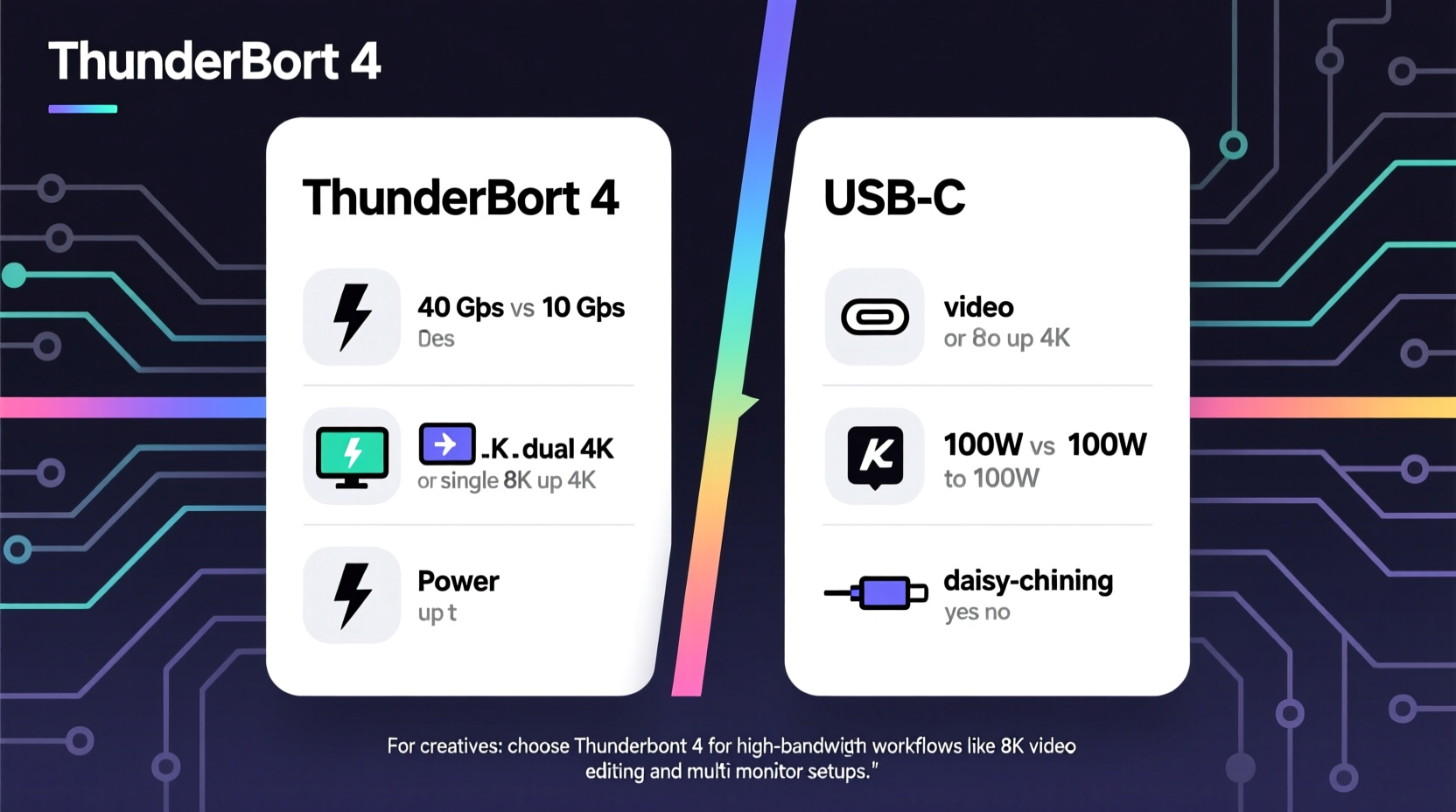
USB-C refers to the physical shape and design of the connector—a small, reversible oval plug that has become the universal standard across modern devices. It supports various protocols, including USB 3.2, USB4, DisplayPort, Power Delivery (PD), and Thunderbolt. However, having a USB-C port does not guarantee any specific performance level. The capabilities depend on which underlying technologies the manufacturer implemented.
For example, a USB-C port on a budget tablet might only support charging and data transfer at 5 Gbps (USB 3.0 speeds), while a premium laptop’s USB-C port could handle 40 Gbps via Thunderbolt 4. This variability makes it crucial to check device specifications rather than assuming functionality based on the port type alone.
USB-C also supports up to 100W of power delivery, enabling fast charging for laptops and other devices. Its ability to carry data, video, and power through a single cable makes it ideal for minimalist setups—especially valuable in studio environments where desk space and cable clutter matter.
What Makes Thunderbolt 4 Different?
Thunderbolt 4 is a high-performance interface developed by Intel in collaboration with Apple. It uses the USB-C connector but adds strict performance requirements and advanced features that go beyond standard USB-C implementations. Think of Thunderbolt 4 as a premium tier within the broader USB-C ecosystem—one with guaranteed capabilities.
To earn the Thunderbolt 4 certification, a port must meet several minimum standards:
- Minimum 40 Gbps bidirectional bandwidth
- Support for dual 4K displays or one 8K display
- PCIe data transfer speeds of at least 32 Gbps for external storage and GPUs
- Wake from sleep with any connected device
- Support for daisy-chaining up to six devices
- Mandatory support for 100W Power Delivery
- Enhanced security with Intel VT-d-based IOMMU protection against DMA attacks
These guarantees ensure consistent performance across certified devices. A Thunderbolt 4 dock will work reliably with any Thunderbolt 4 laptop, offering full bandwidth to connected drives and monitors without throttling. This predictability is invaluable for creatives working on deadline-driven projects where system crashes or slow throughput can be costly.
“Thunderbolt 4 brings enterprise-grade connectivity to creative workflows. It’s not just faster—it’s more reliable.” — Dr. Lena Patel, Peripheral Systems Engineer at Intel
Performance Comparison: Speed, Bandwidth, and Real-World Use
The most significant difference lies in guaranteed performance. While some USB-C ports support high speeds, only Thunderbolt 4 enforces them universally. Below is a detailed comparison of key metrics relevant to creative professionals.
| Feature | Thunderbolt 4 | Typical High-End USB-C (USB 3.2 Gen 2x2) | Basic USB-C (USB 3.2 Gen 1) |
|---|---|---|---|
| Max Data Transfer Speed | 40 Gbps | 20 Gbps | 5 Gbps |
| Video Output Support | Dual 4K @ 60Hz or single 8K | Single 4K @ 60Hz (varies) | Single 4K (if supported) |
| External GPU / Storage Bandwidth | 32 Gbps PCIe | Up to 16 Gbps (if supported) | Limited or none |
| Power Delivery | Up to 100W (mandatory) | Up to 100W (optional) | Up to 60W typical |
| Daisy-Chaining Devices | Up to 6 devices | Rarely supported | Not supported |
| Cable Length (at full speed) | Up to 2 meters active cable | Limited to 1 meter for full speed | No impact |
In practical terms, this means a video editor using a Thunderbolt 4-connected NVMe SSD can edit 6K ProRes footage in real time without proxy files. Meanwhile, someone relying on a standard USB-C port limited to 5 Gbps may struggle even with 1080p timelines if multiple assets are loaded simultaneously.
Real Example: A Photographer’s Workflow Upgrade
Sophie Chen, a commercial photographer based in Toronto, upgraded her setup from a MacBook with standard USB-C ports to an M3 Max with Thunderbolt 4. Her previous workflow involved offloading RAW files from dual SD cards to a portable SSD, then transferring them to a desktop NAS for backup. With her old system, copying 200GB of photos took nearly 25 minutes over USB-C 3.2 Gen 2 (10 Gbps).
After switching to a Thunderbolt 4-compatible SSD enclosure, the same transfer completed in just over 6 minutes. She also connected a CalDigit TS4 dock, enabling her to run two 4K reference monitors, charge her laptop, and access her RAID array—all through a single cable. “It’s transformed my post-processing,” she said. “I’m not waiting anymore. My time is finally back in my hands.”
Compatibility and Cable Requirements
One common source of frustration is cable compatibility. Not all USB-C cables support Thunderbolt 4—even if they physically fit. To achieve full 40 Gbps speeds, you need a certified Thunderbolt 4 cable. These are typically labeled with a lightning bolt icon and may be active (containing signal boosters) for lengths over 0.8 meters.
Using a generic USB-C cable with a Thunderbolt 4 device will often limit performance to USB 3.2 levels (5–20 Gbps) or disable certain features like DisplayPort Alt Mode or daisy-chaining. Worse, cheap cables can cause intermittent disconnects or fail to deliver adequate power, risking unstable connections during critical sessions.
Backward compatibility is strong: Thunderbolt 4 ports accept older Thunderbolt 3 and USB devices. However, connecting a Thunderbolt 4 drive to a non-Thunderbolt USB-C port will default to the lower protocol’s limits. Similarly, Thunderbolt 4 laptops can drive USB-C peripherals without issue, making it a safe investment for future-proofing.
Choosing the Right Setup: A Creative’s Checklist
Selecting the appropriate connection standard depends on your tools and workflow demands. Use this checklist to evaluate your needs:
- Are you editing high-resolution video or large photo batches? → Thunderbolt 4 ensures smooth playback and fast exports.
- Do you use external SSDs or RAID arrays? → Thunderbolt 4 provides near-internal drive speeds.
- Need multiple high-resolution monitors? → Only Thunderbolt 4 guarantees dual 4K support over a single port.
- Use an eGPU for rendering or effects? → Thunderbolt 4 offers sufficient PCIe bandwidth for minimal latency.
- Travel frequently with minimal gear? → Thunderbolt 4 enables powerful docking with one-cable simplicity.
- Budget-constrained? → High-end USB-C (USB 3.2 Gen 2x2) may suffice for lighter tasks like photo editing or audio work.
If three or more answers point toward Thunderbolt 4, it’s worth prioritizing in your next hardware purchase. Many professional-grade laptops—including Apple’s MacBook Pro, Dell XPS, and HP ZBook models—now include Thunderbolt 4 as standard.
Frequently Asked Questions
Can I use a USB-C monitor with a Thunderbolt 4 port?
Yes, absolutely. Thunderbolt 4 is fully compatible with USB-C displays that support DisplayPort Alt Mode. You’ll get the same video quality, but additional features like higher refresh rates or USB hub integration depend on the monitor’s own capabilities.
Is Thunderbolt 4 worth it for audio producers?
For most audio workflows, standard USB-C is sufficient since audio interfaces require far less bandwidth than video. However, if you’re using multiple high-channel-count interfaces, external processing units, or large sample libraries streamed from external SSDs, Thunderbolt 4 reduces latency and improves stability.
Do all USB-C chargers work with Thunderbolt 4 devices?
Any USB-C charger supporting USB Power Delivery (PD) can charge a Thunderbolt 4 laptop, but ensure it delivers enough wattage (e.g., 65W or higher). Note that charging speed and ability to power the system under load depend on the charger’s output, not the port type.
Final Recommendations for Creative Professionals
The choice between Thunderbolt 4 and USB-C isn’t about which is “better” in absolute terms—it’s about matching technology to your workload. If your projects involve 4K+ video, complex compositing, 3D rendering, or large-scale photography, Thunderbolt 4 removes technical friction and unlocks true high-performance potential. It consolidates your setup, accelerates your workflow, and scales with future advancements.
For those on tighter budgets or handling lighter creative tasks, a well-specified USB-C port (supporting USB 3.2 Gen 2x2 or USB4) can still deliver excellent results. But always verify the actual data rate and video support before buying.
As the industry moves toward consolidation—where one cable handles everything—Thunderbolt 4 represents the gold standard for reliability and capability. Investing in Thunderbolt 4-compatible gear today ensures your system remains capable and adaptable for years, minimizing obsolescence and maximizing productivity.




 浙公网安备
33010002000092号
浙公网安备
33010002000092号 浙B2-20120091-4
Comments
No comments yet. Why don't you start the discussion?