
As laptops become thinner and manufacturers reduce the number of physical ports, docking stations and hubs have become essential accessories. The most common choice today is a USB-C hub—often advertised with Thunderbolt 4 support. But if your daily tasks involve web browsing, document editing, video calls, and occasional media streaming, does investing in Thunderbolt 4 make sense? Or are you paying for speed you’ll never use?
The answer depends on your workflow, hardware, and long-term plans. While Thunderbolt 4 promises blazing-fast data transfer, multi-monitor support, and high-power charging, most users don’t leverage these capabilities. Understanding the technical differences—and their practical implications—can help you avoid overspending on features that add little value to a basic computing setup.
Understanding the Core Differences
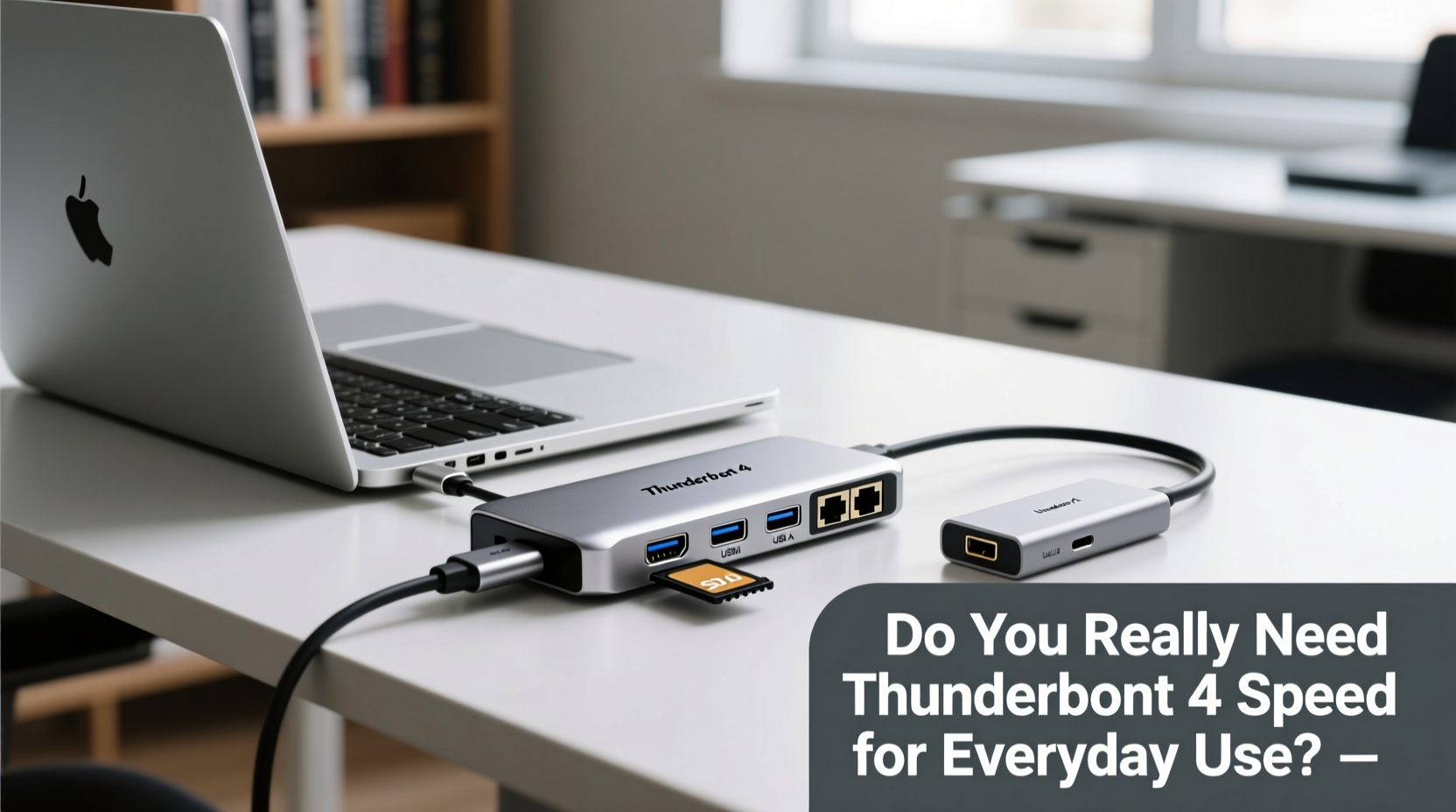
At first glance, Thunderbolt 4 and USB-C look identical. Both use the same reversible connector, and many hubs support both standards. However, they are not interchangeable. USB-C is a physical port standard, while Thunderbolt 4 is a high-performance protocol built on top of USB-C.
Thunderbolt 4, developed by Intel in collaboration with Apple, supports:
- Up to 40 Gbps data transfer speeds (four times faster than USB 3.2 Gen 2)
- Daisy-chaining up to six devices
- Support for dual 4K displays or one 8K display
- Minimum 30W power delivery for charging laptops
- PCIe data tunneling for external GPUs and fast storage
- Mandatory support for wake from sleep and minimum video requirements
In contrast, a standard USB-C hub typically operates at USB 3.2 Gen 1 (5 Gbps) or Gen 2 (10 Gbps), supports single-display output, offers variable power delivery (often 60W–100W), and lacks daisy-chaining or PCIe support.
The key takeaway: Thunderbolt 4 is engineered for professionals who work with large files, high-resolution video, or external workstations. For everyday users, these specs are overkill.
Real-World Performance: What Speed Actually Means
Data transfer speed sounds impressive on paper, but how does it translate to actual use?
Consider transferring a 20GB 4K movie file:
- USB 3.2 Gen 1 (5 Gbps): ~1 minute 20 seconds
- USB 3.2 Gen 2 (10 Gbps): ~40 seconds
- Thunderbolt 4 (40 Gbps): ~10 seconds
While the difference between 80 seconds and 10 seconds may seem significant, most users rarely move such large files. Routine tasks like copying documents, photos, or even HD videos take fractions of a second even on slower USB-C hubs.
Similarly, display output matters only if you’re using multiple high-resolution monitors. Thunderbolt 4 supports dual 4K displays at 60Hz, while many USB-C hubs max out at a single 4K display or require reduced refresh rates. But if you're using one 1080p or 1440p monitor—or just your laptop screen—this capability provides no benefit.
“Most consumers buy Thunderbolt 4 hubs because they assume ‘faster is better,’ but unless they’re handling media production or running external SSDs daily, they won’t notice a difference.” — David Lin, Peripheral Systems Analyst at TechEdge Insights
When Thunderbolt 4 Makes Sense (And When It Doesn’t)
Investing in Thunderbolt 4 is justified in specific scenarios:
- You edit 4K/8K video or work with large datasets (e.g., photography, CAD, scientific computing)
- You rely on an external GPU for gaming or rendering
- You use two high-resolution external monitors simultaneously
- You frequently connect and disconnect multiple high-speed devices (docks, drives, networks)
- Your laptop supports Thunderbolt 4 and you want future-proofing
However, for a typical home or office setup involving:
- Web browsing and email
- Microsoft Office or Google Workspace apps
- Video conferencing (Zoom, Teams)
- Streaming Netflix or YouTube
- Connecting a mouse, keyboard, and maybe one external monitor
...a standard USB-C hub delivers more than enough performance. In fact, many mid-tier USB-C hubs offer additional ports (HDMI, Ethernet, SD card readers, USB-A) at a fraction of the cost of Thunderbolt 4 models.
Mini Case Study: Remote Worker Setup
Sarah, a freelance writer and part-time virtual assistant, uses a MacBook Air M2 for her daily work. Her setup includes a wireless keyboard, trackpad, 27-inch 1440p monitor, and an external SSD for backups. She occasionally transfers client documents and edits short video clips for social media.
She considered a $199 Thunderbolt 4 dock for its sleek design and promise of “maximum compatibility.” Instead, she opted for a $69 USB-C hub with HDMI 2.0, three USB-A ports, and 60W pass-through charging.
After six months of use, Sarah reports zero performance issues. Her monitor runs flawlessly at 1440p/60Hz, file transfers are quick, and her laptop charges efficiently. The Thunderbolt 4 dock would have offered no tangible benefits—just extra cost and unused bandwidth.
Cost-Benefit Analysis: Is Thunderbolt 4 Worth It?
Pricing is one of the most decisive factors. Here's a comparison of typical costs and capabilities:
| Feature | Standard USB-C Hub | Thunderbolt 4 Hub |
|---|---|---|
| Average Price | $40–$80 | $150–$300+ |
| Data Transfer Speed | 5–10 Gbps | 40 Gbps |
| Max Display Support | Single 4K @ 30Hz or 1440p @ 60Hz | Dual 4K @ 60Hz or 8K @ 30Hz |
| Power Delivery | 45–100W (varies) | Minimum 30W, often 60–100W |
| Daisy-Chaining | No | Yes (up to 6 devices) |
| External GPU Support | No | Yes |
| Ethernet & Card Readers | Common | Rare (often requires add-ons) |
The table shows a stark contrast: Thunderbolt 4 excels in performance and scalability but sacrifices versatility and affordability. Many Thunderbolt 4 docks lack legacy ports (like Ethernet or SD slots), forcing users to buy additional adapters. Meanwhile, budget USB-C hubs often bundle these features.
For a basic setup, spending $200+ on Thunderbolt 4 is akin to installing a Formula 1 engine in a city commuter car. It works—but it’s unnecessary, expensive, and harder to maintain.
Checklist: Choosing the Right Hub for Your Needs
Before purchasing any hub, ask yourself the following questions:
- What devices do I need to connect? List all peripherals: monitor, drive, keyboard, etc.
- Do I need multiple high-resolution displays? If only one monitor at 1080p/1440p, USB-C suffices.
- How fast are my storage devices? Most flash drives and SSDs don’t exceed 5–10 Gbps anyway.
- Does my laptop support Thunderbolt 4? Check manufacturer specs—many don’t, even if they have USB-C.
- Am I on a budget? Save money with a well-reviewed USB-C hub if performance needs are low.
- Do I want future-proofing? Only relevant if upgrading to high-end workflows later.
- Do I need Ethernet or SD card support? These are more common on USB-C hubs than Thunderbolt 4 docks.
If you answered “no” to high-resolution multi-monitor setups, external GPUs, or professional-grade storage, a standard USB-C hub is likely sufficient.
FAQ: Common Questions About Thunderbolt 4 and USB-C Hubs
Can I use a Thunderbolt 4 hub with a USB-C laptop?
Yes, but it will operate at USB-C speeds. You won’t get Thunderbolt performance unless both the hub and laptop support it. The connection will work, but features like daisy-chaining and 40 Gbps transfers will be disabled.
Is a USB-C hub safe for my laptop?
Yes, as long as it’s from a reputable brand with proper power regulation. Avoid no-name hubs that may deliver unstable voltage, risking damage to charging circuits. Look for certifications like USB-IF or CE.
Do I lose performance using a hub instead of direct ports?
Minimal loss occurs under normal use. However, bandwidth is shared across ports. Connecting multiple high-speed devices (e.g., SSD + 4K monitor) on a USB-C hub may cause throttling. Thunderbolt 4 handles this better due to higher total bandwidth.
Expert Tips for Maximizing Your Hub Investment
Conclusion: Speed Isn’t Everything
The allure of cutting-edge technology is strong, but practicality should guide your decisions. Thunderbolt 4 is a remarkable advancement—ideal for creators, engineers, and power users. But for the vast majority of people using laptops for everyday productivity, a standard USB-C hub delivers excellent performance at a sensible price.
You don’t need 40 Gbps to open a PDF, join a Zoom call, or write an email. What you do need is reliability, compatibility, and value. By assessing your actual usage—not marketing hype—you can make a smarter, more economical choice.




 浙公网安备
33010002000092号
浙公网安备
33010002000092号 浙B2-20120091-4
Comments
No comments yet. Why don't you start the discussion?