
When shopping for a new laptop, monitor, or external drive, you’ve likely encountered both Thunderbolt 4 and USB-C ports. They look identical, but their capabilities differ significantly. Marketing materials often highlight Thunderbolt 4’s superior speeds—up to 40 Gbps—but how much of that actually matters for everyday tasks? For the average user who checks email, streams video, edits documents, and occasionally transfers photos, does investing in Thunderbolt 4 make sense?
The answer isn’t a simple yes or no. It depends on your workflow, devices, and expectations. While Thunderbolt 4 offers technical advantages, many of them remain invisible under typical usage. This article breaks down the key differences, evaluates real-world impact, and helps you decide whether the extra cost of Thunderbolt 4 is justified.
Understanding the Basics: What’s the Difference?
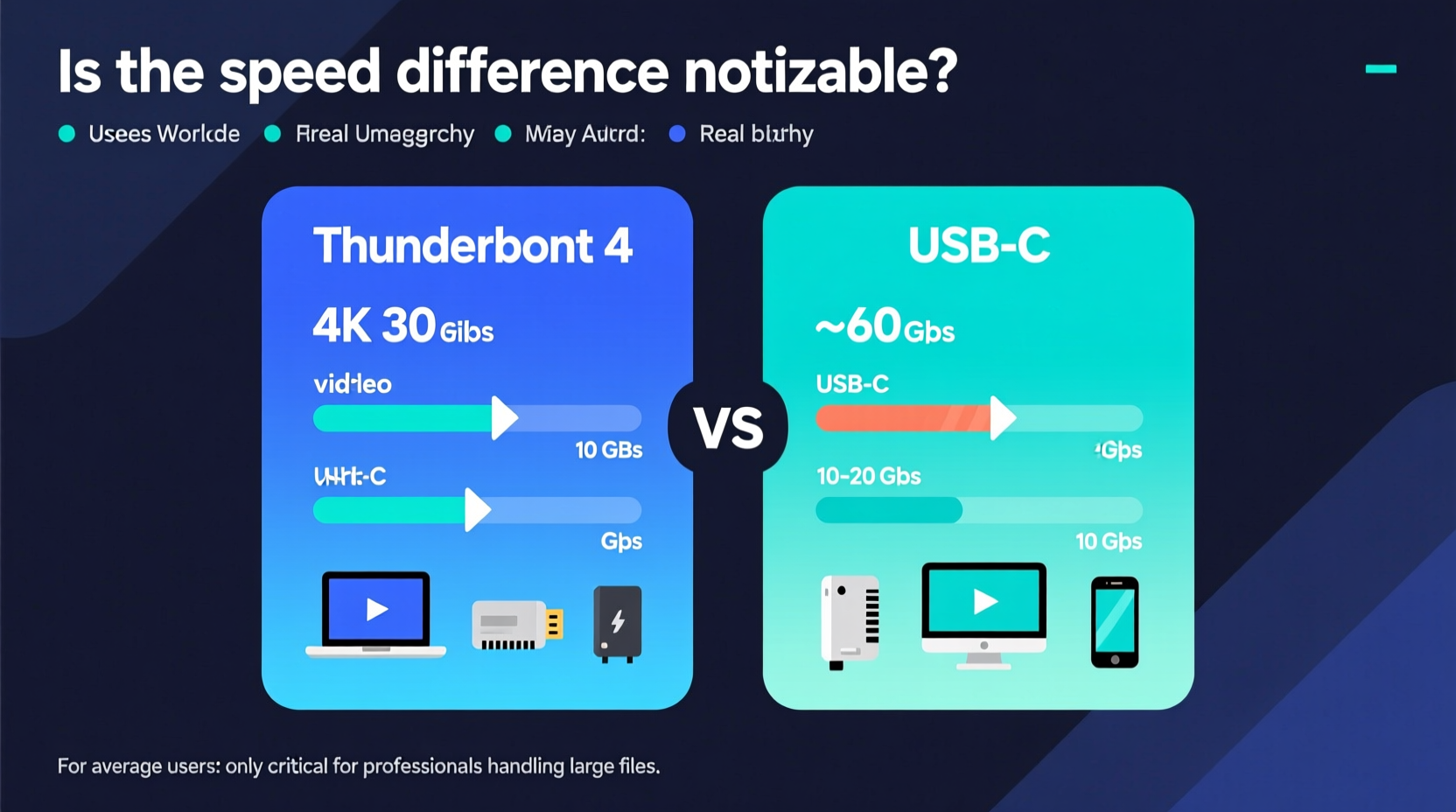
At first glance, Thunderbolt 4 and USB-C appear interchangeable because they share the same physical connector. However, they are not the same technology. Think of USB-C as a shape, while Thunderbolt 4 is a high-performance standard that uses that shape.
- USB-C refers to the reversible, oval-shaped port used across smartphones, laptops, and peripherals. It supports various protocols (USB 3.2, USB4, DisplayPort, Power Delivery), but speeds vary widely depending on implementation.
- Thunderbolt 4 is a certified interface developed by Intel and Apple. It guarantees minimum performance thresholds: 40 Gbps bandwidth, support for dual 4K displays, daisy-chaining up to six devices, PCIe data transfer at 32 Gbps, and waking from sleep when opening a laptop lid.
Not all USB-C ports support Thunderbolt 4. In fact, most consumer-grade USB-C ports max out at USB 3.2 Gen 2 (10 Gbps) or USB4 (20–40 Gbps), which may lack Thunderbolt’s reliability features like guaranteed display support or device charging during sleep.
“Thunderbolt 4 isn't just about speed—it's about consistency. Every port must meet strict certification requirements.” — Dr. Lena Patel, Senior Analyst at TechSignal Research
Speed Comparison: What Do the Numbers Actually Mean?
The headline figure—40 Gbps for Thunderbolt 4 versus up to 20 Gbps for USB4 and 10 Gbps for common USB-C—is impressive on paper. But raw bandwidth doesn’t tell the full story. Real-world file transfer speeds depend on multiple factors: storage medium, cable quality, host system performance, and protocol overhead.
To put this into perspective:
- A 10 GB 4K movie would take approximately **8 seconds** to transfer over Thunderbolt 4 (assuming ideal conditions).
- The same file would take about **16 seconds** over USB4 (20 Gbps).
- On a typical USB 3.2 Gen 2 (10 Gbps) connection, it could take **over 30 seconds**, especially if the external drive uses slower NAND flash.
For most people, even the “slower” USB-C connections feel fast enough. Waiting an extra 20 seconds to move a large file is rarely disruptive. The perceived speed difference becomes more apparent only when working with professional workflows involving multi-layer video editing, massive datasets, or high-resolution image libraries.
Practical Use Cases: Who Benefits Most?
Determining whether Thunderbolt 4 matters comes down to actual use patterns. Below is a comparison of scenarios where each standard shines.
| Use Case | Thunderbolt 4 Advantage | USB-C Sufficiency |
|---|---|---|
| Transferring family photos/videos | Minimal – slightly faster backups | Yes – adequate speed with modern SSDs |
| Streaming Netflix or YouTube | No benefit – video streamed online | Yes – any USB-C can power a dongle |
| Using an external 4K monitor | Guaranteed support for single 4K@60Hz | Varies – some USB-C ports lack video output |
| Docking station with multiple devices | Yes – supports daisy-chained monitors, drives, Ethernet | Limited – may require powered hub |
| Connecting eGPU for gaming/editing | Critical – needs full PCIe bandwidth | No – USB-C lacks required throughput |
| Charging laptop from dock | Yes – ensures 15W+ delivery to accessories | Sometimes – depends on PD support |
As shown, casual users gain little from Thunderbolt 4. But creative professionals, engineers, or power users who rely on external GPUs, RAID arrays, or multi-monitor setups will notice tangible improvements in responsiveness, reduced lag, and seamless peripheral integration.
Mini Case Study: Sarah, Freelance Photographer
Sarah uses a MacBook Pro for photo editing. She shoots in RAW format, generating 200+ images per session, each around 50 MB. After events, she backs up her SD cards to two external SSDs for redundancy.
With a Thunderbolt 4-connected Samsung T7 Shield (rated at 1,050 MB/s), copying a 256 GB card takes under 4 minutes. When she tried the same drive on a friend’s older laptop with only USB 3.2 Gen 1 (5 Gbps), the same transfer took nearly 12 minutes due to bottlenecking.
While not catastrophic, the delay disrupted her post-event workflow. Over time, those extra minutes add up. For Sarah, Thunderbolt 4 isn’t a luxury—it’s a productivity tool.
Compatibility and Ecosystem Limitations
Even if your device has Thunderbolt 4, its benefits are limited by ecosystem support. Not all peripherals leverage the full bandwidth. Many external hard drives still operate below 1,000 MB/s, meaning they won’t saturate even USB 3.2 Gen 2x2 (20 Gbps), let alone Thunderbolt 4.
Additionally, cables matter. To achieve full 40 Gbps speeds, you need certified Thunderbolt 4 cables—often priced above $50. Cheaper USB-C cables may support only 10 or 20 Gbps, silently capping performance.
Another limitation: Windows OEMs aren’t required to implement Thunderbolt 4 uniformly. Some brands include it only on premium models, while others omit it entirely despite using Intel processors that support it. Apple, in contrast, includes Thunderbolt (now branded as USB4 with Thunderbolt compatibility) across nearly all MacBooks and iMacs since 2020.
Step-by-Step Guide: Should You Upgrade?
If you're deciding between a Thunderbolt 4-equipped laptop and one with standard USB-C, follow this evaluation process:
- Assess your current workflow: Do you regularly transfer files larger than 10 GB? Work with 4K/8K video, CAD models, or virtual machines? If not, USB-C is likely sufficient.
- List your peripherals: Are you using high-speed NVMe enclosures, dual monitors, or eGPUs? These benefit from Thunderbolt 4’s guaranteed bandwidth and daisy-chaining.
- Check future-proofing needs: Will you buy faster storage or docking stations in the next 3–5 years? Thunderbolt 4 ensures compatibility with upcoming high-bandwidth devices.
- Evaluate cost: Laptops with Thunderbolt 4 often carry a $100–$300 premium. Ask whether the added capability justifies the price increase for your use case.
- Verify port availability: Some thin laptops offer only two USB-C ports. If one is reserved for charging, having Thunderbolt 4 on both allows flexible docking without sacrificing performance.
This structured approach prevents overspending on unused capabilities while ensuring you don’t limit future expansion.
Frequently Asked Questions
Can I use a USB-C device on a Thunderbolt 4 port?
Yes. Thunderbolt 4 is fully backward compatible with USB-C devices. You’ll get the maximum speed supported by the connected device and cable, but not necessarily 40 Gbps unless both ends support it.
Is Thunderbolt 4 the same as USB4?
They share the same underlying specification, but Thunderbolt 4 enforces stricter requirements. All Thunderbolt 4 ports are USB4-compliant, but not all USB4 ports offer Thunderbolt features like PCIe tunneling, wake-from-sleep, or guaranteed 4K display support.
Do I need special drivers for Thunderbolt 4?
No. Modern operating systems (Windows 10/11, macOS 11+) include native Thunderbolt support. Firmware updates from your laptop manufacturer may enhance stability, but no manual driver installation is typically needed.
Actionable Checklist: Maximizing Your Connection Choice
Whether you already own a Thunderbolt 4 device or are choosing between options, use this checklist to optimize your experience:
- ✅ Identify which of your USB-C ports support Thunderbolt (look for the icon)
- ✅ Invest in certified Thunderbolt 4 cables for high-speed storage or docks
- ✅ Use a Thunderbolt-compatible dock if connecting multiple 4K displays or NICs
- ✅ Avoid mixing low-quality cables that degrade signal integrity
- ✅ Enable “Wake from Thunderbolt Accessory” in system settings for instant resume
- ✅ Label your high-speed cables to avoid accidental substitution
- ✅ Monitor transfer speeds using tools like Blackmagic Disk Speed Test to verify performance
Final Verdict: Is the Speed Difference Noticeable?
For the average user—someone who browses the web, watches videos, uses Office apps, and connects the occasional smartphone or headset—the speed difference between Thunderbolt 4 and standard USB-C is not noticeable in daily use.
Tasks like plugging in a phone, transferring vacation photos, or connecting a single monitor proceed smoothly regardless of the underlying protocol. Latency, interface design, and software optimization play far greater roles in perceived performance than port bandwidth.
However, the distinction becomes meaningful when scaling up demands. Creative professionals, developers, scientists, and enterprise users who rely on rapid data access, multi-device ecosystems, or external compute resources will appreciate Thunderbolt 4’s reliability, guaranteed specs, and lower latency.
It’s also worth noting that Thunderbolt 4 enhances overall system integration. Features like universal docking, consistent display support, and secure device authorization (via Intel VT-d DMA protection) contribute to a smoother, more predictable experience—even if raw speed isn’t the main factor.
Conclusion: Make the Right Choice for Your Needs
Thunderbolt 4 represents the pinnacle of desktop-class connectivity in portable form. But peak performance doesn’t always translate to practical advantage. For most consumers, USB-C delivers ample speed and flexibility at a lower cost. The incremental gains of Thunderbolt 4 simply don’t manifest in typical workflows.
That said, if you anticipate growing into more demanding tasks—or already work with large media files, complex setups, or external accelerators—then Thunderbolt 4 is a smart investment. It future-proofs your setup, reduces bottlenecks, and simplifies connectivity.




 浙公网安备
33010002000092号
浙公网安备
33010002000092号 浙B2-20120091-4
Comments
No comments yet. Why don't you start the discussion?