
For millions of creators, TikTok is more than just a social network—it's a platform for self-expression, business growth, and entertainment. But when the camera fails to load or doesn’t respond, the experience grinds to a halt. Whether you're trying to record a viral dance or share a product review, a non-functional camera can be frustrating and disruptive. The good news: most camera issues on TikTok are fixable with simple troubleshooting steps. This guide breaks down the most common causes and provides actionable solutions to get you back to creating.
Common Reasons Why TikTok Camera Isn’t Working
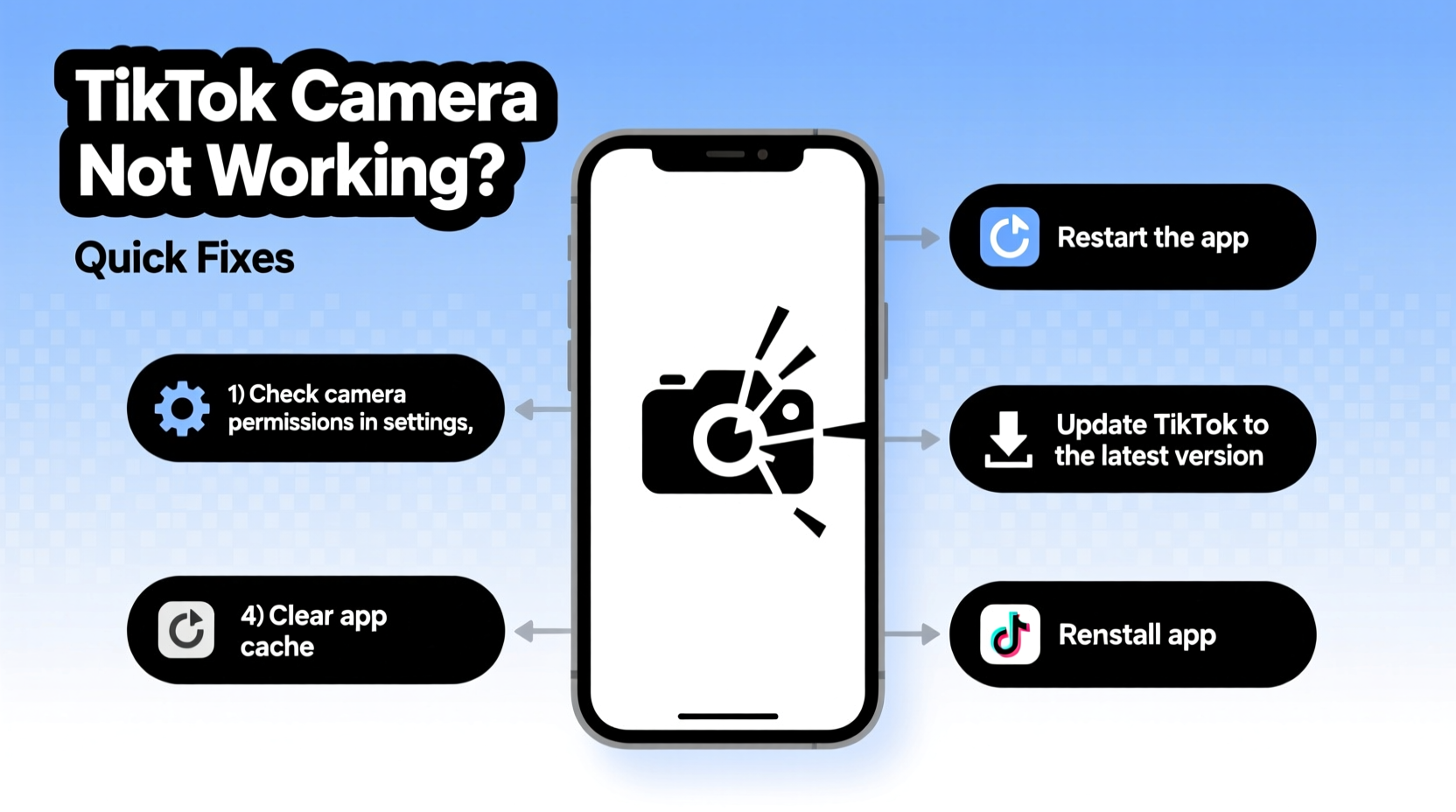
The TikTok camera malfunction can stem from multiple sources—ranging from app-specific glitches to system-level permissions. Understanding the root cause is the first step toward resolution.
- Camera permissions disabled: TikTok needs access to your device’s camera and microphone. If denied, the camera won’t activate.
- Outdated app version: Older versions may have bugs or compatibility issues with newer phone operating systems.
- Conflicting apps: Other apps using the camera (like FaceTime, Zoom, or Snapchat) can block TikTok from accessing it.
- Software bugs or crashes: Temporary glitches in the app or OS can interfere with camera functionality.
- Hardware issues: In rare cases, physical damage to the camera lens or sensor may prevent operation.
- Storage or cache overload: Excessive cached data can slow down or crash the app, affecting core features like the camera.
Step-by-Step Guide to Fix TikTok Camera Issues
Follow this structured troubleshooting sequence to identify and resolve the issue efficiently.
- Close and reopen TikTok: A simple restart often clears temporary glitches.
- Check for conflicting apps: Ensure no other app is actively using the camera (e.g., video calls, photo apps).
- Restart your device: A full reboot clears system memory and resets hardware access.
- Verify camera permissions: Go to Settings > Apps > TikTok > Permissions and ensure camera and microphone access are enabled.
- Update TikTok: Visit your app store and install the latest version of TikTok.
- Clear TikTok cache: In the app settings or device settings, clear the app’s cache (not data, unless necessary).
- Test your phone’s native camera: Open the default camera app to confirm the hardware works independently.
- Reinstall TikTok: Uninstall the app, restart your phone, then reinstall from the official store.
When Hardware Might Be the Issue
If the native camera app also fails to open or displays black/blurry footage, the problem likely lies with the hardware. Signs include visible lens damage, water exposure, or error messages like “Camera failed.” In such cases, professional repair may be required.
“Over 70% of reported TikTok camera issues are resolved by adjusting permissions or updating the app. True hardware failure is rare but worth ruling out early.” — Jordan Lee, Mobile App Support Specialist
Do’s and Don’ts When Troubleshooting
| Do’s | Don’ts |
|---|---|
| ✅ Restart your phone regularly | ❌ Ignore app update notifications |
| ✅ Enable camera and mic permissions | ❌ Use third-party APKs from untrusted sources |
| ✅ Clear cache monthly | ❌ Overload your phone with too many active apps |
| ✅ Test the native camera first | ❌ Dismiss recurring errors as one-time bugs |
| ✅ Keep iOS or Android updated | ❌ Attempt DIY repairs on camera modules |
Real Example: How Sarah Fixed Her TikTok Camera in 15 Minutes
Sarah, a beauty content creator with over 80K followers, was preparing a makeup tutorial when she noticed TikTok wouldn’t open the front camera. The screen stayed black, and switching lenses did nothing. She tried restarting the app—no change. Then, she remembered installing a new video editing app earlier that day. After closing all background apps, especially the editor, she relaunched TikTok—and the camera worked instantly. Later, she discovered the editing app had been set to run in the background and was locking camera access. By managing her app usage and clearing TikTok’s cache, she prevented future conflicts.
Quick Checklist: Restore TikTok Camera Access
Use this checklist to methodically troubleshoot without missing key steps:
- ☐ Close TikTok and any other camera-using apps
- ☐ Restart your smartphone
- ☐ Open Settings > Apps > TikTok > Permissions
- ☐ Ensure Camera and Microphone are toggled ON
- ☐ Check for TikTok updates in the App Store or Google Play
- ☐ Clear TikTok cache (Settings > Apps > TikTok > Storage > Clear Cache)
- ☐ Test your phone’s built-in camera app
- ☐ Reinstall TikTok if the issue persists
- ☐ Contact TikTok Support via the app if all else fails
Frequently Asked Questions
Why does TikTok say “Camera not available”?
This message usually appears when another app is using the camera, or TikTok lacks permission to access it. Close background apps and verify permissions in your device settings. If the native camera also fails, restart your phone or check for hardware issues.
Can a software update fix TikTok camera problems?
Yes. Developers frequently release updates to patch bugs and improve compatibility. An outdated TikTok version may lack fixes for known camera issues. Always keep the app updated through your device’s official app store.
Will clearing TikTok data delete my account or videos?
No, your account and uploaded videos are stored in the cloud. However, clearing app data will log you out, erase downloaded drafts, and reset preferences. Save unfinished drafts manually before proceeding.
Preventing Future Camera Issues
Once you’ve restored camera functionality, take proactive steps to avoid recurrence. Set your phone to auto-update apps, limit background activity for camera-intensive apps, and perform monthly maintenance like cache clearing. Also, avoid downloading modified or pirated versions of TikTok—they often lack security and stability.
Creators who rely on consistent posting should consider testing their setup before live sessions or scheduled recordings. A quick 10-second test ensures both front and rear cameras function within TikTok, preventing last-minute disruptions.
Conclusion
A malfunctioning TikTok camera doesn’t have to derail your creativity or schedule. Most issues stem from easily correctable software or permission settings. By systematically checking access rights, updating the app, and managing background processes, you can restore full functionality in minutes. Remember, the native camera is your diagnostic tool—if it works there, the fix is likely within TikTok’s settings or cache.




 浙公网安备
33010002000092号
浙公网安备
33010002000092号 浙B2-20120091-4
Comments
No comments yet. Why don't you start the discussion?