
TikTok Live has become a powerful tool for creators, brands, and influencers looking to engage with their audience in real time. Whether you're hosting Q&A sessions, showcasing products, or just sharing moments from your day, going live on TikTok can significantly boost visibility and interaction. But when the feature suddenly stops working, it can be frustrating—especially if you're preparing for an important broadcast. The good news is that most issues have straightforward explanations and solutions. From app glitches to connectivity problems, this guide breaks down the most frequent causes of TikTok Live failures and how to fix them quickly.
Common Reasons TikTok Live Fails to Start
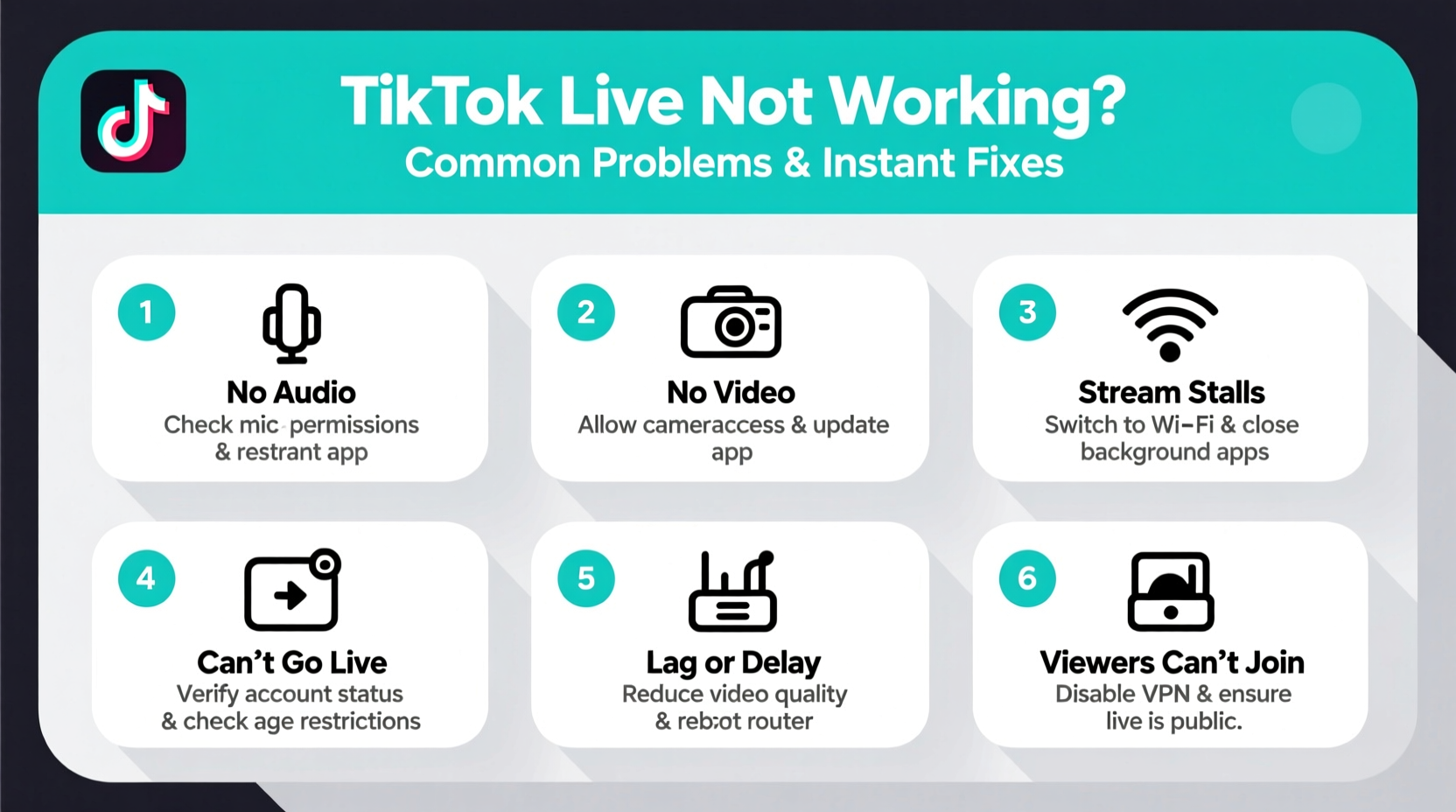
Before diving into fixes, it’s essential to understand what might be preventing your live stream from launching. TikTok Live depends on several factors: a stable internet connection, up-to-date app software, sufficient device permissions, account eligibility, and server-side functionality. When any one of these elements fails, the live feature may not work as expected.
- Poor internet connection: Unstable or slow Wi-Fi or mobile data can prevent the stream from initializing.
- Outdated app version: Older versions of TikTok may lack critical bug fixes or compatibility updates.
- Insufficient permissions: TikTok needs access to your camera, microphone, and storage to go live.
- Account restrictions: Users under 16 or accounts with prior violations may not have live streaming access.
- Server outages: Occasionally, TikTok experiences backend disruptions affecting live functionality globally.
- Device compatibility: Some older smartphones may not support all features due to hardware limitations.
Step-by-Step Troubleshooting Guide
If TikTok Live isn’t working, follow this systematic approach to identify and resolve the issue efficiently.
- Check Your Internet Connection
Switch between Wi-Fi and mobile data to see if one performs better. Restart your router if needed. Avoid using public networks, which often throttle bandwidth. - Update the TikTok App
Go to your device’s app store (Google Play or App Store) and check for available updates. Running the latest version ensures compatibility and security patches. - Restart Your Device
A simple reboot clears temporary system errors that might interfere with app performance. - Clear TikTok Cache
In the app settings, navigate to “Free Up Space” > “Clear Cache.” This removes corrupted temporary files without deleting your login or content. - Reinstall TikTok
If clearing cache doesn’t help, uninstall and reinstall the app. This resets all configurations and often resolves deep-seated bugs. - Verify Account Eligibility
You must be at least 16 years old and have more than 1,000 followers to use TikTok Live (in most regions). Check your profile settings to confirm access. - Test Camera and Microphone
Open another app like your phone’s camera or voice recorder to ensure both are functioning properly.
Do’s and Don’ts When Fixing TikTok Live Issues
| Do | Don't |
|---|---|
| Use a strong, private Wi-Fi network | Stream over congested public Wi-Fi |
| Keep your phone charged or plugged in | Let battery drop below 20% during a stream |
| Grant TikTok all required permissions | Deny camera or microphone access |
| Close background apps to free memory | Run multiple video apps simultaneously |
| Wait 24 hours after a ban or restriction | Attempt repeated live starts after violation |
Mini Case Study: Recovering from a Sudden Stream Failure
Jamie, a fitness influencer with 12K followers, was about to launch a live workout session when the “Go Live” button disappeared. She had used the feature weekly without issues. After checking her follower count and age settings (both within limits), she realized her app hadn’t updated in three weeks. Upon updating TikTok via the App Store, the live option reappeared immediately. Her stream started successfully 10 minutes later. This highlights how a minor software delay can disrupt even routine processes—and why staying current matters.
Quick Fixes Checklist
✅ TikTok Live Quick Fix Checklist:
- Test internet speed (upload ≥5 Mbps)
- Switch between Wi-Fi and mobile data
- Update TikTok to the latest version
- Restart your smartphone
- Clear TikTok app cache
- Reinstall TikTok if necessary
- Ensure camera and mic permissions are enabled
- Confirm you meet eligibility requirements (age & followers)
- Check @TikSupport on Twitter for known outages
Expert Insight: Why Stability Matters
“Live streaming is resource-intensive. Even small hiccups in connectivity or outdated software can break the chain between user and server. Proactive maintenance—like regular updates and permission checks—is key to uninterrupted broadcasts.” — Raj Patel, Mobile App Performance Analyst
Frequently Asked Questions
Why can’t I find the Go Live button?
The Go Live button may be missing due to unmet eligibility requirements. In most countries, you need to be at least 16 years old and have over 1,000 followers. Additionally, restricted accounts or those violating community guidelines may lose access temporarily. If you meet all criteria, try restarting the app or reinstalling it.
Can I go live with low internet speed?
Technically, yes—but not effectively. TikTok recommends a minimum upload speed of 5 Mbps for HD quality. Lower speeds result in buffering, disconnections, or refusal to start the stream. Use a wired connection or move closer to your router to improve signal strength.
Does TikTok notify me if my live stream gets banned mid-broadcast?
If your stream is terminated for policy violations, you’ll usually receive an in-app notification explaining the reason. Repeated offenses can lead to longer restrictions. Always review TikTok’s Community Guidelines before broadcasting sensitive content.
When to Contact TikTok Support
If you’ve gone through all troubleshooting steps and still can’t go live, it may be time to reach out directly. TikTok offers in-app support through Settings > Report a Problem. Provide detailed information: your device model, operating system, app version, and a description of the issue. Include screenshots if possible. While response times vary, verified creators often receive priority handling.
Additionally, monitor TikTok’s official social media channels, particularly @TikSupport on X (formerly Twitter), for announcements about ongoing technical issues. Sometimes, widespread outages affect thousands of users—and no individual fix will work until the servers are restored.
Final Thoughts: Stay Prepared, Stream Confidently
Troubleshooting TikTok Live doesn’t have to be complicated. Most problems stem from simple oversights: an outdated app, weak signal, or disabled permission. By adopting a preventive mindset—updating regularly, testing connections beforehand, and understanding platform rules—you reduce the risk of last-minute surprises. Keep this guide handy as a reference, and consider doing a “test stream” once a week to ensure everything runs smoothly when it matters most.




 浙公网安备
33010002000092号
浙公网安备
33010002000092号 浙B2-20120091-4
Comments
No comments yet. Why don't you start the discussion?