
If TikTok suddenly stops loading videos, freezes on a blank screen, or refuses to open altogether, you're not alone. Millions of users experience this frustration daily. The app’s reliance on real-time content delivery, high-resolution streaming, and constant server communication makes it sensitive to even minor disruptions. But before you delete and reinstall for the third time, consider that the issue might be simpler than you think — and fixable in under five minutes.
Why TikTok Fails to Load: Common Causes
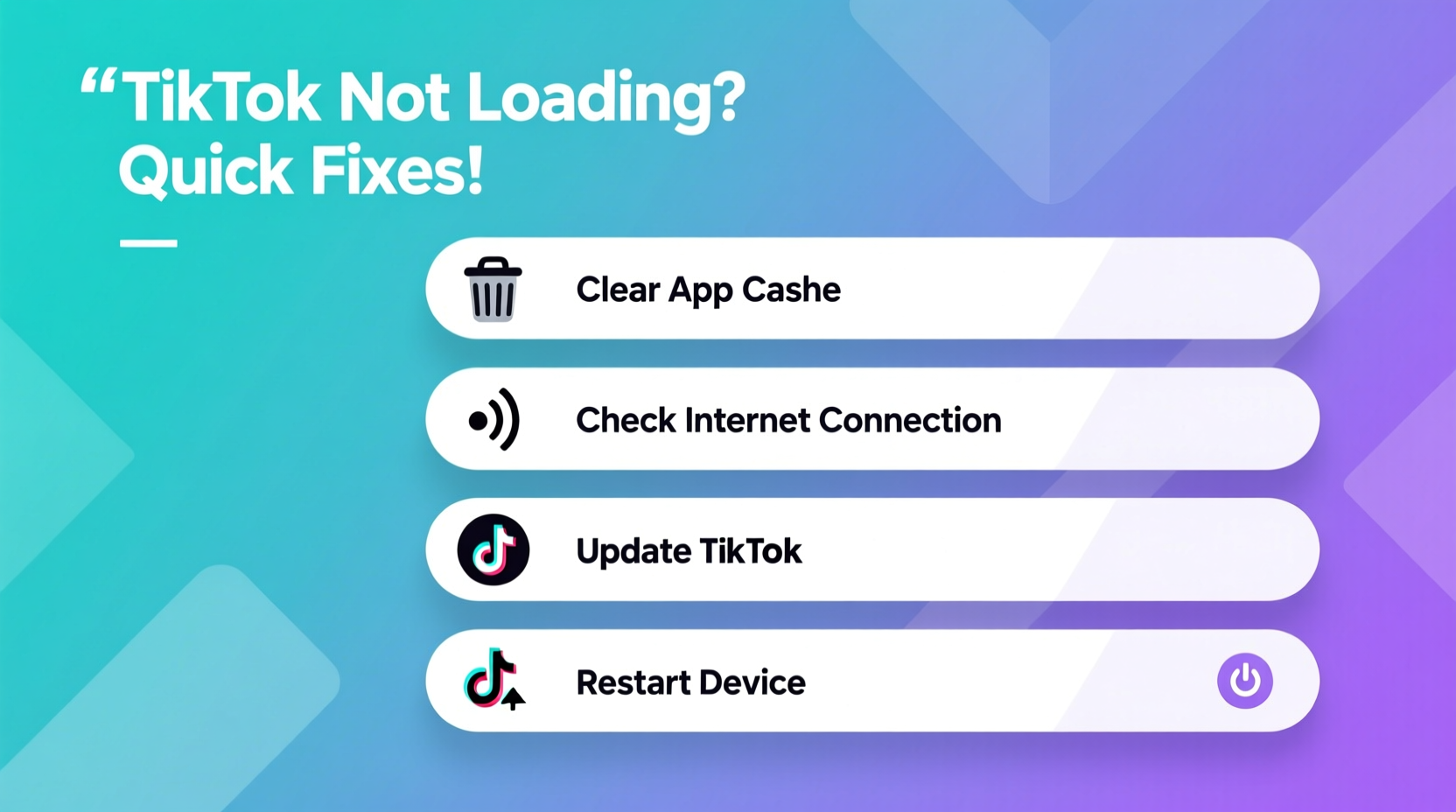
TikTok's performance depends on a complex interplay between your device, network connection, app version, and backend servers. When any part of this system falters, the app may fail to load content. The most frequent culprits include:
- Poor internet connectivity: Weak Wi-Fi or spotty mobile data prevents video buffering.
- Outdated app version: Older versions may have bugs or compatibility issues with current servers.
- Server outages: TikTok occasionally experiences regional or global downtime.
- Cache overload: Accumulated temporary files can slow or crash the app.
- Device-specific issues: Low storage, outdated OS, or background app conflicts.
- Account or region restrictions: Some content or access may be limited based on location or policy enforcement.
Step-by-Step Guide to Fix TikTok Loading Issues
Follow this logical sequence to isolate and resolve the problem efficiently. Start with the simplest solutions and progress to more involved steps only if needed.
- Check Your Internet Connection
Open a browser and load a video-heavy site like YouTube. If it buffers slowly or fails, the issue is likely your network. Try switching from Wi-Fi to mobile data (or vice versa). - Restart the App
Close TikTok completely from your recent apps menu, then reopen it. This clears temporary glitches without losing data. - Reboot Your Device
A full restart resets network settings, clears RAM, and resolves many hidden software conflicts. - Clear TikTok Cache
Go to your phone’s Settings > Apps > TikTok > Storage > Clear Cache. This removes temporary files without deleting your account or preferences. - Update the TikTok App
Visit your device’s app store and ensure you’re running the latest version. Developers frequently patch bugs affecting performance. - Check for OS Updates
An outdated operating system can cause compatibility issues. Update iOS or Android to the latest stable release. - Reinstall TikTok (Last Resort)
If nothing works, uninstall and reinstall the app. Note: You’ll need to log back in, but your profile and content will remain intact.
Do’s and Don’ts When Fixing TikTok Issues
| Do | Don’t |
|---|---|
| Test multiple videos before concluding it’s not working | Assume the problem is always with your phone |
| Use airplane mode for 30 seconds, then disable to reset network | Ignore error messages like “No Internet Connection” or “Video Unavailable” |
| Log out and back into your account to refresh session tokens | Delete the app without clearing cache first |
| Try accessing TikTok on another device using the same network | Share login details to “fix” the issue via third-party tools |
Real Example: How Sarah Fixed Her Frozen TikTok Feed
Sarah, a digital marketer from Austin, couldn’t access TikTok during a live campaign review. The app opened but showed a spinning wheel instead of videos. She tried restarting it twice with no success. Instead of immediately reinstalling, she checked her Wi-Fi and noticed her router had been on for over a week. After power-cycling the router and toggling airplane mode on her phone, TikTok loaded instantly. Later, she realized her ISP had rolled out a firmware update that temporarily disrupted DNS resolution. Her methodical approach saved her from unnecessary data loss and reconfiguration.
“Most TikTok loading issues stem from network hiccups or bloated app caches — not the app itself.” — Jordan Lee, Mobile Network Analyst at TechSignal Labs
Quick Checklist: Restore TikTok in Under 5 Minutes
Action Plan:
- ✅ Confirm internet is working (try loading another video app)
- ✅ Close and reopen TikTok
- ✅ Toggle airplane mode on/off
- ✅ Clear TikTok cache in app settings
- ✅ Check for app updates in Google Play or App Store
- ✅ Restart your phone
- ✅ Test TikTok after each step
Frequently Asked Questions
Why does TikTok say “No Internet Connection” when I’m connected?
This message often appears due to DNS errors, firewall restrictions (especially on public Wi-Fi), or app-level glitches. Try switching networks or resetting your network settings. Also, ensure TikTok has permission to use data in your phone’s settings.
Will clearing cache delete my drafts or liked videos?
No. Clearing the cache only removes temporary files like thumbnails and buffered data. Your drafts, favorites, watch history, and account info are stored securely on TikTok’s servers and remain unaffected.
Can a full phone storage cause TikTok to stop loading?
Yes. If your device has less than 10% free space, apps struggle to write temporary files needed for smooth operation. Free up space by deleting unused apps, old photos, or offloading large files to cloud storage.
Advanced Tips for Persistent Problems
If basic fixes don’t work, consider these deeper interventions:
- Change DNS settings: On Android or iPhone, set your DNS to Google (8.8.8.8) or Cloudflare (1.1.1.1) to bypass ISP-related slowdowns.
- Disable battery saver mode: Some power-saving features throttle background data, preventing TikTok from preloading videos.
- Check app permissions: Ensure TikTok has access to storage, location (for regional content), and cellular data.
- Use a different account: Log into a secondary TikTok account to test if the issue is profile-specific.
When to Contact TikTok Support
If you’ve exhausted all options and TikTok still won’t load, it may be time to reach out to official support. This is especially important if:
- You see repeated login failures despite correct credentials.
- Your account appears locked or restricted without warning.
- The app crashes immediately upon opening, even after reinstalling.
To contact TikTok: Open the app > Profile > Menu (three lines) > Settings and Privacy > Report a Problem. Provide detailed information including device model, OS version, and a description of the issue.
Conclusion: Get Back to Scrolling Faster
TikTok not loading doesn’t have to mean a lost day of entertainment or halted content creation. Most issues are temporary and solvable with simple, logical steps. By understanding the root causes — from network instability to overloaded caches — you gain control over your digital experience. Start with the basics: restart, reconnect, and refresh. More often than not, that’s all it takes to return to your endless scroll.




 浙公网安备
33010002000092号
浙公网安备
33010002000092号 浙B2-20120091-4
Comments
No comments yet. Why don't you start the discussion?