
If TikTok isn’t loading, crashing, or failing to connect on your Android device today, you're not alone. Many users experience sudden disruptions due to app bugs, network issues, or system conflicts. While frustrating, most problems can be resolved quickly with targeted troubleshooting. This guide walks through proven methods to diagnose and fix TikTok issues on Android—no guesswork required.
Why TikTok Might Not Be Working Today
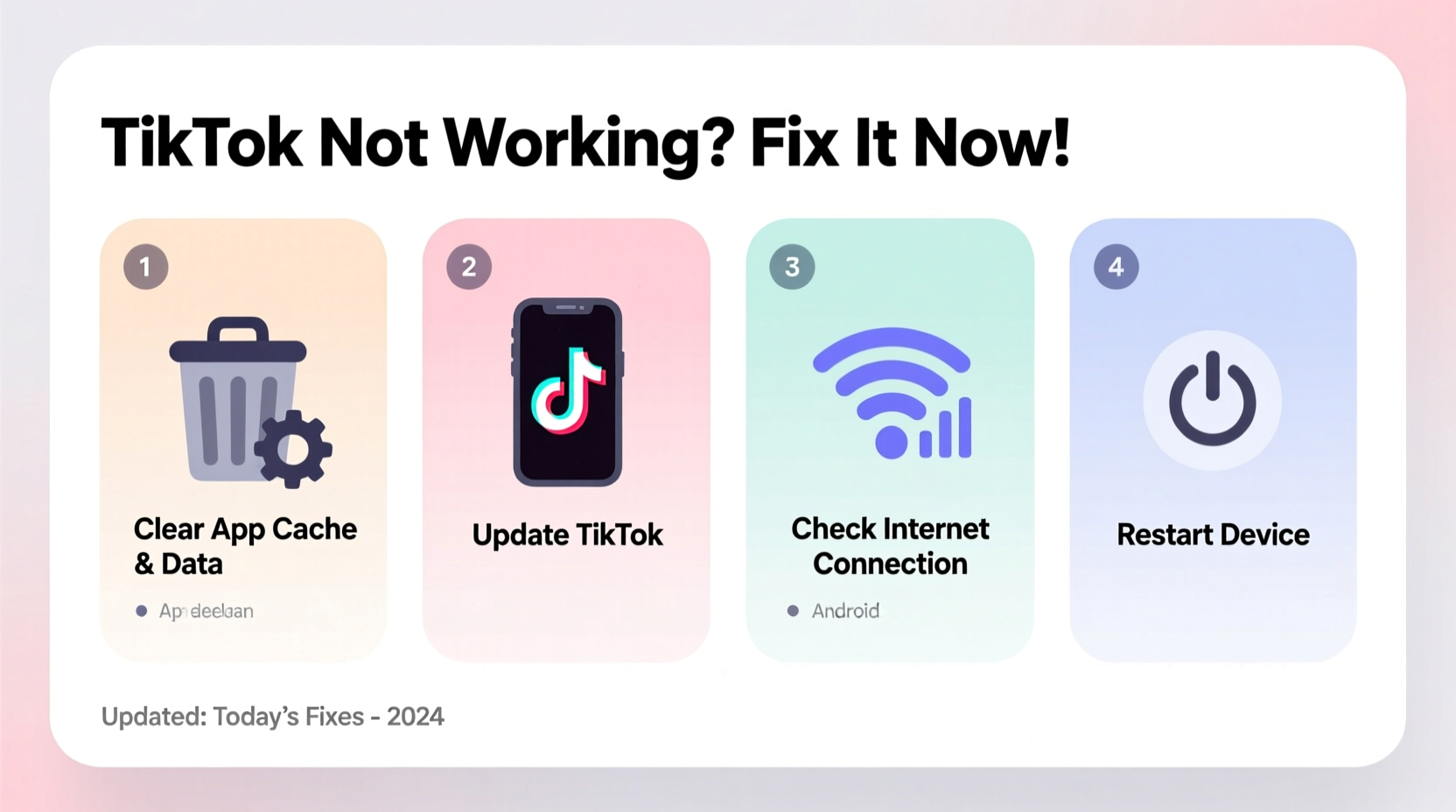
TikTok downtime can stem from multiple sources: local device glitches, outdated software, connectivity hiccups, or even broader server outages. Before diving into fixes, it's essential to determine whether the issue is isolated to your device or affecting users globally.
Check real-time status platforms like Downdetector or Outage.Report. If hundreds of users report similar issues within the last hour, the problem likely lies with TikTok’s servers. In such cases, fixes are limited until the company resolves backend instability. However, if only your device is affected, the solutions below will help restore functionality.
Step-by-Step Troubleshooting Guide
Follow this logical sequence to identify and resolve the root cause efficiently. Start with basic checks and progress to more advanced steps as needed.
- Check Your Internet Connection
Open a browser and load a website. If pages fail to load, restart your Wi-Fi router or toggle airplane mode on and off. Try switching between Wi-Fi and mobile data to isolate the connection issue. - Restart the TikTok App
Close TikTok completely via the recent apps menu, then reopen it. This clears temporary cache and resets active sessions. - Reboot Your Android Device
A full restart resolves background process conflicts. Hold the power button, select “Restart,” and wait 30 seconds before turning the phone back on. - Update the TikTok App
Open Google Play Store, search for TikTok, and tap “Update” if available. Outdated versions often contain bugs that disrupt performance. - Clear TikTok Cache and Data
Go to Settings > Apps > TikTok > Storage. Tap “Clear Cache” first. If the issue persists, tap “Clear Data” (note: this logs you out and removes downloaded content). - Reinstall TikTok
Uninstall the app, restart your phone, then reinstall TikTok from the Play Store. This ensures a clean installation free of corrupted files. - Check for System Updates
Navigate to Settings > Software Update (or System > Advanced > System update). Install any pending OS updates, as compatibility issues can affect app performance.
Common Fixes Compared: What Works Best?
| Fix Method | Time Required | Success Rate | When to Use |
|---|---|---|---|
| Restart device | 1–2 minutes | High | Initial step for random crashes or freezes |
| Clear cache | 30 seconds | Medium-High | Slow loading, login loops |
| Update app | 2–5 minutes | Very High | After new Android updates or known TikTok bugs |
| Reinstall app | 5–7 minutes | Very High | Persistent crashes or login failures |
| Switch networks | 1 minute | Medium | Video buffering or upload failures |
Do’s and Don’ts When Fixing TikTok Issues
- Do: Check for app updates regularly.
- Do: Use official app stores—never sideload APKs from unknown sites.
- Do: Enable auto-updates for TikTok in Play Store settings.
- Don’t: Ignore persistent error messages like “No Internet Connection” without testing other apps.
- Don’t: Clear app data unless necessary—this erases drafts and login info.
- Don’t: Assume the problem is permanent; most glitches are temporary and resolvable.
Real User Scenario: Recovering From a Sudden Crash Loop
Sophia, a content creator in Austin, found her TikTok app crashing every time she opened it during a live duet session. She couldn’t upload her morning video, and the app kept showing a blank screen. First, she checked Downdetector and saw no widespread outage. She restarted her phone—no change. Then, she went to Settings > Apps > TikTok > Storage and cleared the cache. The app launched but froze again after 10 seconds. Finally, she uninstalled TikTok, rebooted, and reinstalled it from the Play Store. Upon logging back in with her Google account, all her drafts and followers were intact, and the app ran smoothly. Her issue was caused by a corrupted update file that clearing cache didn’t fully resolve.
“App instability on Android often stems from incomplete updates or memory leaks. A clean reinstall typically restores normal function.” — Raj Mehta, Mobile Application Support Specialist
Prevent Future TikTok Disruptions: Pro Checklist
To minimize future interruptions, follow this routine maintenance checklist monthly—or whenever Android or TikTok releases an update.
- ✅ Ensure TikTok is updated to the latest version
- ✅ Verify that your Android OS is up to date
- ✅ Restart your device at least once a week
- ✅ Clear TikTok cache every two weeks (Settings > Apps > TikTok > Storage > Clear Cache)
- ✅ Avoid using third-party mods or unofficial TikTok versions
- ✅ Monitor app permissions—ensure TikTok has access to storage and network
- ✅ Use a stable internet connection when uploading or streaming
Frequently Asked Questions
Why does TikTok keep saying “No Internet Connection” when I’m online?
This error often appears even with active internet because TikTok may fail to authenticate the connection. Try toggling airplane mode on/off, switching between Wi-Fi and data, or restarting the router. If other apps work fine, force-stop TikTok and reopen it. If the message persists, clear the app cache or reinstall it.
Can a factory reset fix TikTok issues?
A factory reset can resolve deep-seated software conflicts, but it should be a last resort. Back up your data first, as this action erases everything on your phone. Most TikTok problems are app-specific and don’t require wiping the entire device. Try reinstalling the app and updating the OS before considering a reset.
Why won’t TikTok open after the latest update?
Sometimes, updates introduce bugs that conflict with certain Android models or firmware versions. Check TikTok’s Play Store reviews to see if others report the same issue. If so, wait for a patch. Alternatively, uninstall the update and temporarily use an older stable version (if safe and verified). Never download APKs from untrusted sources.
Stay Connected and Keep Creating
TikTok’s occasional hiccups don’t have to derail your creative flow or daily entertainment. By understanding the common causes and applying structured troubleshooting, you can resolve most issues in under ten minutes. Whether it’s a simple restart or a full reinstall, the key is acting methodically—not panicking when the For You Page fails to load.
Implement regular maintenance habits to prevent recurring problems. Keep your apps and system updated, manage storage wisely, and stay informed about service status during peak usage times. With these practices, TikTok will remain a reliable platform for expression, discovery, and connection.




 浙公网安备
33010002000092号
浙公网安备
33010002000092号 浙B2-20120091-4
Comments
No comments yet. Why don't you start the discussion?