
A non-responsive touch screen can turn a reliable smartphone, tablet, or kiosk into a frustrating paperweight. Whether the display shows no reaction at all or registers erratic inputs, the issue often stems from preventable causes. While some problems require professional repair, many can be resolved with simple diagnostics and fixes. Understanding the root causes and knowing how to respond can save time, money, and stress.
Common Reasons for Touch Screen Failure
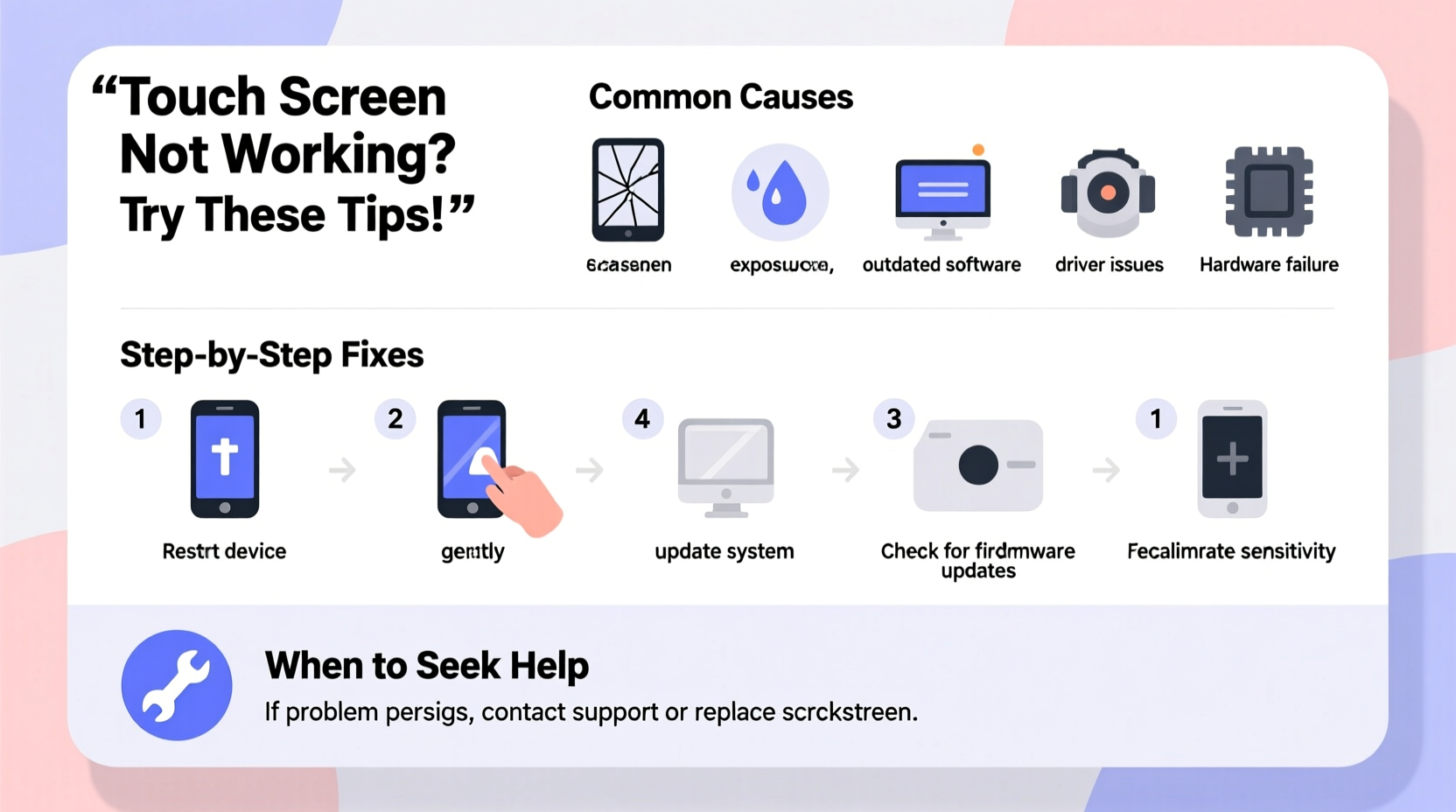
Touch screens rely on precise electrical conductivity and software integration. When either fails, responsiveness suffers. The most frequent culprits include:
- Physical damage: Cracks or deep scratches disrupt the conductive layer, especially in capacitive screens.
- Misaligned screen protector: Poorly applied films can interfere with touch sensitivity.
- Moisture or debris: Water, sweat, or dirt on the screen may block input signals.
- Software glitches: Frozen operating systems or buggy updates can disable touch functionality temporarily.
- Outdated firmware: Missing system patches may introduce compatibility issues with hardware drivers.
- App conflicts: Certain apps run background processes that hijack touch input.
- Battery issues: In rare cases, swollen batteries press against internal components, including the digitizer.
“Over 60% of reported touch screen failures are due to software issues or environmental interference—not hardware damage.” — Dr. Lena Park, Senior Mobile Hardware Engineer at TechInsight Labs
Step-by-Step Troubleshooting Guide
Before assuming permanent damage, follow this logical sequence to identify and resolve the problem:
- Restart the device. A soft reboot clears temporary memory and resets unresponsive drivers.
- Check for moisture. Dry the screen thoroughly with a lint-free cloth. Avoid using heat sources.
- Remove screen protectors and cases. Re-test touch response without any coverings.
- Clean the screen gently. Use a microfiber cloth dampened with distilled water (not alcohol).
- Boot into Safe Mode (Android). This disables third-party apps to check for software conflicts.
- Test with a different charger. Faulty chargers can induce electrical noise affecting touch sensitivity.
- Update the OS and apps. Install pending updates that may contain critical bug fixes.
- Perform a factory reset (last resort). Back up data first, then erase all settings to restore default configurations.
When to Suspect Hardware Damage
If the screen remains unresponsive after software resets and cleaning, inspect for physical signs:
- Visible cracks or spider-web patterns on the glass
- Discoloration or flickering beneath the surface
- Inconsistent response—working only on one side
- Vibrations or sounds when touching certain areas (indicating internal separation)
These symptoms usually mean the digitizer—the layer responsible for detecting touch—is damaged and needs replacement by a qualified technician.
Troubleshooting Tips by Device Type
Different devices present unique challenges. Tailor your approach based on the hardware:
| Device Type | Common Issue | Solution |
|---|---|---|
| Smartphones | Water exposure after rain or washing | Power off, dry for 24 hours, restart |
| Tablets | Film protector misalignment | Reapply or replace with OEM-grade protector |
| Kiosks / POS Systems | Dust buildup in bezels | Use compressed air to clean edges |
| Car Infotainment | Calibration drift over time | Run built-in recalibration tool in settings |
| Wearables (smartwatches) | Condensation under screen | Turn off, place in dry environment for 12+ hours |
Real-World Case Study: Recovering a Frozen Tablet
Sarah, a freelance graphic designer, relied on her Android tablet for client sketches. One morning, the screen stopped responding entirely. She tried tapping icons, swiping, and even plugging in a stylus—all with no effect. Recalling a recent app update, she powered off the device, removed the case, and wiped the screen with a dry cloth. After holding the power and volume-down buttons together, she booted into Safe Mode. The screen responded immediately. She uninstalled the last updated design app, which had introduced a touch-input conflict. Her tablet returned to full function without needing service.
This example highlights how software issues can mimic hardware failure—and why systematic troubleshooting matters.
Essential Do’s and Don’ts
To avoid worsening the issue or causing further damage, follow these guidelines:
| Action | Do | Don’t |
|---|---|---|
| Cleaning | Use microfiber cloth with distilled water | Apply window cleaners or alcohol-based solutions |
| Restarting | Hold power button 10–15 seconds if frozen | Repeatedly tap the screen aggressively |
| Drying | Place in rice-free desiccant container | Use hairdryers or ovens for heat drying |
| Repairs | Visit authorized service centers for replacements | Attempt DIY digitizer swaps without experience |
Preventive Maintenance Checklist
Keep your touch screen responsive long-term with regular care:
- ✅ Clean the screen weekly with a soft, dry cloth
- ✅ Apply a high-quality tempered glass protector
- ✅ Avoid extreme temperatures (below 32°F or above 113°F)
- ✅ Update operating system and apps monthly
- ✅ Calibrate touch input every 3–6 months (if supported)
- ✅ Store devices in protective cases away from liquids
- ✅ Restart your device at least once a week to clear cache
Frequently Asked Questions
Why does my touch screen work sometimes but not others?
Intermittent response is often caused by loose internal connections, moisture fluctuations, or overheating. If the issue persists after rebooting and drying, the digitizer cable may need reseating by a technician.
Can a cracked screen still be fixed without replacing the entire display?
In some models, the outer glass and digitizer can be replaced separately from the LCD. However, most modern devices integrate these layers, making full assembly replacement necessary. Consult your manufacturer or repair specialist.
Does using a screen protector reduce touch sensitivity?
Poor-quality or thick plastic films may slightly delay response time. High-grade tempered glass protectors have minimal impact. Ensure proper alignment during installation to avoid edge detection issues.
Final Thoughts and Next Steps
A malfunctioning touch screen doesn’t automatically mean costly repairs. Most issues stem from manageable causes like moisture, software bugs, or improper accessories. By following structured troubleshooting steps, users can often restore functionality within minutes. When hardware damage is confirmed, seeking professional help promptly prevents further deterioration. Regular maintenance and mindful usage go a long way in preserving touch screen longevity.




 浙公网安备
33010002000092号
浙公网安备
33010002000092号 浙B2-20120091-4
Comments
No comments yet. Why don't you start the discussion?