
A non-responsive or missing touchpad can severely disrupt productivity, especially when you're on the go without an external mouse. Whether your laptop's touchpad has suddenly stopped responding, is erratic, or doesn't appear in device settings at all, the issue is often fixable with methodical troubleshooting. Most problems stem from software misconfigurations, driver failures, or accidental deactivation—rarely permanent hardware damage. This guide walks through proven, step-by-step solutions to restore full functionality to your laptop’s touchpad.
Check for Physical and Functional Switches
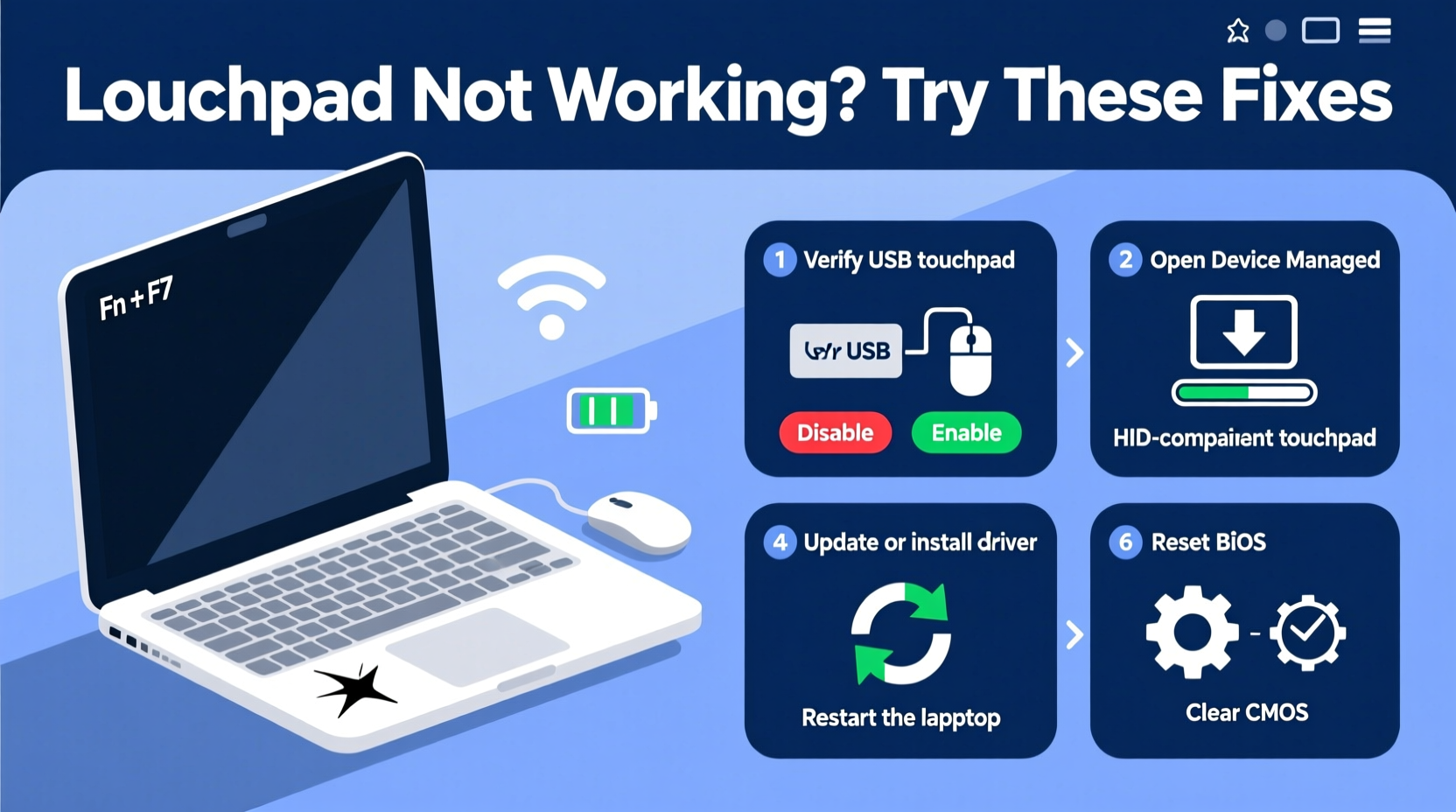
Before diving into complex diagnostics, confirm the most basic possibilities. Many laptops include a physical switch or keyboard shortcut that disables the touchpad. These features are designed to prevent accidental cursor movement while typing but can be toggled off unintentionally.
Some models, particularly Lenovo and Dell laptops, feature a dedicated button near the touchpad or on the front edge labeled with a pointer icon. A single press may disable or re-enable the device. If this switch was pressed accidentally, simply pressing it again can resolve the issue instantly.
Restart Your Laptop
One of the fastest and most overlooked fixes is restarting your computer. Temporary glitches in the operating system or driver processes can cause the touchpad to stop responding. A reboot clears these transient errors and reloads input drivers properly.
After restarting, test the touchpad immediately. If it works, the issue was likely temporary. If not, proceed to deeper diagnostic steps.
Verify Touchpad Settings in Windows
Windows 10 and 11 offer extensive touchpad customization, including options to disable the device entirely. It’s possible the touchpad was turned off in settings during a previous session.
- Press Windows + I to open Settings.
- Navigate to Devices > Touchpad.
- Ensure the toggle under “Touchpad” is switched on.
- Scroll down to check additional settings like palm rejection, tap gestures, and sensitivity.
If the touchpad option is missing entirely, this suggests a driver-level problem rather than a configuration issue. In such cases, driver reinstallation becomes necessary.
Update or Reinstall Touchpad Drivers
Drivers act as communication bridges between hardware and the operating system. Corrupted, outdated, or incompatible touchpad drivers are a leading cause of malfunction.
Step-by-Step Driver Fix Process
- Right-click the Start button and select Device Manager.
- Expand the category labeled Mice and other pointing devices.
- Look for entries such as “Synaptics,” “ELAN,” or “HID-compliant touchpad.”
- Right-click your touchpad device and choose Update driver.
- Select Search automatically for updated driver software.
If Windows reports that the best driver is already installed but the touchpad remains unresponsive, try uninstalling and reinstalling the driver:
- In Device Manager, right-click the touchpad entry and select Uninstall device.
- Confirm the action and restart your laptop.
- Windows will attempt to reinstall the driver upon boot.
Alternatively, visit your laptop manufacturer’s support website (e.g., HP, ASUS, Lenovo), enter your model number, and download the latest touchpad driver manually. Installing the correct version ensures compatibility and optimal performance.
Table: Common Touchpad Manufacturers and Support Links
| Manufacturer | Support Website | Driver Type |
|---|---|---|
| Synaptics | synaptics.com | SmartPad, ClickPad |
| ELAN | emicrotek.com.tw | Touchpad, TrackPoint |
| Alps Electric | Available via OEM sites | ALPS GlidePoint |
Run the Hardware Troubleshooter
Windows includes built-in diagnostic tools capable of detecting and resolving common hardware issues.
- Go to Settings > System > Troubleshoot > Other troubleshooters.
- Find and run the Hardware and Devices troubleshooter.
- Follow the on-screen prompts to detect input device problems.
This tool may automatically detect disabled devices, power management conflicts, or driver inconsistencies and apply corrective actions.
Check BIOS/UEFI Settings
In rare cases, the touchpad may be disabled at the firmware level. This commonly occurs after a BIOS update or accidental setting change.
- Restart your laptop and press the BIOS key (commonly F2, F10, DEL, or ESC) during boot.
- Navigate to the Advanced or Integrated Peripherals section.
- Look for an option like “Internal Pointing Device,” “Touchpad,” or “Mouse” and ensure it is enabled.
- Save changes and exit.
Note: BIOS interfaces vary by brand. Consult your manufacturer’s documentation if unsure where to find touchpad settings.
Mini Case Study: Recovering a Disabled Touchpad After Windows Update
Jessica, a freelance writer using a Dell Inspiron 15, found her touchpad unresponsive after a routine Windows update. The cursor wouldn’t move, and no settings tab appeared under Devices. She first checked the Fn + F3 shortcut—no effect. Next, she opened Device Manager and noticed her “Dell Touchpad” listed with a yellow exclamation mark.
She uninstalled the driver and restarted. Windows reinstalled a generic HID driver, restoring partial functionality. Then, she visited Dell’s support site, entered her service tag, downloaded the latest Synaptics driver, and installed it. Full gesture support returned immediately. The root cause was a driver conflict introduced by the update—a common scenario easily resolved with targeted reinstallation.
Expert Insight
“Over 70% of reported touchpad failures we see in technical support are software-related. Always rule out driver and OS issues before suspecting hardware damage.” — Mark Tran, Senior Laptop Technician at TechCare Solutions
Troubleshooting Checklist
Use this checklist to systematically address touchpad issues:
- ✅ Check if the touchpad is toggled off via function key (Fn + F-key)
- ✅ Restart the laptop to clear temporary glitches
- ✅ Verify touchpad is enabled in Windows Settings > Devices
- ✅ Open Device Manager and check for driver warnings
- ✅ Update or reinstall the touchpad driver
- ✅ Run the Hardware and Devices troubleshooter
- ✅ Inspect BIOS/UEFI settings for disabled pointing devices
- ✅ Test with an external USB mouse to isolate the issue
- ✅ Perform a clean boot to rule out third-party software interference
- ✅ Contact manufacturer support if all else fails
Frequently Asked Questions
Why did my touchpad stop working after a Windows update?
Windows updates can overwrite or conflict with existing drivers. The system may fall back to a generic driver that lacks full functionality. Reinstalling the manufacturer-specific driver usually resolves the issue.
Can malware disable my touchpad?
While rare, certain malicious software can interfere with system drivers or settings. If troubleshooting fails and unusual behavior persists (e.g., random shutdowns, pop-ups), run a full antivirus scan.
My touchpad lights up but doesn’t respond. What now?
If the touchpad has backlighting or LED indicators, its hardware connection is likely intact. Focus on software fixes: driver updates, Windows settings, and system restore points from before the issue began.
Conclusion: Restore Control and Confidence
A malfunctioning touchpad doesn’t have to mean a trip to the repair shop. With careful diagnosis and the right sequence of fixes—from simple toggles to driver reinstalls—most users can regain full control within minutes. The key is approaching the problem methodically, ruling out easy causes before moving to advanced steps. By understanding how touchpad systems interact with drivers, settings, and firmware, you empower yourself to solve not just today’s issue, but future ones too.




 浙公网安备
33010002000092号
浙公网安备
33010002000092号 浙B2-20120091-4
Comments
No comments yet. Why don't you start the discussion?