
For today’s students, choosing the right device isn’t just about convenience—it’s about productivity, adaptability, and long-term value. With the rise of hybrid learning, digital note-taking, and collaborative tools, the line between touchscreen laptops and tablets with keyboards has blurred. Both offer portability, touch input, and typing capabilities, but they serve different needs in different ways. Understanding the strengths and limitations of each can help students make a smarter investment in their academic future.
Understanding the Core Differences
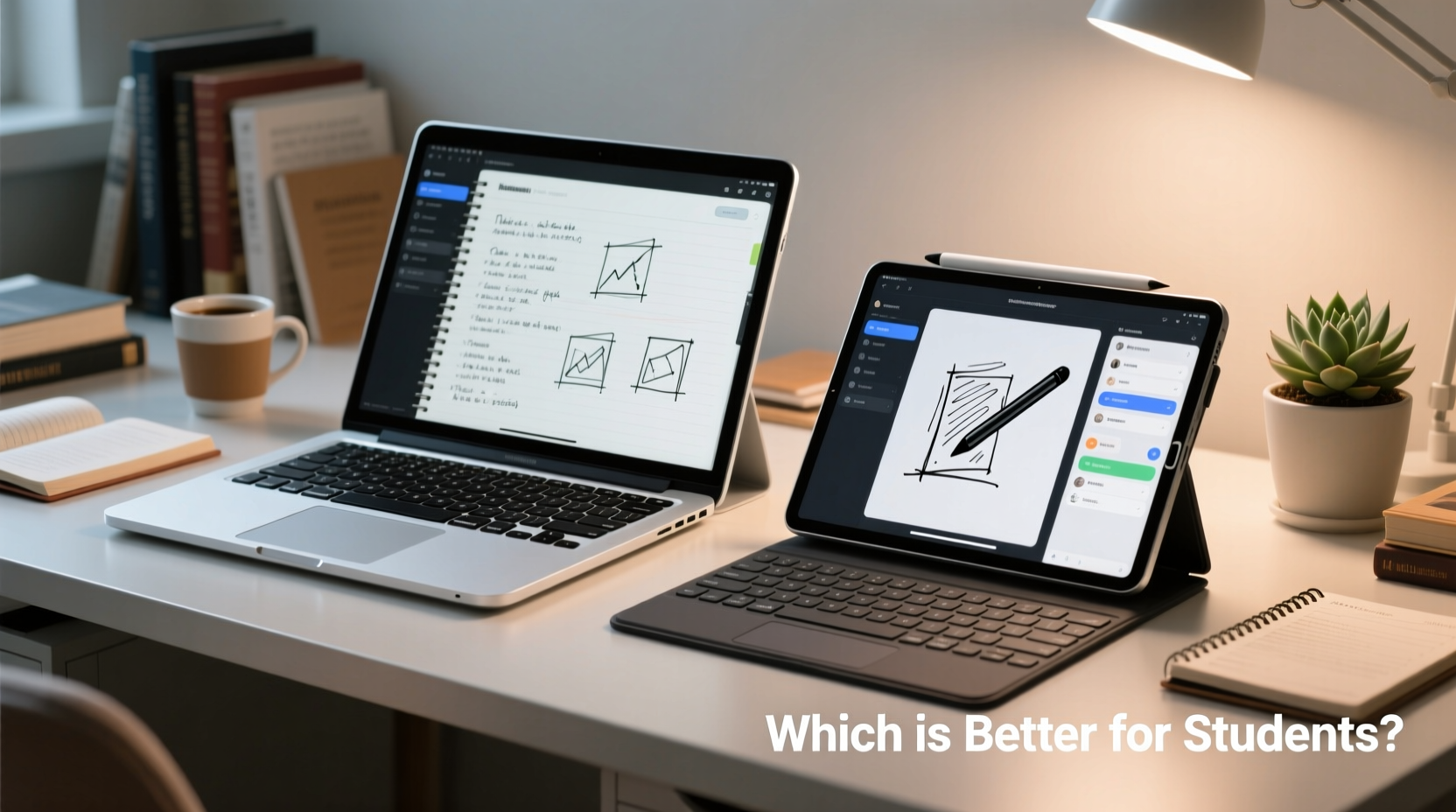
A touchscreen laptop is essentially a traditional laptop with an added touch interface. It runs full desktop operating systems like Windows or macOS, supports multitasking across complex applications, and typically includes robust hardware such as dedicated graphics, ample RAM, and high-performance processors. These devices are built for sustained workloads—writing research papers, running statistical software, editing videos, or coding.
In contrast, a tablet with a detachable or Bluetooth keyboard (like the iPad with Magic Keyboard or Samsung Galaxy Tab with Book Cover Keyboard) operates on mobile OS platforms—iOS or Android—with optional desktop-like modes. While increasingly powerful, these systems are optimized for efficiency, media consumption, and lightweight productivity rather than heavy-duty computing.
The key distinction lies not just in form factor, but in functionality. A touchscreen laptop functions first as a computer; a tablet with a keyboard functions first as a mobile device that can sometimes act like one.
Performance and Multitasking: Which Handles Academic Workloads Better?
Students face diverse computing demands—from drafting essays and managing spreadsheets to participating in virtual labs and editing multimedia projects. How well a device handles multiple apps simultaneously can significantly impact workflow.
Touchscreen laptops generally come equipped with Intel Core or AMD Ryzen processors, 8–16GB of RAM, and SSD storage starting at 256GB. This allows seamless switching between a web browser with dozens of tabs, a PDF reader, a word processor, and communication tools like Zoom or Teams—all without lag.
Tablets, even premium models like the iPad Pro or Microsoft Surface Go, run on ARM-based chips designed for energy efficiency. While Apple’s M1 and M2 chips have closed the performance gap dramatically, they still operate within the constraints of iOS or Android. True multitasking remains limited: split-screen mode often caps at two apps, and background processes are more aggressively managed.
“Students in STEM fields need consistent access to full-fledged development environments and engineering tools—something only a complete operating system can reliably support.” — Dr. Alan Reyes, Educational Technology Researcher, University of Michigan
For example, a biology student analyzing genomic data may need to run Python scripts while referencing journal articles and attending a live lecture. A touchscreen laptop handles this effortlessly. The same task on a tablet would require workarounds, cloud-based solutions, or app compromises that slow progress.
Portability and Battery Life: The Mobility Factor
Where tablets shine is in portability and battery longevity. Most weigh under 1.5 pounds, making them easy to carry between classes, libraries, or study groups. Their slim profiles fit into small backpacks, and many offer all-day battery life—up to 10–12 hours under typical use.
Touchscreen laptops, while lighter than traditional clamshells, still average 3–4 pounds. Even ultraportables like the Dell XPS 13 or MacBook Air demand more space and add noticeable weight over time. However, advancements in battery tech mean many now offer 8–10 hours of runtime, narrowing the gap.
But there’s a trade-off: thinner laptops often sacrifice ports and upgradeability. Students relying on external drives, projectors, or lab equipment may find themselves dependent on dongles or wireless transfers—neither ideal during back-to-back classes.
| Feature | Touchscreen Laptop | Tablet + Keyboard |
|---|---|---|
| Weight | 3–4 lbs | 1–1.5 lbs (tablet only) |
| Battery Life | 8–10 hours | 10–12 hours |
| Port Selection | USB-C, HDMI, headphone jack (varies) | Limited (often USB-C or proprietary) |
| Durability | Moderate to high (metal chassis common) | Varies; screen vulnerable when detached |
| Typing Experience | Familiar, full-travel keys | Shallower keys; case-dependent quality |
Note-Taking and Digital Inking: A Game-Changer for Learning
One area where tablets consistently outperform laptops is in digital handwriting and annotation. Devices like the iPad with Apple Pencil or Samsung Galaxy Tab with S Pen offer near-paper responsiveness, pressure sensitivity, and palm rejection—ideal for sketching diagrams, solving math problems, or marking up readings.
While many touchscreen laptops support active styluses (e.g., Dell Active Pen, Surface Pen), the experience is often less refined. Screen texture, latency, and software integration vary widely. Moreover, using a pen on a clamshell laptop requires propping it open awkwardly, whereas tablets lie flat naturally.
Apps like Notability, GoodNotes, and OneNote leverage the tablet’s strengths by syncing typed notes with handwritten ones, recording lectures alongside annotations, and enabling intuitive organization. For visual learners, art students, or those in medical school tracing anatomical structures, this fluidity is invaluable.
Real Example: Maria’s Decision as a Pre-Med Student
Maria, a second-year pre-med student at UCLA, initially bought a lightweight touchscreen Chromebook for its affordability and portability. But she struggled during anatomy labs, where she needed to draw muscle attachments and label cross-sections digitally. Her stylus lagged, and the screen wasn’t responsive enough for precise work.
She switched to an iPad Air with Apple Pencil and noticed immediate improvements. She used Procreate for practice sketches, annotated lecture slides in PDF Expert, and recorded professors’ explanations directly linked to her notes. Though she missed having a full desktop environment for writing papers, she paired the iPad with a foldable keyboard and used cloud-based Google Docs for typing tasks.
Eventually, she adopted a hybrid setup: the iPad for interactive learning and a shared family laptop at home for heavier assignments. Her experience reflects a growing trend—using tablets as primary learning companions, supplemented by occasional access to full computers.
Cost and Long-Term Value: What Fits Your Budget?
Price is a critical factor for students. Entry-level touchscreen laptops start around $500–$700, offering decent specs for general use. Mid-range models ($800–$1,200) provide strong performance suitable for most majors. Premium options exceed $1,500 but deliver professional-grade capabilities.
Tablets vary widely. An Amazon Fire tablet costs under $100 but lacks productivity features. The iPad starts at $329, but adding a keyboard ($150–$250) and Apple Pencil ($129) quickly pushes total cost past $600. High-end iPads or Galaxy Tabs with accessories rival mid-tier laptops in price—but without equivalent software flexibility.
Consider long-term ownership. A touchscreen laptop can last 5–7 years with moderate use, especially if RAM or storage is upgradeable. Tablets, being sealed units, degrade faster due to non-replaceable batteries and OS update limits (typically 5–6 years for iPads).
- Do look for student discounts (Apple, Microsoft, Dell, Lenovo all offer them).
- Do consider refurbished or certified pre-owned devices to save 20–40%.
- Don’t assume cheaper means better value—check warranty, support, and upgrade paths.
Step-by-Step Guide: Choosing the Right Device for You
- Evaluate your major’s software requirements. Do you need Windows-only programs or advanced design tools? Choose a touchscreen laptop.
- Assess how much you write vs. draw. Heavy typists benefit from laptop keyboards; visual learners gain from tablet inking.
- Test portability needs. Carry a similar-sized book for a day—if it feels heavy, opt for the lighter tablet.
- Try both setups in-store. Use the touchscreen, type for 10 minutes, and test stylus accuracy.
- Factor in ecosystem compatibility. If you already own an iPhone or Android phone, pairing with a matching tablet improves file sharing and continuity.
- Set a realistic budget including accessories. Don’t forget cases, pens, and potential cloud subscriptions.
- Check campus IT policies. Some universities provide loaner laptops or software licenses that influence your decision.
Frequently Asked Questions
Can a tablet replace a laptop for college entirely?
For some students—especially in humanities or business with light software needs—it’s possible. But limitations in file management, multitasking, and software availability make full replacement risky for STEM, engineering, or design majors.
Is a 2-in-1 laptop the best of both worlds?
Often, yes. 2-in-1s like the Microsoft Surface Pro, Lenovo Yoga, or HP Spectre x360 combine a full Windows OS with tablet-mode flexibility and stylus support. They’re pricier but eliminate the compromise between functionality and mobility.
Which lasts longer: a tablet or a touchscreen laptop?
Laptops generally have longer usable lifespans due to serviceable parts and extended OS support. However, tablets receive regular updates and suffer less mechanical wear (no moving fans or hinges). Realistically, expect 4–5 years from either with proper care.
Final Recommendation: Match the Tool to the Task
There is no universal “better” option between a touchscreen laptop and a tablet with keyboard. The answer depends on individual academic demands, learning preferences, and financial constraints.
Choose a touchscreen laptop if you need:
- Full desktop software (LaTeX, R, CAD, etc.)
- Robust multitasking and file management
- Long-term durability and upgrade potential
Opt for a tablet with keyboard if you prioritize:
- Ultra-portability and all-day battery
- Natural handwriting and sketching capabilities
- Simplified interface with instant-on usability
For maximum versatility, consider a high-end 2-in-1 convertible—a true hybrid that functions seamlessly as both. While the upfront cost is higher, the adaptability across lecture halls, labs, and lounges often justifies the investment.
Checklist: Before You Buy
- ☐ Confirm required software runs on the target OS
- ☐ Test keyboard comfort and stylus accuracy in person
- ☐ Verify Wi-Fi 6 and Bluetooth 5.0+ support
- ☐ Check return policy and accidental damage coverage
- ☐ Ensure compatibility with campus network and printers
- ☐ Include cost of essential accessories in total budget
“The best device for a student isn’t the most powerful or the lightest—it’s the one that removes friction from learning.” — Dr. Linda Tran, Director of EdTech Innovation, Stanford University
Take Action Today
Your academic journey deserves tools that empower, not hinder. Whether you choose a touchscreen laptop for its raw capability or a tablet with keyboard for its elegance and mobility, make your decision intentional. Visit your campus tech center, borrow demo units, and consult upperclassmen in your program. When you align your device with your daily workflow, you’re not just buying technology—you’re investing in focus, efficiency, and success.




 浙公网安备
33010002000092号
浙公网安备
33010002000092号 浙B2-20120091-4
Comments
No comments yet. Why don't you start the discussion?