
In recent years, touchscreen laptops have become increasingly common in both budget and premium product lines. What was once a novelty has now entered the mainstream, with manufacturers like Dell, HP, Lenovo, Microsoft, and Apple offering models with touch capabilities. But does that mean every user needs one? For many, the added cost of a touchscreen model—often $100 to $300 more than its non-touch counterpart—raises an important question: is this feature genuinely useful, or is it simply a marketing gimmick inflating prices without delivering real value?
The answer isn’t universal. Touchscreens can enhance productivity for some users while adding little benefit—and even drawbacks—for others. To determine whether a touchscreen laptop is worth the investment, it's essential to examine how people actually use their devices, what tasks benefit from touch input, and where the limitations lie.
When Touchscreens Add Real Value
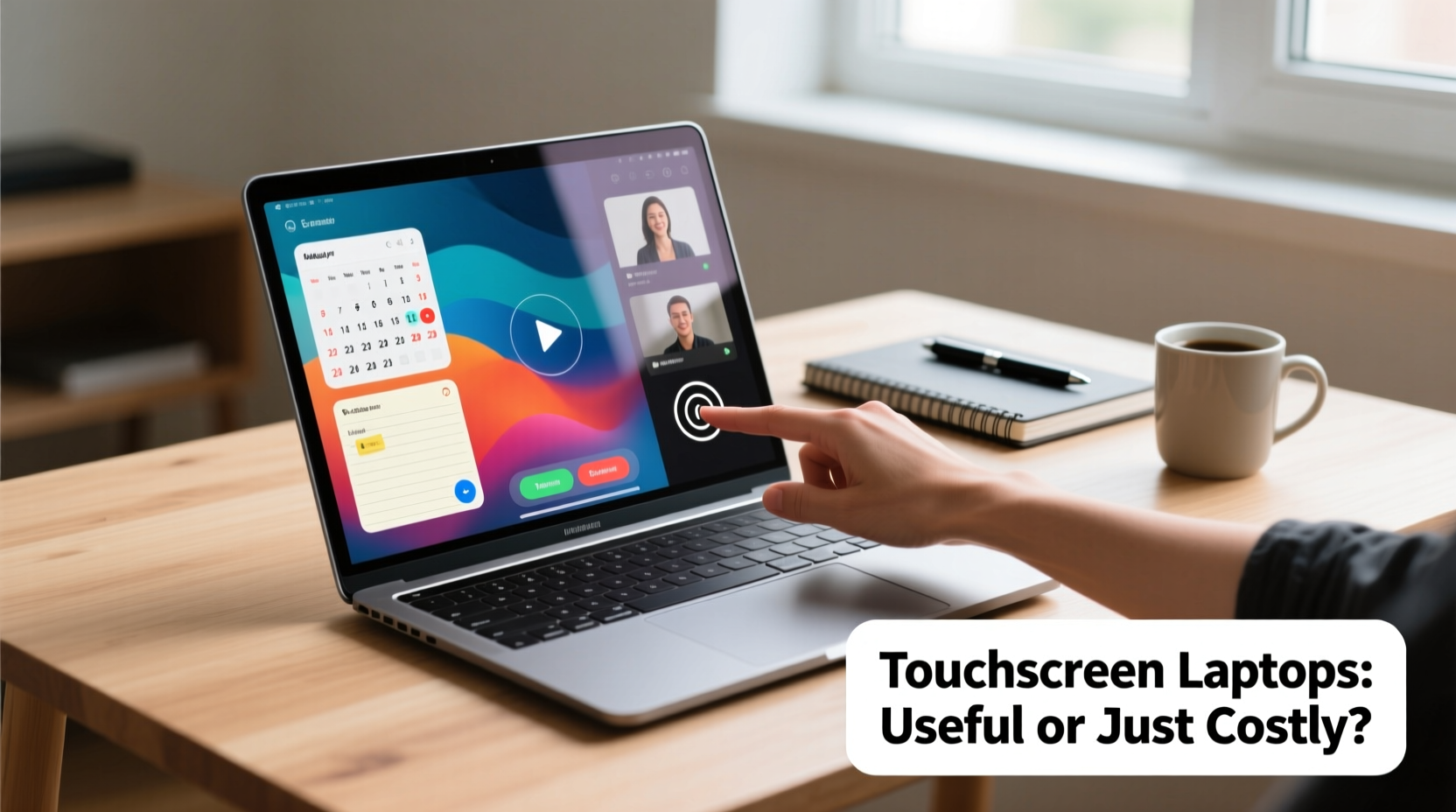
For certain workflows and lifestyles, a touchscreen isn't just a luxury—it's a functional upgrade. Creative professionals, educators, students, and frequent presenters often find touch functionality significantly improves their experience.
Digital artists using styluses on convertible 2-in-1 laptops report greater precision and a more natural drawing feel when working directly on screen. Designers editing photos or sketching wireframes appreciate the ability to pinch-to-zoom, rotate images with fingers, or tap precisely where adjustments are needed. These tactile interactions reduce reliance on mouse movements and keyboard shortcuts, streamlining creative processes.
Teachers and lecturers using interactive presentations also benefit. Being able to annotate slides during class, highlight key points with a fingertip, or navigate through material fluidly makes lessons more engaging. Similarly, students taking notes in hybrid mode (tablet + keyboard) often prefer touch-enabled devices for highlighting text, organizing digital flashcards, or sketching diagrams in apps like OneNote or Notability.
“Touch input lowers the barrier between idea and execution. When you can reach out and manipulate content directly, creativity flows faster.” — Dr. Lena Torres, Human-Computer Interaction Researcher at MIT Media Lab
Situations Where Touch Offers Little Advantage
Despite the appeal, many typical computing tasks don’t benefit meaningfully from touch input. Office workers processing spreadsheets, coders writing scripts, writers drafting long-form content, and IT administrators managing systems rarely interact with their screens directly. In these cases, the traditional keyboard-and-mouse setup remains more efficient and ergonomic.
Reaching forward to tap a button on a laptop screen repeatedly can cause “gorilla arm”—a term used to describe the fatigue from holding your arm up while interacting with vertical or semi-vertical displays. This discomfort sets in quickly during prolonged use, especially on clamshell laptops where the screen isn’t designed for direct contact.
Additionally, touchscreens introduce trade-offs. They’re more prone to fingerprints and smudges, which can degrade visual clarity. Many models with touch capability also sacrifice battery life due to higher power consumption from capacitive layers and brighter displays required for visibility under various lighting conditions. Some users report up to 15–20% shorter battery runtime compared to identical non-touch versions.
There’s also the cost factor. A mid-range laptop priced at $700 might jump to $850 with touch enabled—an increase that could otherwise fund a better processor, additional RAM, or external peripherals that offer broader utility.
Comparative Overview: Touch vs. Non-Touch Laptops
| Feature | Touchscreen Laptop | Non-Touchscreen Laptop |
|---|---|---|
| Price Premium | Typically +$100–$300 | None |
| Battery Life | Reduced by 10–20% | Generally longer |
| Fingerprint Smudging | Frequent, requires cleaning | Minimal |
| Ease of Navigation | Intuitive for short interactions | Mouse/trackpad more precise |
| Best For | Creative work, presentations, education, media browsing | Office tasks, programming, writing, multitasking |
| Durability | More fragile surface; risk of micro-scratches | Less wear from direct contact |
Real-World Example: A Teacher’s Experience
Sarah Kim, a high school science teacher in Portland, upgraded to a touchscreen 2-in-1 laptop last year after receiving a district grant for classroom technology. She uses her device daily for lesson planning, student feedback, and live annotations during virtual labs.
“Before, I’d explain concepts verbally or circle things with a cursor,” she explains. “Now, I can draw arrows, underline definitions, and sketch molecular structures right on the screen while students watch. It feels more personal, more immediate. The kids pay attention differently.”
However, Sarah notes downsides. “I definitely clean my screen three times a day. And if I’m typing a lot—like grading essays—the touch doesn’t help at all. It’s situational. But for teaching, it’s been transformative.”
Her experience underscores a critical insight: usefulness depends heavily on context. For Sarah, the touchscreen pays off in engagement and pedagogical effectiveness. For someone doing data entry all day, the same feature might be irrelevant—or even distracting.
Who Should Consider a Touchscreen Laptop?
Not every user will benefit equally. Below is a checklist to help determine whether a touchscreen adds meaningful value based on your usage patterns.
✅ Do You Need a Touchscreen? Checklist
- You create digital art or take handwritten notes regularly
- You give frequent presentations and want to annotate slides live
- You use your laptop in tablet or tent mode (e.g., watching videos, reading e-books)
- You work in education, design, healthcare (patient charting), or field service (on-site inspections)
- You value flexibility and own or plan to use an active stylus
❌ Skip Touchscreen If…
- Your primary tasks involve typing long documents or coding
- You prioritize battery life over multimedia features
- You mainly use desktop-style applications (Excel, Outlook, IDEs)
- You're on a tight budget and would compromise performance for touch
- You dislike cleaning smudged screens or worry about durability
Step-by-Step: How to Decide Whether to Pay Extra
Making an informed decision involves assessing your habits, environment, and priorities. Follow this timeline to evaluate whether a touchscreen is right for you:
- Track Your Usage (1 Week): Note how you interact with your current device. Are you mostly typing? Viewing media? Drawing or annotating? Identify dominant activities.
- List Key Tasks: Write down your top five daily computing tasks (e.g., email, spreadsheet analysis, video calls, photo editing).
- Test Touch Functionality: Visit a retail store or borrow a friend’s touchscreen laptop. Try navigating menus, scrolling web pages, and using touch gestures. Pay attention to comfort and responsiveness.
- Compare Models: Find two nearly identical laptops—one with touch, one without. Compare specs, price difference, and battery ratings.
- Calculate Trade-Offs: Ask: Does the $150 premium buy me something I’ll use daily? Or would that money be better spent on more RAM or SSD storage?
- Decide Based on Use Case: If touch supports core workflows, go for it. If it’s “nice to have” but not essential, skip it.
FAQ: Common Questions About Touchscreen Laptops
Do touchscreen laptops slow down performance?
No, the touchscreen itself doesn’t impact CPU or memory performance. However, touch-enabled models sometimes come with lower-tier components to offset manufacturing costs, so always check full specifications. The main performance hit comes from reduced battery life, not processing speed.
Can I disable the touchscreen to save battery?
Yes, most Windows laptops allow you to disable the touchscreen via Device Manager. On macOS (which doesn’t offer touchscreen MacBooks as of 2024), this isn’t applicable. Disabling touch can extend battery life slightly, though gains are typically modest—around 5–8% in real-world testing.
Are touchscreen laptops less durable?
They can be. Glass panels are more susceptible to scratches and cracks than matte anti-glare screens. Frequent touching increases wear, and oils from skin may degrade coatings over time. If you travel often or work in rugged environments, consider a protective film or opt for a non-touch model.
Conclusion: Balancing Utility and Cost
A touchscreen laptop isn’t inherently better or worse—it’s a tool whose value depends entirely on how you use it. For creators, educators, and mobile professionals who interact with content beyond typing, the intuitive control and versatility justify the added expense. The ability to sketch, swipe, zoom, and annotate directly on screen transforms the way some people work and learn.
But for the majority of general users—those focused on productivity, communication, and standard office applications—the benefits are marginal. The extra cost could be better allocated toward improvements that boost efficiency across all tasks: faster processors, more memory, larger storage, or even a second monitor.
Ultimately, the decision shouldn’t hinge on trends or showroom appeal. It should stem from honest reflection on your workflow. Technology serves us best when it removes friction, not when it adds complexity or cost without return. Before paying more for a feature, ask yourself: will I use this weekly, daily, or just occasionally?




 浙公网安备
33010002000092号
浙公网安备
33010002000092号 浙B2-20120091-4
Comments
No comments yet. Why don't you start the discussion?