
In today’s fast-paced digital world, the ability to manage multiple tasks efficiently is no longer a luxury—it’s a necessity. Whether you're a student juggling research and note-taking, a creative professional editing video while communicating with clients, or a remote worker managing spreadsheets and video calls, your device must keep up. Two popular options dominate the portable computing space: touchscreen laptops and tablets. Both offer touch interfaces, portability, and increasingly powerful hardware. But when it comes to multitasking, which one truly performs better?
The answer isn’t as straightforward as picking a side. It depends on how you define multitasking, what kind of work you do, and how much flexibility you need between mobility and functionality. This article dives deep into the strengths and limitations of each device type, backed by real-world usage patterns, expert insights, and practical comparisons.
Defining Multitasking in Modern Computing
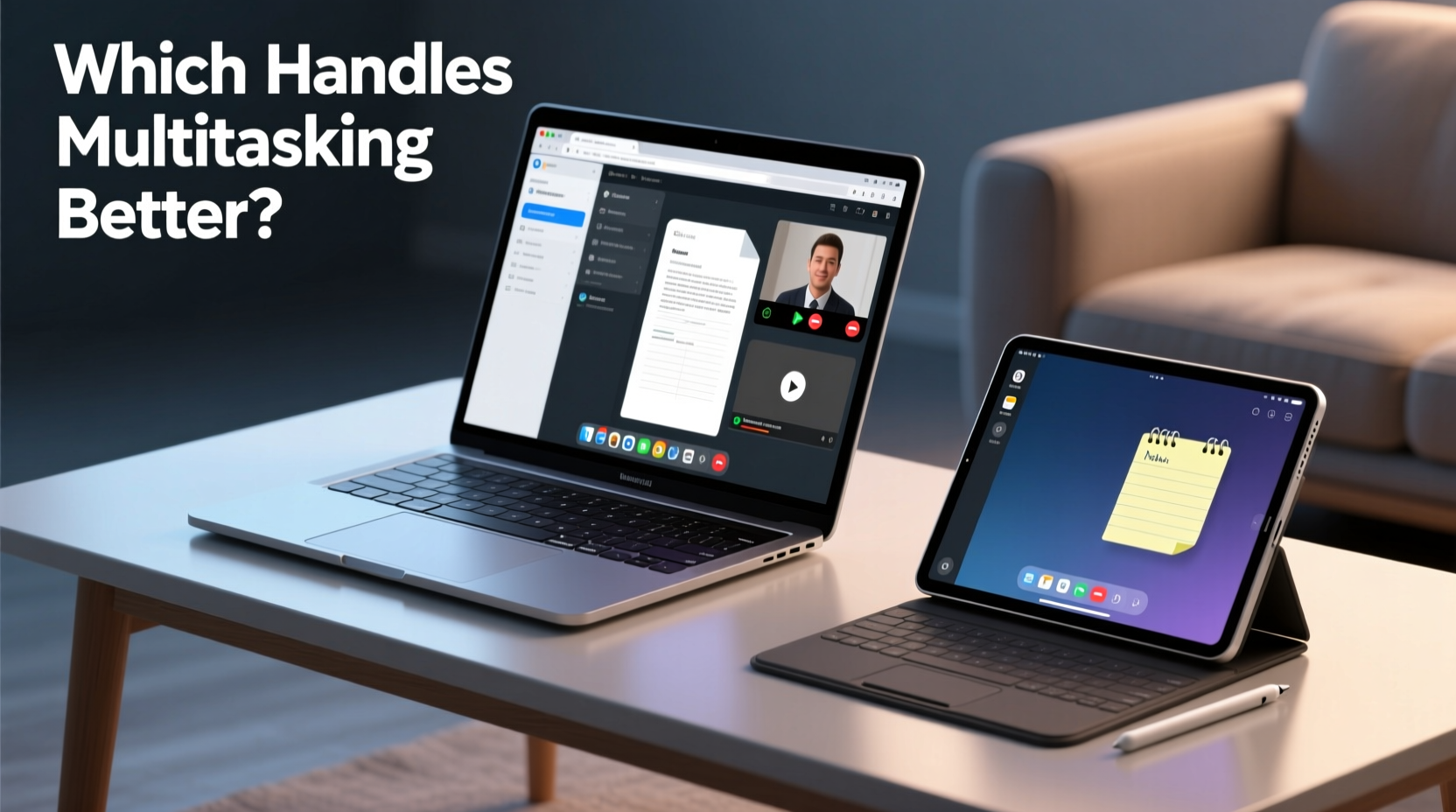
Multitasking refers to the ability to run and interact with multiple applications simultaneously. However, modern users expect more than just background processes—they want seamless switching, split-screen workflows, drag-and-drop between apps, and efficient window management. True multitasking support hinges on three core elements:
- Operating System Capabilities: Can the OS handle multiple resizable windows, virtual desktops, or picture-in-picture modes?
- Hardware Performance: Does the device have enough RAM, CPU power, and storage speed to run several apps without lag?
- User Interface Design: Is the interface optimized for touch, keyboard, or both? Can users easily organize their workspace?
While tablets have made significant strides—especially with iPadOS and Android 14—most still prioritize simplicity over complexity. Touchscreen laptops, particularly those running full versions of Windows or macOS, are built from the ground up for complex workflows.
Touchscreen Laptops: Power Meets Flexibility
Touchscreen laptops blend the best of traditional computing with modern touch capabilities. Devices like the Microsoft Surface Laptop Studio, Dell XPS 13 2-in-1, and MacBook Air (M-series) with external touch integration offer full operating systems with optional touch input.
These machines excel at multitasking because they run complete desktop environments. You can open ten browser tabs, edit a spreadsheet, participate in a Teams call, and monitor email—all in resizable, overlapping windows. Virtual desktops allow further organization, letting users separate work, personal, and creative projects.
Performance-wise, most touchscreen laptops come equipped with at least 8GB of RAM (16GB recommended), multi-core processors, and SSD storage. High-end models rival desktops in processing power, enabling smooth performance even under heavy multitasking loads.
Moreover, the inclusion of physical keyboards and precision trackpads makes prolonged typing and navigation significantly faster than relying solely on on-screen keyboards and gestures.
“Touchscreen laptops provide the ideal hybrid experience—desktop-grade productivity with the tactile convenience of touch when needed.” — Dr. Alan Zhou, Human-Computer Interaction Researcher at MIT Media Lab
Tablets: Optimized for Simplicity and Mobility
Tablets like the iPad Pro, Samsung Galaxy Tab S9, and Microsoft Surface Go emphasize portability, battery life, and intuitive touch interaction. They’re excellent for media consumption, light editing, sketching, and reading—but fall short when handling complex multitasking scenarios.
iPadOS and Android 14 now support split-screen mode, slide-over apps, and even external keyboard attachments. However, these features remain constrained compared to desktop operating systems. For example:
- Split view typically supports only two apps at once.
- Apps cannot freely resize beyond preset proportions.
- File management across apps is often limited without third-party tools.
- Drag-and-drop between unrelated apps can be inconsistent.
While newer iPads with M-series chips deliver impressive raw performance, the software layer restricts how effectively that power can be used in multitasking contexts. As one developer noted, “An iPad can run five apps, but it doesn’t let you *work* with five apps the way a Mac can.”
That said, tablets shine in mobile-first workflows. A journalist interviewing sources can record audio, take handwritten notes, and search reference material quickly using swipe gestures and Apple Pencil input. The streamlined interface reduces cognitive load—ideal for focused, single-purpose tasks.
Comparative Analysis: Key Differences in Multitasking Ability
| Feature | Touchscreen Laptops | Tablets |
|---|---|---|
| Operating System | Full Windows/macOS/Linux – supports full window management | iPadOS/Android – limited to fixed layouts and modal overlays |
| Number of Simultaneous Apps | 10+ with minimal performance impact | Typically 2–3 main apps; others run in background |
| Window Resizing & Positioning | Freeform, overlapping, customizable | Fixed splits or slide-over only |
| File Management Across Apps | Direct access via file explorer | Restricted sharing; relies on \"Open In…\" or cloud sync |
| External Keyboard Support | Built-in or detachable; full shortcut support | Optional; limited function key availability |
| Battery Life | Average 6–10 hours | Average 10–14 hours |
| Portability | Moderate (1.3–1.8 kg) | High (0.5–0.7 kg) |
This table highlights a clear trade-off: touchscreen laptops win in functional versatility, while tablets lead in lightweight efficiency.
Real-World Example: A Freelancer’s Workflow
Consider Maria, a freelance graphic designer who works remotely. Her typical day includes:
- Editing Photoshop files
- Answering client emails
- Scheduling social media posts
- Participating in Zoom meetings
- Researching design trends
On her iPad Pro, she uses Split View to keep Photoshop Express open alongside Safari. However, she frequently needs to switch out of her meeting app to grab a file, disrupting the flow. Copy-pasting color codes between apps requires multiple steps due to clipboard limitations. She ends up spending extra time navigating back and forth.
When she switches to her Microsoft Surface Laptop Studio, she arranges Photoshop, Chrome (with multiple tabs), Outlook, and Zoom in separate windows across two virtual desktops. She drags assets directly between folders and uses keyboard shortcuts to toggle between tasks. Despite similar hardware specs, her productivity increases by an estimated 30%.
This case illustrates that raw processing power matters less than how well the system supports integrated workflows.
Actionable Tips for Choosing the Right Device
Here’s a checklist to help determine which device suits your multitasking needs:
- Evaluate your primary use case: Do you mostly consume content, or create and manage complex projects?
- List your essential apps: Are they available in full desktop versions, or only as mobile counterparts?
- Assess file-sharing frequency: If you regularly transfer documents, images, or data between programs, a laptop offers smoother integration.
- Consider peripheral needs: Will you use external monitors, USB drives, or docking stations? Laptops support these far better.
- Try gesture vs. keyboard navigation: Spend 30 minutes typing a document on a tablet keyboard versus a laptop. Note fatigue and speed differences.
Expert Insight: The Future of Mobile Multitasking
Industry experts agree that the gap between tablets and laptops is narrowing—but not closing.
“The next generation of operating systems may bring true desktop-class multitasking to tablets, but user habits and interface design remain major hurdles. Touch-first UIs aren’t naturally suited to dense information environments.” — Lena Park, Senior Analyst at TechTrend Insights
Developers are experimenting with hybrid models. Samsung DeX and Huawei’s Super Device allow Android tablets to mimic desktop behavior when connected to external displays. Similarly, Continuum on older Windows tablets showed promise, though it was discontinued due to low adoption.
Still, no current tablet fully replicates the fluidity of managing dozens of browser tabs, layered design files, and communication tools simultaneously—the kind of workload where a touchscreen laptop thrives.
Frequently Asked Questions
Can a tablet replace a laptop for multitasking?
For light multitasking—such as browsing while taking notes or watching a tutorial while typing—yes. But for advanced workflows involving multiple large applications, file manipulation, or professional software (e.g., Excel macros, video editing suites), a tablet falls short due to OS limitations and interface constraints.
Do touchscreen laptops sacrifice performance for touch capability?
No. Most modern touchscreen laptops use the same high-performance components as non-touch models. Any minor reduction in battery life (typically 5–10%) is offset by gains in versatility. Touch functionality is an enhancement, not a compromise.
Is split-screen mode on tablets as effective as windowed mode on laptops?
Not quite. Tablet split-screen usually locks apps into rigid layouts with limited resizing. On laptops, windows can be freely positioned, minimized, maximized, and layered. This flexibility allows for quicker context switching and better spatial memory during complex tasks.
Conclusion: Matching Device Strengths to Your Needs
When it comes to multitasking, touchscreen laptops clearly outperform tablets in depth, flexibility, and efficiency. Their full operating systems, support for multiple resizable windows, robust file systems, and compatibility with productivity peripherals make them the superior choice for anyone whose work demands simultaneous engagement with several tools.
However, tablets maintain a strong advantage in portability, battery life, and ease of use for simpler, touch-driven tasks. For users whose multitasking needs are modest—reading articles while jotting down ideas, following recipes while shopping online, or checking messages during a video call—a tablet remains an elegant solution.
The decision ultimately hinges on your definition of multitasking. If it means managing interconnected workflows with precision and speed, choose a touchscreen laptop. If it means staying productive on the move with minimal setup, a tablet might suffice.




 浙公网安备
33010002000092号
浙公网安备
33010002000092号 浙B2-20120091-4
Comments
No comments yet. Why don't you start the discussion?