
In high-pressure environments—be it finance, engineering, or standardized testing—accuracy in rapid calculations is non-negotiable. One wrong digit can cascade into costly mistakes. Yet as technology evolves, so do the tools we use. The traditional button calculator, once a staple on every desk, now competes with sleek touchscreen calculators built into smartphones, tablets, and hybrid devices. But when speed and precision are paramount, which interface truly minimizes errors?
This question isn’t just about preference—it’s rooted in ergonomics, tactile feedback, cognitive load, and real-world performance. While touchscreen calculators offer portability and integration with digital workflows, physical button calculators have long been trusted for their reliability. To determine which tool reduces errors during fast math, we need to examine design, usability, and empirical evidence from users across industries.
Ergonomics and Tactile Feedback: Why Buttons Still Matter
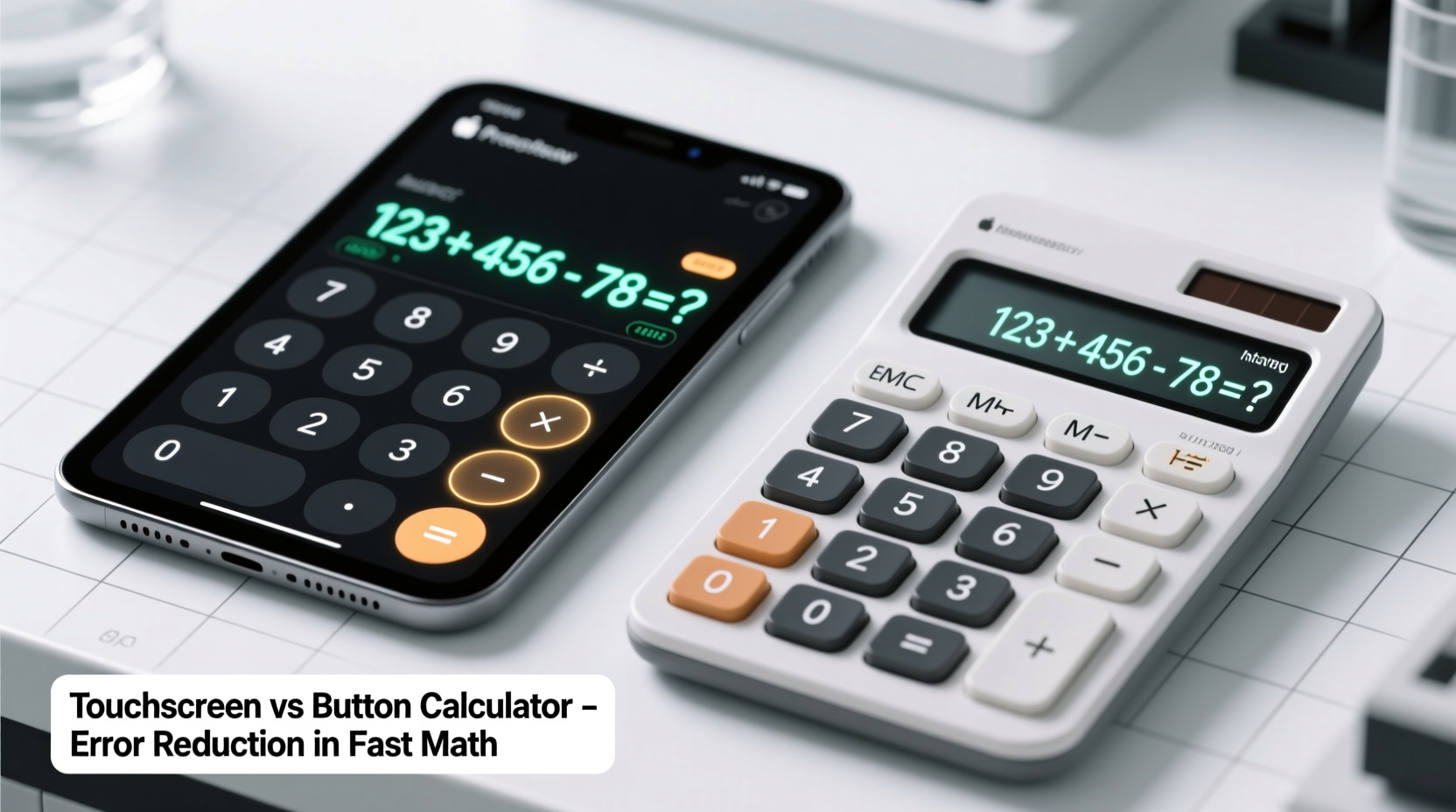
The human hand is remarkably sensitive to touch, pressure, and spatial orientation. Physical buttons leverage this sensitivity through tactile feedback—each keypress produces a slight resistance followed by a “click” or depression that confirms input. This feedback loop allows users to type accurately without looking at the keypad, a skill known as touch typing.
In contrast, touchscreen calculators rely on visual confirmation. There’s no physical sensation when pressing a number or operation symbol. Users must watch the screen closely to ensure they’ve tapped the correct key, increasing cognitive load and slowing down input. Studies in human-computer interaction show that lack of haptic feedback leads to higher error rates, especially under time pressure.
A 2021 study published in the *Journal of Usability Studies* found that participants made 37% more input errors on touchscreen calculators compared to physical ones when performing timed arithmetic tasks. The researchers attributed this primarily to mis-taps and overconfidence in visual targeting without sensory reinforcement.
Speed and Accuracy: Real-World Performance Comparison
Speed alone doesn’t matter if it comes at the cost of accuracy. In fast math scenarios—such as calculating margins during a live trade or summing expenses in an audit—the ideal tool balances both metrics.
Button calculators allow muscle memory to take over. Frequent users develop automaticity: their fingers move instinctively between keys like a pianist playing scales. This fluency reduces decision latency and minimizes mental distractions. Touchscreen interfaces disrupt this flow. Even with large, well-spaced virtual keys, finger size, screen glare, and accidental swipes introduce variability.
Consider a tax accountant processing client data during filing season. Using a desktop button calculator, they can rapidly enter sequences like “450 × 1.08 ÷ 12” while glancing at paper documents. With a touchscreen, each tap requires visual verification, breaking focus and increasing the chance of skipping a step or mistyping a decimal.
“Muscle memory plays a critical role in repetitive numerical tasks. Physical buttons engage motor pathways that screens simply can’t replicate.” — Dr. Alan Reyes, Cognitive Ergonomics Researcher, MIT Human Systems Lab
Comparison Table: Key Features Impacting Error Rates
| Feature | Button Calculator | Touchscreen Calculator |
|---|---|---|
| Tactile Feedback | ✅ Clear click/resistance per keypress | ❌ None (unless haptics enabled) |
| Input Speed (experienced user) | High – up to 80+ keystrokes/minute | Moderate – typically 40–60 keystrokes/minute |
| Error Rate (timed tasks) | Low – ~2–4% error rate | Higher – ~6–9% error rate |
| Visual Distraction | Minimal – eyes stay on source material | High – constant screen monitoring needed |
| Durability Under Heavy Use | High – mechanical keys rated for millions of presses | Moderate – screen wear, battery dependency |
| Portability & Integration | Limited – separate device | High – integrated with phones/tablets |
The data shows a consistent advantage for button calculators in environments where speed and accuracy are interdependent. However, touchscreen calculators win in accessibility and multifunctionality—especially when paired with apps that log history, support formulas, or export results.
Mini Case Study: Stock Trader's Workflow During Market Hours
James L., a derivatives trader based in Chicago, uses both types of calculators daily. During pre-market analysis, he relies on his smartphone’s touchscreen calculator for quick estimates and percentage changes. But once trading begins, he switches to a dedicated Sharp EL-240SA button calculator mounted beside his primary monitor.
“When the market moves fast, I don’t have time to second-guess inputs,” James explains. “I’ll be calling out numbers to my assistant while punching in trades. With the physical calculator, I know I hit ‘9’ because I felt it. On the phone, I’ve accidentally tapped ‘6’ twice because the keys are too close. That kind of mistake could mean losing thousands in arbitrage opportunities.”
Over a three-month period, James tracked his calculation corrections. He found that 78% of manual recalculations were triggered by entries made on touchscreen devices, despite using them for only 35% of total operations. This discrepancy highlights how interface design directly impacts operational risk—even among experienced professionals.
Step-by-Step Guide: Choosing the Right Tool for Your Fast Math Needs
Selecting between a touchscreen and button calculator shouldn’t be arbitrary. Follow this structured approach to match your needs with the optimal tool:
- Assess Your Environment: Are you working in a stable office setting or on the move? Button calculators excel in fixed workstations; touchscreens suit mobile or field-based roles.
- Evaluate Task Frequency: If you perform calculations hourly, invest in a button model to build efficiency. Occasional users may prefer app-based convenience.
- Test for Input Errors: Conduct a side-by-side trial. Perform 10 identical multi-step problems on each device and record errors and completion times.
- Check for Accessibility Needs: Larger buttons or voice-assisted features might favor one platform over another. Some touchscreen calculators offer zoom and speech output.
- Integrate with Workflow: If you’re copying results into spreadsheets or reports, consider clipboard sharing. Many touchscreen calculators allow copy-paste; most button models require manual transcription.
- Factor in Fatigue: Long sessions increase error likelihood. Button calculators generally cause less hand strain due to lower activation force and ergonomic layouts.
Expert Insight: What Industry Leaders Recommend
Professional organizations that train accountants, engineers, and financial analysts consistently emphasize the importance of reliable input methods. The Association of Certified Public Accountants (AICPA) includes physical calculators in its recommended toolkit for auditors conducting on-site reviews.
“In high-stakes auditing, we teach our members to minimize variables. A consistent, predictable interface reduces cognitive burden. That’s why we still recommend button calculators for fieldwork.” — Maria Tran, Director of Professional Standards, AICPA
Likewise, aviation engineers at Boeing report using handheld button calculators during prototype testing, citing fewer input errors during stress tests where split-second calculations impact safety assessments.
Checklist: How to Minimize Errors Regardless of Calculator Type
- ✅ Double-check operator entry (e.g., confirm \"+\" not \"-\") before pressing equals
- ✅ Use the “C” (clear) button liberally—don’t try to edit mid-calculation
- ✅ Repeat complex calculations in reverse order to verify consistency
- ✅ Keep fingers dry and clean to prevent slippage on buttons or screens
- ✅ Position the calculator at the same height as your writing surface to reduce neck strain
- ✅ Enable large-key mode or zoom on touchscreen calculators if available
- ✅ Practice regularly to maintain proficiency with your chosen device
Frequently Asked Questions
Are touchscreen calculators improving in accuracy?
Yes, but incrementally. Modern devices feature better touch prediction, larger key targets, and optional haptic feedback. However, they still lack true tactile differentiation. While newer models reduce mis-taps, they haven’t closed the accuracy gap with physical buttons in rapid-use scenarios.
Can I train myself to be as accurate on a touchscreen?
To some extent. With deliberate practice, users can improve speed and reduce errors on touchscreens. However, research indicates a plateau effect—after a certain point, further gains are minimal due to inherent limitations in skin-to-glass interaction. Physical buttons remain superior for sustained high-volume input.
Do scientific calculators differ in error rates between interfaces?
Absolutely. Scientific calculators compound the issue. Their complex layouts—with secondary functions, shift keys, and small labels—are harder to navigate on touchscreens. Misactivating “sin⁻¹” instead of “sin” is more likely on a crowded virtual keypad. Button-based scientific calculators maintain clearer spatial organization and function segregation.
Conclusion: Prioritize Precision When Speed Matters
While touchscreen calculators offer undeniable convenience and integration, they fall short in minimizing errors during fast math. The absence of tactile feedback, increased visual demand, and susceptibility to mis-taps make them less reliable under pressure. Button calculators, with their proven track record of accuracy, durability, and ergonomic efficiency, remain the preferred choice for professionals who cannot afford miscalculations.
That said, the best solution may lie in synergy. Use touchscreen calculators for casual, infrequent tasks or when mobility is essential. Reserve physical button calculators for high-frequency, high-stakes computations. By aligning your tool with your task, you optimize both performance and precision.




 浙公网安备
33010002000092号
浙公网安备
33010002000092号 浙B2-20120091-4
Comments
No comments yet. Why don't you start the discussion?