
If you've ever seen the message “Mobile Network Not Available” on your TracFone, you're not alone. This error disrupts calls, texts, and data—sometimes at the most inconvenient times. While TracFone operates as a Mobile Virtual Network Operator (MVNO), relying on major carriers like Verizon, AT&T, and T-Mobile for coverage, network issues can stem from your device, settings, location, or account status. The good news is that most problems are fixable with systematic troubleshooting.
This guide walks through practical, step-by-step solutions to restore your TracFone service quickly and efficiently. Whether you’re in a low-coverage zone or dealing with a software glitch, these strategies address the root causes behind lost connectivity.
Check Your Account Status and Service Plan
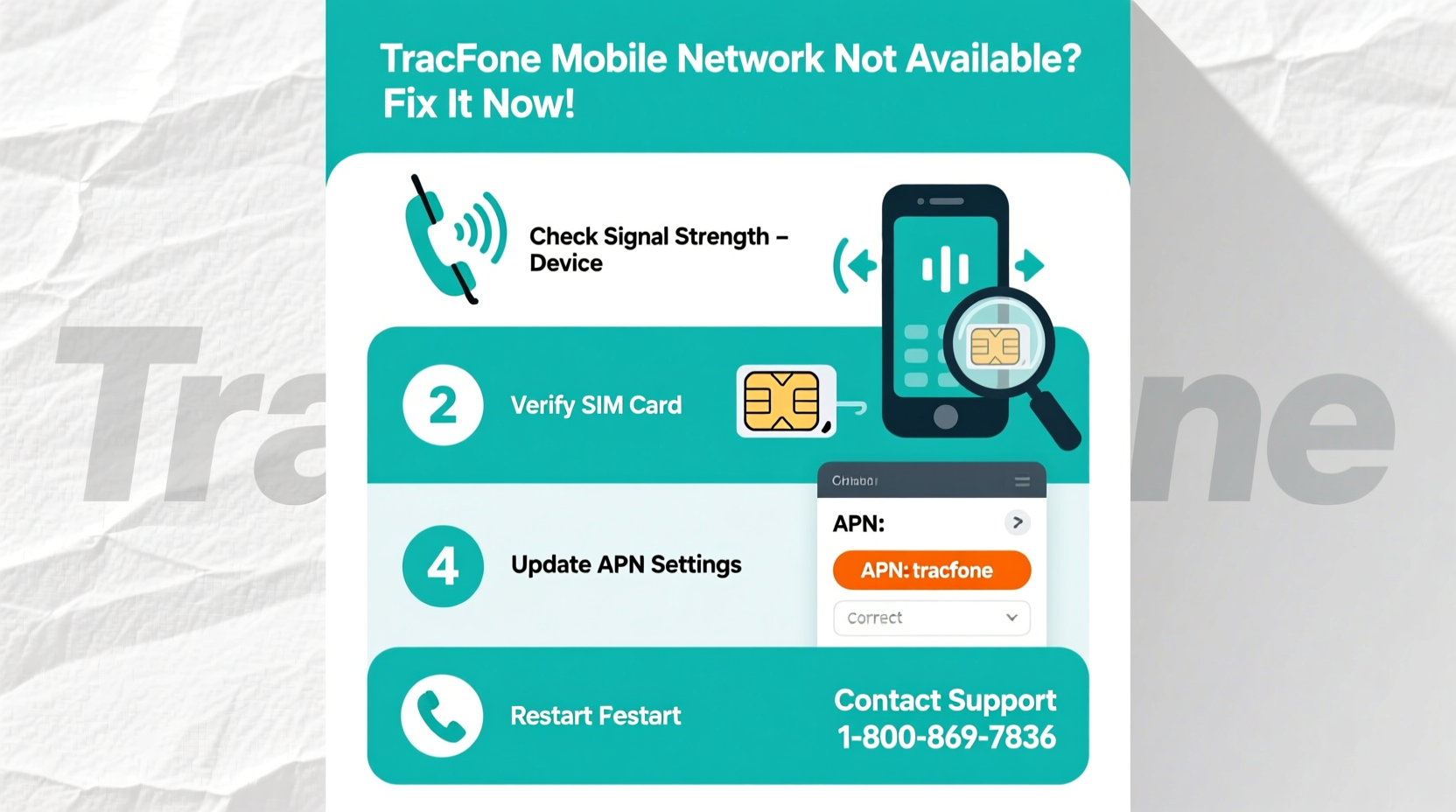
Before diving into technical fixes, verify that your service is active. An expired plan or insufficient balance is one of the most common reasons for network unavailability.
- Log in to your TracFone account at tracfone.com or use the My Account app.
- Confirm your service has not expired.
- Ensure you have enough minutes, texts, or data remaining.
- If needed, renew your plan or add airtime immediately.
Even if your phone appears connected, an inactive account will block network access. Wait a few minutes after renewing—service restoration typically takes 5–15 minutes but may take up to an hour during peak times.
Verify Network Coverage and Location
TracFone’s coverage depends on the host network your device uses. If you’re in a rural area, basement, or surrounded by tall buildings, signal strength may drop significantly.
“MVNO customers often experience delayed signal handoffs and reduced priority on shared towers.” — Carlos Mendez, Wireless Network Analyst
To assess your location:
- Visit the official TracFone coverage map at tracfone.com/coverage.
- Enter your ZIP code to see which networks are available in your area.
- Check whether your phone model supports the strongest local network (Verizon, AT&T, or T-Mobile).
Moving near a window or stepping outside can dramatically improve signal reception. Avoid metal enclosures, elevators, and underground spaces where signals struggle to penetrate.
Restart and Reconfigure Your Device
A simple restart resolves many temporary glitches. Power cycling clears cached network data and forces your phone to reconnect to the nearest tower.
Step-by-Step Restart Process
- Press and hold the power button until the shutdown menu appears.
- Select “Power Off” and wait 30 seconds.
- Turn the phone back on.
- Wait two minutes for full boot-up and network detection.
If the issue persists, manually select the network operator:
Manual Network Selection (Android)
- Go to Settings > Network & Internet > Mobile Network.
- Select Network Operators.
- Choose “Search Networks” and wait.
- Select a carrier from the list (e.g., Verizon, T-Mobile) if available.
iOS users: Settings > Cellular > Cellular Data Options > Network Selection > turn off “Automatic,” then choose a network manually.
Inspect SIM Card and Device Compatibility
The SIM card is essential for network authentication. A damaged, improperly seated, or outdated SIM can cause total service loss.
SIM Troubleshooting Checklist
- Power off the phone and remove the SIM tray.
- Inspect the SIM for scratches, corrosion, or bent contacts.
- Clean gently with a dry, lint-free cloth.
- Reinsert the SIM firmly and restart the device.
- If using a new phone, confirm it’s compatible with TracFone’s network bands.
TracFone provides a device compatibility checker. Enter your phone’s model number to verify support. Unlocking is required if the device was previously tied to another carrier.
| Issue | Do | Don't |
|---|---|---|
| SIM not recognized | Re-seat the SIM, try in another compatible phone | Bend or scratch the SIM |
| Poor signal in known areas | Test with another SIM or phone | Assume it's a phone defect immediately |
| New device activation | Use TracFone’s activation wizard | Insert SIM without activating online |
Update PRL and Profile Settings
The Preferred Roaming List (PRL) tells your phone which towers to connect to. Outdated PRL data can result in failed connections, especially after traveling.
How to Update PRL (CDMA Devices – Verizon-based Phones)
- Dial *228 from your TracFone.
- Press 1 to begin programming.
- Wait 90 seconds. Do not end the call prematurely.
- Once complete, restart your phone.
Note: *228 does not work on GSM-only devices (AT&T/T-Mobile models). For these phones, update the carrier settings instead:
- Android: Settings > About Phone > Software Update > Check for Carrier Update.
- iOS: Settings > General > About. If an update is available, a prompt will appear.
Also, reset network settings to clear misconfigurations:
- Android: Settings > System > Reset > Reset Wi-Fi, Mobile & Bluetooth.
- iOS: Settings > General > Transfer or Reset iPhone > Reset > Reset Network Settings.
This erases saved Wi-Fi passwords, so note them down first.
Real-World Example: Maria’s Weekend Signal Failure
Maria relied on her TracFone during a weekend trip to the mountains. Upon arrival, her phone displayed “No Service.” She tried restarting multiple times with no success. Remembering a tip about manual network selection, she went to Settings > Network Operators and found that “Automatic” had defaulted to a weak AT&T signal. By switching manually to T-Mobile, which had stronger regional coverage, her service returned instantly.
Back home, she updated her phone’s profile and enabled auto-refill to prevent future disruptions. Her experience highlights how location, settings, and account management intersect in maintaining reliable service.
Frequently Asked Questions
Why does my TracFone say “Emergency Calls Only”?
This means your phone detects a network but cannot authenticate your account. Check if your service is active, the SIM is properly inserted, and the phone is not locked to another carrier. Also, ensure you haven’t exceeded usage limits that could temporarily restrict service.
Can a factory reset fix network issues?
Yes, but only as a last resort. A factory reset removes all data and returns the phone to default settings, which can resolve deep software conflicts. Before proceeding, back up photos, contacts, and messages. After resetting, reactivate your phone through the TracFone system.
Does TracFone replace faulty phones?
If your device is under warranty and deemed defective by TracFone support, they may offer a replacement for a fee. Used or out-of-warranty phones typically require a new purchase. Contact customer service via chat or phone to explore options.
Final Checklist: Regain Network Access in 7 Steps
- ✅ Confirm your service plan is active and funded.
- ✅ Restart your phone to refresh network connections.
- ✅ Check coverage in your area using TracFone’s map.
- ✅ Manually select a network operator in settings.
- ✅ Inspect and reseat the SIM card.
- ✅ Update PRL (*228) or carrier settings.
- ✅ Reset network settings if all else fails.
If none of these steps work, contact TracFone Customer Support at 1-800-867-7183 or visit their support portal. Provide your phone number, IMEI, and a description of the issue for faster resolution.
Stay Connected With Confidence
Losing mobile network access doesn’t have to mean days without communication. Most TracFone connectivity issues stem from correctable factors—expired plans, outdated settings, or minor hardware hiccups. By methodically checking account status, signal environment, and device configuration, you can restore service quickly and minimize downtime.




 浙公网安备
33010002000092号
浙公网安备
33010002000092号 浙B2-20120091-4
Comments
No comments yet. Why don't you start the discussion?