
For decades, the traditional optical or laser mouse has been the default tool for navigating digital environments. But as awareness of repetitive strain injuries (RSIs) grows and workplace ergonomics gain importance, alternatives like the trackball mouse are gaining traction. Unlike conventional mice that rely on hand movement across a surface, trackballs keep your hand stationary while you manipulate a rolling ball with your thumb or fingers. This fundamental difference raises a critical question: do the ergonomic advantages of a trackball mouse outweigh the initial learning curve and adjustment period?
The answer isn't universal—it depends on individual needs, work habits, and sensitivity to physical strain. However, understanding the mechanics, benefits, and trade-offs can help users make an informed decision about whether switching is truly worthwhile.
Ergonomic Differences: How Movement Impacts Your Body
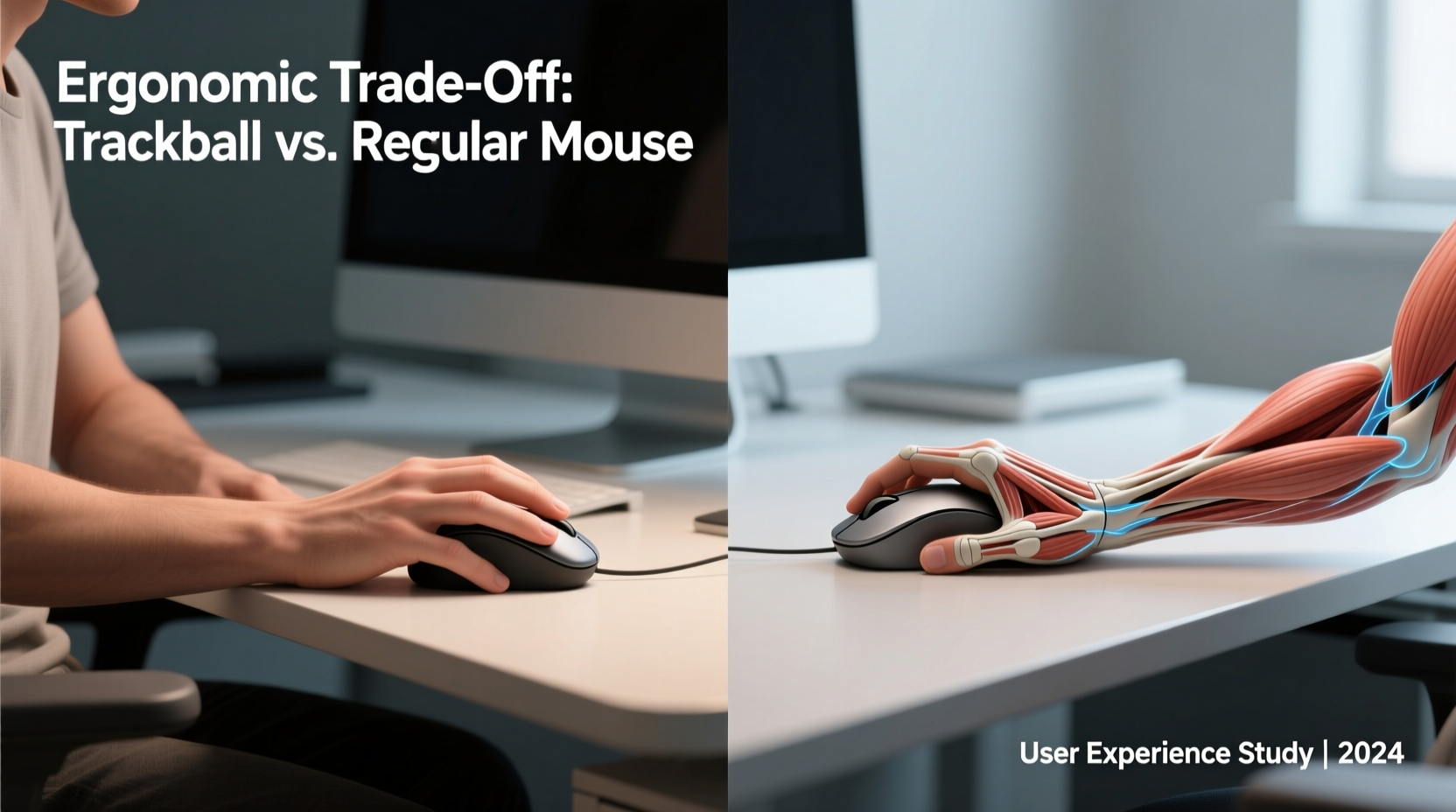
One of the most significant distinctions between a trackball and a regular mouse lies in how they engage your body. A standard mouse requires constant repositioning of the entire hand and forearm across a desk. This repeated motion—especially over long hours—can lead to ulnar deviation, wrist extension, and shoulder tension. Over time, these micro-movements contribute to conditions like carpal tunnel syndrome, tendonitis, and general musculoskeletal discomfort.
In contrast, a trackball mouse minimizes gross motor movements. Your hand remains in a fixed position, often resting naturally on the device, while only your thumb or fingers move to control cursor navigation. This reduces strain on the wrist, elbow, and shoulder by eliminating the need for constant arm gliding. The design promotes a more neutral wrist posture, which aligns better with ergonomic best practices.
“Reducing large arm movements during computer use significantly lowers the risk of developing upper limb disorders,” says Dr. Lena Patel, occupational therapist specializing in workplace health. “Trackball mice offer a practical solution for those already experiencing discomfort from traditional input devices.”
Because the trackball’s movement is localized, users report less fatigue after extended sessions. This makes them particularly appealing to professionals who spend 6–10 hours daily using a mouse—graphic designers, data analysts, programmers, and writers alike.
Performance Comparison: Precision, Speed, and Usability
While ergonomics are a major selling point, performance matters just as much. Let's break down key aspects where trackball and regular mice differ:
| Feature | Trackball Mouse | Regular Mouse |
|---|---|---|
| Movement Efficiency | High – minimal arm movement required | Low – continuous arm motion needed |
| Precision Control | Moderate to high – excellent for fine adjustments once mastered | High – immediate responsiveness and accuracy |
| Learning Curve | Steeper – requires adaptation to thumb/finger-driven control | Minimal – intuitive for most users |
| Desk Space Needed | Very low – works even on small or uneven surfaces | Moderate to high – requires flat, open space |
| Durability & Maintenance | Moderate – ball and sensors may require periodic cleaning | High – few moving parts, generally low maintenance |
| Gaming Suitability | Poor – limited DPI options and slower response times | Excellent – optimized for speed and reaction time |
From this comparison, it’s clear that trackball mice excel in efficiency and space-saving but lag behind in instant usability and gaming performance. For office productivity, CAD work, or browsing-heavy tasks, precision improves dramatically with practice. However, gamers and those needing rapid cursor sweeps will likely find traditional mice more responsive out of the box.
Real-World Example: A Developer’s Transition to Trackball
Consider Mark, a backend developer with seven years of experience coding 8+ hours a day. After developing persistent wrist pain and numbness in his right hand, he consulted a physiotherapist who recommended reducing repetitive motion. Skeptical but motivated, Mark purchased a mid-range thumb-operated trackball mouse.
The first week was frustrating. He missed clicks, overshot targets, and found scrolling awkward. But by adjusting sensitivity settings and practicing deliberate movements, he adapted within three weeks. By the end of the month, Mark reported not only reduced discomfort but also improved focus—his hand no longer felt fatigued by mid-afternoon.
What made the transition successful? Two factors: patience and customization. Mark used software to fine-tune acceleration curves and button mappings, tailoring the device to his workflow. His story illustrates that while the learning curve is real, the payoff in comfort and long-term usability can be substantial.
Choosing the Right Type: Thumb vs Finger Trackballs
Not all trackball mice are created equal. There are two primary designs:
- Thumb-operated trackballs: Feature a large ball positioned on the side, controlled by the thumb. These tend to offer smoother control and are favored for their intuitive feel.
- Finger-operated trackballs: Place the ball on top, manipulated by the index or middle finger. They often resemble traditional mice more closely and may be easier for beginners.
Each has pros and cons. Thumb models allow the hand to rest fully, reducing finger strain, but some users struggle with thumb endurance initially. Finger-operated versions distribute effort across multiple digits but may encourage slight wrist elevation if not properly supported.
Your choice should depend on hand size, grip preference, and existing pain points. For example, someone with thumb joint issues might find finger-operated models more comfortable, while those with finger sensitivity may prefer thumb control.
Step-by-Step Guide to Transitioning to a Trackball Mouse
If you're considering making the switch, follow this structured approach to maximize success and minimize frustration:
- Research and Select a Model: Choose a reputable brand (e.g., Logitech MX Ergo, Kensington Expert Wireless) based on reviews and ergonomic ratings. Decide between thumb or finger operation.
- Set Up Proper Ergonomics: Position your keyboard and monitor correctly. Your elbows should be at 90 degrees, wrists neutral, and shoulders relaxed. The trackball should sit at the same height as your keyboard.
- Customize Settings: Use manufacturer software to adjust tracking speed, acceleration, and button functions. Start with moderate DPI (around 800–1200) to avoid overshooting.
- Practice Daily Tasks: Begin with simple actions—clicking links, dragging files, scrolling documents. Avoid complex tasks like photo editing until you gain confidence.
- Gradually Increase Usage: Use the trackball for 1–2 hours per day initially. Alternate with your regular mouse if needed. Extend usage incrementally over 2–3 weeks.
- Monitor Physical Feedback: Pay attention to any lingering discomfort. Minor adjustment pains are normal; sharp or worsening pain is not. Re-evaluate positioning or consider a different model if issues persist.
- Optimize Workflow Integration: Map frequently used commands (e.g., copy/paste, zoom) to programmable buttons to reduce keyboard dependency.
This phased transition respects the cognitive and motor learning process involved in mastering a new input device. Rushing adaptation increases frustration and diminishes perceived benefits.
Common Misconceptions About Trackball Mice
Several myths deter potential users from giving trackballs a fair trial:
- “They’re outdated technology.” While mechanical trackballs were prone to jamming in the past, modern optical-tracking models are highly reliable and accurate.
- “You can’t use them for precise work.” With proper calibration, trackballs perform exceptionally well in tasks requiring fine control, such as graphic design or spreadsheet navigation.
- “They cause thumb strain.” Some users report initial thumb fatigue, but this typically resolves as muscles adapt. Using a finger-operated model can mitigate this.
- “They’re only for older people.” Age is irrelevant. Anyone seeking to reduce physical strain—regardless of age—can benefit from improved ergonomics.
Dispelling these misconceptions allows users to evaluate trackballs objectively rather than dismissing them based on outdated assumptions.
FAQ: Common Questions About Trackball Mice
Can a trackball mouse really prevent RSI?
While no device can guarantee prevention, trackball mice significantly reduce risk factors associated with RSIs by minimizing repetitive arm and wrist motion. Combined with proper posture and frequent breaks, they are a valuable part of an ergonomic strategy.
How long does it take to get used to a trackball mouse?
Most users adapt within 1–3 weeks of consistent use. Initial clumsiness fades as muscle memory develops. Patience and incremental usage improve success rates.
Are trackball mice suitable for left-handed users?
Some models are symmetrical or specifically designed for left-hand use, though options are more limited than for right-handed users. Check product specifications carefully before purchasing.
Checklist: Is a Trackball Mouse Right for You?
Use this checklist to determine if switching makes sense for your situation:
- ✅ Spend more than 4 hours daily using a mouse
- ✅ Experience wrist, hand, or forearm discomfort
- ✅ Work in a space with limited desk area
- ✅ Prioritize long-term health over short-term convenience
- ✅ Willing to invest 2–3 weeks adapting to a new device
- ❌ Need ultra-fast response times (e.g., competitive gaming)
- ❌ Unwilling to clean the ball mechanism occasionally
If most of the positive items apply and the negatives don’t, a trackball is likely a worthwhile investment.
Final Verdict: Balancing Benefit and Adaptation
The ergonomic advantages of a trackball mouse are well-documented and meaningful for many users. By reducing reliance on large muscle groups and promoting neutral postures, trackballs address core causes of computer-related strain. However, the learning curve is undeniable. It demands patience, deliberate practice, and openness to change.
For individuals already experiencing discomfort—or those proactively optimizing their workspace—the trade-off is often justified. The initial awkwardness gives way to greater comfort, stability, and efficiency over time. Conversely, casual users or those in fast-paced, reaction-critical roles may find little incentive to switch.
Ultimately, the decision hinges on priorities. If long-term physical well-being ranks higher than immediate ease of use, then yes—the ergonomic benefit of a trackball mouse is absolutely worth the learning curve.




 浙公网安备
33010002000092号
浙公网安备
33010002000092号 浙B2-20120091-4
Comments
No comments yet. Why don't you start the discussion?