
In an age where many of us spend eight or more hours a day in front of screens, the tools we use matter—not just for productivity, but for long-term health. The humble computer mouse, once a simple point-and-click device, now comes in various forms, each promising better precision, comfort, or ergonomics. Among these, the trackball stands out as a polarizing alternative to the traditional optical or laser mouse. While it’s been around for decades, its niche status persists—partly due to its unfamiliar operation and partly because of skepticism about its real-world benefits.
The core question isn’t just about functionality—it’s about trade-offs. Does the potential for reduced wrist strain and improved posture justify the time spent relearning how to navigate your desktop? Can a trackball truly compete with the speed and muscle memory built over years of using a conventional mouse? To answer this, we need to look beyond marketing claims and examine real usage patterns, biomechanical impact, and user experiences across different work environments.
Ergonomic Benefits: Why Trackballs Stand Out
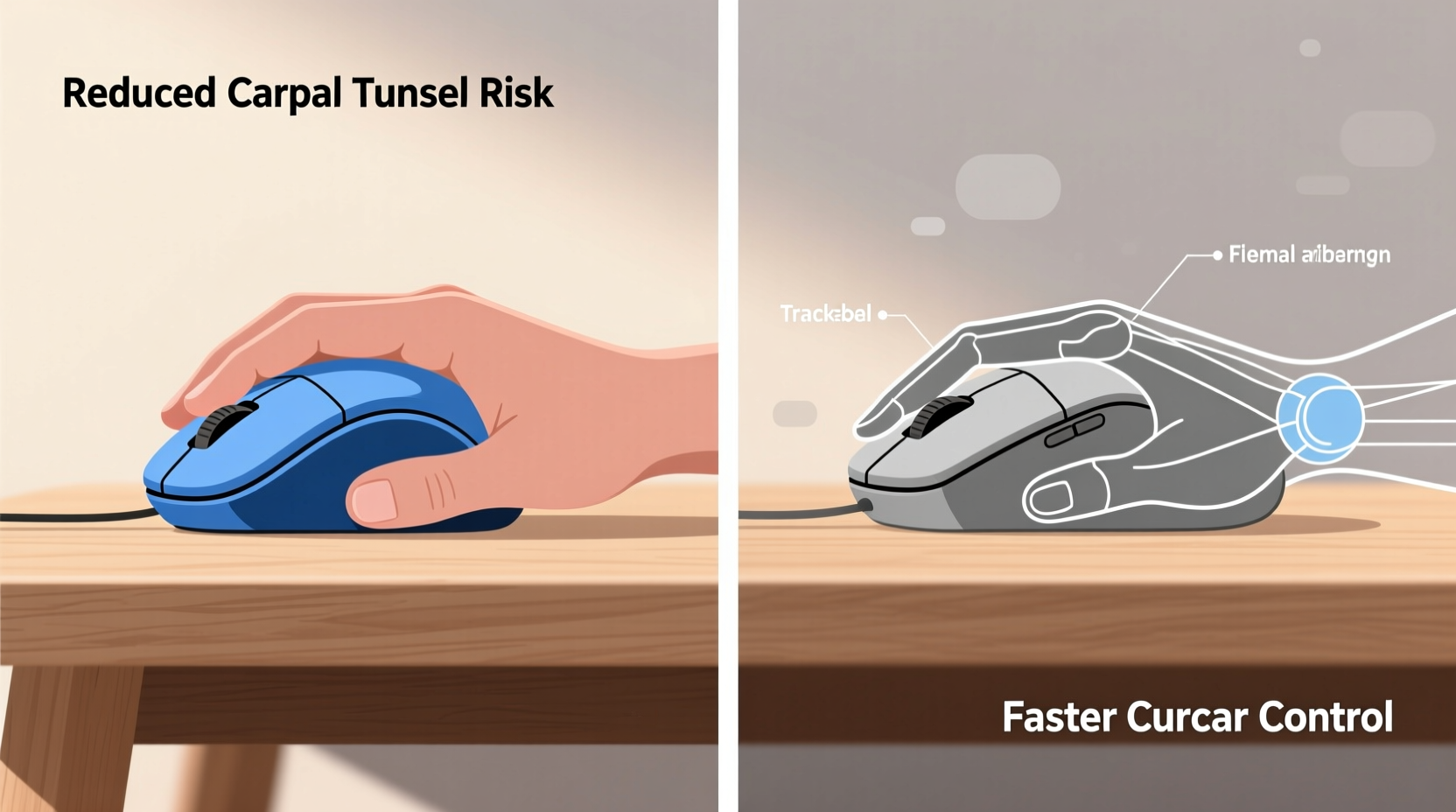
One of the strongest arguments for switching to a trackball is ergonomics. Unlike a standard mouse, which requires constant arm and wrist movement across a desk surface, a trackball remains stationary. You control cursor movement by rolling the ball with your thumb or fingers while keeping your hand largely still. This design reduces the range of motion required during prolonged use, minimizing repetitive strain on the wrist, forearm, and shoulder.
Repetitive strain injuries (RSIs), including carpal tunnel syndrome and tendonitis, are common among office workers and creatives who rely heavily on mice. According to Dr. Karen Jacobs, clinical professor of occupational therapy at Boston University, “Devices that minimize distal joint motion—like the wrist—and encourage more neutral postures can significantly reduce the risk of musculoskeletal disorders.”
“Reducing unnecessary hand travel allows users to maintain a more relaxed upper limb posture, which is critical in preventing chronic discomfort.” — Dr. Karen Jacobs, Occupational Therapist
Because the trackball stays in one place, you don’t need a large mousing surface. This makes it ideal for small desks, laptop users, or those working in tight spaces. Additionally, since the fingers or thumb do most of the work, larger muscle groups like the shoulder aren’t recruited unnecessarily—a subtle but important factor in fatigue reduction over extended sessions.
Mechanics of Use: How They Work Differently
The fundamental difference lies in input mechanics. A regular mouse translates physical movement across a surface into cursor displacement. The faster and farther you move the mouse, the further and quicker the cursor travels. In contrast, a trackball uses internal sensors to detect the rotation of a stationary ball. Your thumb or index/middle fingers roll the ball directly, and the device calculates direction and speed based on that motion.
This reversal of action—from moving the entire device to manipulating a component within it—shifts the workload from gross motor movements (arm and wrist) to fine motor control (fingers or thumb). For some, this feels intuitive; for others, it's disorienting at first. Precision tasks such as photo editing or CAD work may initially feel less responsive, especially if you're used to flicking a mouse quickly across a pad.
However, once mastered, trackballs offer exceptional control. Because the ball can be rolled in minute increments, micro-adjustments become easier without needing to lift and reposition the mouse. There’s no acceleration curve to compensate for, no surface calibration issues, and no dependency on mousepad quality.
Thumb vs. Finger Trackballs: Choosing Your Style
Not all trackballs are created equal. Two primary designs dominate the market:
- Thumb-operated: The ball is positioned to the side and controlled primarily by the thumb. These tend to be more compact and resemble a traditional mouse in shape.
- Finger-operated: The ball sits centrally and is manipulated with the index and middle fingers. These models often have a desktop puck-like form factor and allow for greater finger dexterity.
Each has pros and cons. Thumb models integrate more easily into existing workflows for right-handed users but may cause thumb fatigue over time. Finger-operated versions distribute effort across multiple digits, potentially reducing strain, but require more deliberate finger coordination.
Learning Curve: What to Expect When Switching
There’s no avoiding it: transitioning to a trackball involves a learning period. Most users report needing anywhere from three days to two weeks to regain their previous level of speed and accuracy. During this phase, common frustrations include overshooting targets, accidental clicks, and difficulty judging scroll sensitivity.
The adjustment isn't purely mechanical—it's neurological. Years of muscle memory have trained your brain to associate arm movement with cursor position. Replacing that with isolated digit motion disrupts established neural pathways. However, neuroplasticity ensures that with consistent practice, new patterns form.
To ease the transition:
- Start with low-stakes tasks like browsing or email.
- Keep your regular mouse nearby for comparison during the first week.
- Adjust pointer speed settings incrementally rather than making drastic changes.
- Use both hands deliberately—left hand for keyboard shortcuts, right (or dominant) hand focused on the trackball.
Performance Comparison: Speed, Accuracy, and Usability
How does a trackball stack up against a high-quality optical mouse in real-world performance? The answer depends on context.
| Criteria | Regular Mouse | Trackball |
|---|---|---|
| Movement Speed | High – large sweeps enable fast cursor traversal | Moderate – limited by finger/thumb roll speed |
| Precision Control | Good – dependent on DPI and surface | Excellent – fine adjustments without repositioning |
| Desk Space Needed | Large – requires ample glide area | Minimal – device stays fixed |
| Ergonomic Posture | Fair – promotes wrist extension and ulnar deviation | Superior – encourages neutral wrist alignment |
| Lifespan & Maintenance | Good – sensitive to dust and surface wear | Variable – ball mechanism needs periodic cleaning |
| Gaming Suitability | Excellent – low latency, high polling rates | Poor – lack of rapid response and customization |
For general office work, web navigation, and creative tasks involving detailed edits (e.g., graphic design, photo retouching), trackballs excel in precision and comfort. But they fall short in fast-paced scenarios like gaming or rapid data entry where split-second reactions matter.
Real-World Example: A Developer’s Transition
James R., a full-stack developer based in Portland, switched to a Logitech MX Ergo after developing persistent wrist pain. Initially skeptical, he gave it a two-week trial.
“The first few days were rough,” he admitted. “I kept missing buttons, scrolling when I meant to click. But by day six, I noticed my forearm wasn’t sore anymore. After ten days, I was back to normal productivity. Now, eight months later, I wouldn’t go back. My wrists feel better, and I actually enjoy the way I can make tiny adjustments without lifting anything.”
His experience reflects a broader trend: initial resistance followed by strong retention among those who push through the learning phase.
Practical Tips for Making the Switch Successfully
If you’re considering a trackball, preparation increases your chances of success. Here’s a checklist to guide your transition:
📋 **Trackball Adoption Checklist**- ✅ Assess your current pain points—wrist strain, shoulder tension, or poor posture?
- ✅ Choose between thumb or finger operation based on hand size and preference.
- ✅ Select a model with adjustable DPI and programmable buttons (e.g., Kensington Expert Wireless, Logitech M570).
- ✅ Clean your workspace and ensure proper chair height and desk ergonomics.
- ✅ Dedicate one week to exclusive trackball use—even if inconvenient.
- ✅ Calibrate pointer speed and acceleration in your OS settings.
- ✅ Take frequent breaks and stretch your hands regularly during adaptation.
Additionally, consider pairing your trackball with an ergonomic keyboard. Devices like split keyboards or vertical mice complement the posture improvements a trackball enables, creating a holistic ergonomic setup.
Frequently Asked Questions
Are trackballs better for carpal tunnel?
Yes, for many users. By minimizing wrist movement and promoting a neutral hand position, trackballs reduce pressure on the median nerve, which runs through the carpal tunnel. Combined with proper workstation setup, they can alleviate symptoms and prevent worsening conditions.
Do trackballs require more maintenance?
Somewhat. The exposed ball collects oils, dust, and debris over time, which can affect tracking. Most models allow easy access to remove and clean the ball and rollers every few weeks. Regular cleaning takes under five minutes and extends device life significantly.
Can left-handed people use trackballs effectively?
Some models support ambidextrous use, though options are limited. The Logitech M570, for example, can be configured for left-hand use via software. Finger-operated trackballs often provide better symmetry than thumb-driven ones, making them more adaptable for left-handed individuals.
Conclusion: Weighing Comfort Against Convenience
The decision between a trackball and a regular mouse ultimately hinges on priorities. If raw speed and familiarity top your list, the conventional mouse remains the default choice. But if long-term comfort, injury prevention, and workspace efficiency matter more, the trackball offers compelling advantages—even with its steeper learning curve.
Technology should serve the human body, not compromise it. Investing a couple of weeks to adapt to a more ergonomic tool can yield years of pain-free computing. Whether you're battling early signs of RSI or simply optimizing your daily workflow, trying a trackball isn’t just a gadget swap—it’s a step toward sustainable digital wellness.




 浙公网安备
33010002000092号
浙公网安备
33010002000092号 浙B2-20120091-4
Comments
No comments yet. Why don't you start the discussion?