
For graphic designers, every millisecond counts. Whether you're refining a vector path in Adobe Illustrator, retouching a portrait in Photoshop, or navigating complex timelines in After Effects, the tools you use directly impact your workflow efficiency. One of the most overlooked yet critical decisions is the choice between a trackpad and a mouse. While both are input devices designed to control the cursor, their performance in creative environments differs significantly. The question isn’t just about preference—it’s about speed, precision, comfort, and long-term productivity.
This article examines the practical realities of using a trackpad versus a mouse in professional graphic design settings. We’ll explore response time, control accuracy, ergonomic implications, software compatibility, and real-world usage patterns—backed by expert insights and user experiences—to determine which device truly delivers faster, more efficient results.
Precision and Control: The Core of Design Workflow
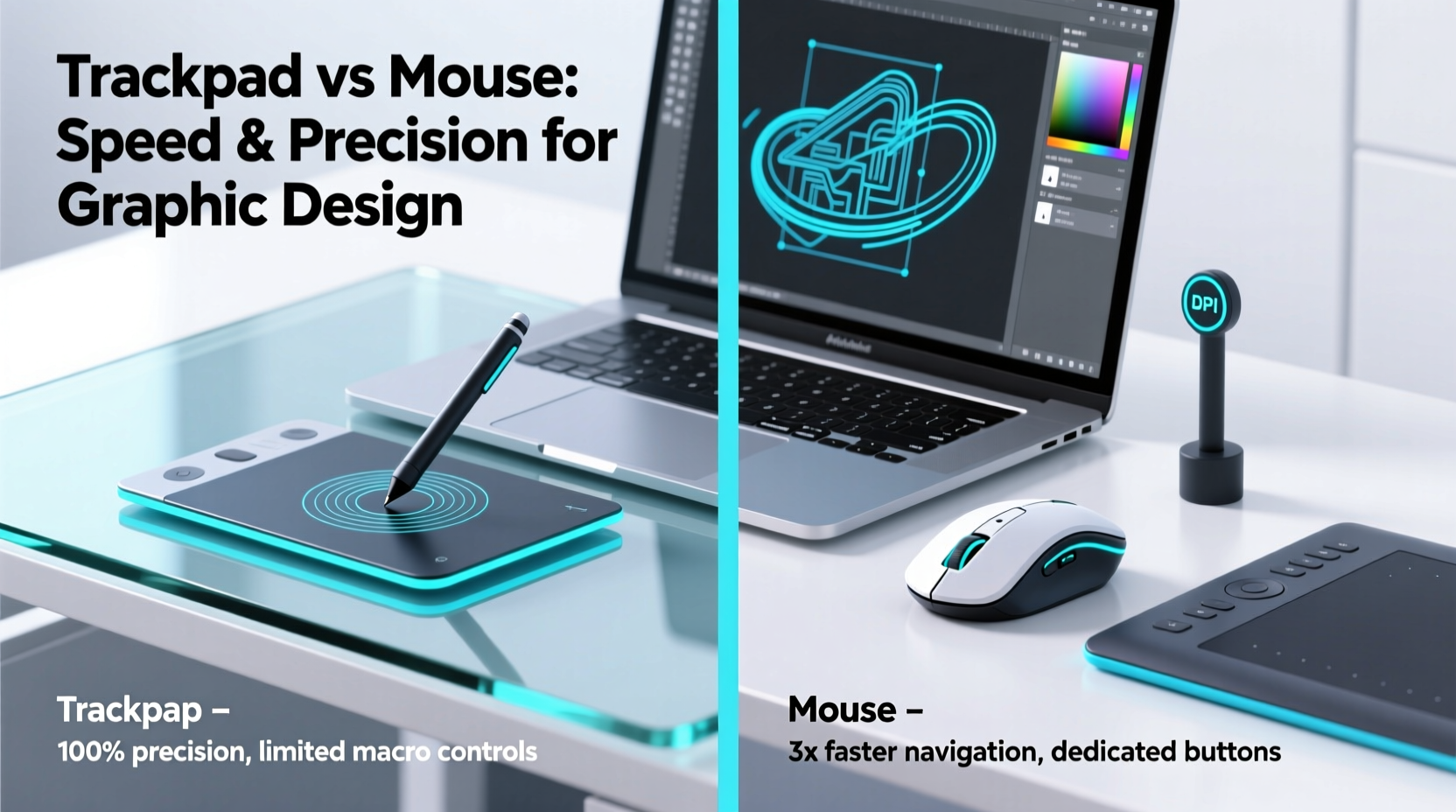
In graphic design, precision is non-negotiable. Selecting individual pixels, adjusting anchor points on Bézier curves, or making subtle brush adjustments demands fine motor control. Here, the physical differences between a trackpad and a mouse become immediately apparent.
A traditional optical or laser mouse operates on relative movement: the distance the cursor moves corresponds directly to how far the sensor detects movement across a surface. This allows for high DPI (dots per inch) settings, enabling both rapid navigation and pixel-level accuracy when needed. High-end design mice often feature adjustable DPI switches, letting users toggle between fast panning and meticulous detailing.
Trackpads, particularly those built into laptops like Apple’s Force Touch or Windows Precision touchpads, rely on capacitive sensing. They interpret finger gestures—swipes, pinches, taps—as commands. While modern trackpads support multi-touch and pressure sensitivity (especially Mac models), they lack the direct mechanical feedback of a mouse. Instead, control depends heavily on muscle memory, hand steadiness, and calibration settings.
Designers frequently report that while trackpads excel at general navigation and gesture-based shortcuts (e.g., two-finger scroll, three-finger swipe between desktops), they fall short during detailed editing. The absence of physical resistance makes micro-adjustments harder, leading to overshooting selections or jittery lines when freehand drawing.
Speed and Efficiency in Real Workflows
Speed in design isn’t just about raw cursor velocity—it’s about minimizing interruptions, reducing cognitive load, and maintaining flow. Let’s break down common design actions and compare how each device performs:
| Action | Mouse Performance | Trackpad Performance |
|---|---|---|
| Navigating large canvases | Fast panning with high DPI; scroll wheel enables quick zoom | Requires two-finger drag; slower due to limited swipe range |
| Selecting small elements | High accuracy with steady hand; easy click targeting | Frequent mis-clicks; finger occlusion can block view |
| Using keyboard shortcuts + tool switching | Seamless transition; hand stays near mouse and keys | Lift required to return fingers to keyboard; disrupts rhythm |
| Freehand drawing or pen tablet integration | No interference; ideal companion to stylus | Distracting if resting palm triggers accidental inputs |
| Gesture navigation (zoom, rotate, switch apps) | Limited without additional software | Highly responsive; intuitive multi-touch gestures |
The data shows a clear trade-off: mice dominate in precision and sustained task execution, while trackpads shine in system-level navigation and gesture fluidity. However, for core design activities—selection, transformation, layer manipulation—the mouse consistently enables faster completion times.
“After years of working with both, I’ve found that my output drops by nearly 15% when forced to use only a trackpad. It’s not just about speed—it’s about confidence in every click.” — Daniel Reyes, Senior UI/UX Designer at Studio Nova
Ergonomics and Long-Term Comfort
Graphic design is often a marathon, not a sprint. Professionals spend six to ten hours daily interacting with digital interfaces, making ergonomics a critical factor in device selection.
Mice typically require a dedicated space and promote a neutral wrist position when used with an ergonomic setup. Vertical mice, in particular, reduce ulnar deviation and lower the risk of repetitive strain injuries (RSIs). Paired with a padded wrist rest and proper desk height, a mouse can support sustainable long-term use.
Trackpads, especially integrated laptop models, encourage a more compact posture. Since no external peripherals are needed, they’re ideal for mobile setups. However, prolonged use can lead to “trackpad thumb”—a colloquial term for discomfort caused by repeated tapping and swiping motions with the same digit. Additionally, reaching forward to access the trackpad breaks the natural alignment of hands on the keyboard, increasing shoulder and neck tension over time.
External trackpads, such as the Apple Magic Trackpad, offer larger surfaces and better positioning options. When placed beside the keyboard at the same level, they reduce reach strain. Still, the lack of tactile feedback means users rely more on visual confirmation, increasing eye fatigue.
Recommended Ergonomic Setup
- Mouse: Use a vertical ergonomic model; keep elbow at 90°, wrist straight.
- Trackpad: Place externally at keyboard level; avoid palm contact during typing.
- Both: Take micro-breaks every 30 minutes; perform hand stretches.
Software Optimization and Customization
Not all input experiences are equal—even within the same device category. Software plays a major role in shaping usability.
macOS offers deep trackpad integration. Features like Force Click, customizable tap zones, and gesture-based Exposé make Apple’s ecosystem uniquely favorable to trackpad users. Designers on MacBook Pros often report higher satisfaction with built-in trackpads than Windows counterparts, thanks to consistent driver support and haptic feedback.
Windows machines, while improving with Precision Touchpad standards, still vary widely based on manufacturer implementation. Some OEM trackpads suffer from lag, inconsistent gesture recognition, or poor palm rejection—issues that disrupt focus during intensive design sessions.
On the mouse side, customization tools like Logitech Options+, Razer Synapse, or X-Mouse Button Control allow designers to assign macros, adjust polling rates (up to 1000Hz for minimal lag), and save profiles per application. For example, a designer might set one mouse button to “undo” in Photoshop and another to “toggle rulers” in Illustrator—actions that would otherwise require breaking flow to use keyboard shortcuts.
Mini Case Study: Freelance Illustrator Working Across Devices
Sophie Lin, a freelance illustrator based in Portland, works primarily on a 16-inch MacBook Pro but also uses a Wacom tablet with a Windows desktop for client projects. She initially relied solely on her MacBook’s trackpad, appreciating its gesture navigation and portability. However, after several months, she noticed increased fatigue in her right hand and longer delivery times on detailed illustrations.
She introduced a Logitech MX Master 3S mouse into her workflow. Within two weeks, her average project completion time dropped by 22%. More importantly, she reported less hand strain and greater confidence in fine detailing. “I still use the trackpad for quick app switching and zooming,” she says, “but for actual drawing and editing, the mouse gives me back control I didn’t realize I’d lost.”
When Each Device Excels: A Practical Guide
Declaring one device universally superior would ignore the nuances of different design disciplines and environments. Instead, consider this step-by-step decision framework:
- Assess your primary design software: Vector-based tools (Illustrator, Figma) benefit more from mouse precision; motion graphics (After Effects) may leverage trackpad gestures for timeline scrubbing.
- Evaluate your workspace: Fixed desk? Use a mouse. Frequent travel? A high-quality trackpad (or compact travel mouse) may be preferable.
- Test both under real conditions: Spend a full day using only a mouse, then repeat with a trackpad. Track time spent on common tasks and note physical discomfort.
- Consider hybrid setups: Many professionals use a mouse for detailed work and switch to a trackpad for system navigation or meetings.
- Invest in quality hardware: A $30 mouse with poor sensor tracking will underperform even the best trackpad. Prioritize build quality and driver support.
Checklist: Choosing Your Design Input Device
- ✅ Do you need pixel-perfect accuracy? → Choose a mouse.
- ✅ Do you value gesture navigation and portability? → Consider a premium trackpad.
- ✅ Are you experiencing hand fatigue? → Evaluate ergonomic mice or external trackpads.
- ✅ Do you use multiple monitors? → A mouse simplifies cross-display navigation.
- ✅ Is your software gesture-heavy? → Check compatibility with trackpad shortcuts.
Frequently Asked Questions
Can a trackpad replace a mouse entirely for professional design?
While possible, it’s not optimal. High-end trackpads like the Apple Magic Trackpad offer excellent gesture support and responsiveness, but they lack the consistent precision required for detailed editing. Most professional designers use them as supplements—not replacements—for a mouse.
Are gaming mice suitable for graphic design?
Yes, many gaming mice are excellent for design work. They feature high polling rates, durable switches, and customizable buttons. Just ensure the DPI is adjustable and the shape fits your grip style. Avoid overly aggressive RGB lighting if it distracts from focus.
Does using a stylus eliminate the need for either?
A stylus excels at drawing and painting but isn’t efficient for UI navigation, menu selection, or file management. Most designers use a stylus alongside a mouse or trackpad. In this context, the mouse remains the preferred companion due to its reliability and ease of switching.
Final Verdict: The Mouse Wins for Speed and Precision
After evaluating performance across key design metrics—accuracy, speed, ergonomics, and customization—the evidence strongly favors the mouse for professional graphic design work. While trackpads offer undeniable convenience, especially in mobile scenarios, they cannot match the mouse’s consistency in high-stakes, detail-oriented tasks.
That said, the future may blur these lines. Advancements in haptic feedback, AI-driven gesture prediction, and hybrid input devices could eventually close the gap. For now, however, the mechanical advantage, tactile feedback, and proven efficiency of a quality mouse make it the faster, more reliable tool for serious design work.
If you’re currently relying solely on a trackpad, consider introducing a mouse—even part-time. The improvement in workflow fluidity and reduction in revision cycles may surprise you. Conversely, if you’ve dismissed trackpads entirely, experiment with integrating gesture shortcuts to complement your mouse usage. The goal isn’t allegiance to one device, but mastery of both to serve your creative process.




 浙公网安备
33010002000092号
浙公网安备
33010002000092号 浙B2-20120091-4
Comments
No comments yet. Why don't you start the discussion?