
iMessage is one of the most seamless communication tools when you're embedded in the Apple ecosystem. It allows you to send texts, photos, videos, and more between your iPhone, iPad, and Mac using Wi-Fi or cellular data. However, many users encounter issues when trying to activate or use iMessage on their Mac—messages fail to sync, activation hangs, or the app simply won’t open. This guide walks through every step to successfully activate iMessage on your Mac and resolve the most common problems.
Understanding iMessage on macOS
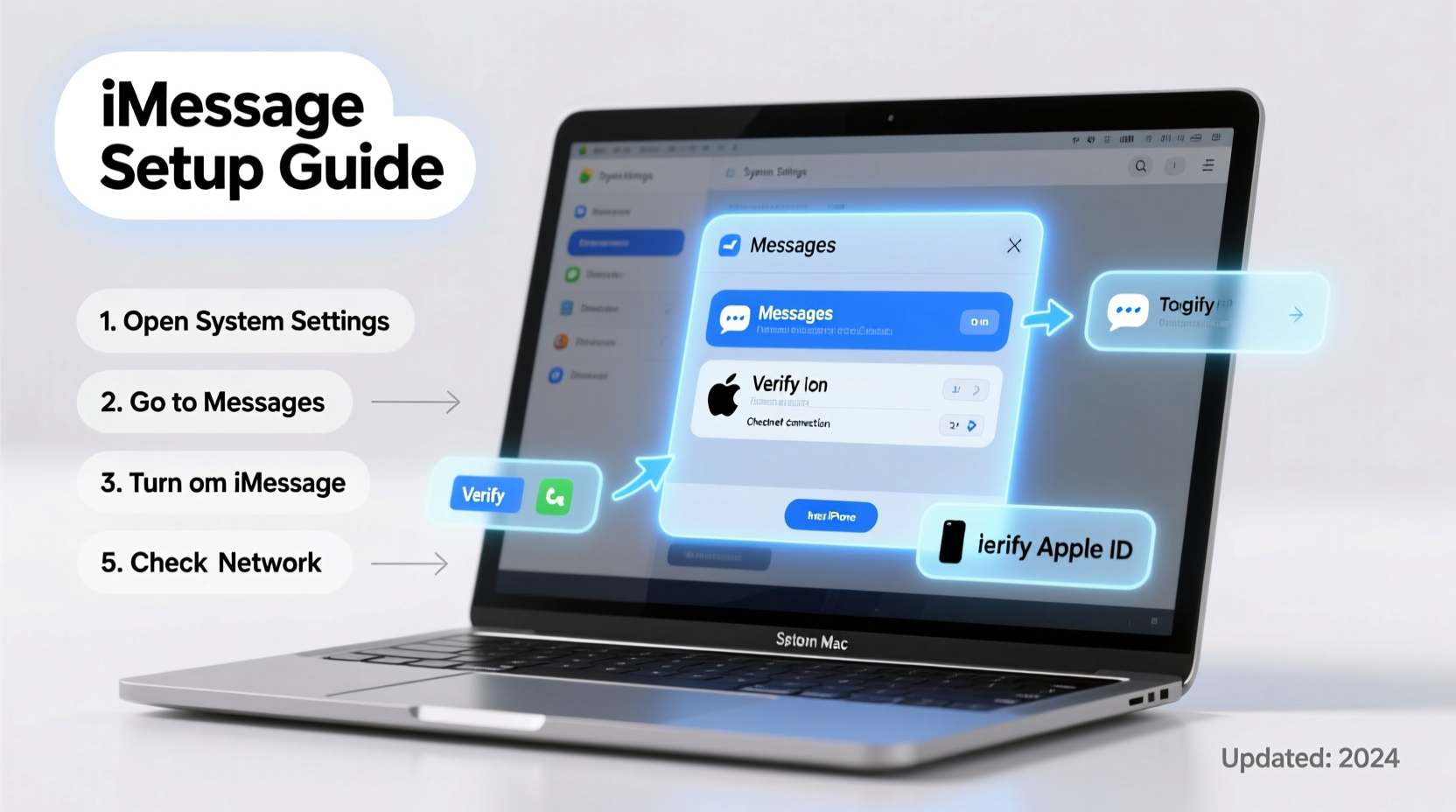
iMessage on Mac isn't just an extension of your iPhone—it's a fully integrated messaging platform that mirrors conversations across devices. When properly configured, any message sent from your Mac appears on your iPhone and vice versa. This continuity relies on Apple ID synchronization, network connectivity, and correct system settings.
Unlike SMS, iMessage uses Apple’s servers and requires an Apple ID signed in with the same account across all devices. If activation fails, it typically stems from authentication issues, network misconfigurations, or outdated software.
“iMessage’s cross-device functionality is only as strong as its weakest link—usually the Apple ID setup or network permissions.” — Jordan Lee, Apple Support Specialist
Step-by-Step: Activating iMessage on Your Mac
Before troubleshooting, ensure iMessage is correctly activated. Follow this sequence precisely:
- Open the Messages app from your Dock or Applications folder.
- If prompted, sign in with your Apple ID. Use the same Apple ID linked to your iPhone.
- Wait for the activation screen. You may receive a verification code on your iPhone or via SMS.
- Verify your phone number and email addresses associated with iMessage. The system will list all available addresses; select which ones you want to send and receive from.
- Click Done once activation completes.
If activation stalls at “Waiting for activation…” or displays an error, proceed to troubleshooting.
Common iMessage Activation Issues and Fixes
The following table outlines frequent problems, their likely causes, and actionable solutions:
| Issue | Possible Cause | Solution |
|---|---|---|
| \"Activation Failed\" | Network blockage, incorrect Apple ID | Check internet connection, verify Apple ID credentials, restart router |
| \"Not Verified\" next to email/number | Email not confirmed or number not linked | Send a test message from iPhone, confirm email via Apple's verification email |
| iMessage stuck on \"Logging in...\" | Server issues or macOS bug | Sign out of Apple ID in Messages, restart Mac, sign back in |
| Messages don’t sync with iPhone | Different Apple ID or Handoff disabled | Ensure same Apple ID on both devices; enable Handoff in System Settings |
| No option to send iMessages (only green bubbles) | iMessage disabled on sender’s device | Confirm recipient uses Apple device and has iMessage enabled |
Reset Network Settings if Activation Fails
Firewalls, DNS restrictions, or cached network data can interfere with iMessage activation. Reset your network configuration:
- Go to System Settings > Network.
- Select your active connection (Wi-Fi or Ethernet), click the three dots, and choose Remove.
- Reconnect to the network and re-enter password.
- Restart your Mac and try opening Messages again.
Troubleshooting Sync and Delivery Problems
Even after activation, users often report missing messages or delayed delivery. These are typically tied to iCloud syncing, date/time settings, or background app refresh.
Verify Date & Time Settings
An incorrect system clock disrupts SSL handshakes required for iMessage. To fix:
- Navigate to System Settings > General > Date & Time.
- Enable Set date and time automatically.
- Ensure the correct time zone is selected.
Re-enable iMessage on iPhone
If messages aren’t syncing to your Mac, temporarily disable and re-enable iMessage on your iPhone:
- Go to Settings > Messages.
- Toggle off iMessage, wait 30 seconds, then toggle it back on.
- Wait up to two minutes for your Mac to reflect the change.
Mini Case Study: Resolving Persistent Activation Errors
Sophie, a freelance designer in Portland, couldn’t activate iMessage on her MacBook Pro despite multiple attempts. She received the error: “iMessage could not be activated.” Her iPhone worked fine, but messages didn’t appear on her laptop.
After checking her Apple ID and internet connection, she discovered her workplace Wi-Fi had port restrictions blocking Apple’s messaging servers. By switching to a personal hotspot, she successfully activated iMessage. Later, she added the necessary domains (mesu.apple.com, gs.apple.com) to her office firewall whitelist, restoring full functionality.
This case highlights how external network policies—often overlooked—can silently prevent iMessage activation.
Essential Checklist for iMessage Success
Use this checklist before contacting Apple Support:
- ✅ Same Apple ID used on iPhone and Mac
- ✅ iMessage enabled on iPhone (Settings > Messages)
- ✅ Stable internet connection on Mac
- ✅ Correct date, time, and time zone settings
- ✅ Phone number verified under Settings > Messages > Send & Receive
- ✅ No active parental controls or Screen Time restrictions blocking Messages
- ✅ macOS updated to the latest version
- ✅ Restarted Messages app or Mac after changes
Frequently Asked Questions
Why does iMessage say “Not Verified” next to my email?
Apple requires verification of emails used with iMessage. Check your inbox (including spam) for a confirmation email from Apple. Click the verification link. If none arrives, resend it from iPhone: Settings > Messages > Send & Receive > tap your email > “Send Verification Email.”
Can I use iMessage on Mac without an iPhone?
No. While you can sign in with an Apple ID and use iMessage with only an email, full functionality—including SMS relay and number-based messaging—requires an iPhone linked to the same Apple ID.
Why are some messages green and others blue?
Blue bubbles indicate iMessages (encrypted, sent over data). Green bubbles are SMS/MMS messages sent via cellular network. Green appears when the recipient doesn’t have an Apple device or iMessage is turned off.
Conclusion: Restore Seamless Messaging Today
iMessage should work effortlessly across your Apple devices. When it doesn’t, the disruption affects productivity, coordination, and peace of mind. Most activation and syncing issues stem from simple misconfigurations—Apple ID mismatches, outdated software, or restrictive networks—that can be resolved in under 20 minutes.
Start by verifying your Apple ID, ensuring consistent settings across devices, and testing on a different network. Use the checklist provided to eliminate common pitfalls. With patience and methodical troubleshooting, you’ll restore smooth, reliable messaging on your Mac.




 浙公网安备
33010002000092号
浙公网安备
33010002000092号 浙B2-20120091-4
Comments
No comments yet. Why don't you start the discussion?