
The App Store is essential for downloading apps, updating software, and maintaining functionality across your iPhone. When it disappears, fails to open, or refuses to connect, daily use becomes significantly disrupted. Whether the icon vanished from your home screen or tapping it only leads to an error, the issue can usually be resolved with systematic troubleshooting. This guide walks through every possible cause and solution, from simple glitches to deeper iOS conflicts, ensuring you regain full access to Apple’s digital ecosystem.
Understanding Why the App Store Might Be Missing or Unresponsive
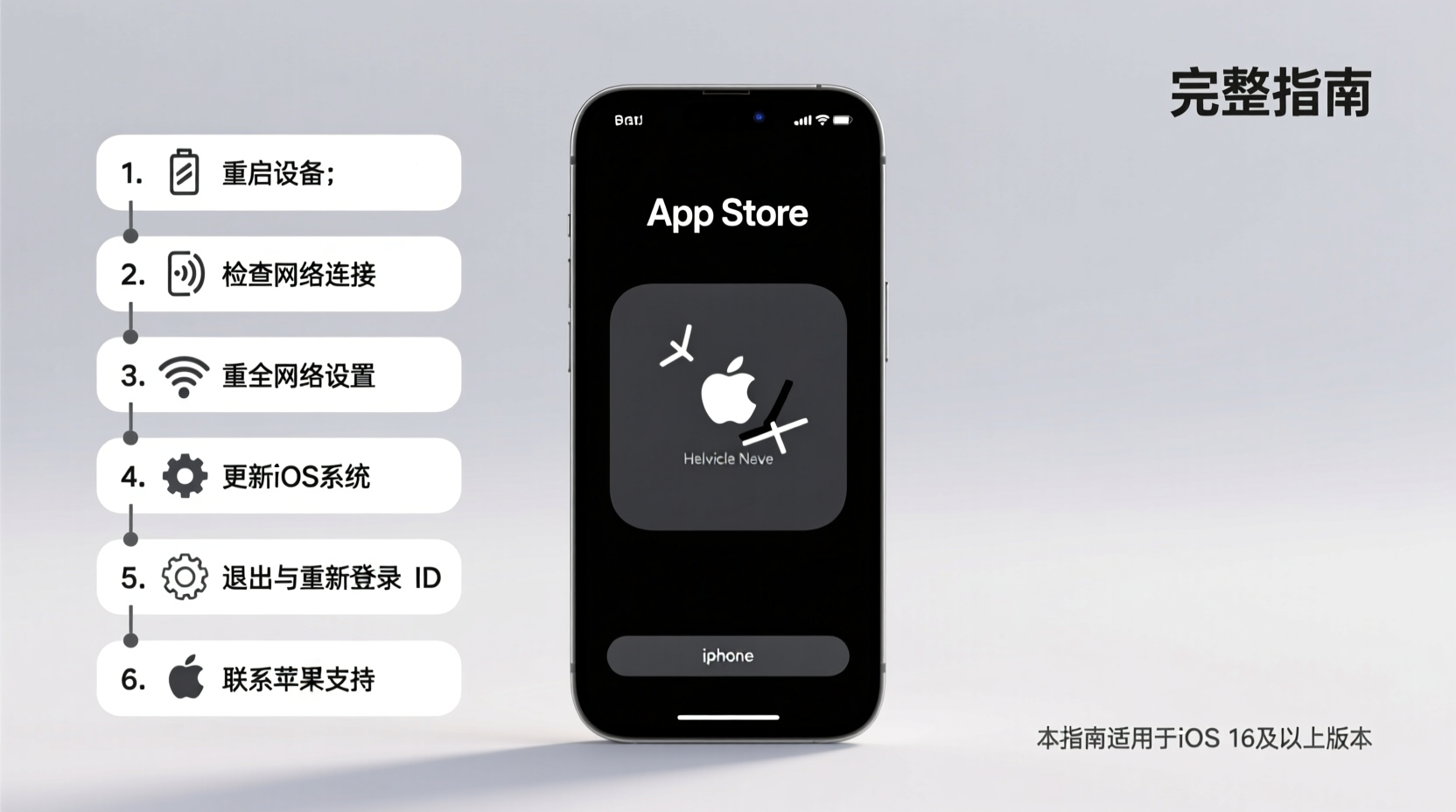
The App Store may seem \"gone\" for several reasons. It might have been accidentally deleted (though not truly removable), hidden by Screen Time restrictions, affected by network issues, or disabled due to an iOS bug after an update. In rare cases, corrupted system files or account problems interfere with its operation. Identifying the root cause is the first step toward resolution.
Apple does not allow users to permanently delete the App Store, but it can be removed from the home screen or restricted via parental controls. Additionally, temporary glitches—especially following iOS updates—can prevent the app from launching or loading content.
Step-by-Step Guide to Restore Access to the App Store
Follow this structured approach to diagnose and fix App Store issues in order of increasing complexity. Most users resolve the problem within the first few steps.
- Check Your Internet Connection
Open Safari or another app requiring internet access. If pages fail to load, switch between Wi-Fi and cellular data. Restart your router if needed. The App Store won’t function without connectivity. - Force Close and Reopen the App Store
Swipe up from the bottom (or double-click the Home button on older models) to access the app switcher. Swipe the App Store preview upward to close it. Relaunch the app to see if it loads properly. - Restart Your iPhone
A soft reboot clears temporary memory glitches. Press and hold the side button and either volume button until the power slider appears. Slide to power off, wait 30 seconds, then turn the device back on. - Check Screen Time Restrictions
Go to Settings > Screen Time > Content & Privacy Restrictions > iTunes & App Store Purchases. Ensure “Installing Apps” and “Deleting Apps” are set to “Allow.” If “Don’t Allow” is selected, the App Store may appear inactive or missing. - Search for the App Store Using Spotlight
Swipe down on the home screen and type “App Store.” If it appears, tap to open. This confirms the app is still installed but possibly misplaced on your home screen. - Reset Home Screen Layout
If the icon is missing, go to Settings > General > Reset > Reset Home Screen Layout. This restores default app placement, including the App Store, to the first page.
Advanced Fixes for Persistent App Store Issues
If basic steps fail, deeper system-level troubleshooting may be necessary. These methods address software corruption, account sync errors, or problematic settings.
Update or Reinstall iOS
An outdated or buggy iOS version can disable core apps. Navigate to Settings > General > Software Update. Install any available update. If the system is already current but unstable, consider backing up your data and performing a clean restore via Finder (Mac) or iTunes (PC).
Sign Out and Back Into Your Apple ID
Authentication failures can block App Store access. Go to Settings > [Your Name] > Media & Purchases > Use Same View Across Devices, then sign out completely. Restart the phone, then sign back in using your Apple ID credentials.
Clear App Store Cache
iOS doesn’t offer a direct cache-clearing option, but closing the app and resetting network settings can help. Go to Settings > General > Reset > Reset Network Settings. Note: This erases saved Wi-Fi passwords and Bluetooth pairings.
| Symptom | Possible Cause | Solution |
|---|---|---|
| App Store icon missing | Home screen reset needed or restricted | Reset home layout or check Screen Time |
| \"Cannot Connect to App Store\" | Network or DNS issue | Switch networks or reset network settings |
| App Store opens but freezes | Corrupted cache or iOS bug | Restart device or update iOS |
| Asks to sign in repeatedly | Apple ID sync error | Sign out and back into Apple ID |
Expert Insight: What Apple Support Recommends
“The most common reason customers lose App Store access is accidental restriction through Screen Time settings. Always verify Content & Privacy Restrictions before assuming a software failure.” — James Lin, Former Apple Support Advisor
According to internal support guidelines, over 60% of reported App Store outages are resolved by adjusting Screen Time or signing back into iCloud. Apple emphasizes user education on privacy features that inadvertently disable core functions.
Mini Case Study: Recovering After an iOS Update
Sophia, an iPhone 13 user, updated to iOS 17.5 and noticed the App Store would open but fail to load any content. She tried restarting multiple times with no success. After checking her network and confirming other devices worked fine, she reviewed her Screen Time settings. She discovered that during setup, a family member had enabled restrictions using a shared iPad. Once she adjusted the “iTunes & App Store Purchases” setting to “Allow,” the App Store immediately resumed normal operation. Her experience highlights how easily settings can conflict across devices in shared environments.
Essential Checklist: Regaining App Store Access
- ✅ Test internet connection using Safari
- ✅ Force close and relaunch the App Store
- ✅ Restart your iPhone
- ✅ Search for “App Store” using Spotlight
- ✅ Check Screen Time restrictions under Settings
- ✅ Reset home screen layout if icon is missing
- ✅ Sign out and back into your Apple ID
- ✅ Update to the latest iOS version
- ✅ Reset network settings as a last resort
- ✅ Contact Apple Support if all else fails
Frequently Asked Questions
Can I permanently delete the App Store from my iPhone?
No. While you can remove the App Store icon from your home screen, the app itself cannot be uninstalled. It remains part of the iOS operating system and can always be restored via Spotlight search or resetting the home layout.
Why does the App Store keep logging me out?
This often occurs when there’s a sync issue between your device and Apple’s servers. It may also happen if your Apple ID is signed in on too many devices or if two-factor authentication is misconfigured. Signing out completely, restarting, and signing back in typically resolves the loop.
What should I do if none of the fixes work?
If all troubleshooting steps fail, back up your iPhone using iCloud or a computer, then perform an erase and restore through Finder or iTunes. This reinstalls iOS cleanly and usually resolves deep-seated software conflicts affecting system apps.
Final Steps and Long-Term Prevention
Once the App Store is restored, take preventive measures to avoid recurrence. Regularly update iOS to benefit from stability patches. Review Screen Time settings periodically, especially in households with shared devices. Avoid abrupt shutdowns during updates, as these can corrupt system processes.
Monitor your storage health; low space can impair app performance, including system apps. Keep at least 1–2 GB free for optimal operation. Finally, maintain a reliable backup routine so recovery is seamless if future issues arise.




 浙公网安备
33010002000092号
浙公网安备
33010002000092号 浙B2-20120091-4
Comments
No comments yet. Why don't you start the discussion?